# Use right-to-left languages
Enable right-to-left layout separately from translation on Shopify and Universal, then test the live integration and font coverage.
- Source URL: https://www.signcustomiser.com/help/customise/rtl-language/
- Markdown URL: https://www.signcustomiser.com/help/customise/rtl-language.md
- Category: Customise
- Last updated: 2026-10-16
## Article
Publishing Arabic, Hebrew or another right-to-left language does not turn on right-to-left layout. Translation and text direction are separate settings. Turn on both.
## Shopify
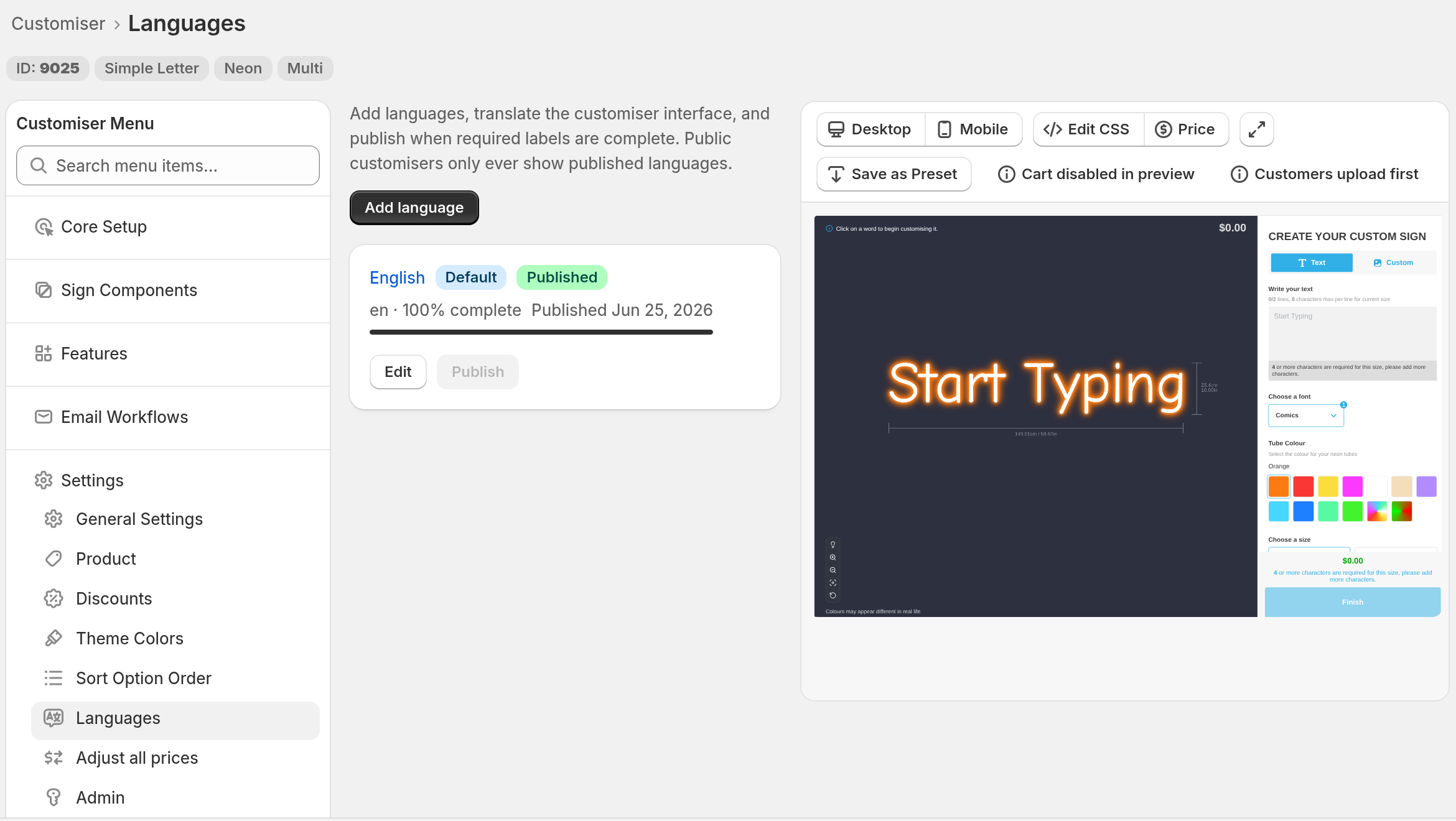
1. Open your customiser. Go to **Settings**, then **Languages**. Publish the target language. You can publish only when each required label has a translation.
2. Open the block that shows the customiser in the Shopify theme editor. The block depends on how you added the customiser:
- **Sign Customiser** or **Sign Customiser Modal**: open the template section that holds the block.
- **Sign Customiser - Embed**: in the theme editor, open **App embeds** and turn on **Sign Customiser - Embed**.
3. In the **Formatting** group of the block, turn on **Use Right-to-Left (RTL) format**.
4. Make sure your Shopify theme also uses the correct direction for the target Store language.
5. Test the live Store language route.
## Universal links and embeds
Add `rtl=true` to the hosted or embed URL. If the URL already has a setting, join the two with `&`:
```html
```
To use the custom element, load the embed script first. The element does not work without the script. It also needs the `driver` attribute. The `custom` and `woocommerce` drivers need the `integration-id` attribute as well. Copy these values from the embed code of your integration in the Universal admin, then add `language-code` and `rtl`:
```code
```
On Wix, the settings of the Sign Customiser element in the Wix editor include **Use Right-to-Left (RTL) format**.
## Check the live integration
RTL changes the layout direction. It does not translate text. Test the live integration after you turn on the RTL setting.
Also check that each font you offer has the characters the target script needs. A translated interface does not add missing font characters.
For language selection and fallback, see [Choose the customiser language on Shopify and Universal](../../customise/how-to-translate-into-multiple-languages-in-shopify/). For font character support, see [Why is add to cart blocked for some font characters?](../../faqs/16230828-why-is-add-to-cart-blocked-for-some-font-characters/).