# Use Sign Customiser data for performance marketing
Track design, cart and lead events, use generated products for retargeting, and send campaign data to Meta, Google and email tools on Shopify and WordPress.
- Source URL: https://www.signcustomiser.com/help/guides/performance-marketing/
- Markdown URL: https://www.signcustomiser.com/help/guides/performance-marketing.md
- Category: Guides
- Last updated: 2026-10-28
## Article
Sign Customiser gives you data about each customer who designs a sign. Use this guide to send that data to your advertising and email tools. The guide is for the person who manages your ads, analytics and email marketing.
The guide has two parts. Do the Shopify part first. Then do the WordPress part if you also sell on WordPress.
> Sign Customiser does not add a Meta Pixel, a Google tag or other advertising tags to the customer customiser. You connect your tags to the events in this guide.
## 1. Know the data that Sign Customiser gives you
Sign Customiser gives you data from four sources.
| Source | Where you get it | Use it for |
| --- | --- | --- |
| Storefront JavaScript events | Theme code, Google Tag Manager, a Shopify custom pixel | Conversion tracking and audiences |
| Generated products | Your Shopify or WooCommerce product list | Abandoned cart email and retargeting |
| Quotes and form submissions | The **Quotes** page, the API and webhooks | Lead tracking and CRM import |
| Orders | Your store, the API, webhooks and Zapier | Purchase data and customer lists |
### Storefront JavaScript events
The customer customiser sends these events on the page `document`:
| Event | When it occurs | Typical use |
| --- | --- | --- |
| `signCustomiserProductAddedToCart` | A sign goes into the Shopify cart. | Add-to-cart conversion |
| `signCustomiserCheckoutStarted` | A customer goes to checkout with **Buy it now** or the **Straight to Checkout** cart action. | Checkout conversion |
| `signCustomiserFormSubmitted` | A custom design form submission succeeds. | Lead conversion |
| `signCustomiserQuoteSubmitted` | A quote form submission succeeds. | Lead conversion |
| `signCustomiserAiLogoCompleted` | The AI Sign Designer completes a design. | Engagement signal |
The cart and form events include two marketing objects:
- `adClickIds` contains the ad click IDs. The keys are `gclid`, `gbraid`, `wbraid` and `fbclid`.
- `utmParams` contains the UTM values. The keys are `utm_source`, `utm_medium`, `utm_campaign`, `utm_content`, `utm_keyword` and `utm_term`.
Sign Customiser reads these values from the page address. It keeps them in the browser for the session. If the page address and the session have no click ID, Sign Customiser can read the `gclid` from the Google Ads cookie. Each object contains only the keys that Sign Customiser found. The object is `null` when Sign Customiser found no value.
The events also contain other data:
- The form and quote events include `formId`, `quoteId` and the form answers in `data`.
- The cart events include the Shopify `cart` response. This response contains the product title, which contains the sign text.
These limits apply to Stores on the retired Starter, Standard or Pro plan families, including the yearly versions:
- An inline Shopify embed sends no cart events. A Shopify iframe embed still sends cart events.
- No embed sends form or quote events.
These limits apply to all Stores:
- The AI Sign Designer events reach your theme only when the customer customiser runs inline on the page. An iframe embed keeps them inside the iframe.
- Sign Customiser does not put the click IDs or UTM values on the cart line or the order.
See the [Storefront JavaScript events guide](/help/api/guides/storefront-javascript-events/) for each event payload.
### Generated products
Sign Customiser creates a product each time a customer adds a sign to the cart. This product is a generated product. Sign Customiser does not create a product when a customer only opens the customiser, saves a design or sends a quote request.
Each generated product records one design:
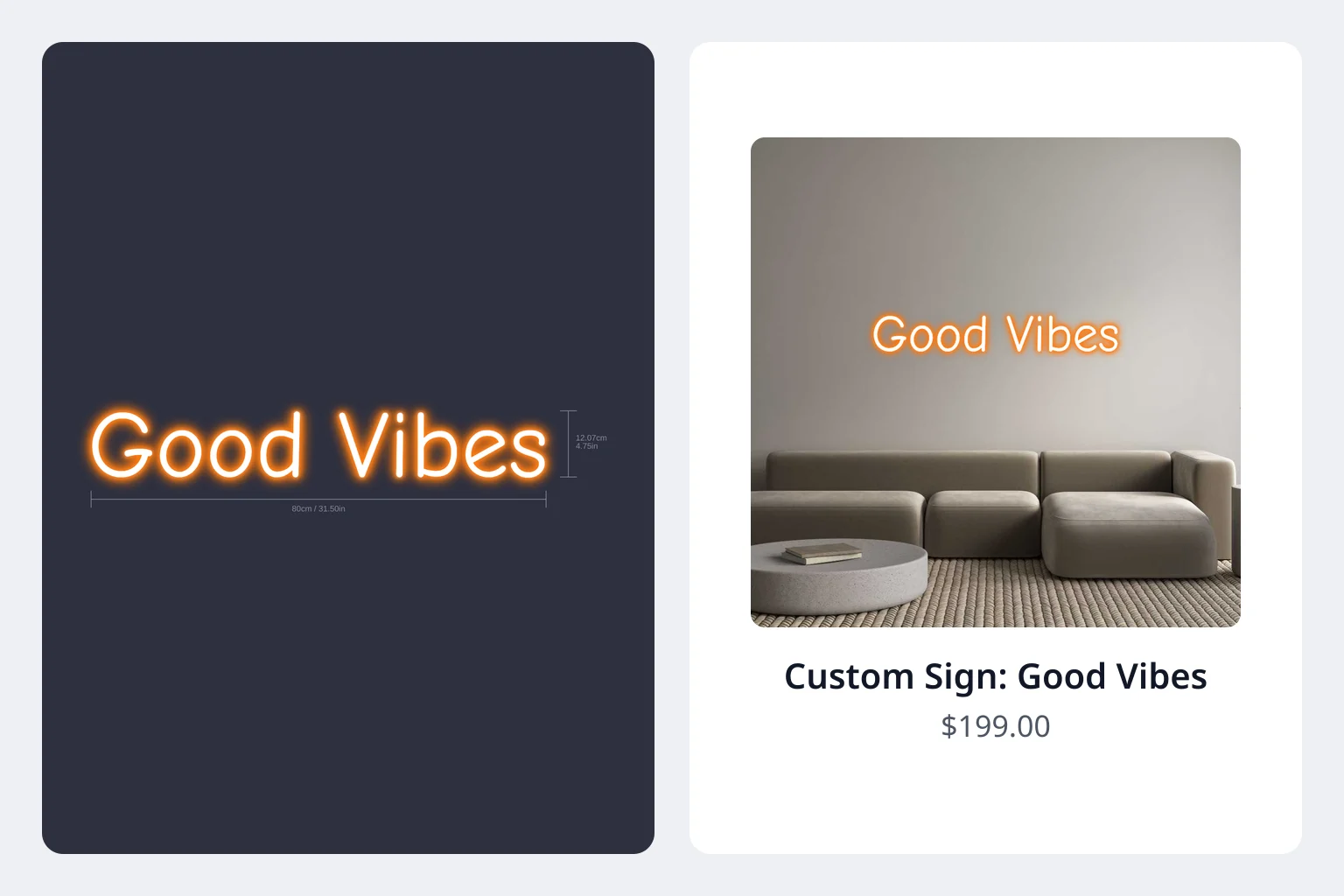
- **Title:** the title prefix, then up to 15 characters of the sign text. If the text is longer, `...` follows. The default prefix is `Custom Neon:` for neon signs and `Custom Sign:` for other signs. The **Product Title** setting replaces the default prefix.
- **Images:** a preview image of the sign and an outline image.
- **Price:** the price of the design when the customer added it to the cart.
- **Product type:** the sign category, for example `Custom Neon`, `Custom Lightbox` or `Custom Wooden Sign`.
- **Tags:** `sign-customiser-generated` and `sc-customiser-` followed by the customiser ID. After Sign Customiser records an order for the product, it adds the `npc_ordered` tag.
- **Description:** the full sign text and the selected options.
Many merchants think that generated products are clutter. For a marketer, each generated product is a customer with high purchase intent. The product has a picture of the exact sign that the customer designed. Your abandoned cart email can show that picture to the customer.
A generated product shows that a customer added a sign to the cart. It does not show that a customer only looked at the customiser.
Older products can have no tags. Products that Sign Customiser generated before 3 August 2026 (UTC) do not have the two tags. They all have the product type `Custom Neon`. Products generated on 3 August 2026 can have some of the tags or none. See [Retrieve generated sign products not purchased](/help/product-management/retrieve-list-of-custom-neon-products-not-purchased/).
### Quotes and form submissions
Sign Customiser saves each quote request and custom design form submission. It saves the UTM values and click IDs with each submission. Get this data in these ways:
- Open a submission from the **Quotes** page in Sign Customiser. Download its quote as a PDF. The **Quotes** page does not show the UTM values or click IDs.
- Read the [List quotes](/help/api/v3-get-list-quotes/) endpoint of the Sign Customiser API. Use an API token with the `quotes:read` scope. The response includes `ad_click_ids` and `utm_params`. Each field is an empty object when no value was found.
- Subscribe to the **Form Submitted (deprecated)** webhook. The payload includes `ad_click_ids` and `utm_params`. For a new integration, use the quotes API.
The Sign Customiser admin does not export quotes as a CSV file.
### Orders
You can get Sign Customiser orders from the API, the **Order Created** webhook and the **New Order** trigger in Zapier. The order data does not include UTM values or click IDs. Use your store analytics for order attribution.
The **Conversion Rate** card on the Sign Customiser dashboard divides orders by products created. It is not the conversion rate of your store visitors.
## 2. Plan your tracking
Use these conversion events in your ad platforms:
| Funnel stage | Shopify event | Sign Customiser event | Meta event | GA4 event |
| --- | --- | --- | --- | --- |
| Customiser page viewed | `product_viewed` | None | `ViewContent` | `view_item` |
| AI design completed | None | `signCustomiserAiLogoCompleted` | Custom event | Custom event |
| Added to cart | `product_added_to_cart` | `signCustomiserProductAddedToCart` | `AddToCart` | `add_to_cart` |
| Checkout started | `checkout_started` | `signCustomiserCheckoutStarted` | `InitiateCheckout` | `begin_checkout` |
| Lead | None | `signCustomiserFormSubmitted` or `signCustomiserQuoteSubmitted` | `Lead` | `generate_lead` |
| Purchase | `checkout_completed` | None | `Purchase` | `purchase` |
Shopify sends `product_viewed` only when the customiser is on a product page.
Follow these rules:
- Send each conversion from one source only. If your Meta app already sends `AddToCart`, do not send it again from the Sign Customiser event.
- Use the Sign Customiser events for leads, AI designs and click IDs. The Shopify standard events do not include them.
- Add UTM parameters to each ad and email link. Sign Customiser keeps the values for the browser session.
> Do not send personal data to advertising tools. Personal data includes the sign text, form answers, uploaded files and ShareLink URLs. A sign text often contains a name. Do not forward the full event `detail`. Send only the event name, the campaign values and the click IDs.
## 3. Shopify: Prepare your generated products
Do these steps before you start retargeting.
### Set the product status
Set the default status to **Unlisted**. An unlisted product does not show in collection pages, search results or product recommendations. Customers can still buy it from the cart. Shopify does not publish an unlisted product to third-party sales channels, such as the Google and Meta channels.
1. Open Sign Customiser.
2. Click **Tools & Settings**.
3. Click **Integrations and Webhooks**.
4. On the Shopify card, click **View Details**.
5. Click **Edit Integration**.
6. Set **Default Product Status** to **Unlisted**.
7. Click **Update**.
The setting applies to new products only. See [Hide custom sign products from your storefront](/help/product-management/hide-custom-sign-products-from-your-storefront/).
### Keep the products for the retargeting period
Do not delete generated products that are not purchased until your retargeting period ends. An abandoned cart email can link to the product. Keep the products for a minimum of 30 days.
To find generated products that are not purchased, search the Shopify **Products** page for `tag:sign-customiser-generated AND NOT tag:npc_ordered`. Sign Customiser does not delete products. To delete older products automatically, use a third-party app. See [Automatically deleting generated products](/help/product-management/automatically-deleting-generated-products/).
### Check your product feeds
By default, Sign Customiser publishes each generated product to the Online Store. If your Store uses Shopify Markets and approved the optional `read_markets` access, Sign Customiser can also publish the product to the catalogue of the shopper's market. It does not publish generated products to the Facebook & Instagram channel.
The Google & YouTube app syncs products that are available to the Online Store and to the Google & YouTube channel. Thus, an Active generated product can go into your Google Merchant Center feed. Shopify cannot publish an Unlisted product to third-party sales channels. Set **Default Product Status** to **Unlisted** to keep generated products out of your feeds.
For generated products, use the audiences in section 6. See [Change the Shopify sales channel for products](/help/product-management/change-shopify-sale-channel-for-products/).
## 4. Shopify: Send emails to customers who did not buy
Use Shopify Messaging, Klaviyo or a similar tool to send abandoned cart emails. Use Shopify Flow to tag and sort customers. Flow can also send a marketing email with the **Send marketing email** action from Shopify Messaging. This action sends only to customers who subscribe to email marketing.
### Use the Shopify Messaging automations
1. In Shopify admin, go to **Apps**, then **Messaging**.
2. Click **Automations**, then **Create automation**.
3. Select the **Recover abandoned checkout** template.
4. Edit the email text. Ask the customer to complete the order for the sign that they designed.
5. Turn on the automation.
6. Do steps 2 to 5 again with the **Recover abandoned cart** template.
If your store still uses the legacy abandoned checkout email, the change to the new automation is permanent.
By default, these automations send email only to customers who agreed to receive marketing.
Test each automation:
1. Open your store in a private browser window.
2. Design a sign and add it to the cart.
3. At checkout, enter an email address that you control.
4. Close the window before payment.
5. Wait for the delay that the automation uses before it sends.
6. Make sure that the email shows the sign preview and the correct link.
### Tag customers with Shopify Flow
Use Flow to tag customers who bought a custom sign. Then remove these customers from your retargeting.
1. Create a workflow in Shopify Flow.
2. Select the **Order created** trigger.
3. Add a **For each** loop on the order line items.
4. Add a condition. Check if the line item product has the tag `sign-customiser-generated`.
5. Add the **Add customer tags** action. Enter a tag, for example `bought-custom-sign`.
6. Turn on the workflow.
Use the same steps with the **Customer abandons checkout** trigger and a tag such as `abandoned-custom-sign`. Use the Flow editor to make sure that this trigger gives the line items. Test the workflow with a test checkout.
Use these tags in Shopify customer segments. To separate sign types, use the product type in the condition, for example `Custom Lightbox`.
### Use Klaviyo
Klaviyo gets the Shopify **Added to Cart** and **Checkout Started** events. These events include the product name and image. **Added to Cart** contains one product for each event. Use the standard Klaviyo abandoned cart flow. Make sure that the email shows the sign preview.
## 5. Shopify: Send Sign Customiser events to your tags
### Use a custom pixel
A Shopify custom pixel runs in a sandbox. It cannot get the Sign Customiser events directly. Use theme code to publish each event to Shopify. The custom pixel then gets the event.
Add this code to your theme, on the page that shows the customer customiser:
```html
```
This code sends only the customiser ID, the UTM values and the click IDs. It does not send the cart, the sign text or the form answers.
Then add a custom pixel:
1. In Shopify admin, go to **Settings**, then **Customer events**.
2. Click **Add pixel**.
3. Enter a name, for example `Sign Customiser leads`.
4. Add code that gets the events. The pixel gets the published data in `event.customData`. This example sends a Meta `Lead` event:
```js
analytics.subscribe("sign_customiser:quote_submitted", function (event) {
// Load your Meta Pixel code in this pixel before this line.
fbq("track", "Lead");
});
```
5. Save the pixel and connect it.
By default, a new pixel needs Marketing and Analytics permission from the customer.
### Use Google Tag Manager
If your theme loads Google Tag Manager, send the events to the data layer:
```html
```
In Google Tag Manager, do these steps:
1. Create a **Custom Event** trigger. Set the event name to `sign_customiser_quote_submitted`.
2. Create a GA4 event tag with the event name `generate_lead`. Use the new trigger.
3. Create a Google Ads conversion tag. Use the same trigger.
4. Use **Preview** to make sure that the tags fire.
Do the same for `signCustomiserFormSubmitted`. Do it for `signCustomiserProductAddedToCart` only if no other tool sends `add_to_cart`.
## 6. Shopify: Retarget people who designed a sign
### Meta
Generated products are not in your Meta catalogue. Thus, catalogue ads cannot show the exact sign to the customer. Use custom audiences:
1. In Meta Ads Manager, create a website custom audience of people who did `AddToCart` or `InitiateCheckout` in the last 14 days.
2. Create a second website custom audience of people who did `Purchase`.
3. In your ad set, target the first audience and exclude the second audience.
4. Make another audience from your `Lead` event for quote customers.
5. Use ads that show finished signs and a clear call to action.
Use **Test events** in Meta Events Manager to make sure that `AddToCart` fires for a generated product.
You can also upload a Shopify customer segment as a customer list. Upload only customers who agreed to marketing.
### Google
Connect Google Ads in the Google & YouTube app to measure conversions. Unlisted generated products are not in your Merchant Center feed. Thus, dynamic remarketing cannot show the exact sign.
Use these audiences:
- A GA4 audience of users who did `add_to_cart` or `begin_checkout`. Use **Exclude from audience permanently** for users who did `purchase`. Set this when you create the audience.
- A GA4 audience of users who did `generate_lead`.
- A customer list from your Shopify segment.
### Click IDs and offline conversions
Quote customers often buy later, after they talk to your team. Use the click ID to tell Google or Meta about this sale:
1. Read the quote with the [List quotes](/help/api/v3-get-list-quotes/) endpoint. Get `ad_click_ids.gclid` or `ad_click_ids.fbclid`.
2. Save the click ID with the lead in your CRM.
3. When the customer pays, send the sale to the ad platform:
- For Google Ads, import the conversion with the `gclid`. Google Ads help says that offline conversion imports move to the Data Manager API from 15 June 2026. Check Google Ads help for the current method.
- For Meta, send the conversion with the Conversions API. Send the `fbc` value, not the `fbclid` value. The format of `fbc` is `fb.1.`, a time in milliseconds, a full stop and the `fbclid`. Meta asks for the time when you first received the `fbclid`. Sign Customiser does not store this time. Use the earliest time that your records show for the lead.
See [Send Google Ads click IDs to your CRM](/help/faqs/14190105-send-google-ads-click-ids-to-your-crm/) and [Track marketing campaigns with UTM parameters](/help/faqs/14631311-track-marketing-campaigns-with-utm-parameters/).
## 7. WordPress: Know how the customiser works
On WordPress, Sign Customiser works in one of two ways:
- **WooCommerce:** You connect your WooCommerce store to Sign Customiser. Sign Customiser creates a WooCommerce product for each sign that a customer adds to the cart. See [Connecting WooCommerce with Sign Customiser](/help/integrations/connecting-woocommerce-with-sign-customiser/).
- **WordPress without WooCommerce:** You use Quote Mode. The customer sends a quote request. Sign Customiser creates no product for a quote request. See [Quote Mode](/help/features/quote-mode/).
Each WooCommerce generated product has these settings:
- The status is published.
- The catalogue visibility is hidden.
- The tag is `SignCustomiser`.
- The image is the sign preview.
The legacy WordPress plugin keeps working until you deactivate it. Use the WooCommerce connection for new setups. See [Migrating from the legacy WordPress plugin](/help/integrations/migrating-from-the-legacy-wordpress-plugin/).
## 8. WordPress: Track events and leads
These events reach the WordPress page:
| Event | Reaches the WordPress page |
| --- | --- |
| `signCustomiserProductAddedToCart` | No |
| `signCustomiserCheckoutStarted` | Yes, with WooCommerce |
| `signCustomiserFormSubmitted` | Yes, for a custom design form |
| `signCustomiserQuoteSubmitted` | Yes, when Quote Mode is on |
Add the Google Tag Manager code from step 5 to your site. Use your theme or a plugin that adds code to the page. Then create the triggers and tags in Google Tag Manager.
For Quote Mode, the quote is the main conversion. Use `generate_lead` in GA4 and `Lead` in Meta.
For WooCommerce, use your WooCommerce marketing extensions for add-to-cart and purchase tracking. Use Tag Assistant or Meta **Test events** to see which events each extension sends. Use `signCustomiserCheckoutStarted` only if no extension sends a checkout event.
## 9. WordPress: Send emails to customers who did not buy
### WooCommerce
Use a WooCommerce abandoned cart tool, such as Klaviyo. In Klaviyo, start the flow from the **Added to Cart** event if the email must show the sign preview. Make sure that the email shows the preview.
Do not delete generated products during the retargeting period. To delete older products, use the `SignCustomiser` tag. See [Automatically deleting generated products in WordPress](/help/integrations/automatically-deleting-generated-products-in-wordpress/).
Check your product feed extensions. Make sure that products with the `SignCustomiser` tag are not in your Google and Meta product feeds.
### Quote Mode
Send each quote to your CRM or email tool. Read new quotes from the [List quotes](/help/api/v3-get-list-quotes/) endpoint. This method also gives you the UTM values and click IDs. The **Form Submitted** trigger in Zapier still works, but it is deprecated. The Zap editor does not list the UTM values or click IDs as fields.
Then send a follow-up sequence to quote customers who did not buy. Send it only to customers who agreed to marketing.
## 10. Test your setup
Do these checks before you spend money on ads:
1. Open your store with a test address, for example `?utm_source=test&utm_medium=cpc&utm_campaign=setup_check`.
2. Design a sign and add it to the cart.
3. In Meta Events Manager, use **Test events**. Make sure that `AddToCart` shows one time only.
4. In Google Tag Manager, use **Preview**. Make sure that each tag fires one time.
5. Send a quote request. Read the quote with the [List quotes](/help/api/v3-get-list-quotes/) endpoint. Make sure that `utm_params` contains the test values.
6. Make sure that the abandoned cart email shows the sign preview.
7. Make sure that your tags do not send the sign text, form answers, the cart or a ShareLink URL.
## More information
- [Tracking events for ad conversions](/help/faqs/tracking-events-for-ad-conversions/)
- [Storefront JavaScript events guide](/help/api/guides/storefront-javascript-events/)
- [How your products are created](/help/product-management/16733373-how-your-products-are-created/)
- [Use product types to group generated sign products in Shopify](/help/product-management/17632063-use-product-types-to-group-generated-sign-products-in-shopify/)
- [Subscribe to webhooks](/help/integrations/subscribe-to-webhooks/)
- [Zapier integration](/help/integrations/zapier-integration/)
- [Export your quote requests with the API](/help/integrations/17632059-export-your-quote-requests-with-the-api/)