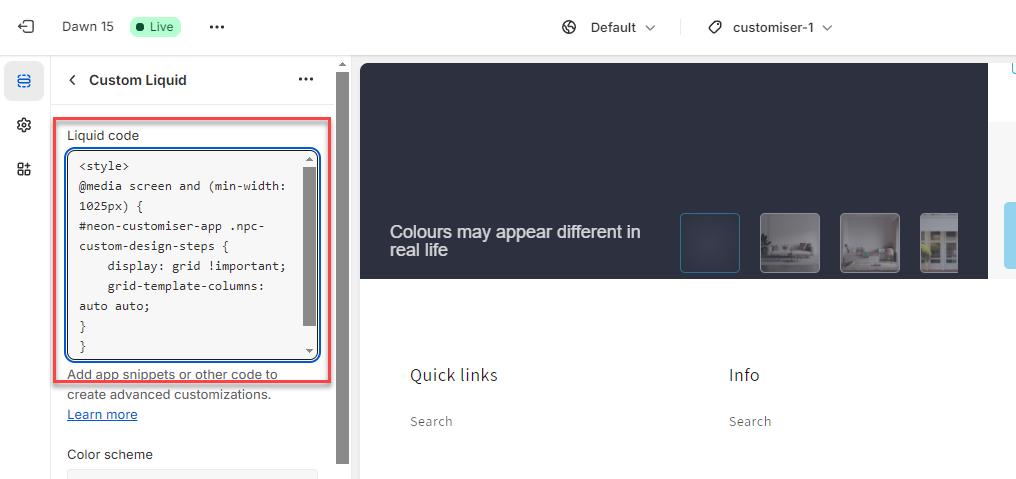
# Adding CSS to Shopify themes - Alternative (but Not Recommended) Method

You can add CSS when you edit your Shopify theme. This is no longer the recommended method. Shopify copies changes from the theme editor to an updated theme. Before you update your theme, save a copy of your CSS. After the update, check that the CSS is still there. For the recommended method, read the Custom CSS guide.

- Source URL: https://www.signcustomiser.com/help/integrations/adding-css-to-shopify-themes-alternative-but-not-recommended-method/
- Markdown URL: https://www.signcustomiser.com/help/integrations/adding-css-to-shopify-themes-alternative-but-not-recommended-method.md
- Category: Integrations
- Last updated: 2026-10-17

## Article

You can add CSS when you edit your Shopify theme. This is no longer the recommended method. Shopify copies changes from the theme editor to an updated theme. Before you update your theme, save a copy of your CSS. After the update, check that the CSS is still there.

<div class="intercom-interblocks-callout" style="background-color: #e3e7fa80; border-color: #334bfa33;"><p class="no-margin">For the recommended method, read the <a href="../../customise/custom-css/" target="_blank" class="intercom-content-link">Custom CSS</a> guide.</p></div>

## Before you start

This method works only when the customiser is drawn directly on your page. Theme CSS cannot reach a customiser that is in an iframe.

Use this method in one of these cases:

-   The **Sign Customiser** app block is on your template. In the block settings, under **Advanced settings**, **Use iframe (experimental)** is not ticked.

-   You have an older direct embed that uses `<div id="neon-customiser-app">`.

Do not use this method with the iframe install in [Install Sign Customiser in a Shopify theme without app blocks](../../integrations/setup-customiser-on-shopify-app-embed-theme-best-for-page-builders-old-themes-headless-storefronts/). The CSS from the [Custom CSS](../../customise/custom-css/) guide also works with the iframe option.

To check the iframe setting, read [Use the iframe option in the Shopify app block](../../integrations/15854787-how-to-enable-disable-the-iframe-embed-on-your-shopify-app-block/). To add the app block, read [Install Sign Customiser in a Shopify theme with an app block](../../integrations/install-customiser-on-a-product-or-page-on-your-shopify-storefront-app-blocks/).

## Adding Custom Code Using Custom Liquid Section

1.  In your Shopify admin, go to **Online Store** > **Themes**. Find your current theme and select **Edit theme**.
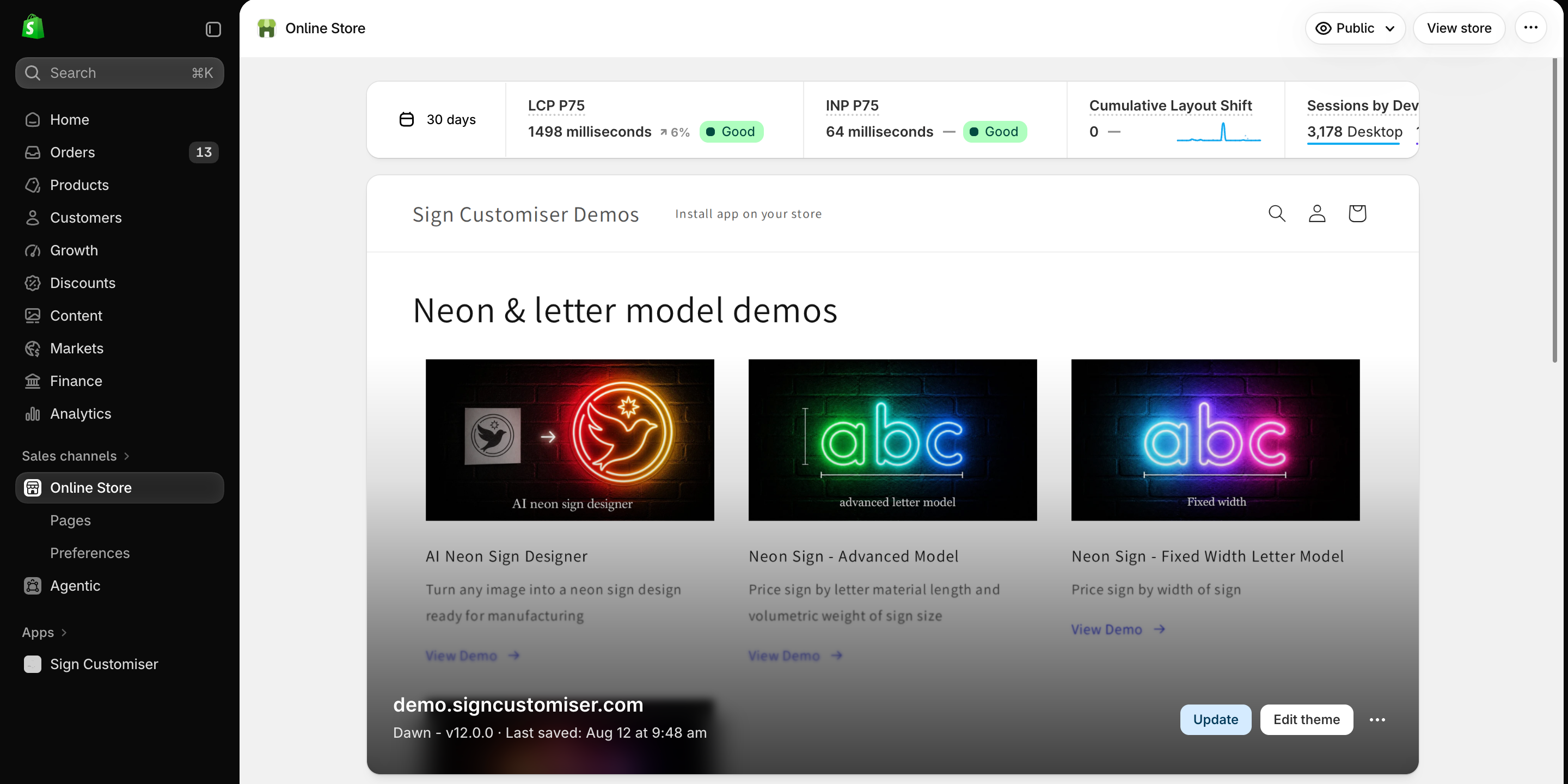
    ![The Online Store Themes page in the Shopify admin. The current theme card has the Update and Edit theme buttons.](/help/intercom-docs/help-centre-images/f49429fec81922437d69721812a934541ed084bfd8bbd3f523ae9dad06c73a74.png)

2.  Select the product or page template that has your **Sign Customiser** app block.
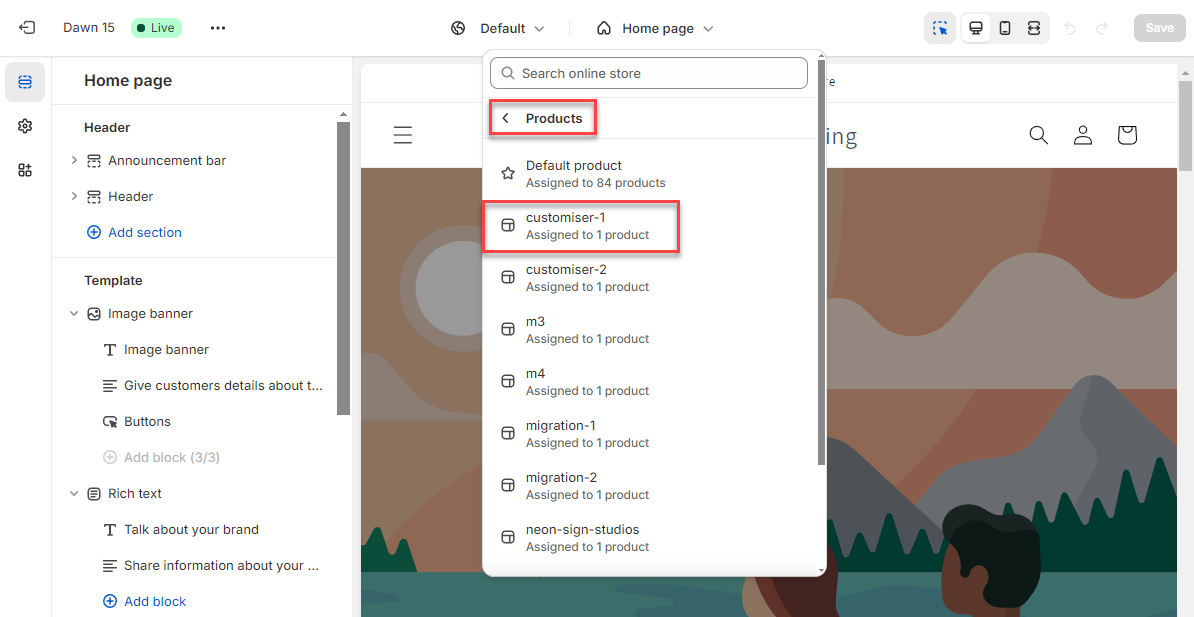
    ![](/help/intercom-docs/help-centre-images/d46814a9e12a379ccffac47a6c22ec7b1ed707873f412397e86beb6f43deb249.png)

3.  In the sidebar, select **Add section**. Then select **Custom Liquid** from the list.
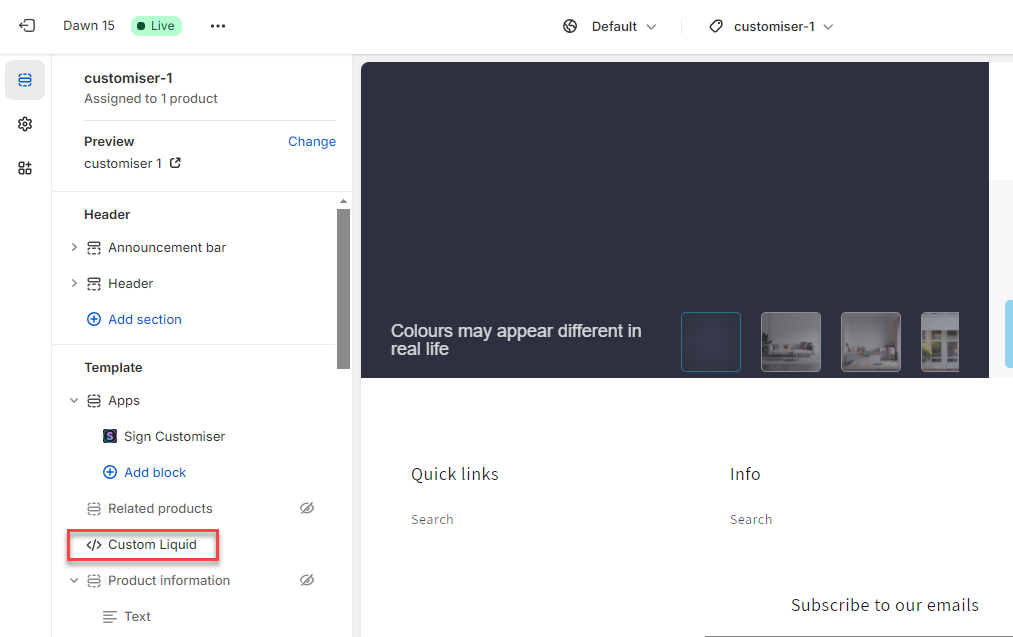
    ![](/help/intercom-docs/help-centre-images/280f14509d16443842fb68ad41984e2e56b6adae2f332ae0bccccf6ef70fb026.png)

4.  Paste your CSS into the Liquid section. Put the CSS in a `<style></style>` tag.

    ![](/help/intercom-docs/help-centre-images/79a41b4680eb7beb2782b8c7a0ca01d45a6edf1628cbcdde1e821d4b8e230c10.png)

To find the class names for your CSS, read the section "How to find element class names for your CSS code" in the [Custom CSS](../../customise/custom-css/) guide.

<div class="intercom-interblocks-callout" style="background-color: #e3e7fa80; border-color: #334bfa33;"><p class="no-margin">If your theme does not have a Custom Liquid section, add the code directly to your theme. A theme update can remove code edits that conflict with the new theme version. Save a copy of your code before you update your theme.</p></div>