

Use product types to group generated sign products in Shopify
See which Shopify product type Sign Customiser gives each generated sign product, and how to use it for collections, shipping rules and automations.
Last updated:
When a shopper adds a sign to the cart, Sign Customiser creates a product in Shopify. Each new product gets a Shopify product type that matches the sign type of its customiser. Use the product type to group signs in Shopify, for example in the rules of a collection.
This article is for merchants who sell through Shopify.
Product types by sign type
Sign Customiser sets the product type one time, when it creates the product. It uses the sign type of the customiser.
Sign type in Sign Customiser | Shopify product type |
Neon | Custom Neon |
Channel Letter | Custom Acrylic Sign |
Metal Channel Letter | Custom Metal Sign |
Metal Cut-Out | Custom Cut-out Metal Sign |
Stencil | Custom Stencil |
Wood Letter | Custom Wooden Sign |
Aluminium Plate | Custom Aluminium Sign |
Braille Sign | Custom Braille Sign |
Wood Frame | Custom Wood Frame Sign |
Lightbox | Custom Lightbox |
In the Sign Customiser admin, you cannot choose Metal Channel Letter when you create a customiser. A customiser that already has this sign type keeps it, and its products get the product type Custom Metal Sign.
Address Sign Numbers customisers use the Channel Letter sign type. Their products get the product type Custom Acrylic Sign.
Find the sign type of a customiser
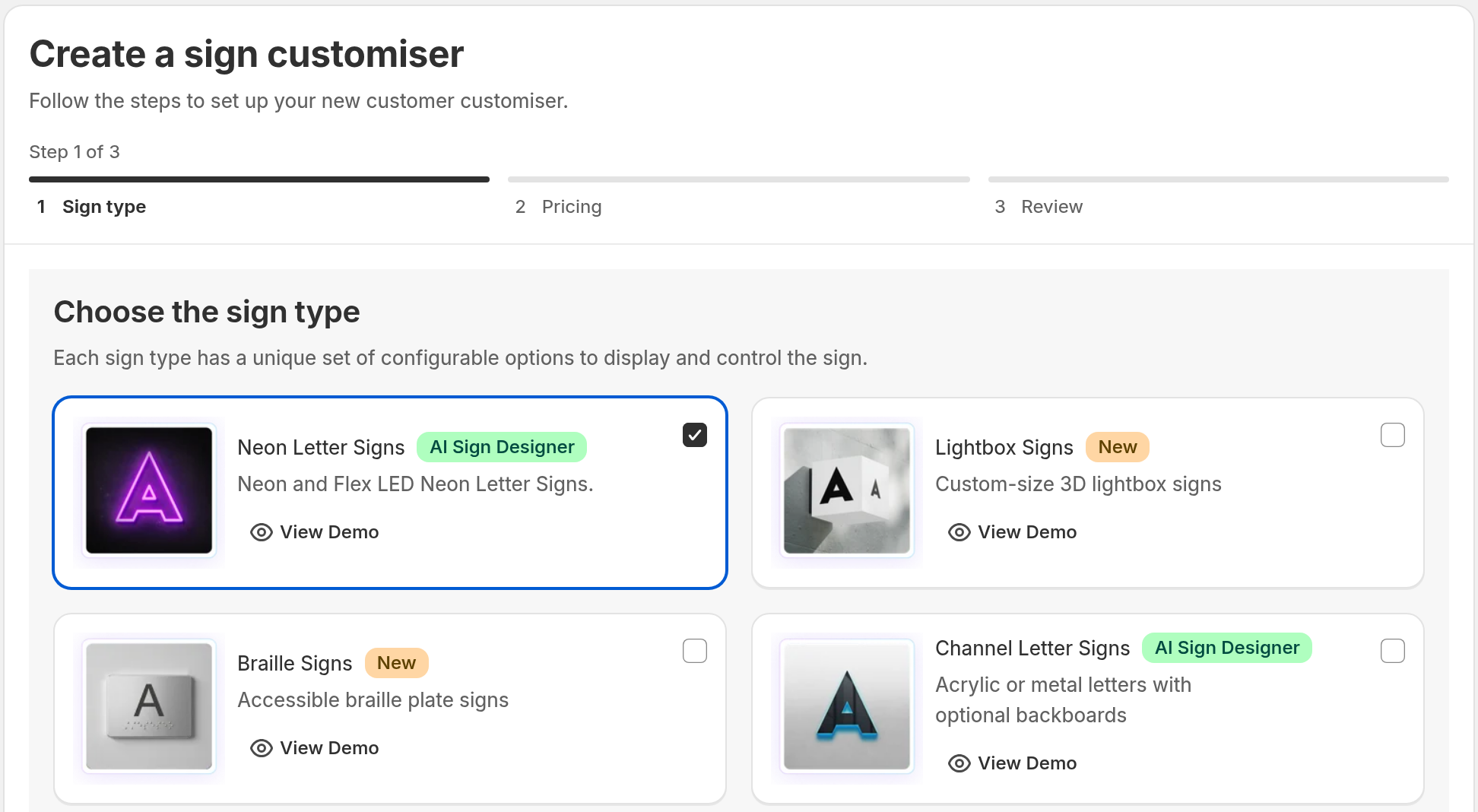
You choose the sign type when you create a customiser. You cannot change it afterwards.
To see the sign type of a customiser:
-
In Sign Customiser, click Customisers.
-
Find the customiser in the list.
-
Read the Product type column.
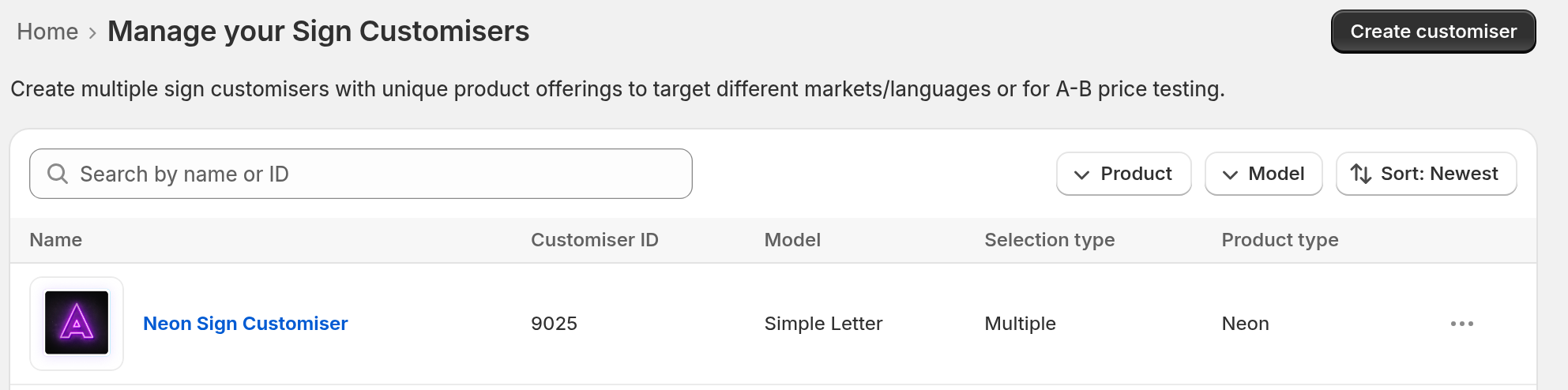
The Product type column in Sign Customiser shows the sign type. It does not show the Shopify product type. Use the table above to find the Shopify product type.
When you create a customiser, you choose the sign type on the Choose the sign type step. On the Customisers page, click Create customiser. Then click Next to go through the steps. If your Store is in first-time setup, Sign Customiser first shows a welcome step. It can also ask for your measurements and a contact email.
Use the product type in Shopify
The product type is a standard Shopify product field. Shopify collection rules can use it. For example, you can make a collection that holds only the products with the product type Custom Stencil.
Existing products stay the same
Sign Customiser sets the product type only when it creates a product. It does not change products that are already in Shopify. Older products keep their old product type.
Before 3 August 2026, Sign Customiser gave every generated product the product type Custom Neon, whatever its sign type. Those products keep Custom Neon. A rule that uses Custom Neon matches neon signs. It also matches products that were created before that date, for all sign types.
Choose how to find generated products
Sign Customiser also adds these items to generated products:
-
The sign-customiser-generated tag.
-
A sc-customiser-ID tag. ID is the customiser ID.
-
The Sign Customiser Products collection. Sign Customiser adds this collection to products created from 4 August 2026. It does not add it on the Shopify Starter and Retail plans.
To match all generated signs, use the tag, or use the collection where Sign Customiser adds it. To match one sign type, for example only stencils, use the product type.
Limits
-
Product types apply to Shopify products only.
-
You cannot change the product type names in Sign Customiser.
-
For Neon, Stencil and Braille Sign products, Sign Customiser also sets the Shopify product category. Shopify keeps the category separate from the product type.