# How to include SVG, EPS, and Illustrator-compatible PDF files in manufacturer emails

To include SVG, EPS, or Illustrator-compatible PDF files in your supplier/manufacturer email please follow these instructions. Navigate to Sign Customiser admin on your store. Click on "Customisers" in the home menu Click on the customiser you wish to edit Click on "Manufacturer Email" in the lefthand side menu In the template editor, use the variable picker to insert a download link for each file type you've enabled. The three variables are: svgPreviewLink — the SVG file URL epsPreviewLink — the EPS file URL aiPreviewLink — the Illustrator-compatible PDF (AI) file URL Wrap each variable in a link tag so it appears as a clickable download. The simplest pattern is an anchor ( <a> ) tag whose href points at the preview link variable, with visible text such as "Link" or "Download". Hit save at the bottom of the form. Only include the lines for the file types you've enabled in General Settings — variables for file types that aren't enabled will render as empty. This is what the email template looks like once download links have been added. Here is an example of the Manufacturer email with a SVG download link. EPS and AI links appear in the same way when those formats are enabled.

- Source URL: https://www.signcustomiser.com/help/product-management/how-to-include-the-svg-file-for-manufacturer-emails/
- Markdown URL: https://www.signcustomiser.com/help/product-management/how-to-include-the-svg-file-for-manufacturer-emails.md
- Category: Product & Order Management
- Last updated: 2026-04-22

## Article

To include SVG, EPS, or Illustrator-compatible PDF files in your supplier/manufacturer email please follow these instructions.

1.  Navigate to Sign Customiser admin on your store.

2.  Click on "Customisers" in the home menu

3.  Click on the customiser you wish to edit

4.  Click on "Manufacturer Email" in the lefthand side menu

5.  In the template editor, use the variable picker to insert a download link for each file type you've enabled. The three variables are:

    -   **svgPreviewLink** — the SVG file URL

    -   **epsPreviewLink** — the EPS file URL

    -   **aiPreviewLink** — the Illustrator-compatible PDF (AI) file URL

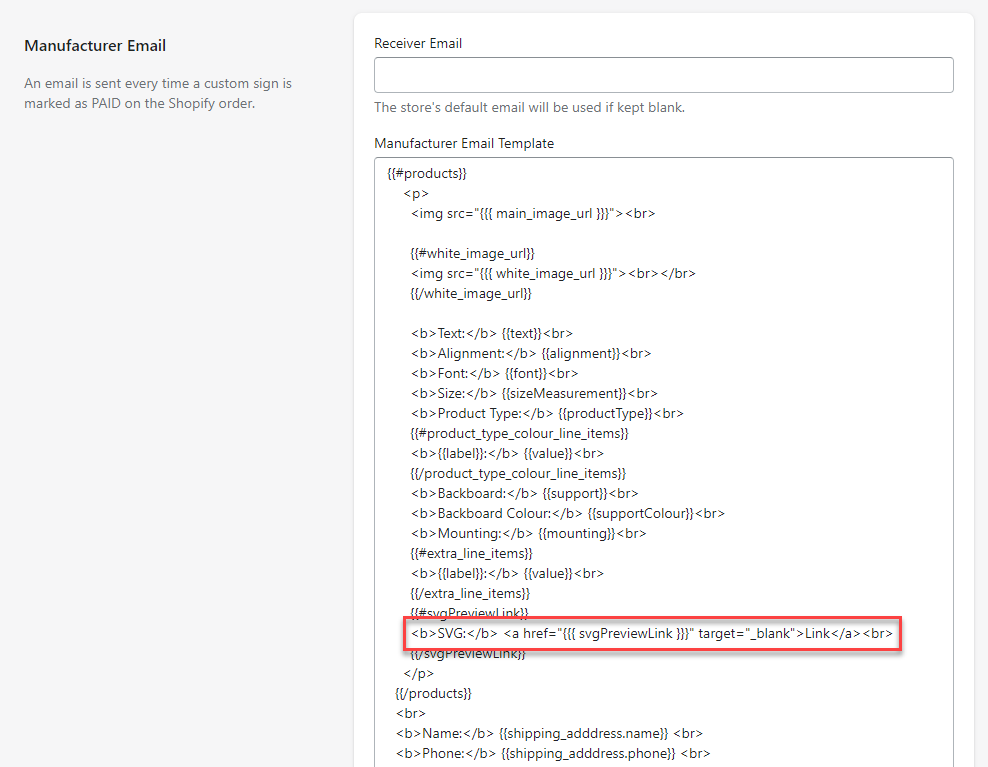
6.  Wrap each variable in a link tag so it appears as a clickable download. The simplest pattern is an anchor (`<a>`) tag whose `href` points at the preview link variable, with visible text such as "Link" or "Download".

7.  Hit save at the bottom of the form.

Only include the lines for the file types you've enabled in General Settings — variables for file types that aren't enabled will render as empty.

This is what the email template looks like once download links have been added.

![](/help/intercom-docs/help-centre-images/e16d37aa52205d73bc42a682b3f9823fd894baefca90375f9a149e8de1be46fb.png)

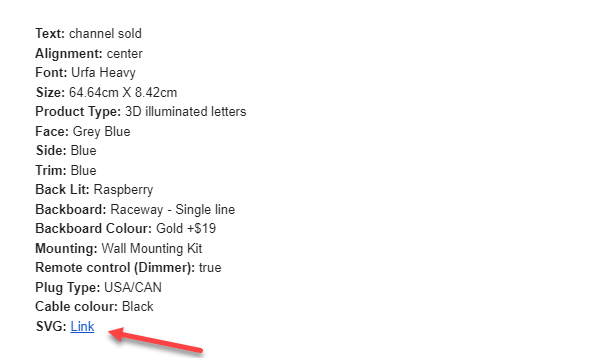
Here is an example of the Manufacturer email with a SVG download link. EPS and AI links appear in the same way when those formats are enabled.

![](/help/intercom-docs/help-centre-images/12c43183c4ee91c89646d89643095f78392eafde64494b0254c58f06c64aaa8f.png)