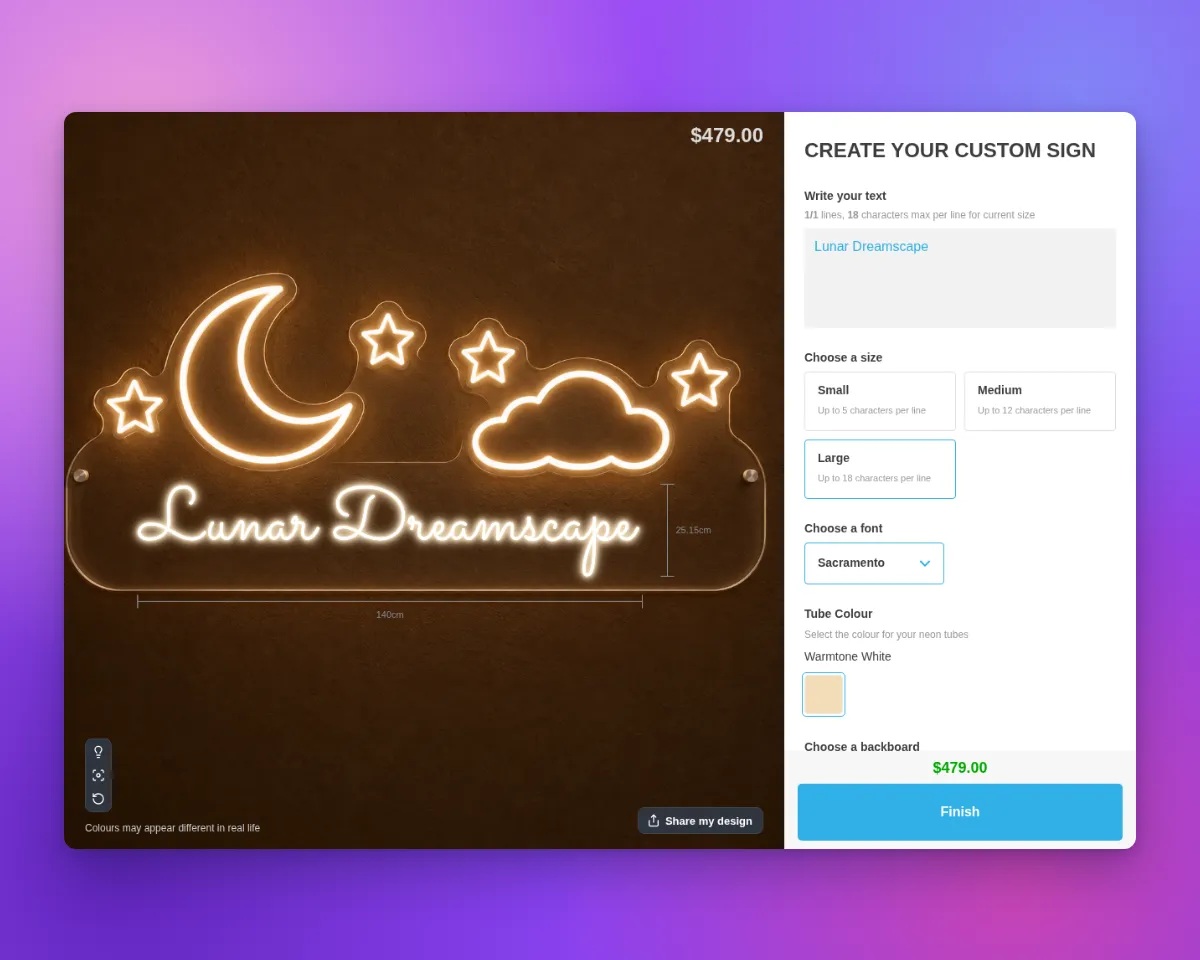
Sign Customiser can now show a different scene background for each size. This works for all sign types. You can sell a semi-custom sign where you control the artwork.
Put your artwork in the scene background, for example a moon, a cloud and stars on clear acrylic. The customer types their own text in the empty area. Each size has its own background, so you can change the artwork and the space for text.
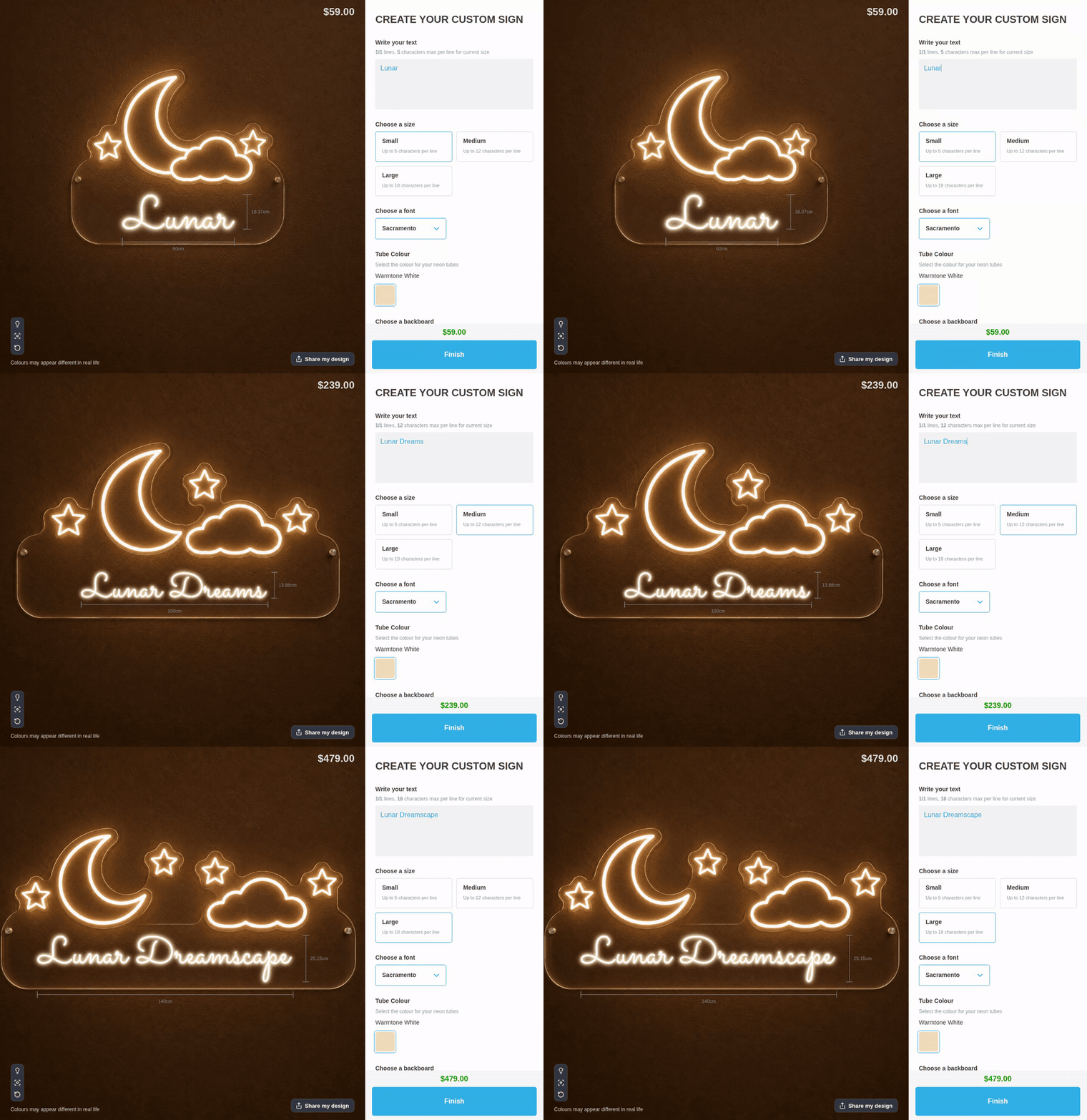
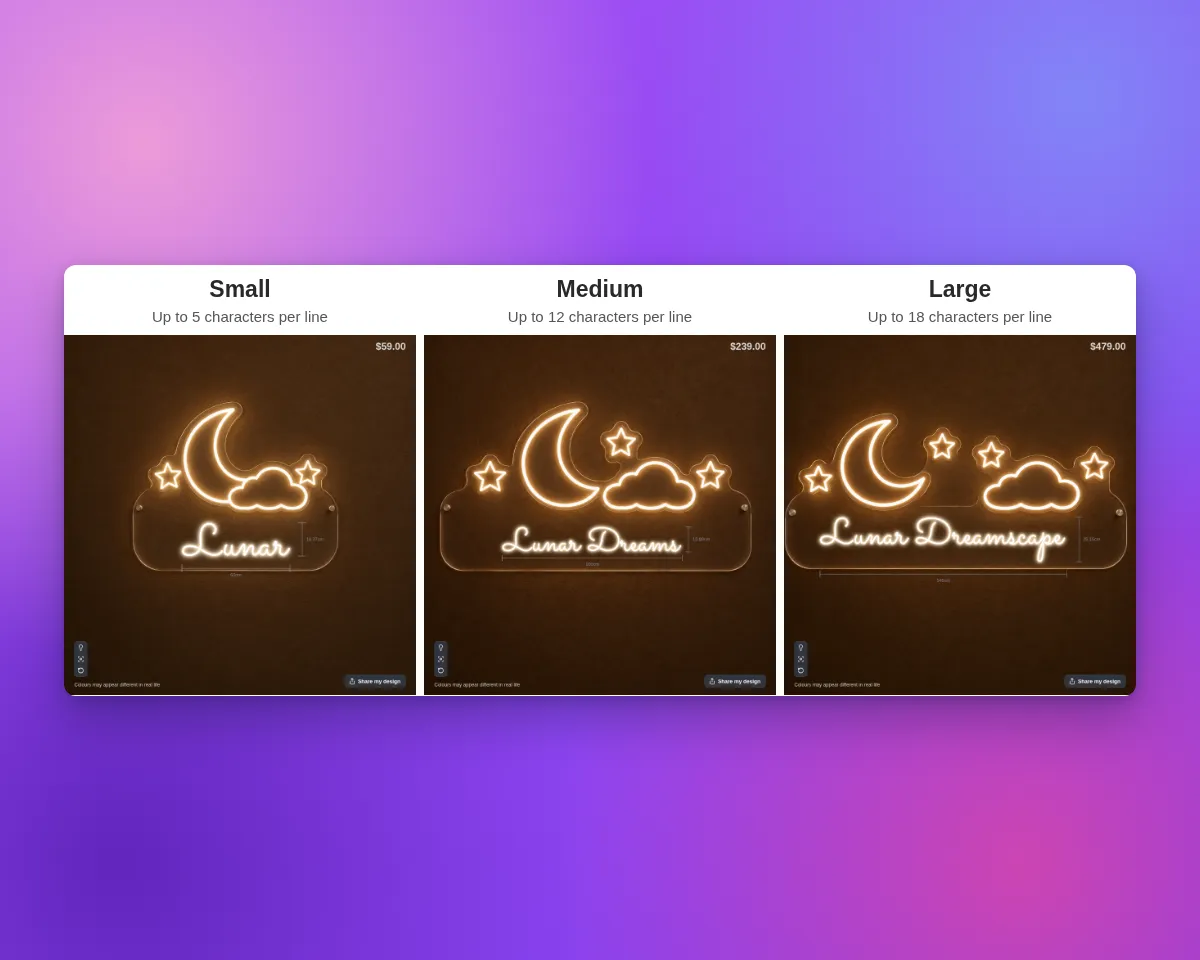
In this example, Small allows up to 5 characters per line, Medium allows 12, and Large allows 18. Small shows “Lunar”, Medium shows “Lunar Dreams”, and Large shows “Lunar Dreamscape”. Each background has a different artwork layout and a wider empty area for the longer text.
What’s Changed
- You control the artwork at each size. Each size has its own background image. You prepare the artwork in each image, so it looks as you want at Small, Medium and Large.
- The customer’s text shows in the empty area. Draw a Sign area on each background to place the text in the empty area. The Sign area is not available when the customer can drag, rotate or scale the sign. For more information, see Set where the sign shows on each background.
- The background follows the size. When the customer changes the size, the customer customiser shows the background that you linked to the new size. This replaces a background that the customer chose. It also replaces a photo that the customer uploaded. The size that is selected when the customiser loads also picks its background.
- A default background. Choose one of your images, or the built-in backdrop, as the default background. A size with no link shows the default background. A custom size also shows the default background.
- The background tray can hide. If every size has a link and custom sizes are off, the tray does not list your backgrounds. The upload tile stays when “Allow customers to upload background images” is on. In other cases, the customer can choose a different background after a size change. That choice stays until the size changes again.
- Review and the product image use the same background. While size backgrounds are on, the Review screen shows only the selected background, unless the customer’s own photo is selected. The product image for the cart and the order uses the same background. This needs “Use the selected background in the product image” and “Scale visualisation with size” to be on. It does not work with lightbox signs, or when the customer can drag, scale or rotate the sign.
- Where it works. Size backgrounds work with Simple Letter, Advanced Letter and Frame Fit customisers. They are not available for the deprecated Fixed Height model. The links do not change the size that the customer orders, the price or the files for the manufacturer.
How to set it up
- Open Scene Editor - Background Images and add one background image for each size.
- At the bottom of the page, find the Size backgrounds card. Select Set size backgrounds.
- Choose one image for each size, and select Save.
- Draw a Sign area on each image, so that the customer’s text shows in the empty area. Drag, Scale and Rotate must be off.
If the Images form has unsaved changes, save them before you open the Size backgrounds page.