

Subscription Plans and Billing Explained
Last updated:
Sign Customiser offers billing plans for the Shopify and Universal platforms. This guide explains how billing works and how to change a plan. It also answers common questions about subscriptions and order limits.
You can use our app on Shopify and on Universal. Universal covers WordPress (through WooCommerce) and Wix. A Shopify plan and a Universal plan are separate. If you use both, you must buy a plan for each.
Our Pricing Plans
We offer seven subscription plans for businesses of different sizes. All plans are recurring, flat-rate subscriptions. Choose the plan that covers the number of orders each month that include products made with the Sign Customiser app.
Billing cycle: Shopify bills monthly plans on a rolling 30-day cycle, not by calendar month.
To subscribe, open the Billing page and choose the plan that matches your order volume.
-
Universal: In the left sidebar, click Your Company → Billing. If your Company has one Store, the Your Subscription page opens. If your Company has more than one Store, the Billing Management page opens. On that page, click the button on the card of your Store to open the Billing page of that Store.
-
Shopify: In the Sign Customiser app, click Subscription/Credit.
Then follow these steps:
-
Click Monthly or Yearly.
-
Move the Order volume pricing slider to the number of orders you need each month.
-
Click Select This Plan. A Universal Store that has never subscribed and has no payment method on file sees Add Card & Start Free Trial instead.
If you have a discount code, click Discount Code at the top of the page. This button shows only when no discount is applied.
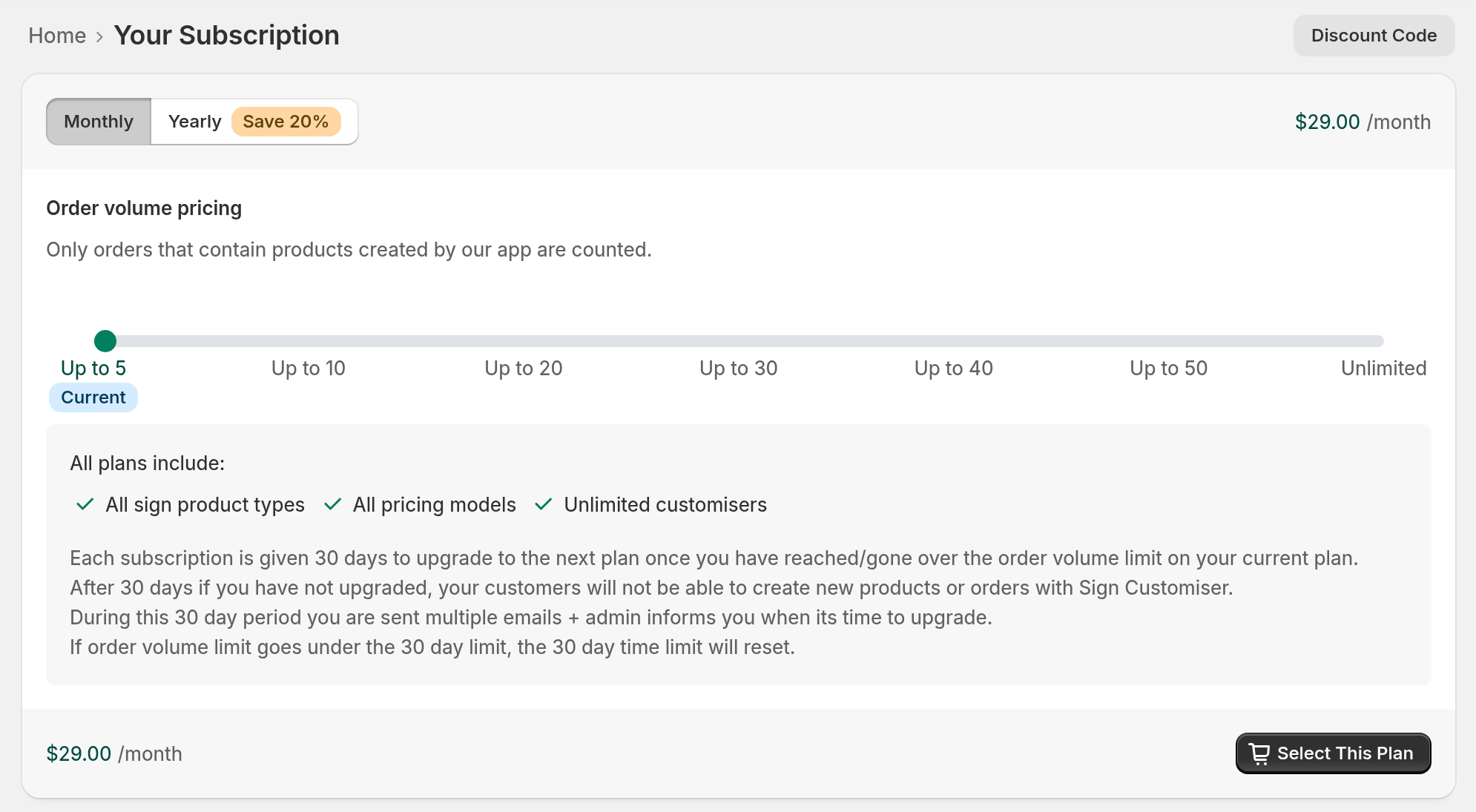
Learn how to subscribe to a plan here.
Free trial and going live
Building and previewing your customiser is always free. Your customiser does not show on your own website until your Store has an active subscription or a trial.
If your Store never had a subscription, you get a 7-day free trial. On Universal, when your Store has never subscribed and has no payment method on file, the plan button reads Add Card & Start Free Trial. When your Store has never subscribed and a payment method is on file, the button reads Select This Plan and the free trial still applies. You can also click Start free trial in the banner at the top of the admin. You can cancel at any time.
Seed and Growth Plans
-
All features are included.
-
You can create an unlimited number of customisers.
-
The price starts at $29/month USD for 5 orders each month. The maximum price is $249/month USD for 50 orders each month.
-
Find Sign Makers Pro is included with an active subscription. On Universal, click Your Company → Find Sign Makers. On Shopify, click Tools & Settings → Find Sign Makers Pro.
Ultimate Plan
-
Flat fee of $299/month USD.
-
Unlimited orders.
-
Choose this plan when you need more than 50 orders each month.
-
It includes all the features of the Seed and Growth plans.
Subscription Plan Comparison
Plan | Monthly Orders Included | Monthly Price |
Seed | Up to 5 | $29/month USD |
Growth 10 | Up to 10 | $49/month USD |
Growth 20 | Up to 20 | $99/month USD |
Growth 30 | Up to 30 | $149/month USD |
Growth 40 | Up to 40 | $199/month USD |
Growth 50 | Up to 50 | $249/month USD |
Ultimate | Unlimited | $299/month USD |
Annual Plans and Discounts
-
Save 20% with an annual subscription.
-
On the Yearly plan, the price shows as a monthly amount and the page says “billed annually”.
-
To upgrade during your annual plan, see the questions at the end of this article.
AI credits
When your Store has an active subscription, the Billing page shows an AI credits card. Each successful AI sign designer conversion uses 1 credit. The card shows two balances:
-
Free Monthly Credits: Your plan can include these credits. The card shows the date they reset. Unused credits do not roll over.
-
AI purchased credits: These credits do not expire. Sign Customiser uses them after your Free Monthly Credits.
To buy more credits, click Purchase AI credits. The Purchase AI Credits page offers packs of 40, 120 or 400 credits. To see how you used your credits, click Transaction history.
Managing your subscription on Universal (multi-store)
If you run more than one store under one Universal account, each store has its own bill. The Billing Management page shows all stores in one place.
To open it, click Your Company → Billing in the left sidebar. Only company owners can open Billing. If you are not a company owner, the entry is grey with a lock icon. Click it to see a popover with the heading Admin only. The popover says: “Only company admins can access billing. Ask a company admin to grant access or invite you with admin permissions.” In this popover, “admin” means a company owner. Ask a company owner for access.
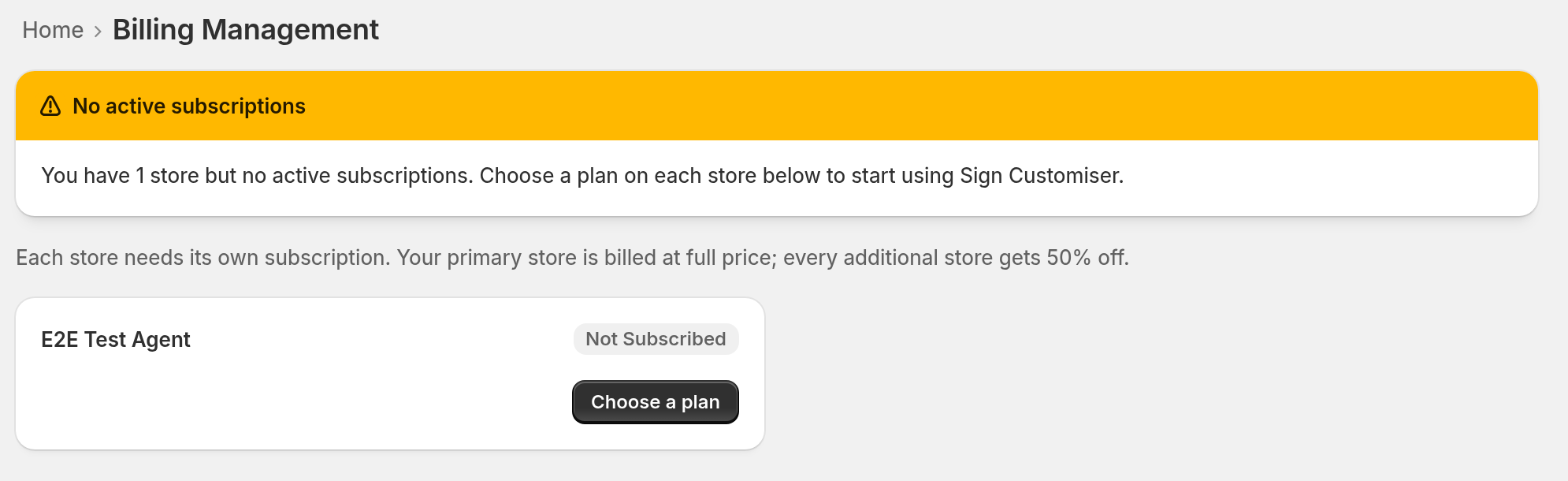
The page shows a status banner first. The banner shows what needs your attention. Under the banner is this sentence: “Each store needs its own subscription. Your primary store is billed at full price; every additional store gets 50% off.” The store cards come after it. The banner can show these messages:
-
“X stores have payment issues”: One or more subscriptions have an incomplete or past-due payment. For one store, the banner reads “1 store has a payment issue”.
-
“No active subscriptions”: No store has an active plan.
-
“X of Y stores subscribed”: Some stores have a plan and some do not.
-
“All N stores subscribed”: All stores are paid.
Each store has a card with a status badge. The badge is Overdue, Not Subscribed, Ending soon or Active. The card also has a main button that matches the state of the store. The button opens the Billing page of that store.
-
Update payment: The payment is incomplete or the last charge failed. This button opens the Billing page of that store.
-
Choose a plan: The store has no active subscription. Choose a plan to start it.
-
Resume subscription: The subscription will end at the end of the current cycle. Click this button to open the Billing page of that store. Then click Resume Subscription to keep it.
-
Manage subscription: The subscription is healthy. Use this button to upgrade, downgrade, view invoices or cancel.
Your primary store has a Primary badge on its card. Hover over the badge to see this tooltip: “This store is billed at full price. All other stores in your company get a 50% discount.”
To change the primary store, follow these steps:
-
Find the card of another store that has an active subscription.
-
Click Make Primary.
-
Click Set as Primary Store.
The new primary store pays full price. The previous primary store gets the 50% discount. If you cancel the primary store, Sign Customiser picks a new primary store from your account. A warning shows before you confirm the cancellation.
For the full multi-store guide, see Creating and managing multiple stores under one account.
What Happens If You Go Over Your Plan Limit?
-
You get a 30-day grace period to upgrade.
-
You get several emails during the cycle. The admin section of your customiser also shows a notification.
-
If you do not upgrade within 30 days, your customers cannot create new products or orders.
Downgrading Your Plan
-
You can downgrade when your orders in the past 30 days are at or below the limit of the new plan. For example, you are on Growth 40 and you had 25 orders in the last 30 days. You can downgrade to Growth 30. If your orders are above the limit, the button reads Usage Exceeds Limit.
-
On Shopify, when you downgrade to a less expensive plan, Shopify offers your store an application credit.
Shopify users: See App charges on your Shopify bills for more information.
Universal users: When you downgrade to a less expensive plan, Stripe gives you a credit for the unused time on your old plan. Stripe does not refund this credit. Stripe uses it on your later invoices. See Stripe Prorations for more information.
Development Stores (Shopify only)
You can use our app for free on a Shopify development store. A development store has no plan picker. You start a free plan that includes all features. This plan is equal to our highest-priced plan. Follow these steps:
-
In your Shopify admin, open the Sign Customiser app.
-
Click Subscription/Credit.
-
Click Start Free Development Trial.
-
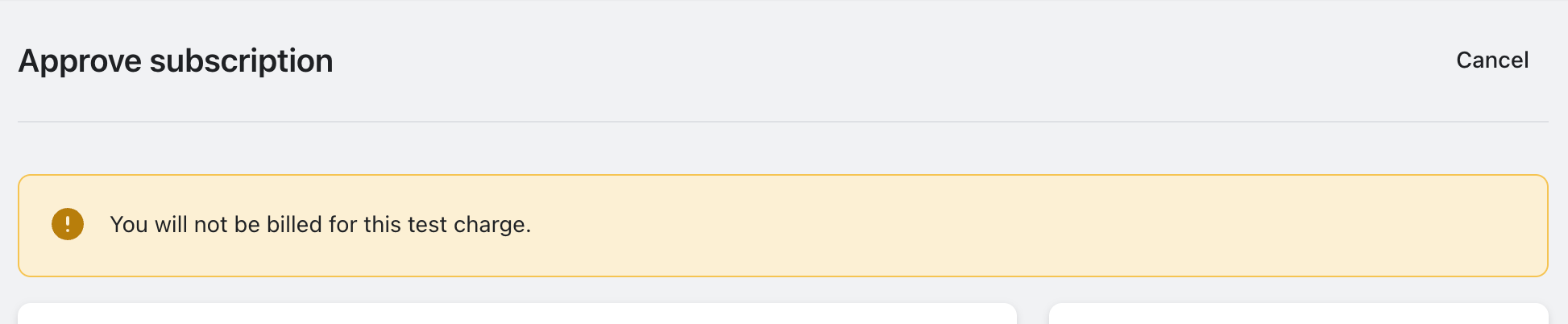
On the Shopify approval screen, read the notice. Shopify shows that the charge is a test charge, and your store is not billed.
-
Approve the subscription.
This is the approval screen:
Refund Policy
-
Monthly plans: We can refund up to one month of charges.
-
Annual plans: We do not give refunds.
To ask for a refund, contact our support team.
Frequently Asked Questions
What if I exceed the order limit one month because of testing or a spike in sales?
You get a 30-day grace period and a notification to upgrade. If your volume drops during that time, you do not need to upgrade. If testing caused the spike, contact us. For long testing, use a development store (Shopify only).
My store is seasonal. Can I upgrade and downgrade as needed?
Yes. Upgrade when you need to. Downgrade when your order volume drops.
How are charges handled when upgrading?
On Shopify, an upgrade can add a prorated charge. The charge depends on the price difference and the days left in the billing cycle.
-
Shopify users: See App charges on your Shopify bills for more information.
-
Universal users: When you upgrade, Stripe prorates the price difference for the rest of the billing period. Stripe invoices this amount immediately. See Stripe Prorations for more information.
How do you charge when downgrading?
Shopify users:
Shopify handles all billing charges. When you downgrade to a less expensive plan, Shopify offers your store an application credit. See App charges on your Shopify bills for more information.
Universal users:
When you downgrade to a less expensive plan, Stripe gives you a credit for the unused time on your old plan. Stripe does not refund this credit. Stripe uses it on your later invoices. See Stripe Prorations for more information.
Can the Universal plan be used with multiple websites? Do they count separately?
Currently, all orders from all customisers count towards your limit.
What if I upgrade during my annual plan?
Shopify users: Shopify handles all billing charges. For a monthly plan, Shopify charges the price difference, prorated for the days left in the billing cycle. To check the charge for an upgrade during an annual plan, contact our support team before you upgrade. See App charges on your Shopify bills for more information.
Universal users: When you upgrade during an annual plan, Stripe prorates the price difference for the rest of the billing period. Stripe invoices this amount immediately.
How do I check my order count?
Only orders that contain products made with our app count. You can see your count in two places.
Billing page. When your Store has an active subscription, the Orders card shows the orders from the past 30 days against your plan limit. An example is 12/30 orders. Click View Orders to open the list.
Home page. Use these steps to see the total for 30, 60 or 90 days.
Shopify users:
-
In your Shopify admin, open the Sign Customiser app.
-
Click Home in the app menu.
-
Find Activity Overview Last at the top of the page.
-
Choose 30 Days, 60 Days or 90 Days in the date range list.
-
Read the total in the Orders chart.
Universal users:
-
Log in to https://web.signcustomiser.com/.
-
Click Home in the left sidebar.
-
Find Activity Overview Last at the top of the page.
-
Choose 30 Days, 60 Days or 90 Days in the date range list.
-
Read the total in the Orders chart.
I cancelled my subscription, how can I resubscribe?
Shopify users
To cancel, click Subscription/Credit, then click Cancel subscription. For more information about Shopify billing, read App charges on your Shopify bills. To resubscribe, follow these steps:
-
Click Subscription/Credit.
-
If the page shows a Previous Plan card, click Select New Subscription.
-
Choose a plan.
Universal users
When you cancel, your plan stays active until the end of the period you paid for. You do not get a partial refund for the unused days. To change your mind before then, resume your subscription:
-
One store: Click Your Company → Billing. The Your Current Plan card shows the badge Your subscription ends with a date. Click Resume Subscription.
-
More than one store: Click Your Company → Billing. On the card of the store, click Resume subscription. This opens the Billing page of that store. On that page, click Resume Subscription.
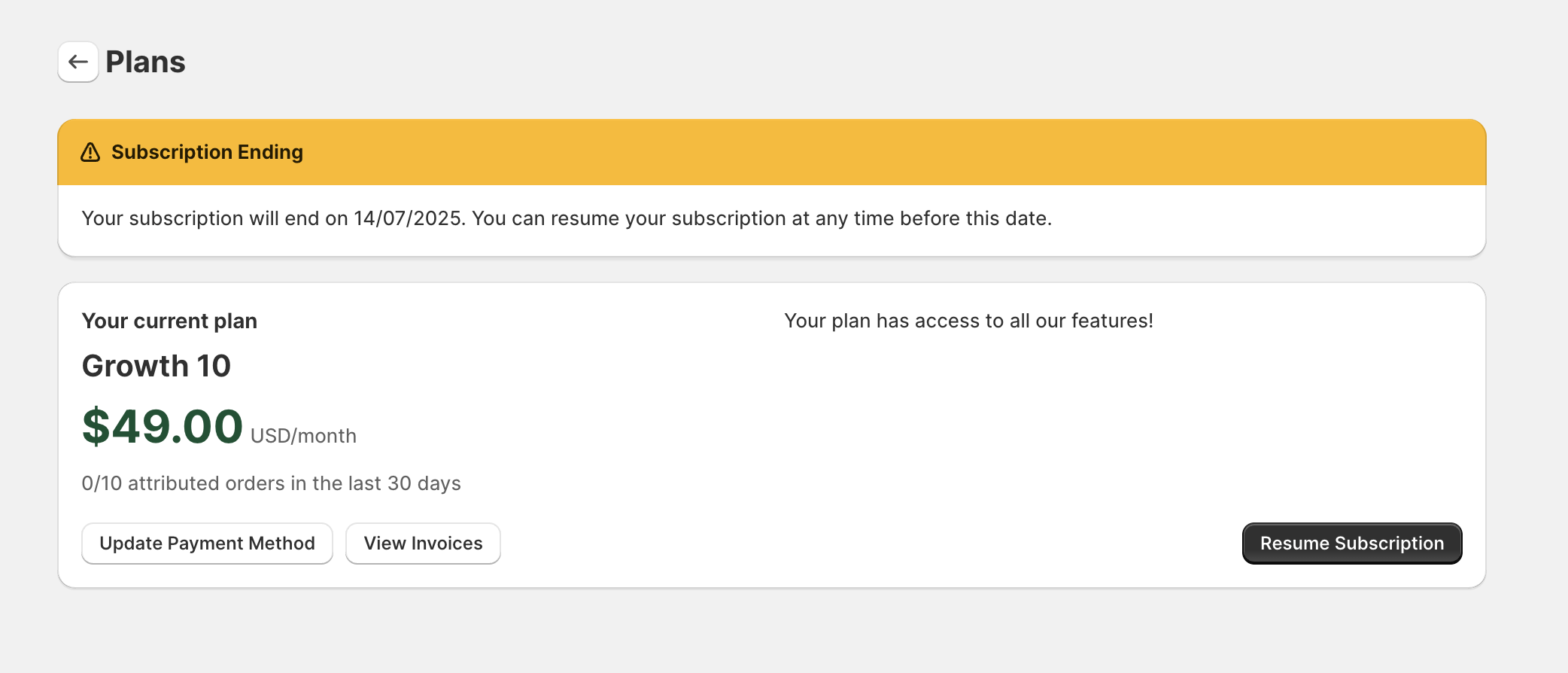
After the renewal date, you must choose a new plan. Click Your Company → Billing. If your Company has one Store, click Select This Plan. If it has more than one Store, click Choose a plan on the card of your Store, then click Select This Plan.