
Now you can connect WooCommerce to Sign Customiser with one click. Version 1.7.2 of the Sign Customiser WordPress plugin adds a Connect WooCommerce button. You give access on the WooCommerce approval screen. Sign Customiser then creates the integration and saves your Integration ID in the plugin. You do not copy an API key or a secret.
What’s Changed
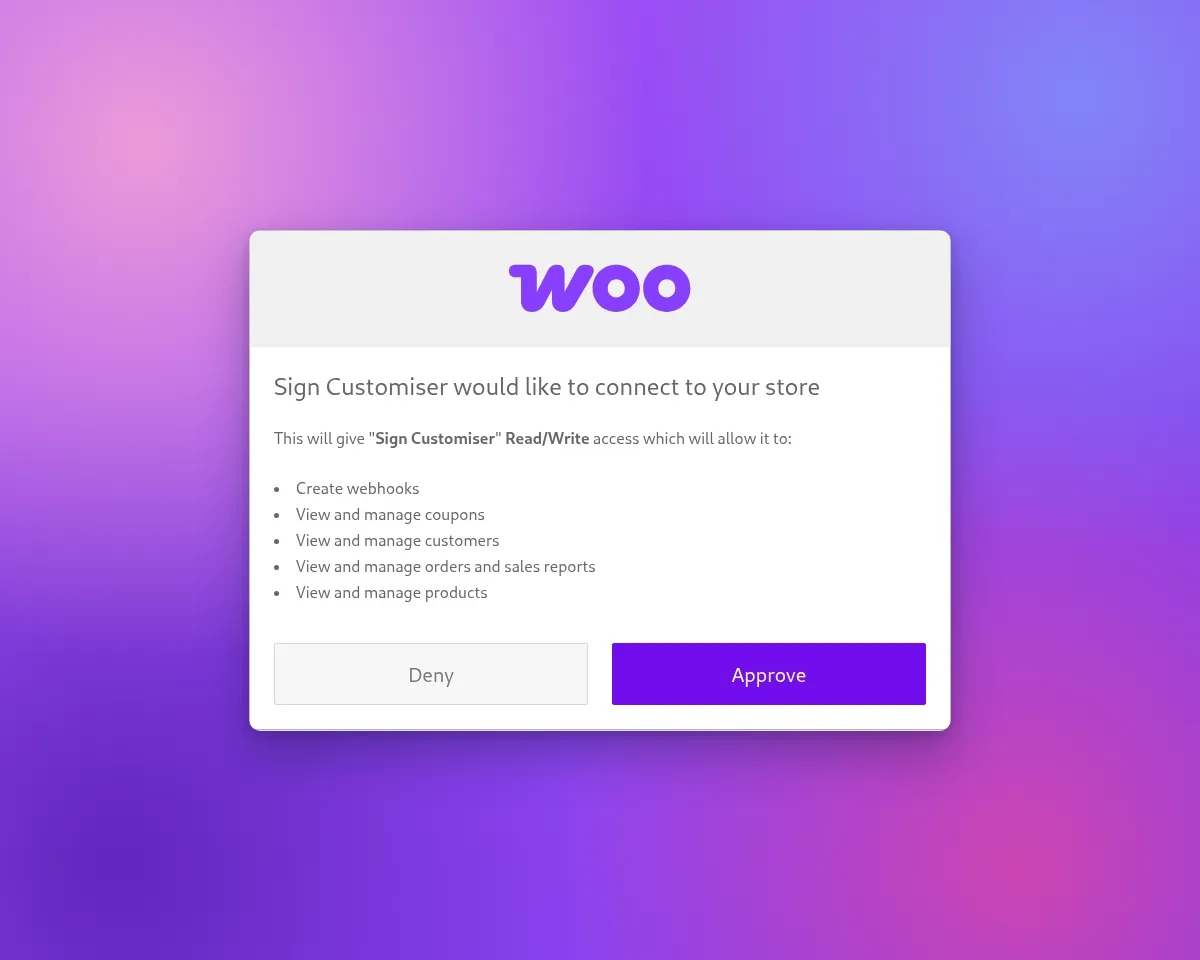
- One-click WooCommerce connectIn WordPress, go to Settings → Sign Customiser. Click Connect WooCommerce. In Sign Customiser, click Connect with one click. Then click Approve in WooCommerce.
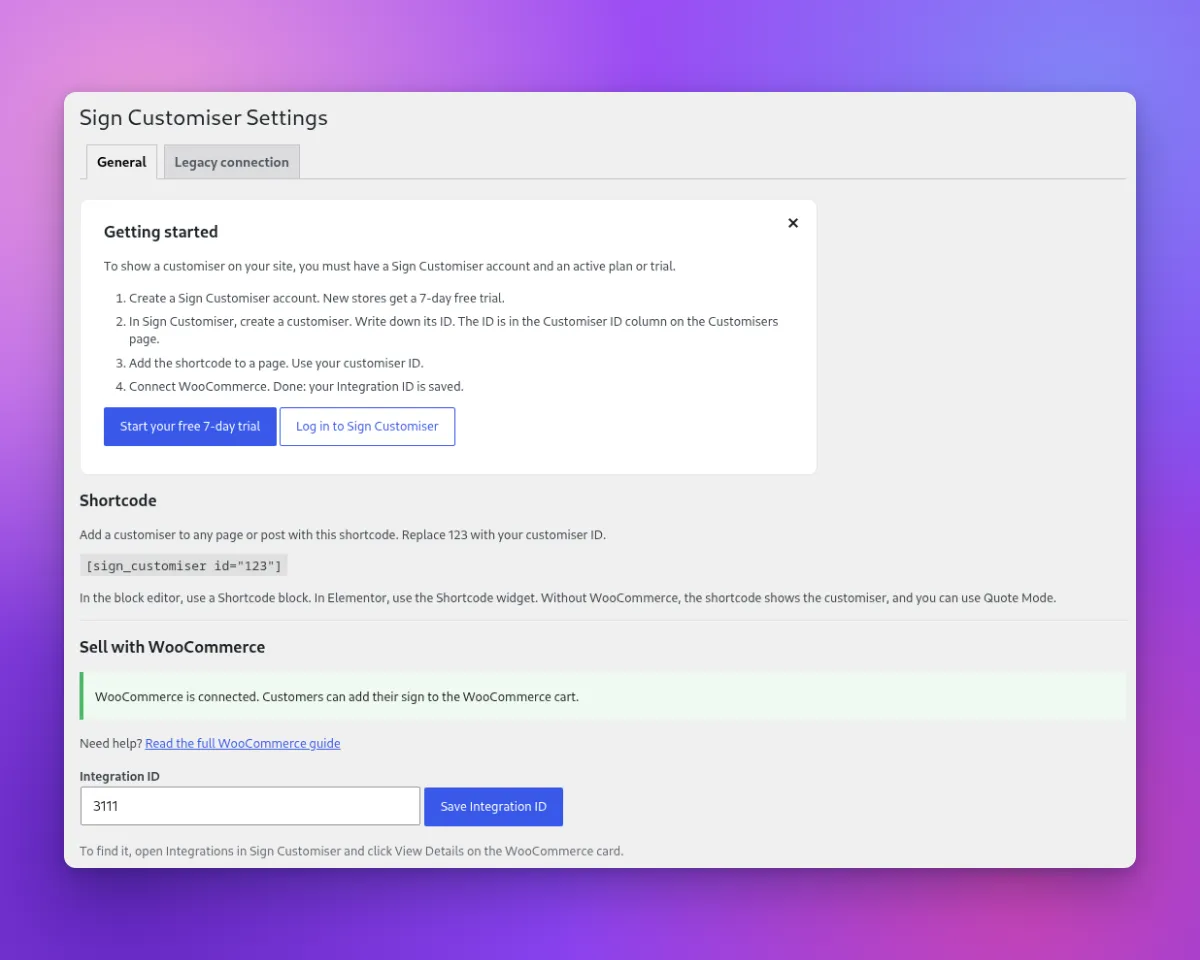
- The plugin saves your Integration IDAfter you click Approve, you go back to the plugin settings. The page shows “WooCommerce is connected”. The Integration ID is in the field. Sign Customiser also adds the WooCommerce order webhook.
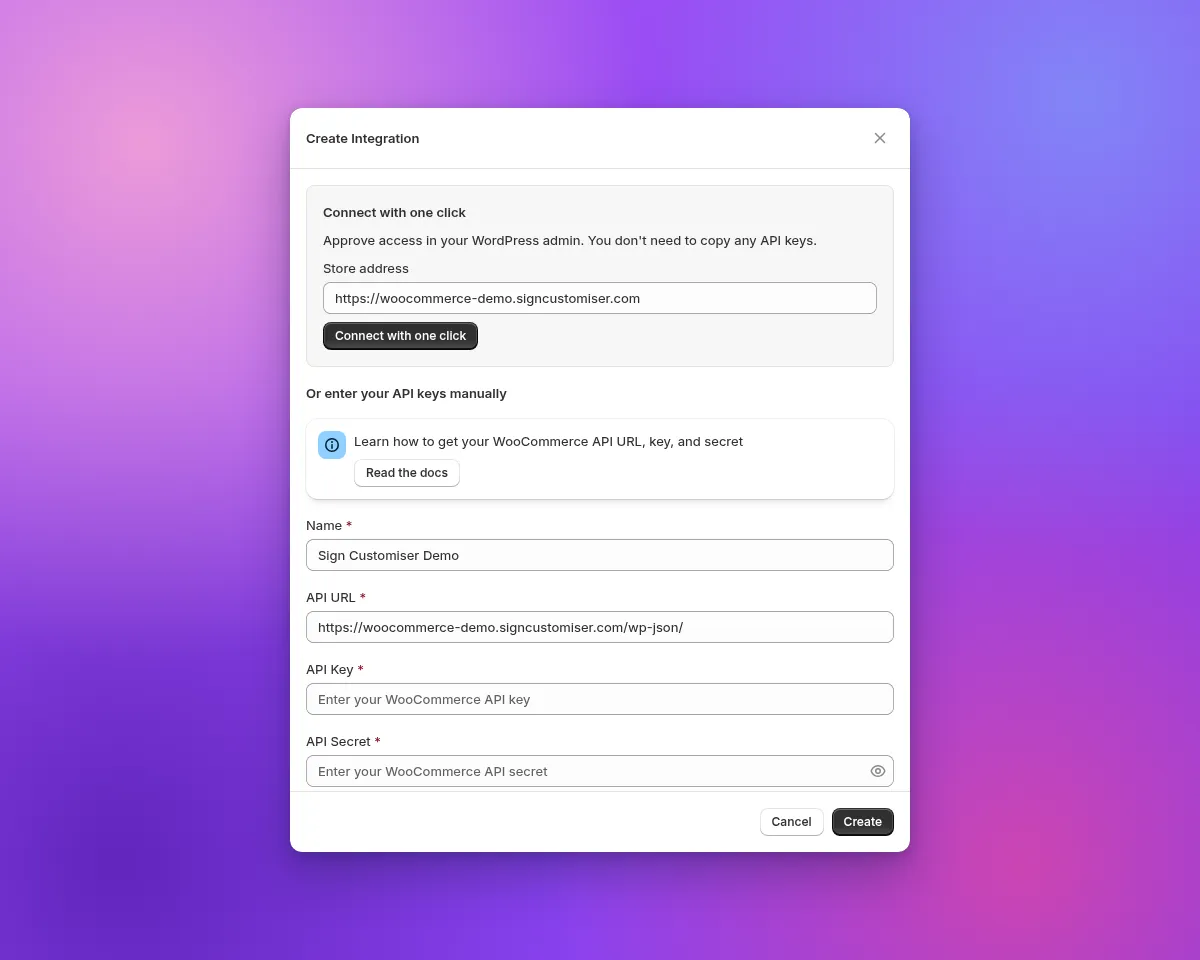
- Connect from Sign CustomiserIn Sign Customiser, go to Integrations. On the WooCommerce card, click Connect WooCommerce. Type an address of your store, for example with or without
www.Then click Connect with one click. Sign Customiser finds the main address of your site. - A reason when the connection does not completeIf you click Deny, or Sign Customiser cannot set up the connection, the Integrations page shows the reason.
- You control accessThe name of the new WooCommerce key starts with Sign Customiser. To remove access, go to WooCommerce → Settings → Advanced → REST API keys.
- Manual setup is still availableIn the plugin, open Set up manually. In Sign Customiser, use Or enter your API keys manually.
- A clearer settings pageThe General tab shows a Getting started guide, the shortcode and a Sell with WooCommerce section. If WooCommerce is active and the Integration ID is empty, a red message tells you to connect WooCommerce. The API key settings are on the Legacy connection tab.
- A notice for API key connectionsIf your site uses the old API key connection, a notice tells you that this connection will stop working soon. To change, click Update my connection. Remind me later hides the notice for 7 days.
Make sure that your permalinks are not set to Plain. To set up the plugin, read Connecting WooCommerce with Sign Customiser.
