
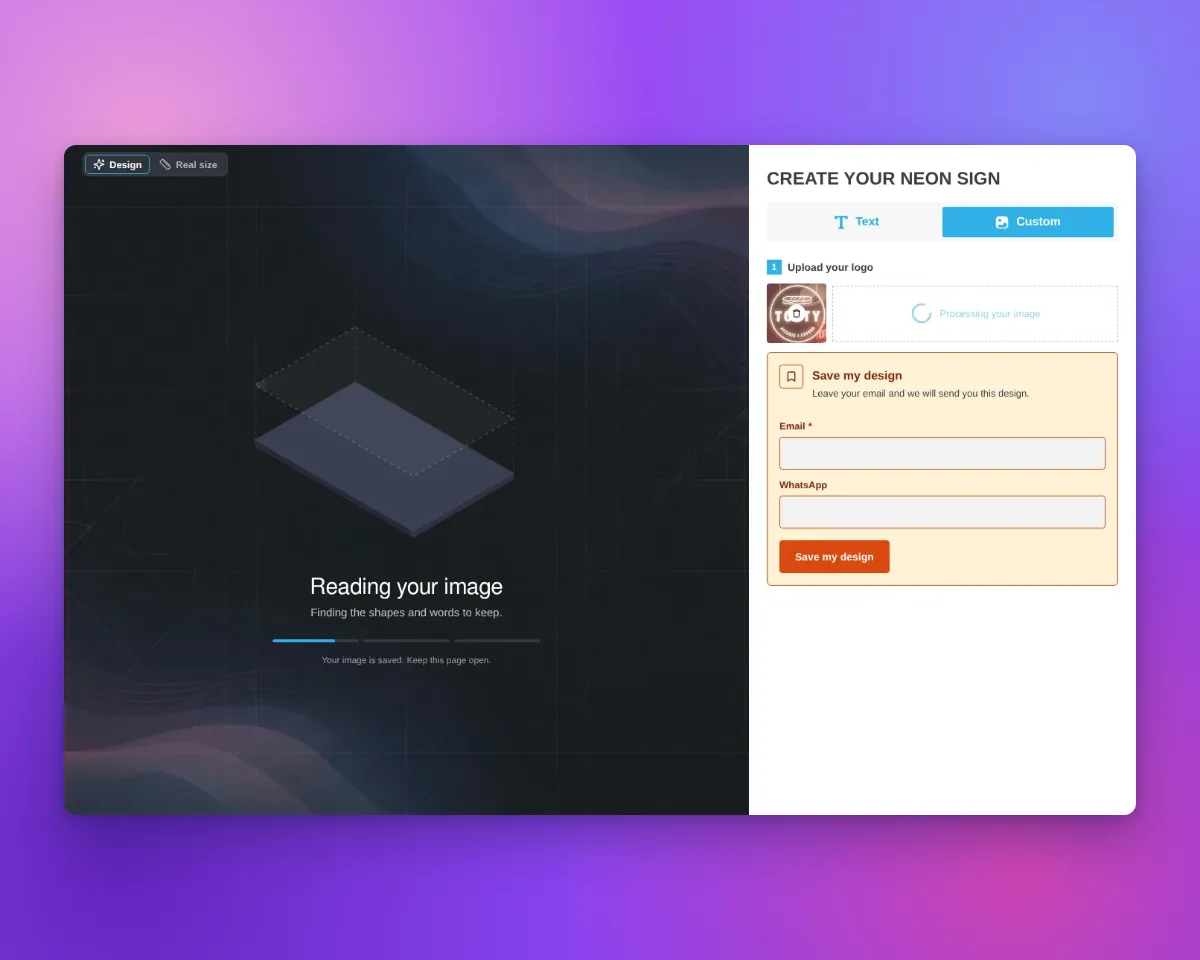
The AI Sign Designer can take up to four minutes to make a design. Some customers leave before the design is ready. You can now add a Save design form to the AI Sign Designer. A card with your Save design form shows below the upload step while the design builds. The customer enters an email address and can then close the page. When the design is final, you get one email with the contact details and the design.
What’s Changed
- Select a form to start. Open Core Setup > Custom Designs. In the Set up AI Sign Designer section, select a form in Save design form. The list shows the Custom designs forms that have a required Email field. You can use your fallback form if the list shows it. The default is None, so your customisers do not change until you select a form. Your plan must include custom design forms.
- The card uses your form. The title of the card is the label of the form. The text below the title is the description of the form. File Upload fields do not show, because Sign Customiser attaches the customer’s image.
- Customers can close the page. Sign Customiser links each request to the customer’s AI design. After the customer sends the form, the card shows Your design is saved. The note below the progress bar changes to Your design is saved. You can close this page. on all screen sizes.
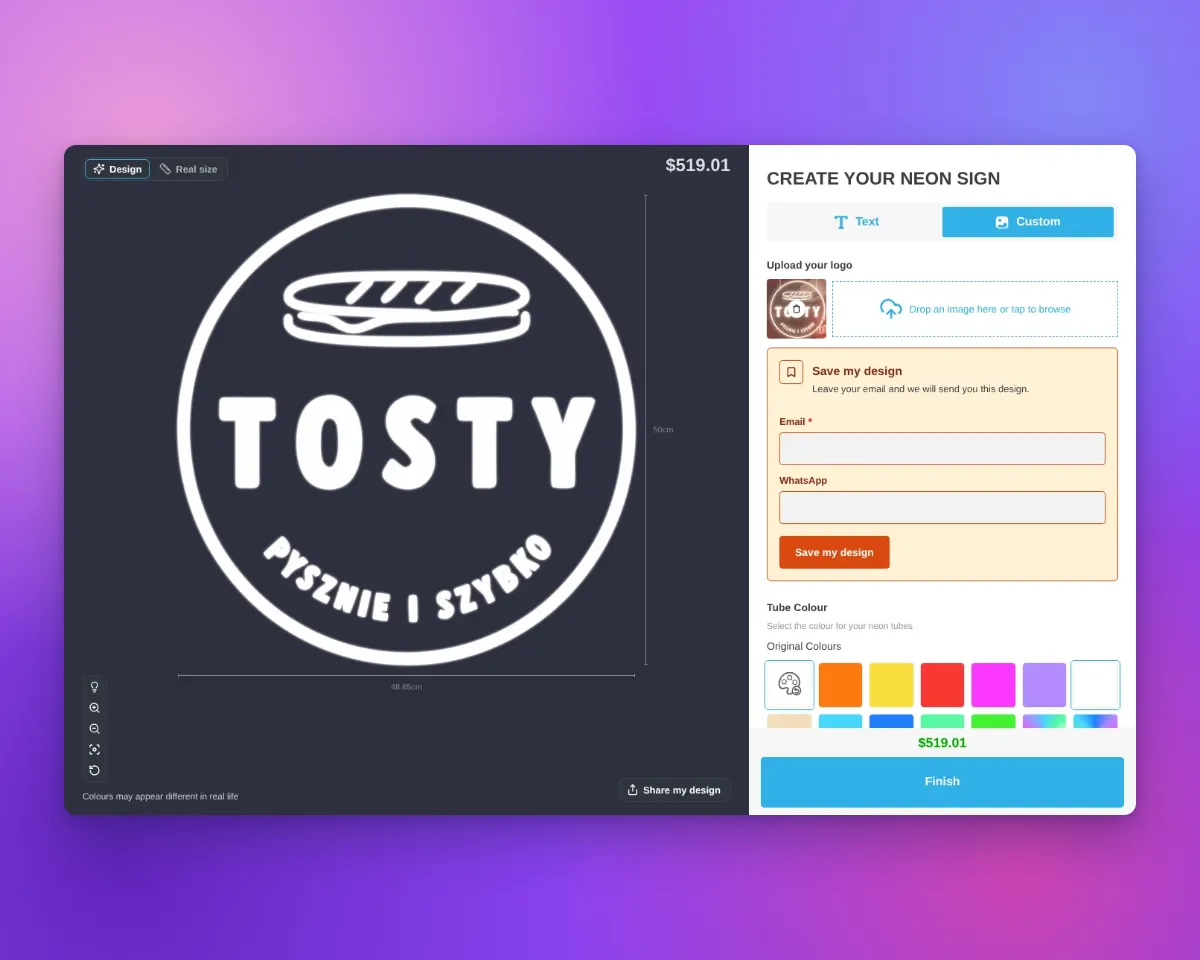
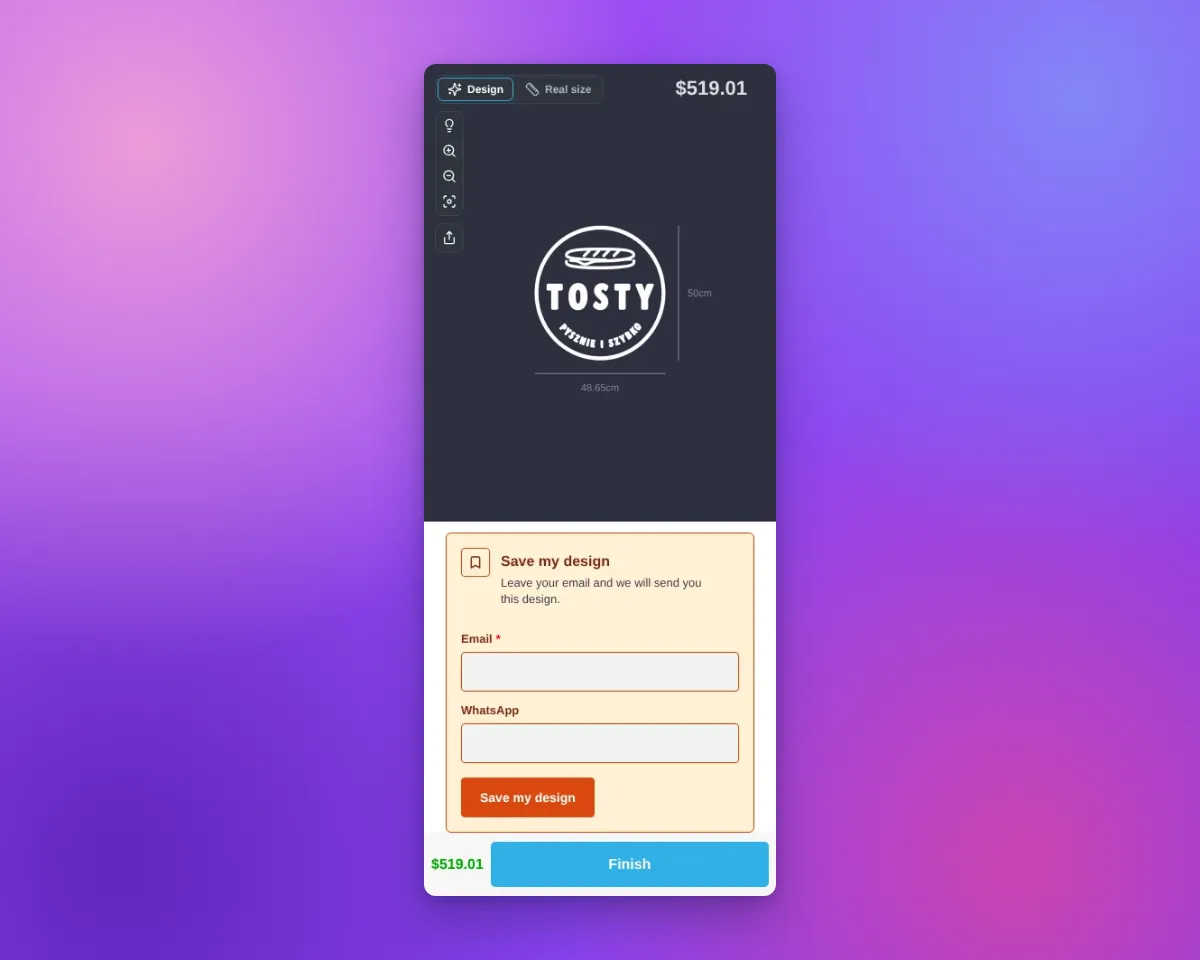
- Save the design when it is ready. On a desktop screen, the card stays below the upload step after the design is ready. On a phone with the step-by-step sidebar, the card moves to the top of the sidebar. The button below the price does not change, so customers can still buy. When the customer saves the design at this point, you also get the options, the price and the preview images. If your plan includes sharing and Share Sign Location is not Disabled, the email can have a link that opens the saved design.
- Save a new version. After the design is ready, a customer who sent the form sees Save this version. This button opens the form again with the last email address. Each save makes a new request with the current design.
-
One email for each request. Sign Customiser sends the email to the Receiver Email of the form when the AI makes the design. It also sends the email when the design fails. If the design is not final after 10 minutes, Sign Customiser sends the email at that time. The email has the contact details, the status of the design, and links to the original upload, the generated SVG and the AI design file. A saved design uses no more AI credits.
-
See the design in Quotes. Each saved design is a request in Quotes. The request has an AI design card with the original artwork, the generated artwork and a View AI design file link.
-
Use your brand colours. Theme Colors has a new Save my design form group. Set the Background, Border, Heading Text, Body Text, Button Background and Button Text colours. An empty colour uses the matching theme colour. The live preview on Theme Colors and Custom Designs shows the card.
-
Translate the build screen. You can now change and translate this text:
- The titles and messages of the build stages.
- The build screen note.
- The design review, no AI credits and too many uploads screens.
Change the text in the Language card on Custom Designs. Translate it in Settings > Languages. The English text does not change until you change it.
When the card does not show
Before the customer sends the form, the card does not show in these conditions:
- No Save design form is selected.
- The fallback form shows.
- The AI cannot make the design, or the design needs a design review.
- Your Store has no AI credits to start a design.
- The customer opens the design from a share link.
After the customer sends the form, the card keeps its saved message for that design.
Get started
Read section 8, “Let customers save their design”, in Choose an AI Sign Designer setup.
