

Choose an AI Sign Designer setup
Compare the sales, AI-only and quote setups for the AI Sign Designer. Then set up and test the one that fits your Store.
Last updated:
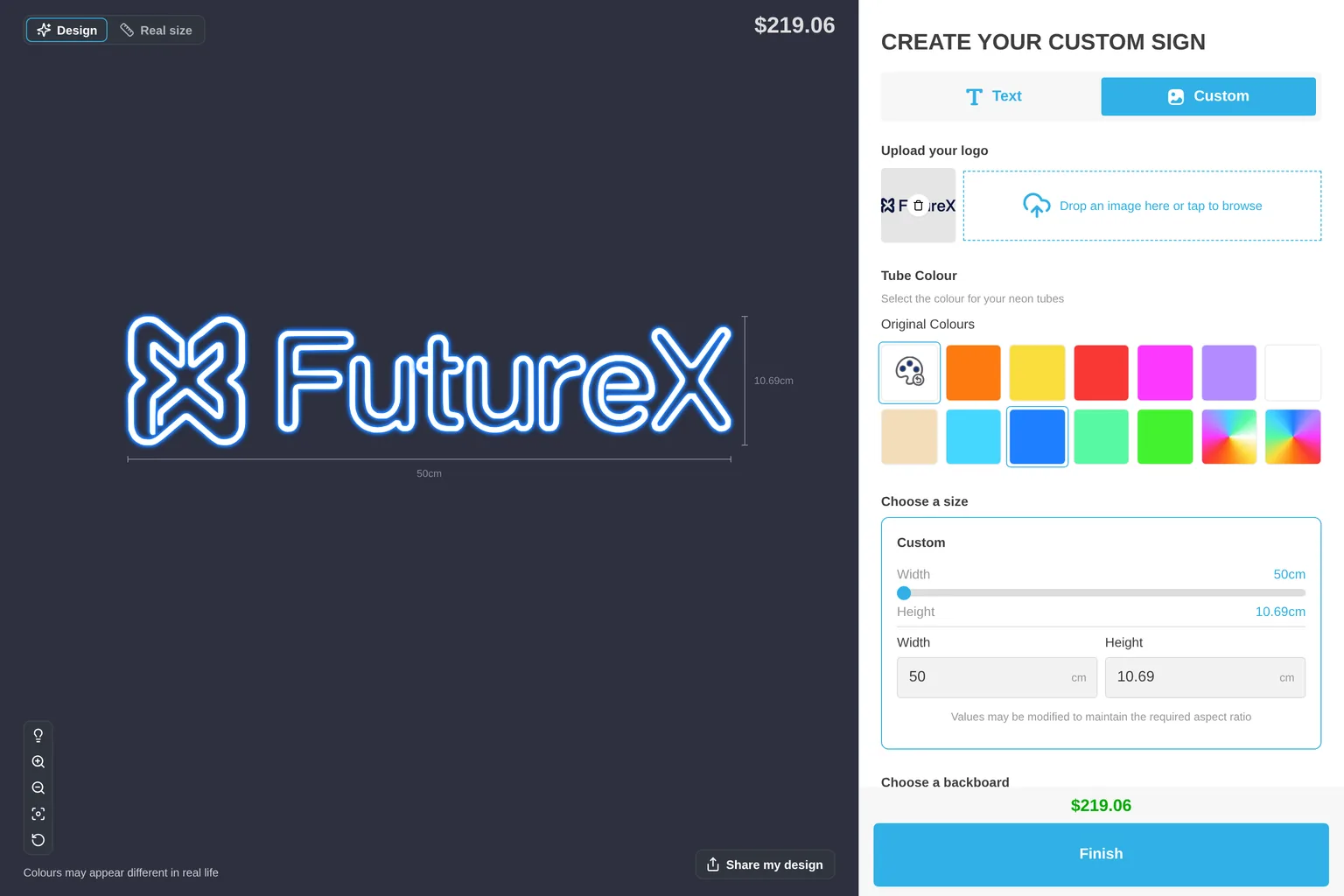
The AI Sign Designer changes a customer’s logo or drawing into a sign design that your team can make. The customer uploads an image. Sign Customiser builds a design from it. The customer then chooses the size, colours and options. The customer buys the sign or asks for a quote.
You can offer the AI Sign Designer in several ways. Use this guide to compare the setups, set up the one you need, and test it.
The AI Sign Designer uses AI credits. Each successful conversion uses one credit. A failed conversion uses no credit. All customisers in your Store share the same credits. Read “Manage AI credits” before you start to sell.
Compare the setups
Setups A, B and C decide what the customer sees. The fallback form (D) is a safety net that every setup needs.
| A. Sales setup | B. AI-only setup | C. Quote setup | D. Fallback form | |
|---|---|---|---|---|
| What it is | The Text tab and the Custom tab. The customer buys with add to cart. | The AI Sign Designer is the only design screen. | Quote Mode is on. The price is hidden. A quote form replaces add to cart. | A form for designs that the AI cannot make. |
| What the customer sees | A Text and Custom switch. The Custom tab has the logo upload. | A logo upload. No switch. | A logo upload. After the build, a Finalize Quote button. | The form, with the image attached. |
| What you receive | An order with a link to the AI design. The order email has the original upload. | The same as A. | A quote request in Quotes. No order. | A request in Quotes. |
| Credits | One for each successful conversion. | The same as A. | The same as A. The quote itself uses none. | Auto-process uploaded images with AI can use credits on form uploads. |
| Best for | Stores that sell text signs and logo signs. | Stores that sell only logo signs. | Stores that check each design before they sell it. | All setups. |
Demo data creates setup A. You can change a customiser to B later. You can add Quote Mode to setup A.
A customiser can use a different custom design option when the AI Sign Designer is off. These options are an embedded form or a link to another page. This guide does not cover them. Read Custom Design Forms and Linking to an external page for custom designs.
1. Check what you need
Check these items before you start.
Sign type. The AI Sign Designer works with Neon Letter Signs, Channel Letter Signs (acrylic or metal) and Metal Cut-Out Signs. It does not work with lightbox, stencil, wood or aluminium plate signs.
Pricing model. The customiser must use Material Length (Advanced Letter) pricing or Frame Fit pricing. Metal cut-out signs use Frame Fit pricing. Fixed Width (Simple Letter) pricing is not supported. If the pricing model is not supported, the Custom Designs page shows a warning.
AI credits. Your Store needs at least one credit to test the customer flow. Read “Manage AI credits”.
A fallback form. The AI Sign Designer needs a form with a required Email field and a File Upload field. Section 2 shows how to make this form.
When you create a new customiser, the Review step shows a Set up AI Sign Designer checkbox. It is on by default if Include demo data is on and the sign type and pricing model support it. It adds demo data and keeps the text editor on. It also creates a form named AI Sign Designer Form and uses it as the fallback form. The result is setup A. For that customiser, you can skip section 2. Check the settings in section 3 also.
For the create flow, read Quick Start.
2. Create the fallback form
Customers see the fallback form when the AI cannot make a design. They also see it when your Store has no credits.
- Open your customiser in the merchant admin.
- Open Features → Forms.
- Click Add New Form. If you already have forms, click Add Form.
- Under Form Quote Type, keep Custom designs (Unique sign designs beyond letter signs) selected.
- In Label, enter a name, such as
Custom Design Request. - Under Fields, click Add new field.
- Select File Upload.
- In Label text, enter
Upload your design. - Select Required Field.
- Click Done.
- Keep the Email field in the form. It must stay required.
- In Receiver Email, enter the address that receives the requests. If you leave it empty, the Store’s default email address is used.
- Choose what happens After submission.
- Click Save.
Use a Custom designs form as the fallback form. A Quote Mode form fails as a fallback form if Quote Mode is off.
For more form settings, read Custom Design Forms.
3. Turn on the AI Sign Designer
- Open Core Setup → Custom Designs.
- In the AI Sign Designer section, tick Enable AI Sign Designer.
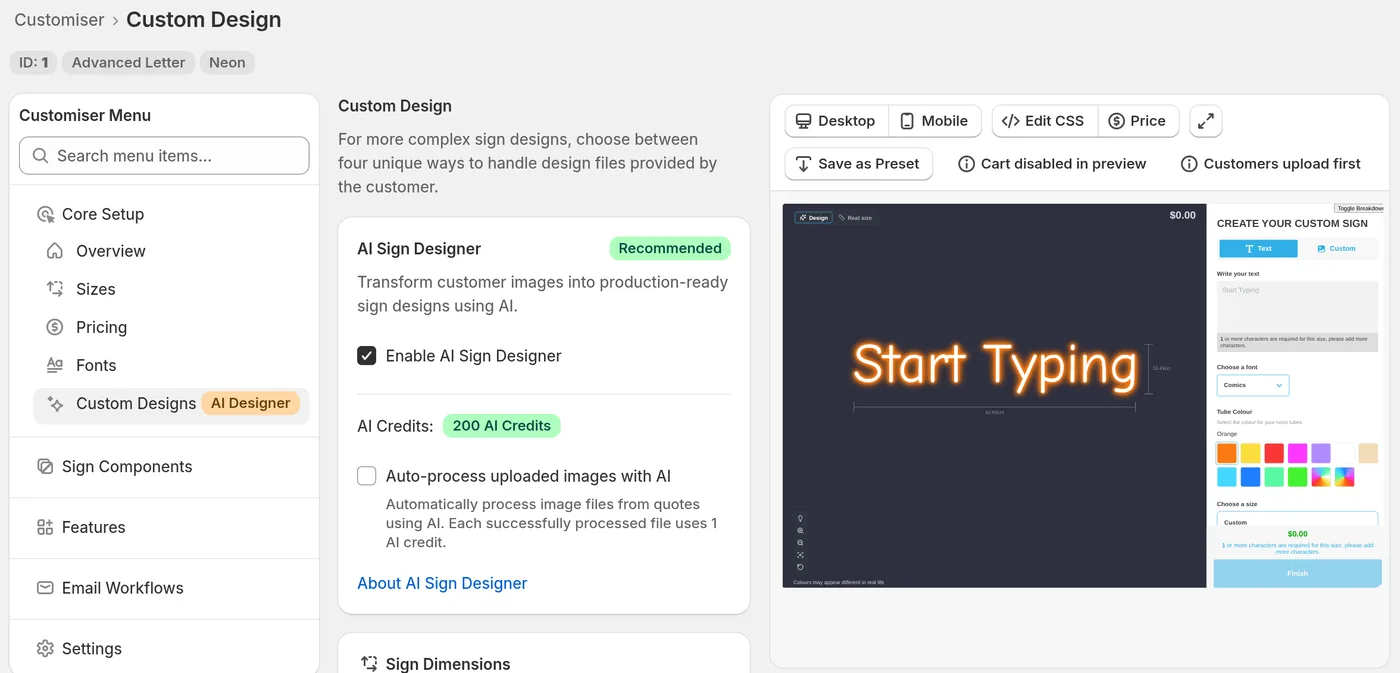
The AI Sign Designer section. The AI Credits balance shows when the checkbox is ticked.
If the page shows Form Required, click Add a form first. If it shows Fallback Form Required, click Update an existing form. Make sure that the form has a File Upload field and a required Email field.
- If the customiser uses Material Length pricing, find the Sign Dimensions card.
- Under Default sign size, enter the Default width and Default height. Sign Customiser fits each upload inside this size. Larger size tiers scale up from it.
- Under Minimum production height, enter the Minimum height. Use the smallest height that your production method can make.
A customer cannot add a design to the cart if it is shorter than the minimum height. Frame Fit customisers do not show the Sign Dimensions card.
If the Dimension conflict detected warning shows, set the default width to at least eight times the minimum height. You can also lower the minimum height.
- In the Pricing & Configuration card, find Pricing Model. Select the length pricing for this customiser.
- Under Fallback Form, select the form from section 2.
- Keep Send designs that cannot be made automatically to the fallback form ticked. It is on by default.
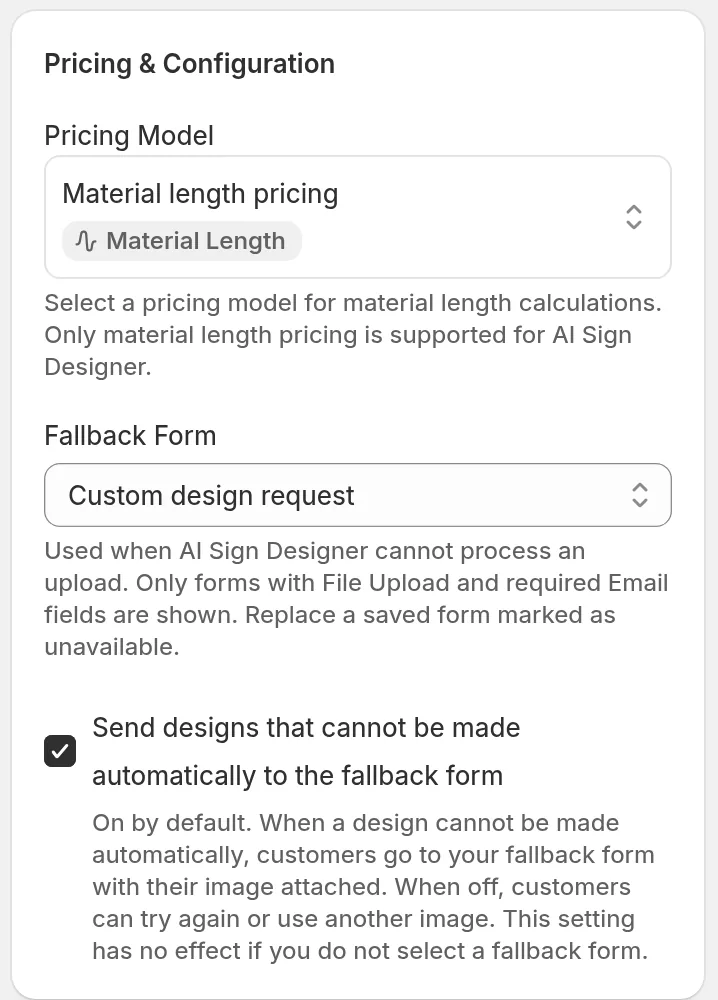
The fallback form and the checkbox that sends refused designs to it.
- Decide about Auto-process uploaded images with AI. This option shows when the AI Sign Designer is on. If it is on, the AI processes PNG, JPEG and SVG files that customers send with your forms. This includes quote forms. Each successful file uses one credit. Leave it off if you want to handle form uploads yourself.
- In the Language card, read the text that customers see. Change it if necessary.
- Click Save.
- Use the live preview on the right of the page. On a narrow screen, click Preview at the top of the page. Choose Desktop or Mobile.
If Enable AI Sign Designer is missing or grey, read “If something is missing” in How to Enable AI Sign Designer. For Material Length details, read Set up AI Sign Designer on a Material Length customiser. For Frame Fit pricing, read Frame Fit pricing.
4. Setup A: sales setup with two tabs
In this setup the customer chooses between typed text and an uploaded logo. Both paths lead to the same cart.
Make sure that the text editor is on:
- Open Features → Editor Modes.
- Keep Enable Text Editor ticked.
The customer sees a Text and Custom switch at the top of the options column. The Text tab opens first by default.
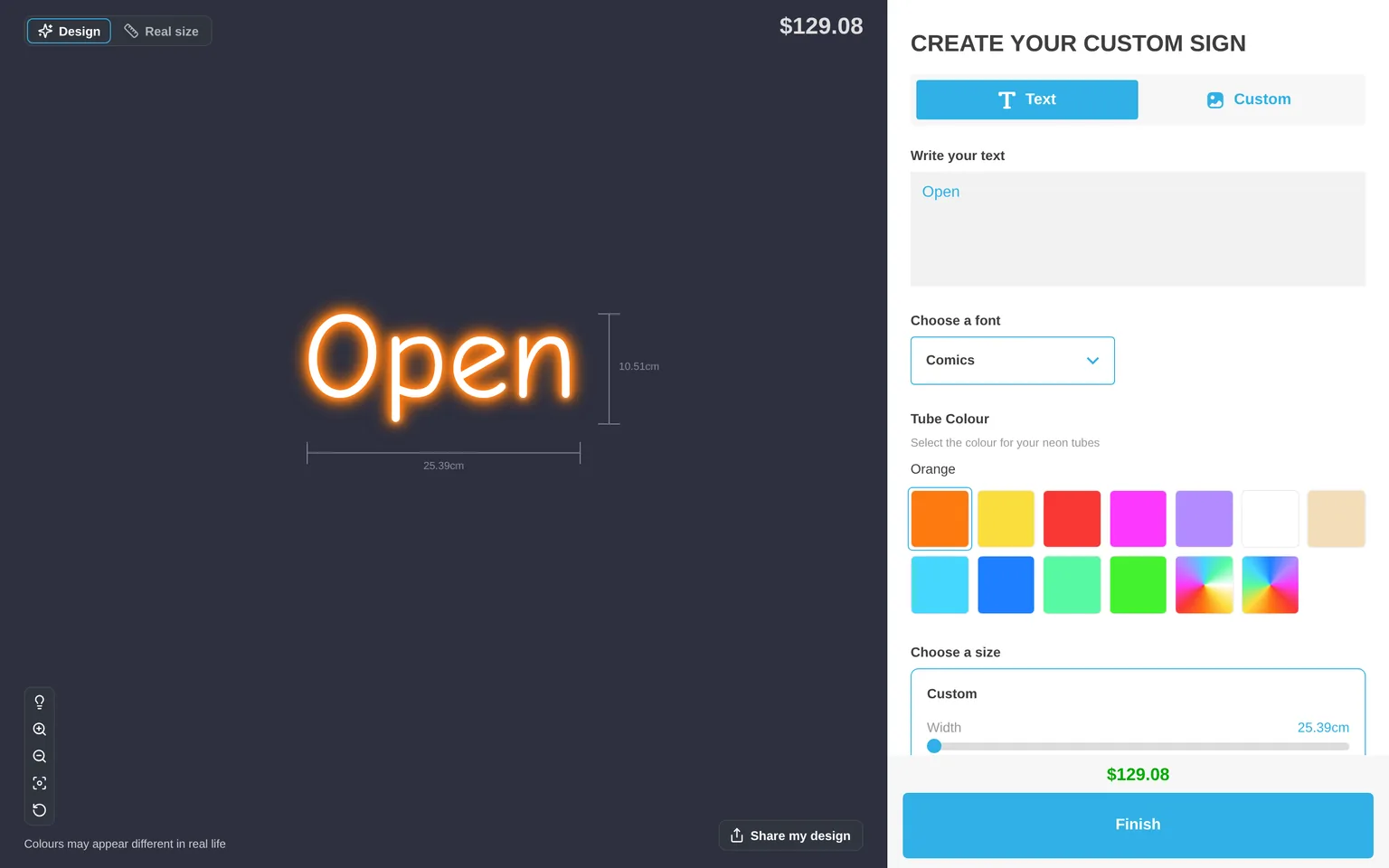
The Text tab is active. The Custom tab holds the AI Sign Designer.
To rename the tabs, open Settings → Languages. Change Text Tab and Custom Design Tab. Click Save draft. Then click Publish in the language list. Read Languages in Sign Customiser.
What the customer does
- The customer clicks Custom.
- The customer drops an image on the upload area or taps it to browse. The area shows Upload your logo and Drop an image here or tap to browse.
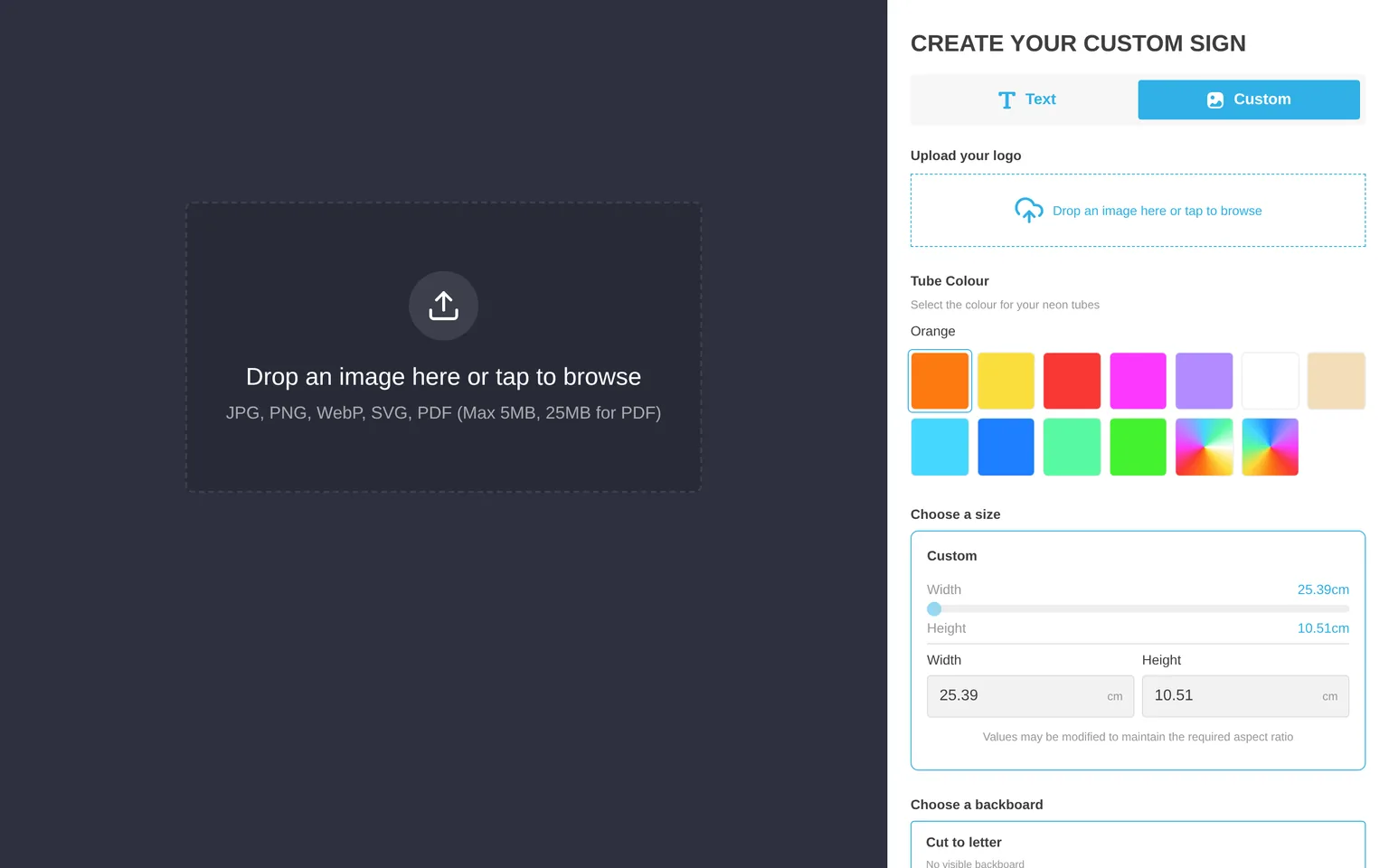
The upload area on the Custom tab.
The accepted formats are JPG, PNG, WebP, SVG and PDF. An image can be up to 5 MB. A PDF can be up to 25 MB. For a PDF, the AI uses the first page. Read Upload PDF artwork to the AI Sign Designer.
- The build screen shows a drawing of a sign and a progress bar. It shows these stages:
| Stage | Title | Message |
|---|---|---|
| 1 | Reading your image | Finding the shapes and words to keep. |
| 2 | Designing your sign | Turning your image into clean lines and shapes. |
| 3 | Refining your design | Detailed images take a little longer. |
| 4 | Putting it all together | Your design is ready. |
Stage 3 shows only after 60 seconds. A design that does not finish in four minutes fails. On a screen 768 px wide or wider, the build screen also says Your image is saved. Keep this page open.
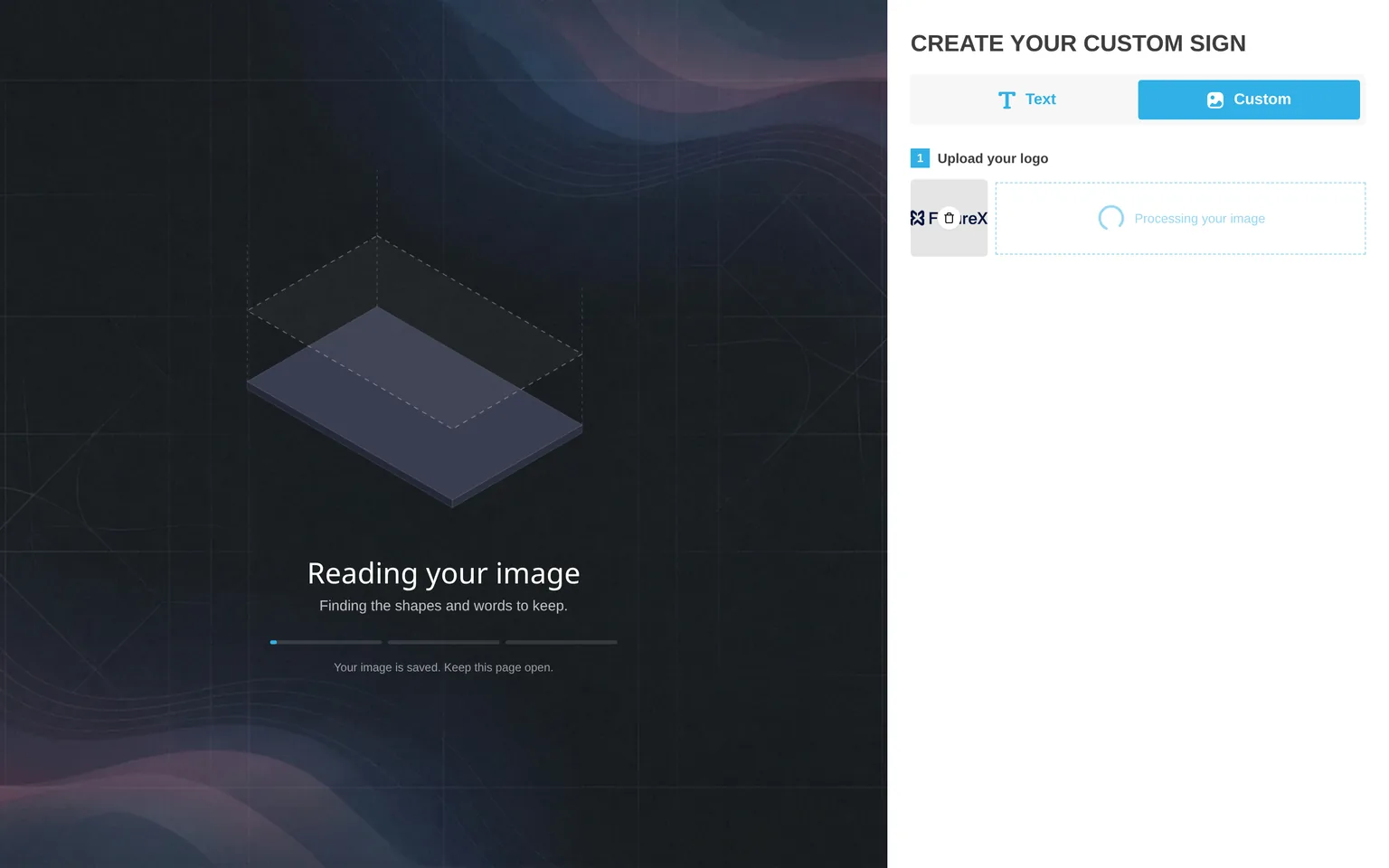
The build screen at stage 1, while the AI reads the image.
You can change the text of stage 1. Use Upload pending title and Upload pending description in the Language card on the Custom Designs page. You cannot change stages 2, 3 and 4. Read Set up the AI Sign Designer build screen and fallback form.
- The generated design shows on the sign preview.
The finished design. The customer can change the colours and the size. The price changes with the size.
- The customer chooses the size, the colours and the other options. The price shows.
- If the design is shorter than your Minimum height, the customer sees “The overall sign height is too small. Please increase the height.” The customer must increase the height before adding the sign to the cart.
- The customer clicks the button below the price. If the Review Screen is on, the button shows Finish and opens the Review screen first. Then the button shows Add to Bag. If the Review Screen is off, the button shows Add to Bag. You can change these labels.
If you turned on Show Real size view, the customer can click Real size to compare the design with a person. Read Real size view.
What you receive
The cart line carries a link to the SVG of the AI design. The order email and the manufacturer email contain SVG links and the original upload of the customer. The manufacturer email also contains EPS and Illustrator-compatible links if you turn on those formats. Read How to enable or disable SVG, EPS and Illustrator-compatible PDF files for manufacturing. For the handoff, read Order fulfilment and Supplier and manufacturer emails.
5. Setup B: AI-only
In this setup the customer sees only the AI upload. There is no text editor and no switch.
- Complete sections 2 and 3.
- Open Features → Editor Modes.
- Clear Enable Text Editor.
- Read the banner. It says that the tab switcher is hidden and that customers go straight to the custom design screen.
- Click Save.
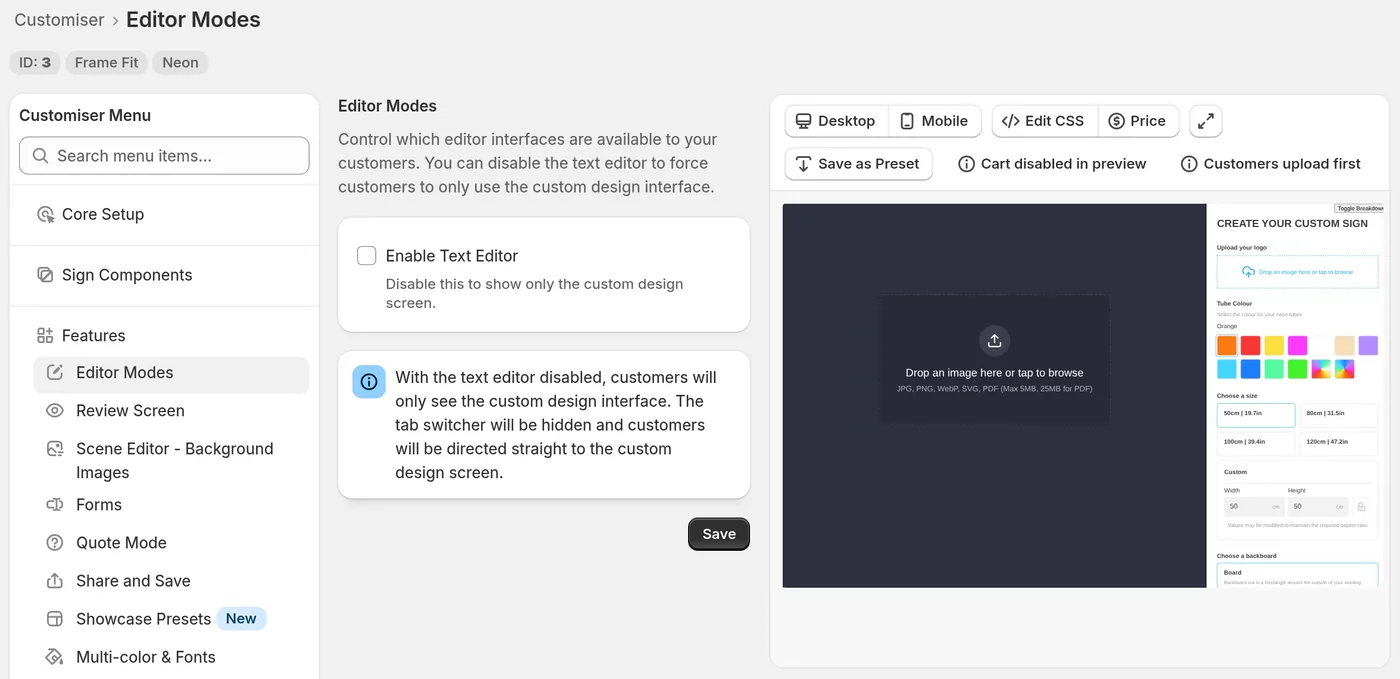
Editor Modes with the text editor off.
The Enable Text Editor checkbox is grey until a custom design option is on. Save the Custom Designs page first. Turn the text editor on again before you remove the custom design option. Otherwise you cannot save the Editor Modes page.
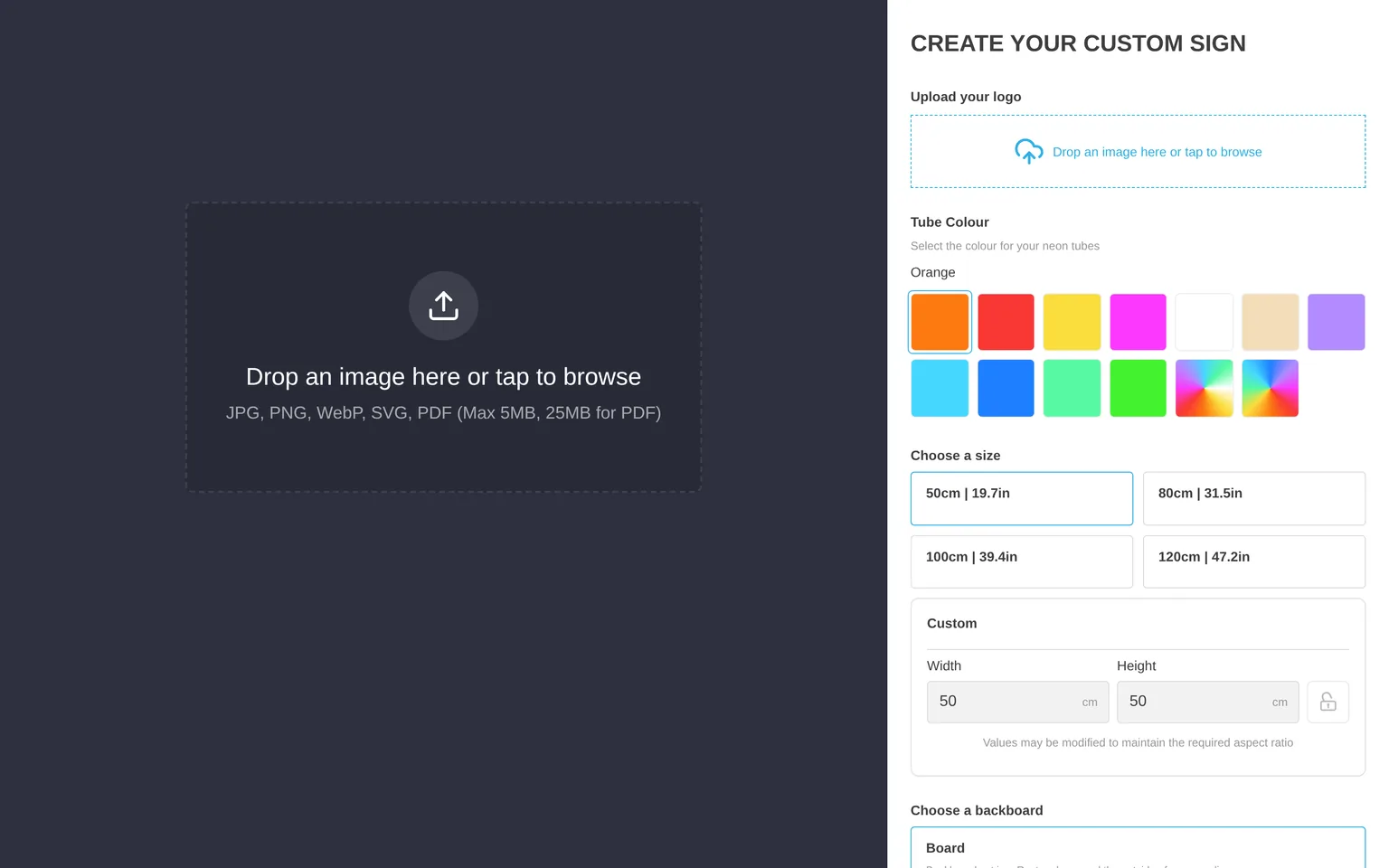
The customer sees the AI upload and no switch.
Before the design is ready, the customer sees only the upload step. After the design is ready, the size, mounting and other steps show. If your Store has no credits, the customer sees the fallback form. If you have no fallback form, the customer sees no AI step.
For more detail, read Editor Modes.
6. Setup C: quote setup
In this setup the customer makes the design and then asks for a quote. There is no cart and no payment. By default, the price is hidden.
Create the quote form
- Open Features → Forms.
- Click Add Form.
- Under Form Quote Type, select Quote Mode (Quoting designs based on customiser options).
- Add a File Upload field. The customer’s original image goes into the first File field.
- Keep the required Email field.
- Click Save.
Turn on Quote Mode
- Open Features → Quote Mode.
- Tick Enable Quote Mode.
- Under Quoting Form, use Select a quote form to choose your quote form.
- Optional: Tick Show suggested price. It is off by default.
- Under Language, change Quote button label. The default label is Finalize Quote.
- Change Label for back to main screen button. The default label is Edit my design.
- Click Save.
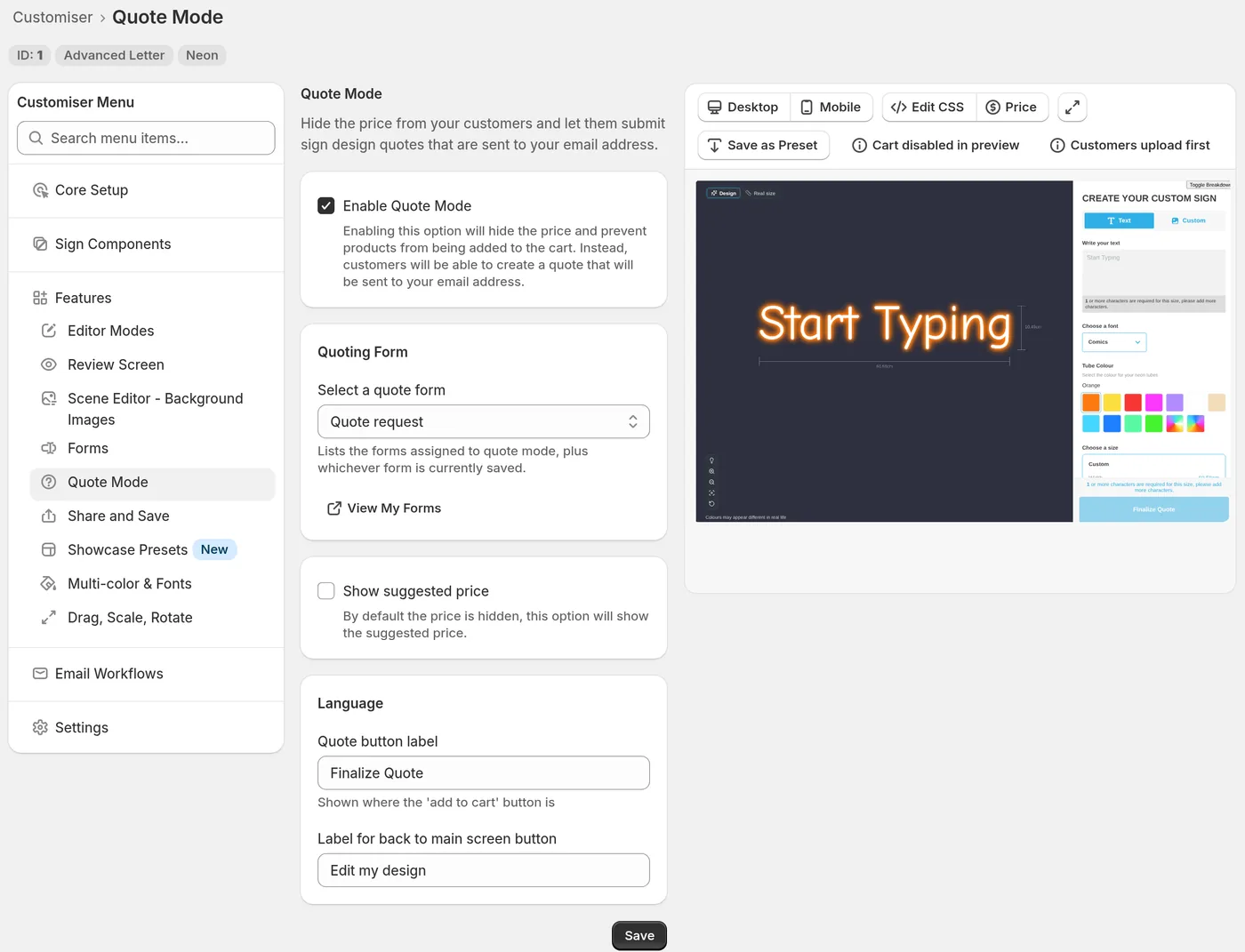
The Quote Mode settings.
If you save Quote Mode with no form, the page shows Quote Mode has no form. Click View My Forms to make one.
Keep a Custom designs form as the AI fallback form from section 2.
What the customer does
- The customer uploads a logo on the Custom tab and waits for the build.
- After the build, the button shows Finalize Quote. The price is hidden unless Show suggested price is on.
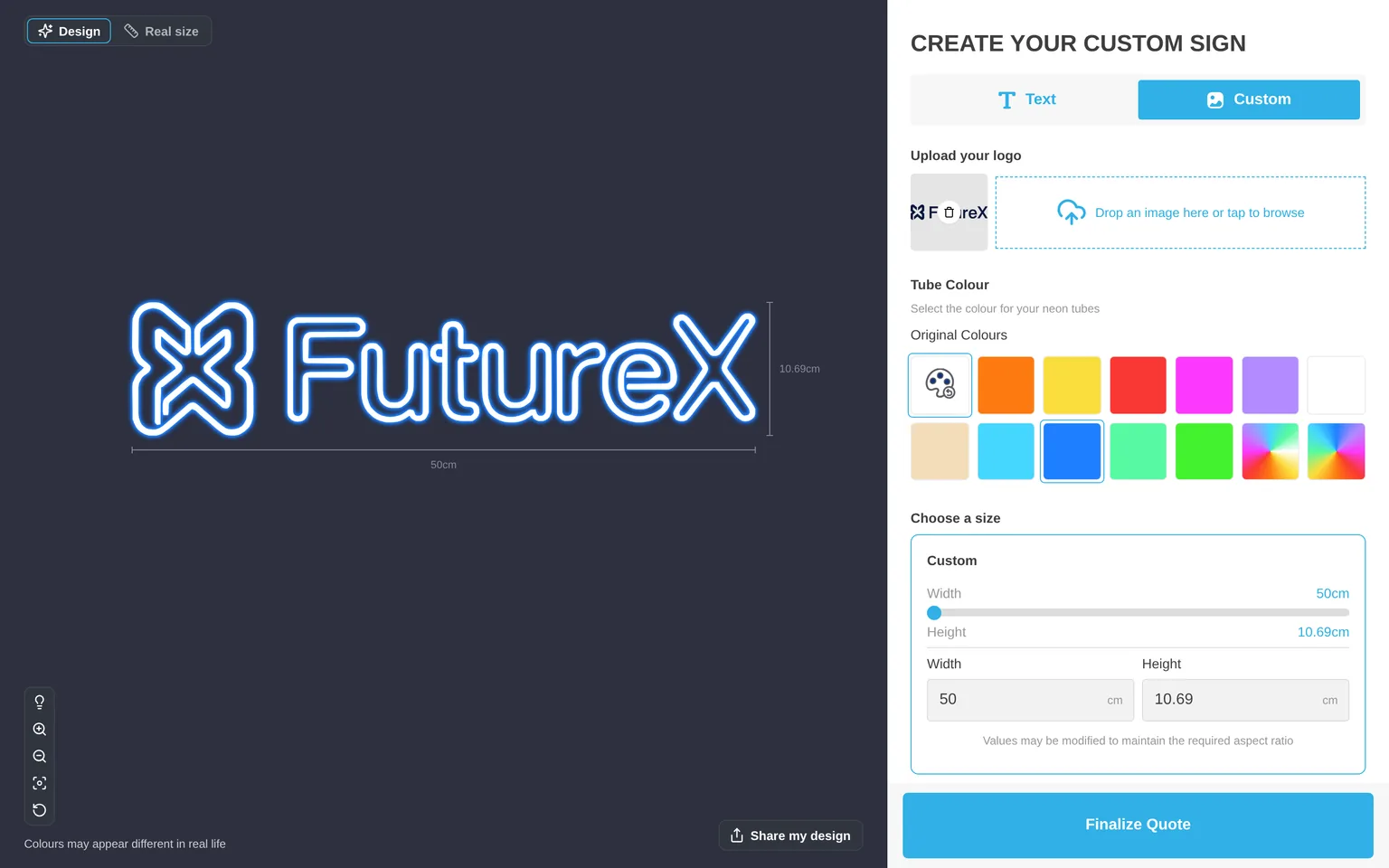
The quote button replaces the add-to-cart button.
- The customer clicks Finalize Quote. The quote form opens. The original upload is already in the form.
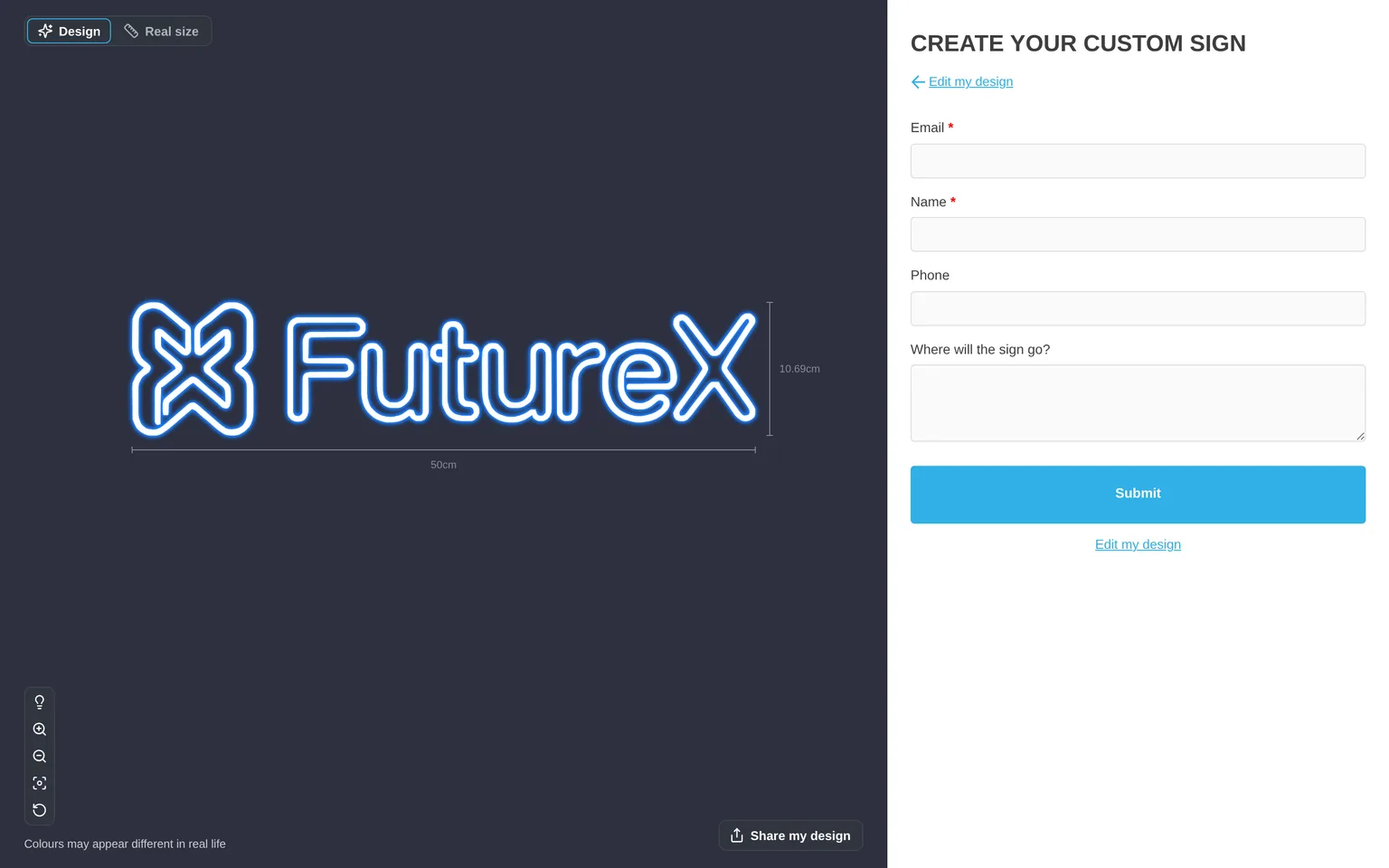
The quote form. Edit my design takes the customer back to the design.
- The customer completes the form and sends it.
The Buy it now button is hidden. Quote Mode comes before the Review Screen.
What you receive
Each request appears under Quotes. Open a request to see the options, the preview images and a Suggested price row. Click Download Quote to save a PDF.
The email to your inbox lists the options and the preview images. It has an SVG download link if SVG generation is on. It shows Suggested Price only if Show suggested price is on. The Quotes page and the PDF always show the stored price.
Quote Mode creates no order and no cart item. You confirm the price and invoice the customer yourself. If Send a confirmation email to my customer is on, the customer also gets an email.
Credits in the quote setup
The quote uses no credit. A successful AI conversion uses one credit. If Auto-process uploaded images with AI is on, quotes with a PNG, JPEG or SVG upload can also use credits.
For more detail, read these articles:
- Quote Mode
- Download a quote as a PDF
- The confirmation email your customer receives
- Export your quote requests with the API
7. Handle designs the AI cannot make
The AI cannot make every design. Use this table to see what the customer sees.
| Situation | What the customer sees | What happens next |
|---|---|---|
| The AI refuses the design | We can’t make this one automatically | The fallback form opens with the image attached. The checkbox must be on. The fallback form must have a File Upload field. |
| Every AI provider declines the image | ”Our AI can’t recreate this image, often because of copyright. Try another image, or send it using the form below.” | The customer tries another image or uses the form. Change this text in Provider refusal message. |
| The run fails or times out | We couldn’t design this one, with Try again, Use another image and Submit as a form request | The form opens only if the customer clicks Submit as a form request. This button shows only if the fallback form has a File Upload field. |
| The design fails the manufacturing check | Design review required | The fallback form opens with the image attached, if the checkbox is on. |
| The Store has no credits | The upload is hidden and the fallback form shows. | If you have no fallback form, the AI step does not show. If credits run out during a run, the customer sees Credits Required. |
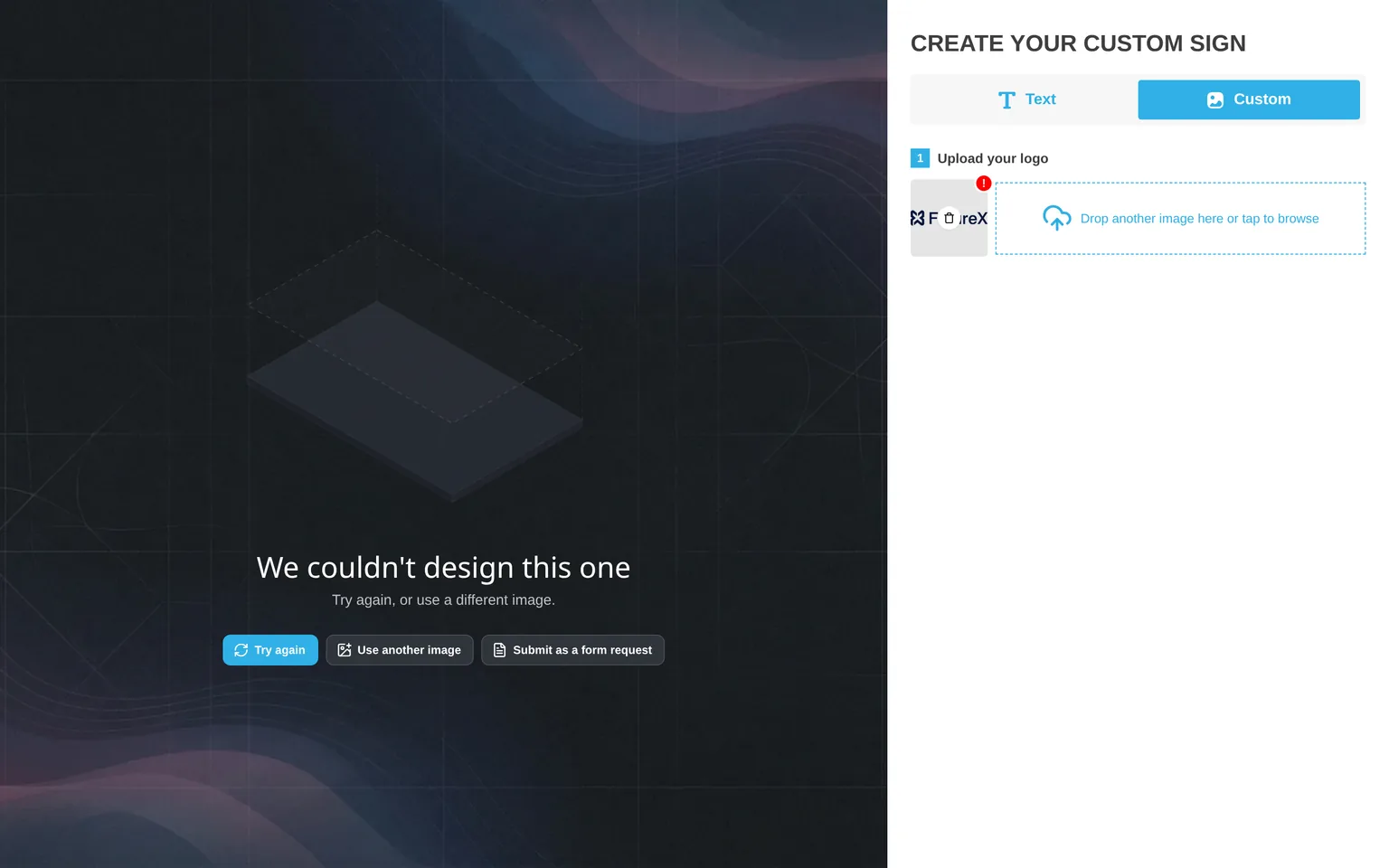
The failed screen when the run fails or times out.
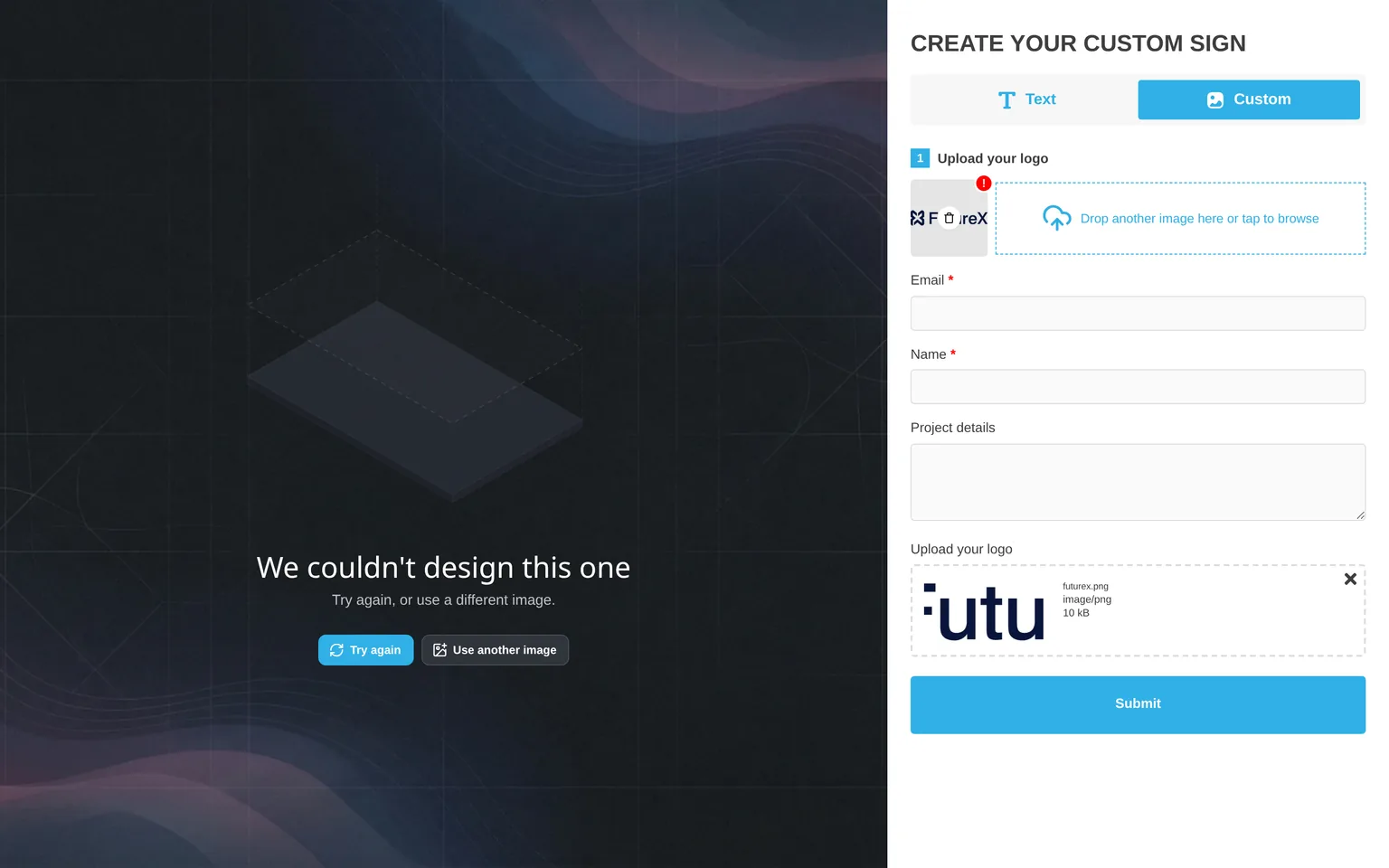
The fallback form after the customer clicks Submit as a form request. The original image is already attached.
If you clear the checkbox, the customer sees the failed screen with Try again and Use another image. The design does not go to the form.
If no fallback form is available, the provider refusal message ends after “Try another image.”
Requests from the fallback form appear under Quotes. The Form Quote Type of the form decides if a request shows as a Form submission or a Quote request.
8. Check the mobile layout
A phone or tablet has a screen narrower than 1025 px. If the text editor is on and Initial Selection Screen is Show, the customer first sees two buttons. They are Text and Custom.
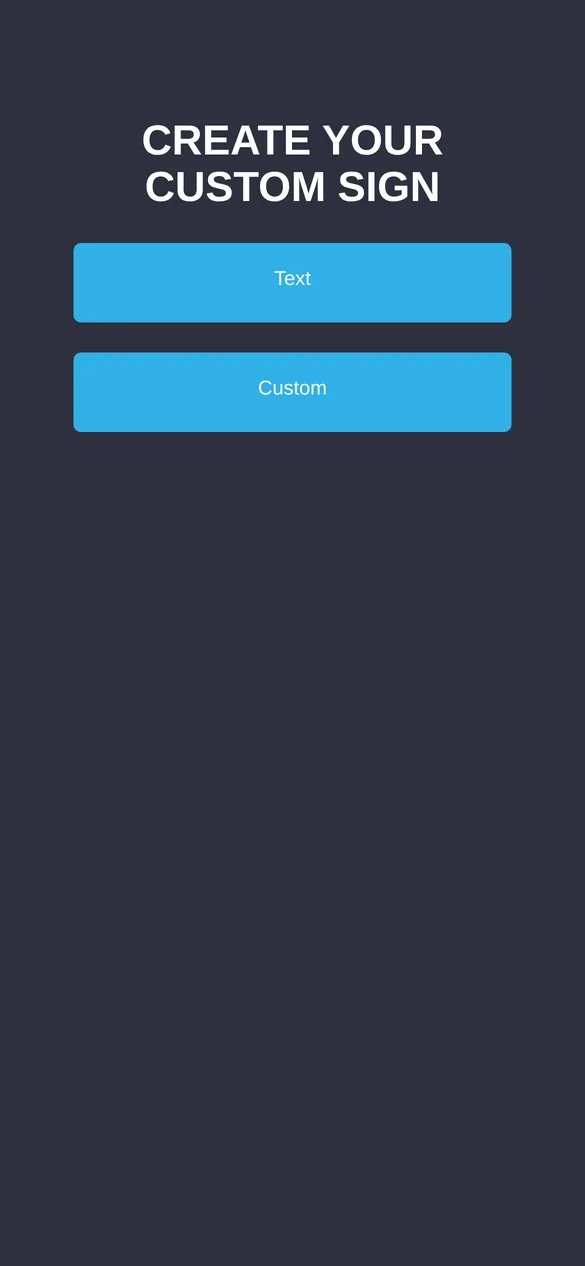
The mobile chooser screen.
- Open Settings → General Settings.
- Find Mobile Style Options.
- Set Initial Selection Screen to Show or Hide.
- Click Save.
The chooser does not show if the text editor is off. To rename the buttons, change Text Tab and Custom Design Tab in Settings → Languages. Read Mobile Style Options.
9. Manage AI credits
- Each successful conversion uses one credit. A failed conversion is free.
- Sign Customiser uses monthly credits first. Purchased credits never expire.
- The credit packs are 40 credits for $10, 120 credits for $25 and 400 credits for $75.
- To see your balance, open AI Credits on the Custom Designs page. The AI Converter card on AI Design Files also shows it.
- The Your Subscription page also shows your balance. On Universal, open Billing. On Shopify, open Subscription/Credit.
- To buy a pack, click Purchase AI credits.
For more detail, read How AI credits work.
10. Test each setup
Open the customiser on your storefront. Test it on a phone and on a desktop screen.
Test every setup:
- Upload a clean logo. Check the design and the size of the sign.
- Upload a PDF.
- Upload an image with much detail or an image that has copyright. Check what the customer sees.
- Check the Minimum height message.
- Send a test request with the fallback form. Check Quotes.
- Check your credit balance before and after each test.
Test setup A:
- Check both tabs.
- Add one AI sign and one text sign to the cart. Check the images, text, size and price.
- Place a test order. Check the SVG links in the order email.
Test setup B:
- Check that no switch shows.
- Check that the fallback form shows when your Store has no credits.
Test setup C:
- Check that Finalize Quote shows and that no price shows.
- Send a quote. Check Quotes, the PDF and the email.
- Check that no cart item and no order exist.