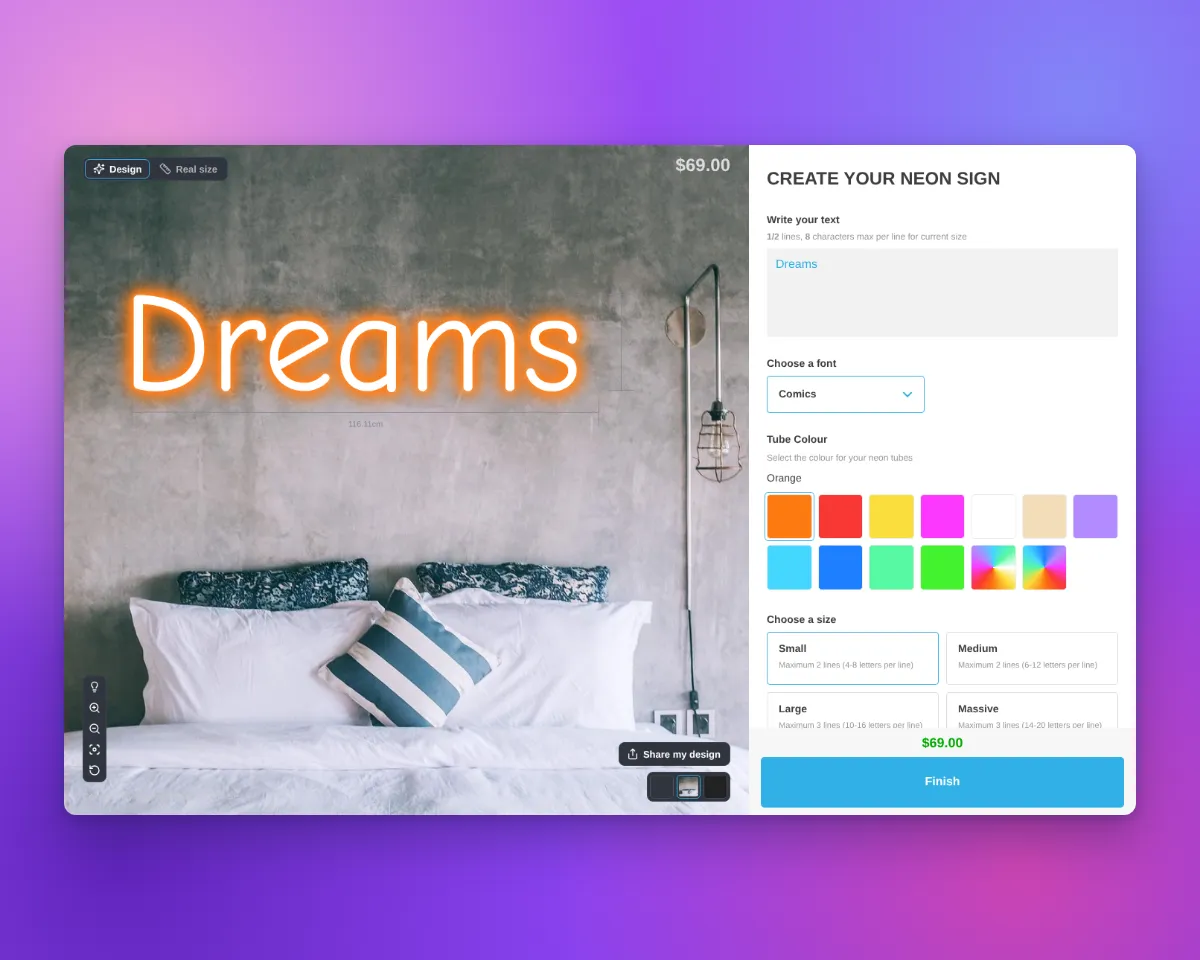
Sign Customiser now lets you set where the sign shows on each scene background image. Draw one box on the image. This box is the Sign area. In the Design view, the customer customiser shows the sign in the Sign area. Before this update, you could not set a sign position for each background image. The Sign area does not change the size that the shopper orders, the price or the files for the manufacturer.
What’s Changed
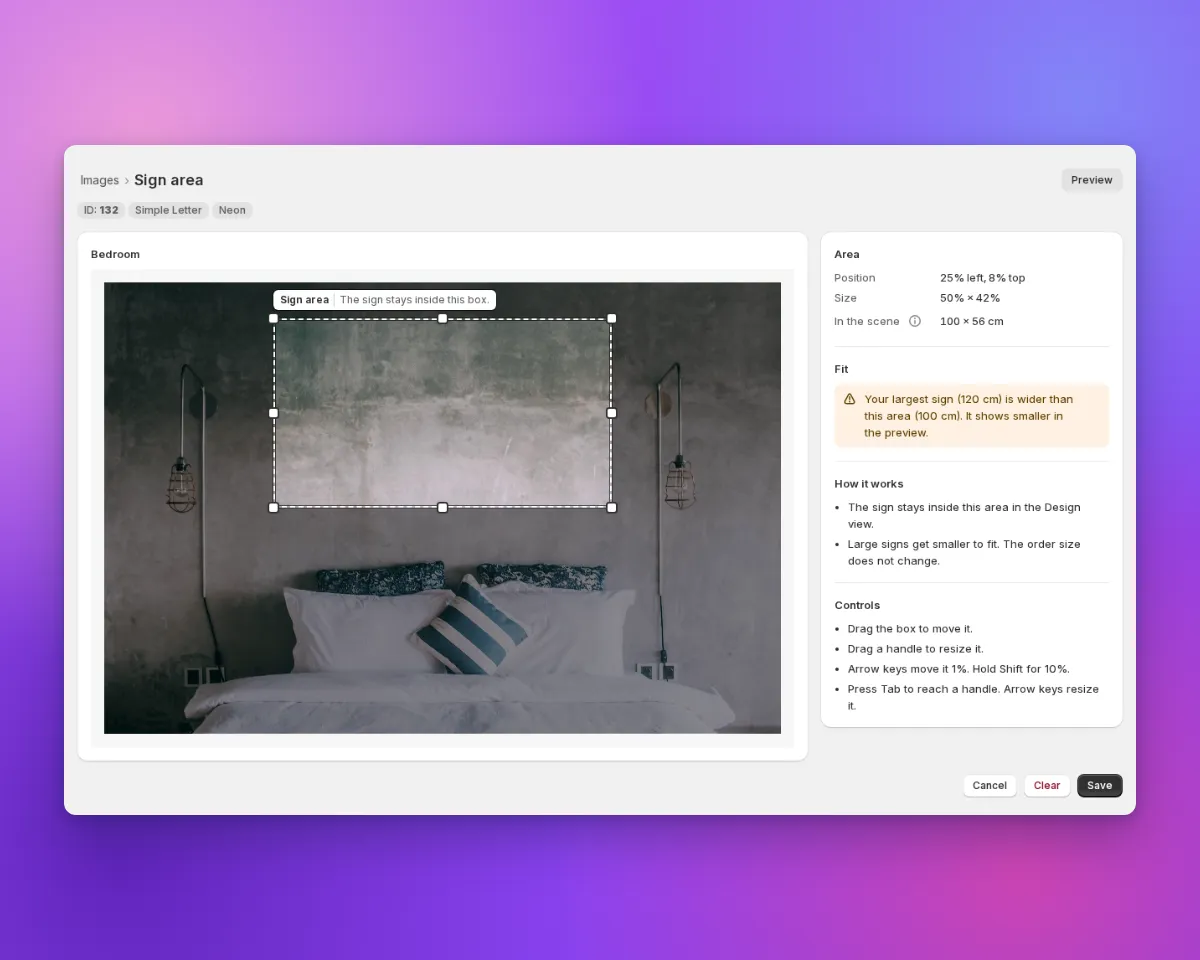
- A Sign area page for each background image. Open Scene Editor - Background Images. In Manage Images, each saved image with a file has a Set Sign area or Edit Sign area link. On the Sign area page, the box has a “Sign area” label. Drag the box to move it. Drag a handle to change its size. You can also use the arrow keys. Save keeps the Sign area. Clear removes a saved Sign area. Cancel closes the page and does not save. If the Images form has unsaved changes, save them before you open the link.
- A Fit check for your largest size. The Fit section compares the width of your largest sign with the width of the Sign area. If the sign is wider, a warning tells you that the sign shows smaller in the preview. The Fit section shows when “Scale visualisation with size” is on and the background has a width. It is available for Frame Fit customisers and for Fixed Width customisers with sizes that set the sign width.
- The sign stays in the Sign area. In the Design view, the sign is at the centre of the Sign area. If “Scale visualisation with size” is on and the background has a width, the sign keeps its real size. The sign becomes smaller only when it does not fit. If the background has no width, the sign fits in the Sign area.
- The Sign area stays in view. The preview frame can have a different shape from the photo, for example a wide frame and a square photo. Then the customiser moves the photo in the frame, so that the Sign area stays in view.
- Review and the product image use the same Sign area. The Review screen shows the sign in the same Sign area. The product image for the cart and the order also uses the Sign area when “Use the selected background in the product image” and “Scale visualisation with size” are on.
- Other backgrounds do not change. A background without a Sign area works as before. The Sign area is not available for lightbox signs. It is also not available when Enable Dragging, Enable Scaling or Enable Rotation is on. It does not apply to a background that the shopper uploads, to colour-only backgrounds or to the Real size view.