
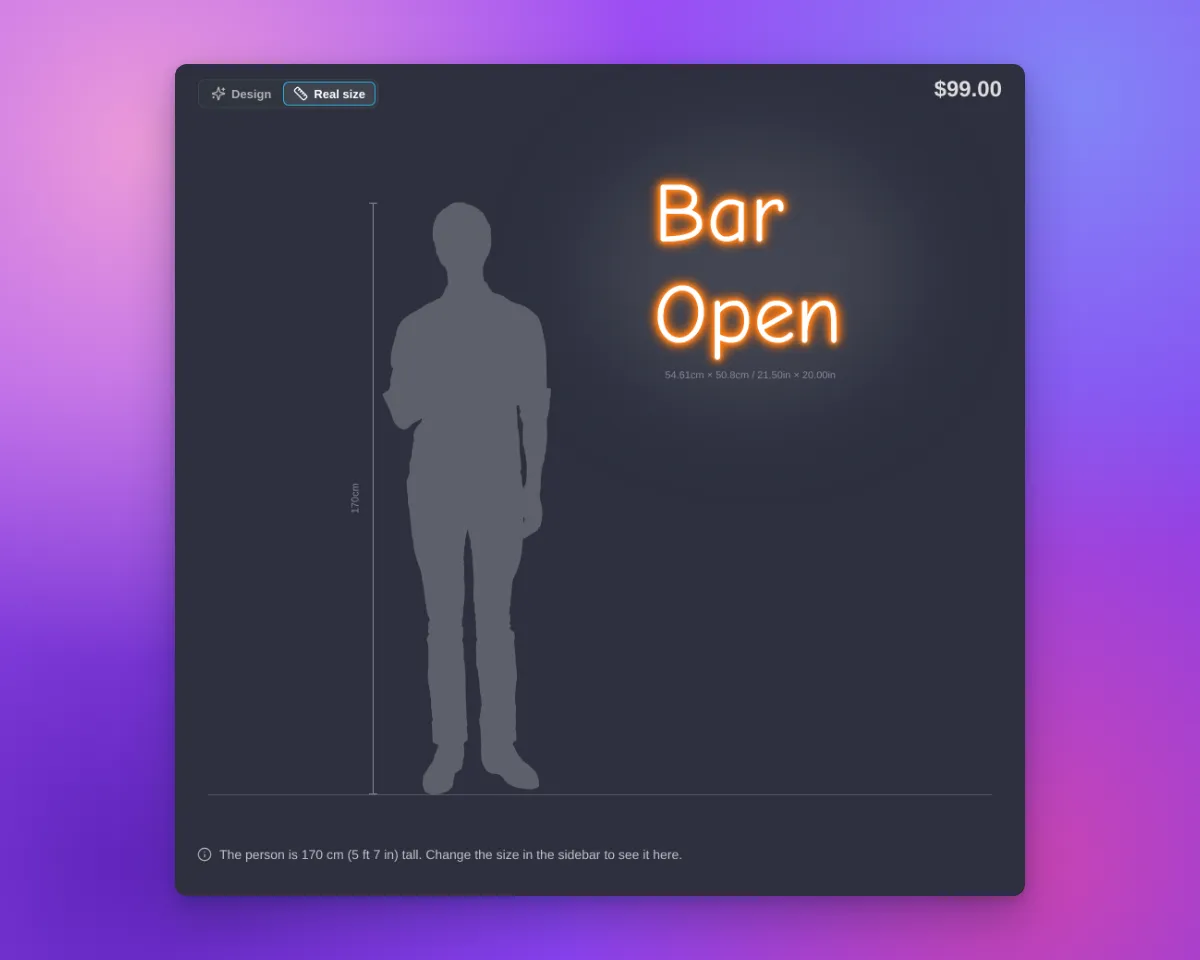
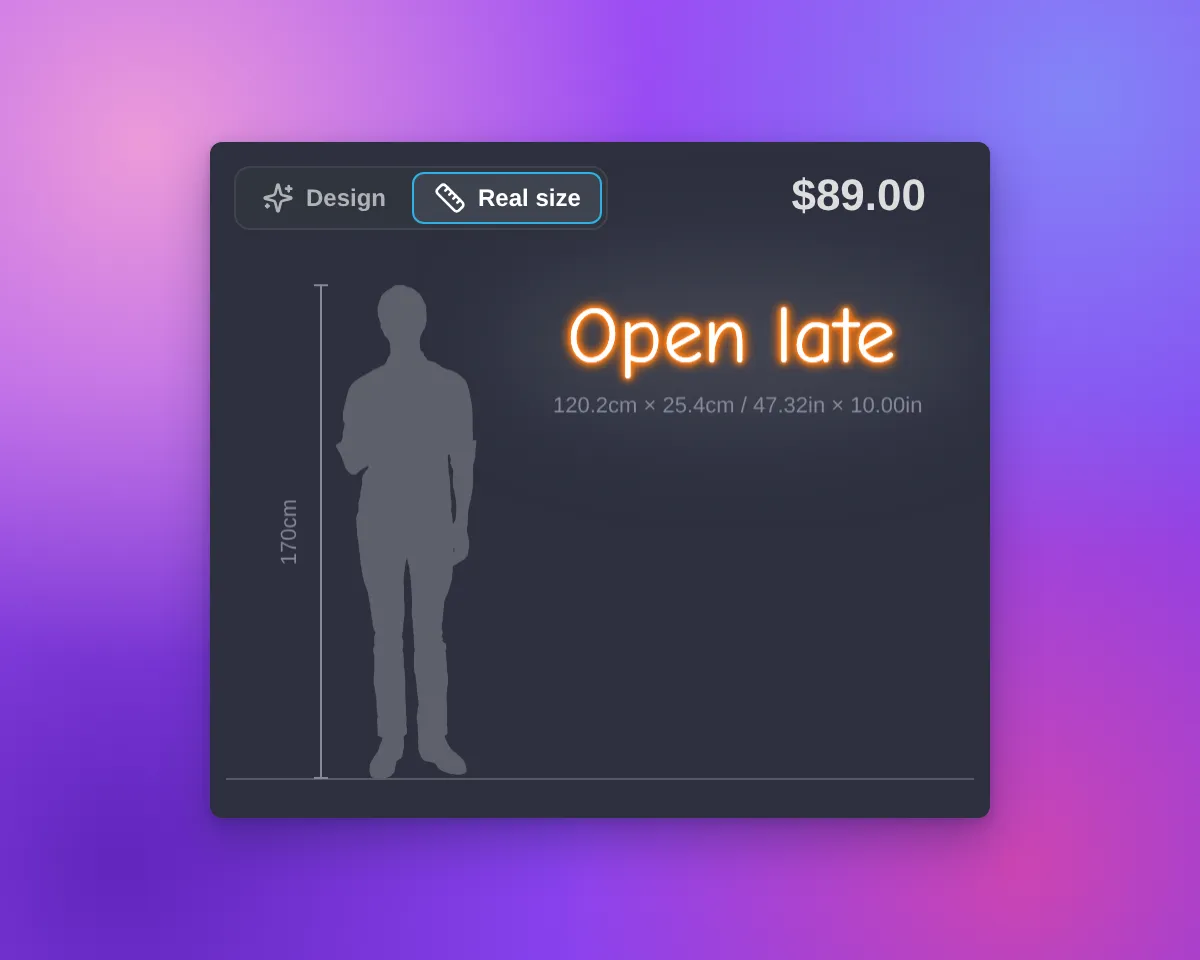
The sign preview in Sign Customiser has a new Real size view. The view shows the customer’s sign next to a person who is 170 cm (5 ft 7 in) tall. The sign and the person have the same scale. Customers can see how big the sign is before they order it.
What’s Changed
- Design | Real size switchThe switch is at the top left of the preview. The view opens only when a customer selects “Real size”. When the customer selects “Design”, the preview shows the design and the background again, with the sign in the centre.
- One scaleThe Real size view uses the final width and height of the sign. This is the same size that the measurements on the preview show. The sign is on a wall next to the person, with a floor line and a height rail.
- All sign shapesSquare, wide, tall and small signs fit in the preview on desktop and on phones. If the preview is too small, the “Real size” option shows a message.
- Text signs and AI designsThe Real size view works for text signs and for designs from the AI sign designer.
- Tools hiddenIn the Real size view, the preview does not show the tool buttons, “Share my design”, “Upload Background” or the backgrounds. The sidebar stays available. When the customer changes the size, the view shows the change.
- Your measurement settingsThe size label of the sign follows your “Show/hide Measurements” setting. The height of the person and the size of the sign use your “Measurement Unit” setting.
- On for new customisersNew customisers show the switch, except lightbox customisers. Customisers that you already have do not show it until you select the option. A duplicate customiser keeps the setting of the original customiser.
- Where to find the optionOpen your customiser. Go to “Features → Scene Editor - Background Images”. In the “Visualiser Scaling” section, select “Show Real size view”. Click “Save”. You can use this option on every plan and with “Drag, Scale, Rotate”.
- Your own wordsYou can change and translate the switch labels, the caption and the messages. They are in the “Visualiser” section of each language, in “Settings → Languages” of your customiser.
- Not for lightbox signsThe Real size view is not available for lightbox signs.
- Live preview onlyProduct images, the cart and shared design links show only the sign. They do not show the person.
For the full steps, read the Real size view article.
