
The customiser sidebar has a new layout for signs with more than one colour choice for their parts. Before, each choice was a small icon tile in a row. The name showed only in a tooltip and above the swatches of the selected choice.
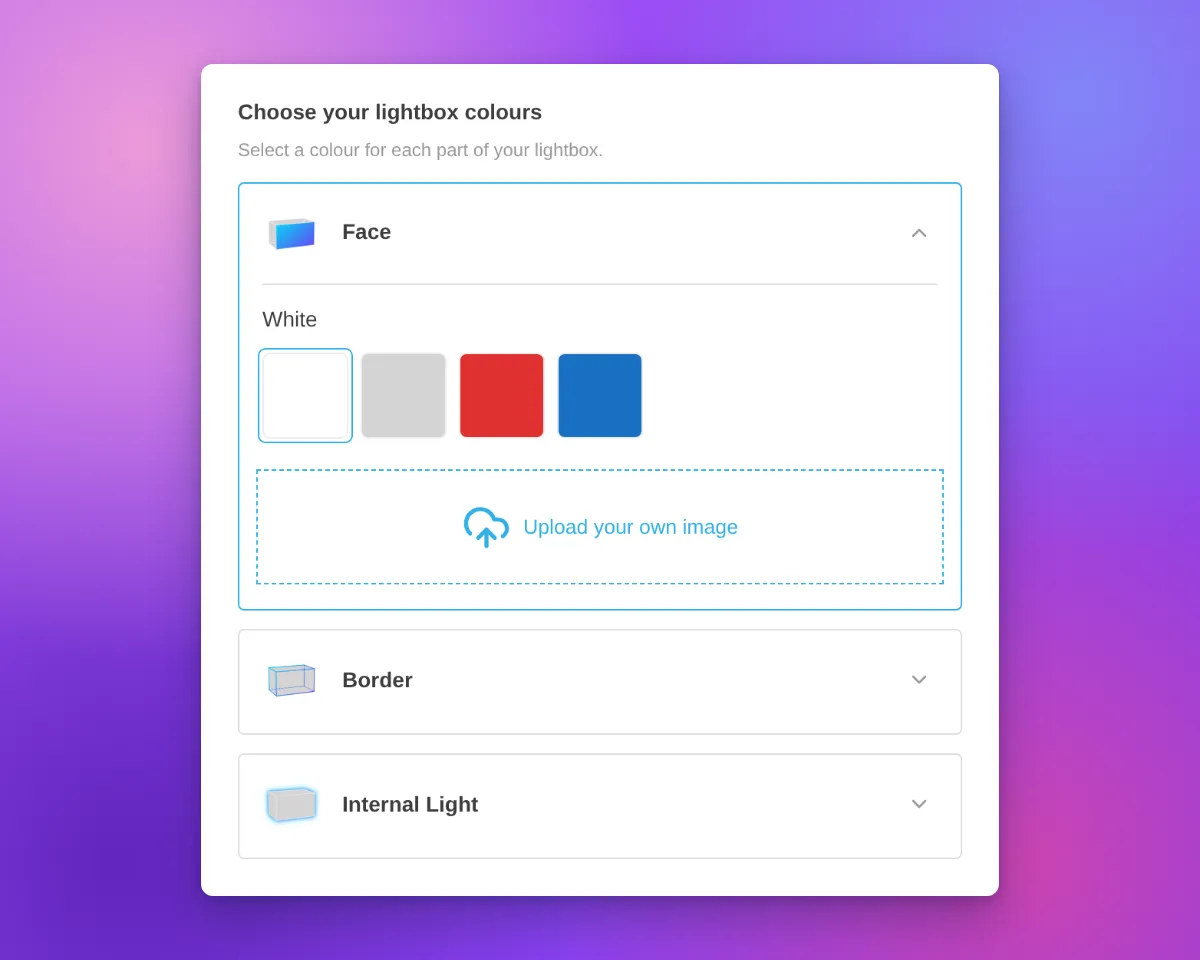
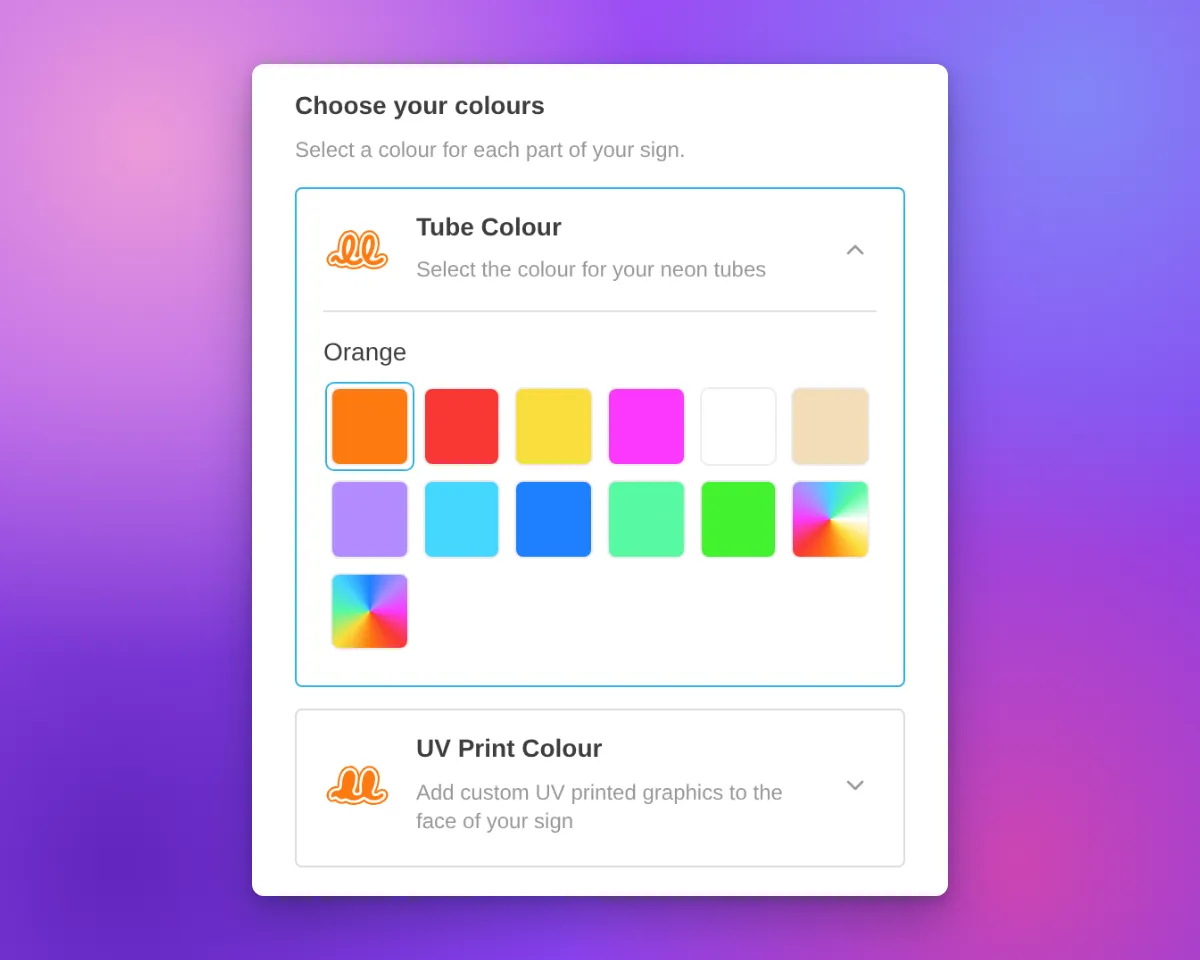
Now each colour choice has its own card. Most cards are for one part of the sign, such as the tube or the face. On a lightbox, the Face and Border parts can share one card when they have the same colour options. The card shows the name, an icon and an arrow. On neon and letter signs, the icon shows the current colour.
Only one card is open at a time. The open card contains the colour swatches for that choice. Customisers with only one colour choice for their parts keep the same colour section layout. Other colour sections, such as the backboard colour, also keep the same layout.
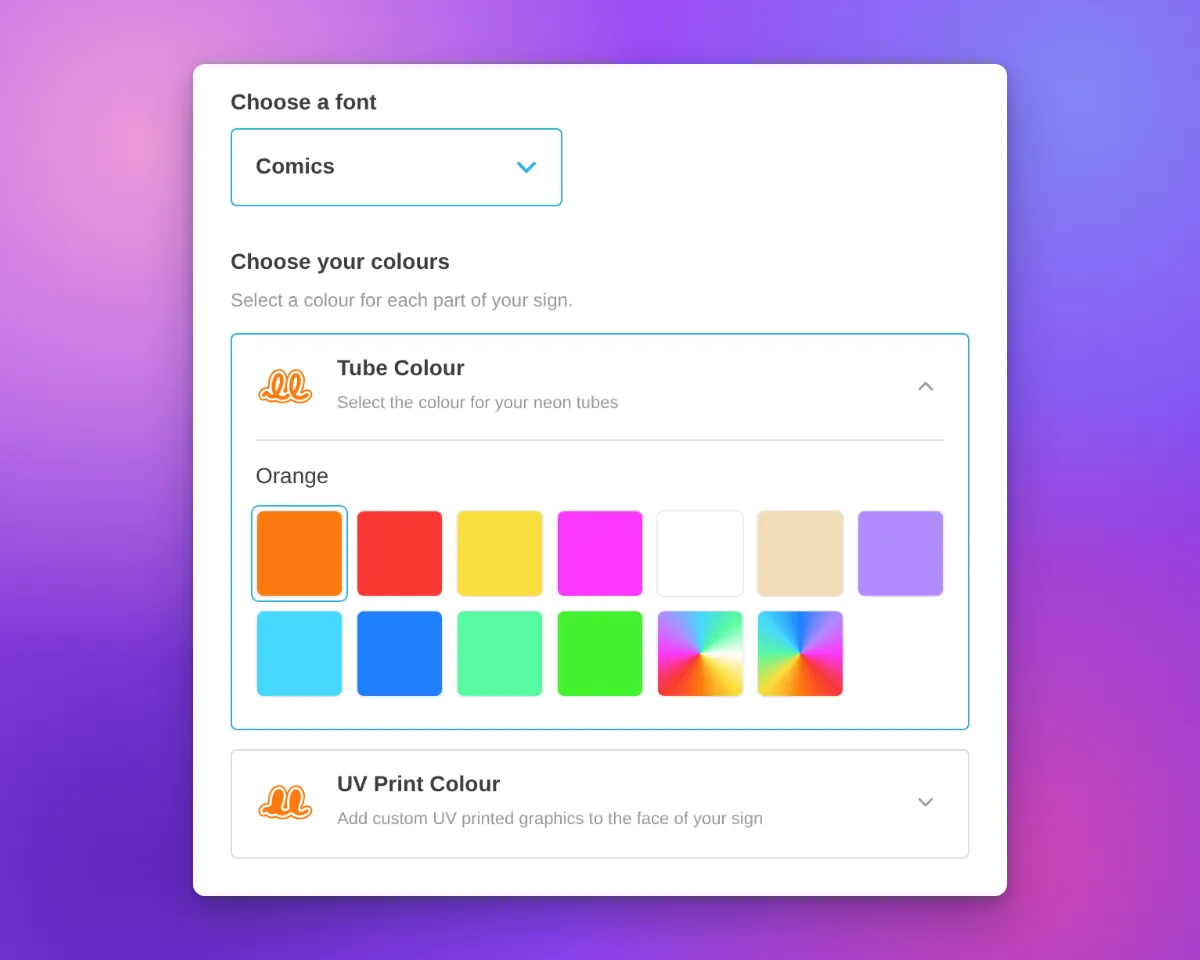
Neon signs have new icons for the tube colour and UV print parts. The tube icon is a neon tube on a backboard outline. The UV print icon is the same backboard shape, filled with colour. Both icons change to the selected colour, including multi-colour options.
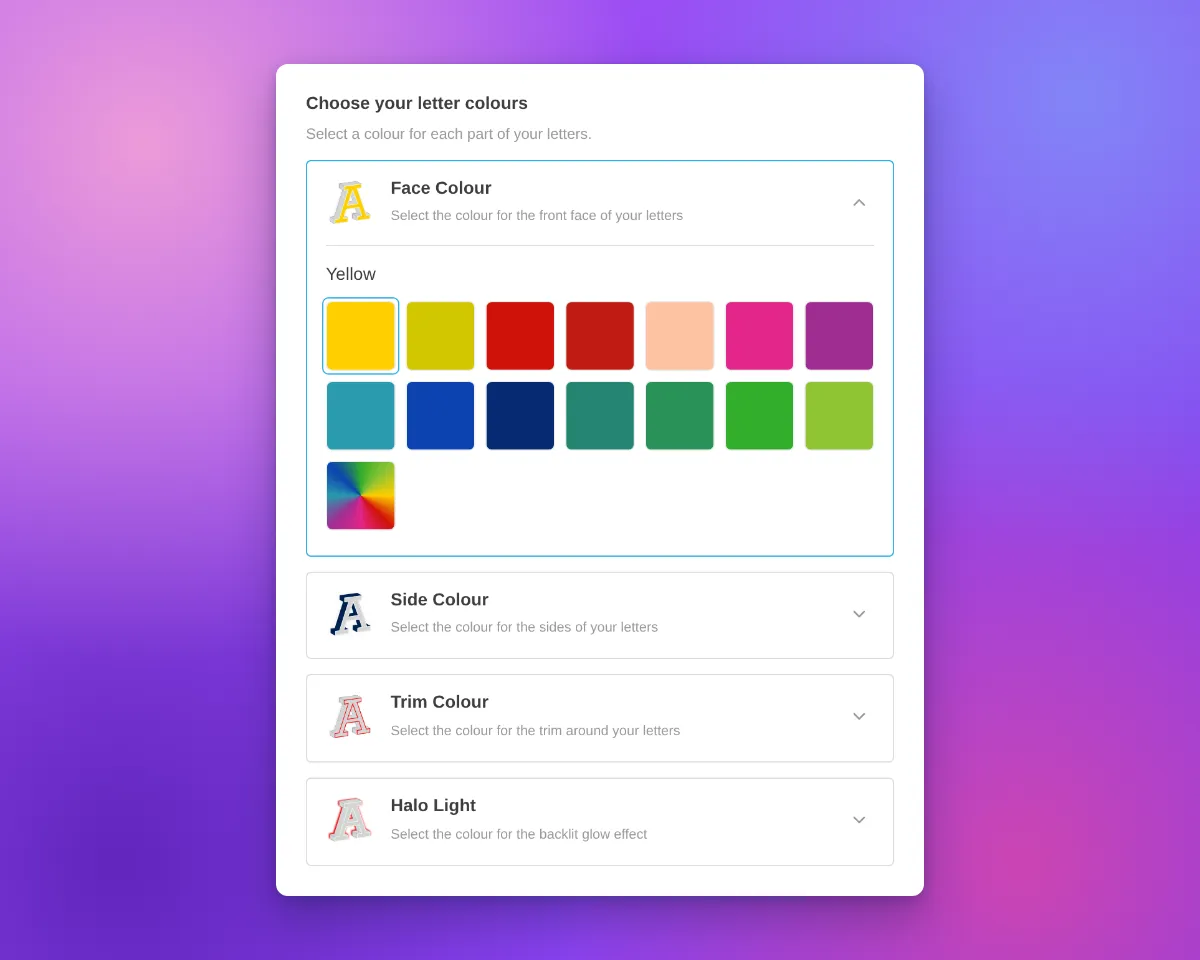
Icons in white and other very light colours have a thin grey outline. This outline keeps the icon visible on a white background. The Face, Side, Trim and Halo icons for letter signs also have this outline.
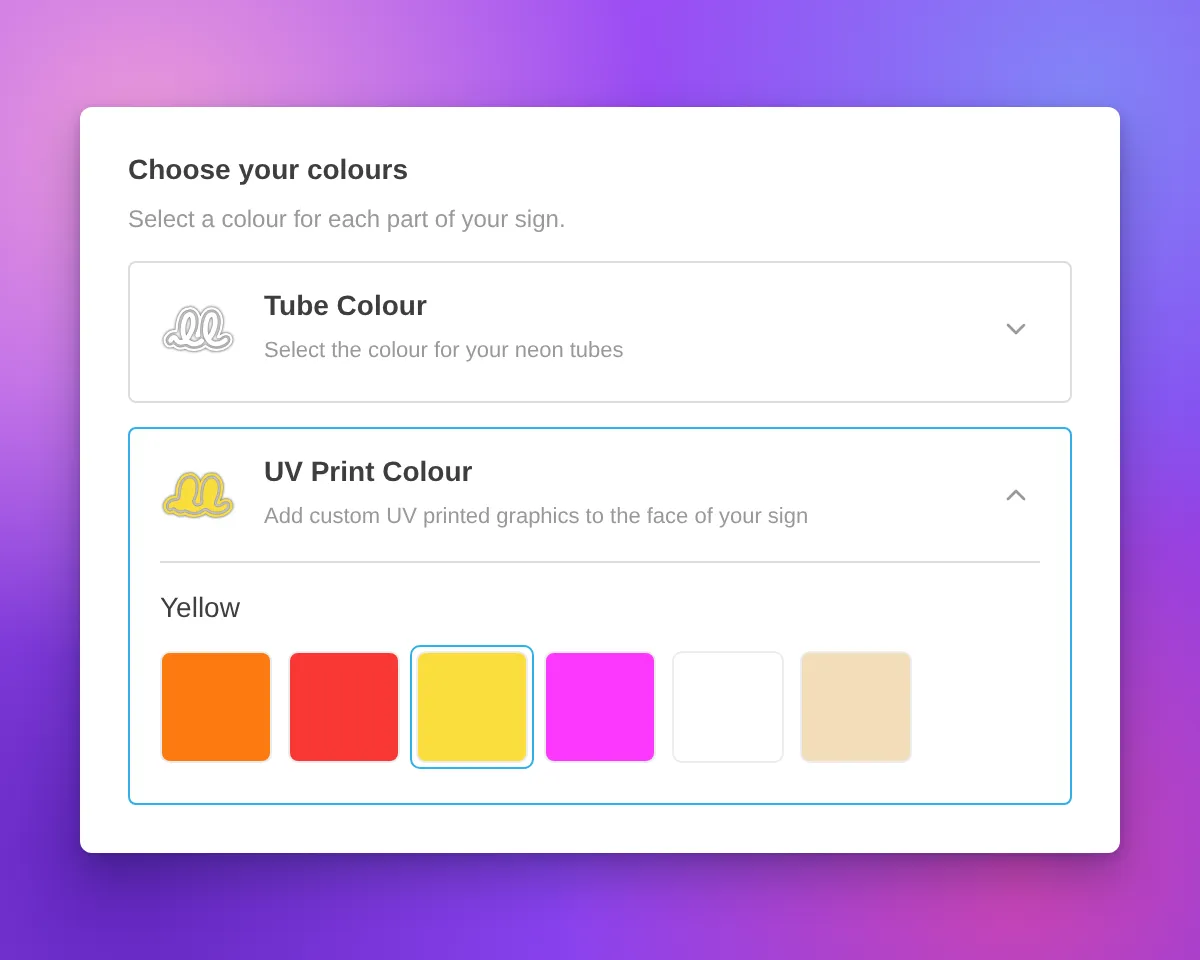
When a part uses more than one colour, the card shows a badge with the number of colours.
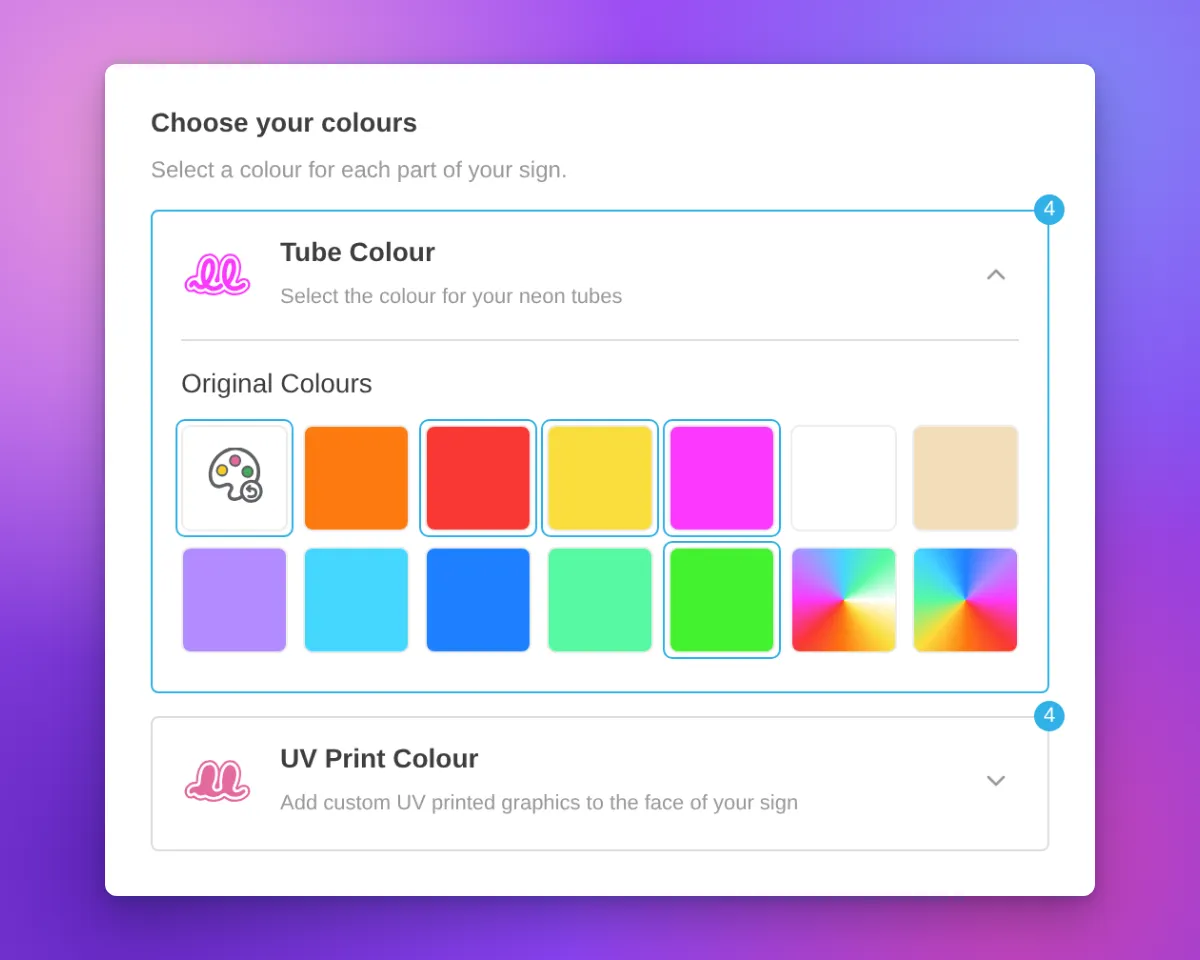
For designs from the AI sign designer, the Restore original colours swatch now shows a palette with a reset arrow. Its three paint spots show colours from the original design. When a part uses its original colours, the swatch is selected and the colour name is “Original Colours”. This applies to the tube, UV print, face, trim and halo parts.
The cards are available on neon, letter and lightbox signs with more than one colour choice for their parts. In our demo customisers, acrylic channel letters have Face Colour, Side Colour, Trim Colour and Halo Light cards. Metal signs have Face / Front Lit and Back Lit cards. Lightboxes have Face, Border and Internal Light cards.
Most cards use the title and description you set for that colour part. If you do not set a title, the card uses a default part name. A shared Face and Border card shows the Face description.
Above the cards, the sidebar shows a heading with a title and a description. We added default text for neon, letter and lightbox signs. For example, neon signs show “Choose your colours”, letter signs show “Choose your letter colours” and lightboxes show “Choose your lightbox colours”. When the customiser shows step numbers, the heading has one step number for all the cards. If you set a title or a description before this update, we did not change it.
To change the heading, open the colour page of a sign part, for example Tube Colors or UV Colors. Then edit the Colour heading title and Colour heading description fields. All colour parts of a customiser use the same heading. On letter signs, you can also edit the heading on the Letter Types page. On lightboxes, you can also edit it on the Lightbox Types page. If you delete the text in both fields, the heading does not show.
On phones, the cards use the same layout. On phones and tablets, we also removed extra space above the first sidebar section. This space showed when a section above it was empty.
What’s Changed
- One card for each colour choiceEach colour choice for a sign part has a card with a name and an icon. On neon and letter signs, the icon shows the current colour. On a lightbox, the Face and Border parts can share one card.
- One open card at a timeCustomers open a card to see its swatches. The other cards stay closed.
- Colour headingA heading with a title and a description shows above the cards. Neon, letter and lightbox signs have default text. You can change or delete this text on the colour page of each sign part.
- Your titles and descriptionsMost cards show the title and description that you set for each colour part.
- New neon iconsThe tube colour and UV print parts have new neon icons that change to the selected colour.
- Outline for light coloursNeon and letter sign icons in white and other very light colours have a thin grey outline.
- Colour count badgeA card shows the number of colours when its part uses more than one colour.
- Restore original colours swatchFor AI sign designer designs, the swatch shows colours from the original design. When a tube, UV print, face, trim or halo part uses its original colours, the swatch is selected and the name is “Original Colours”.
- Single colour choiceA customiser with only one colour choice for its parts keeps the same colour section layout.
- Phone and tablet spacingWe removed extra space above the first sidebar section when a section above it was empty.
