
Now you can move an Additional Input Option on its own in the option order. Before this change, all additional options moved together as one group. Thus an option such as acrylic thickness always showed with the other additional options. Now you can show it as its own step, for example immediately after the size. The other additional options stay together in their group.
What’s Changed
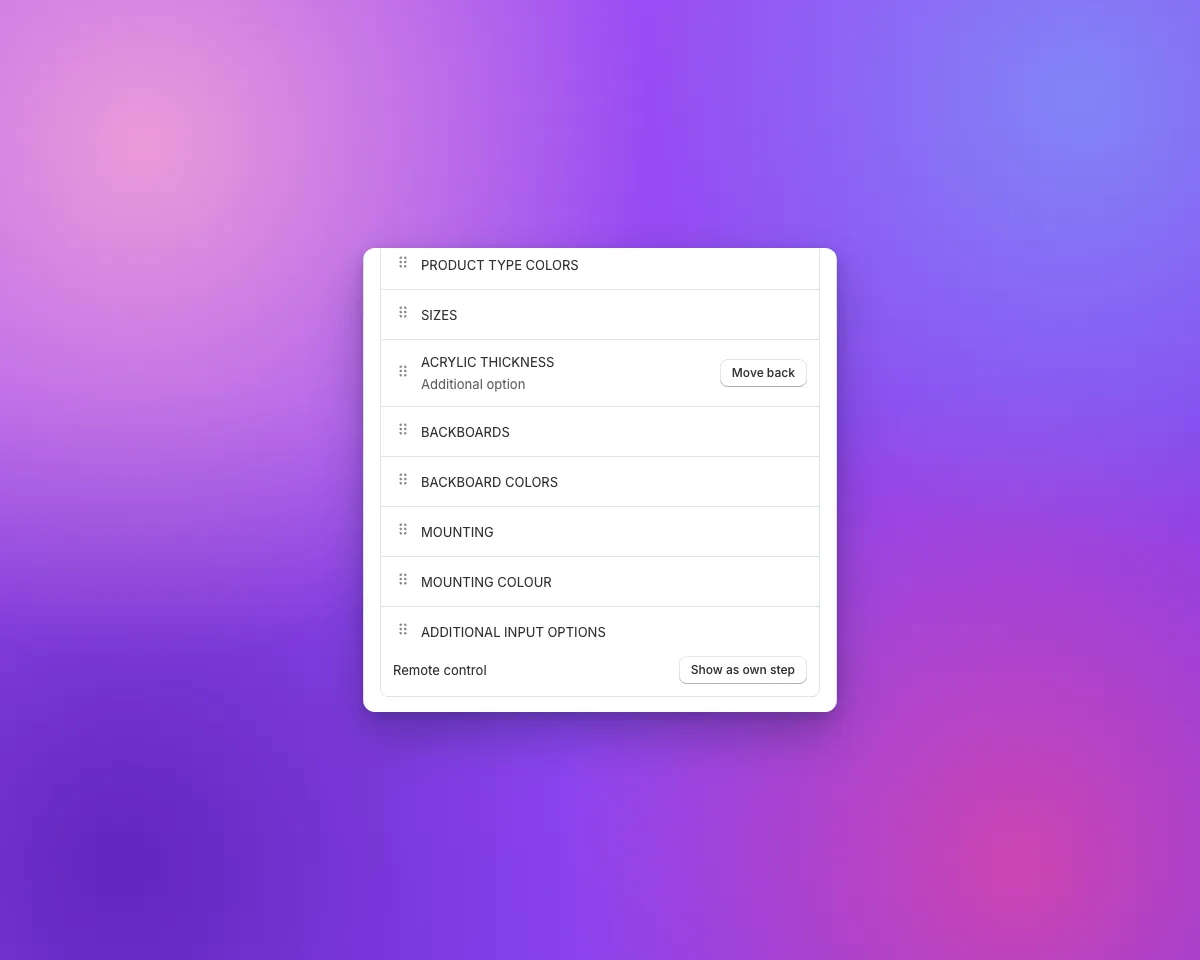
- Show an additional option as its own stepOpen your customiser and click Sort Option Order. In the additional options row (named ADDITIONAL INPUT OPTIONS by default), find the option below the row name. Click Show as own step. The option moves to its own row, above the group.
- Drag the row into positionDrag the new row to the position that you want, for example below SIZES. Sign Customiser saves the order when you release the row. The row shows “Additional option” below its name.
- Customers see a separate stepIn the customer customiser, the option shows at its new position with its own title. If Show Numbered Selections is set to Show Numbers, the number of the option matches its new position. When Mobile View is One Selection at a Time, the option has its own step on mobile. The additional options step shows only the other options.
- Move the option backClick Move back on the row. The option goes back into the additional options group.
- No change to pricesThe position of an option does not change its price. The option keeps its fixed price or multiplier.
- Duplicates keep the orderWhen you duplicate a customiser, each option in the copy has the same position.
- API v3In responses from
GETandPATCH/api/v3/customisers/{customiser_id}/settings, eachselection_orderentry has anextra_id. A number identifies an additional option that shows as its own step. The additional options entry with a nullextra_idcontains the other options. In aPATCHrequest, a non-nullextra_idis allowed only on anextraentry. - Correct starting order for cut-out signsIf a cut-out metal or stencil customiser has no saved order, Sort Option Order now starts from the default order for that sign type, as the customer customiser does. Before this change, the page started from the order for a different sign type.
- Additional options on stencil signsIf a stencil customiser has no saved order, your Additional Input Options now show as a step after the size. Before this change, they did not show.
- Review screen, cart and emailsThese surfaces continue to show the option with the other additional options.
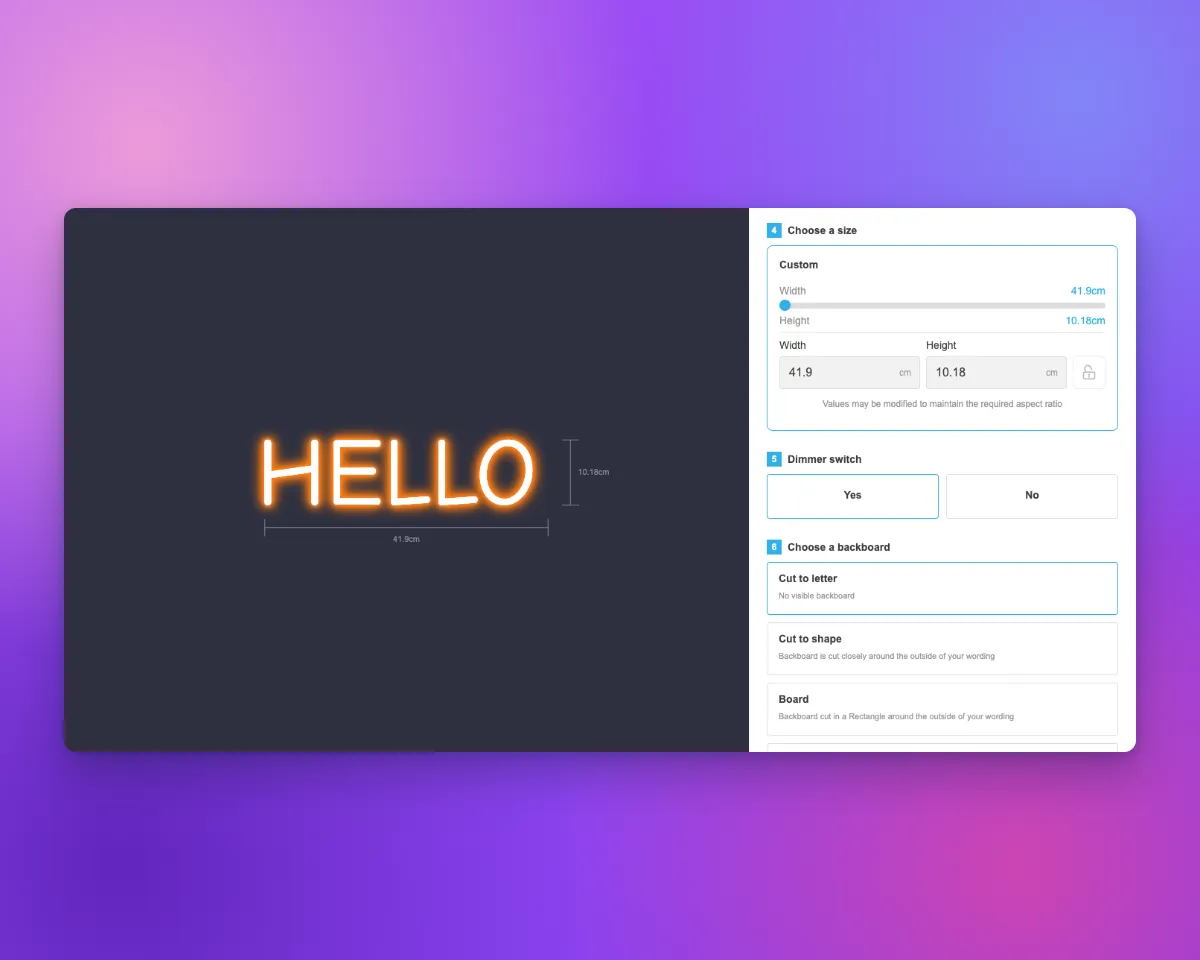
To learn how to sort the option order, read Arranging the option order.
