NewTurn any image into a sign design.
Changelog

Changelog

Documenting our journey of creating a custom sign builder.

Filtered by:wood(5 updates)

Stay informed with updates every month

Or subscribe to ourRSS feed

DXF files, a neon tube centre line and a Manufacturing files page

Sign Customiser now makes DXF files for every sign type that has a cut outline, and for neon. Neon orders can also get an experimental DXF of the tube centre line. SVG, EPS and AI files now have the real size of the sign. A new Manufacturing files page has all the file settings. The customer customiser now measures quotes from the letters that the customer sees, so some prices change.
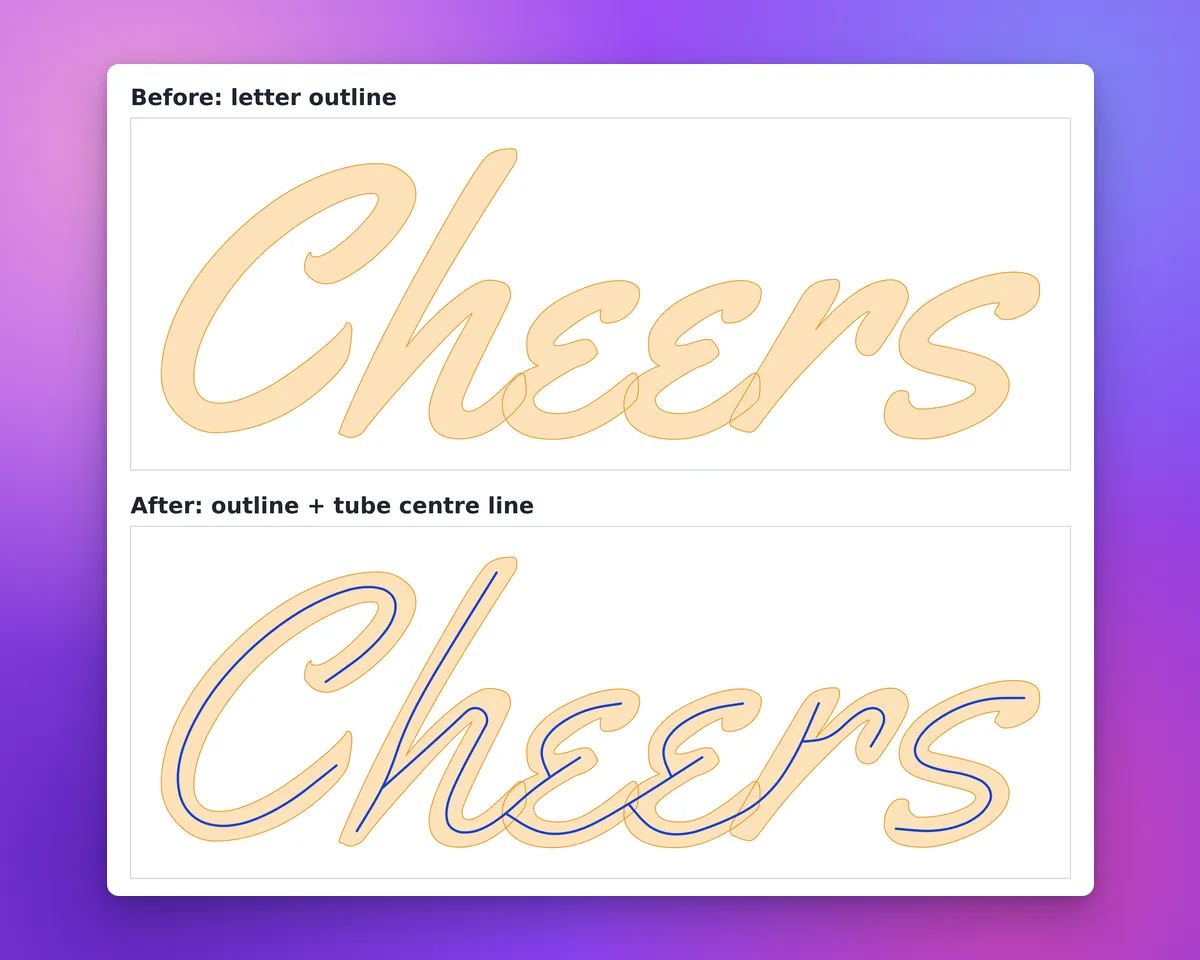
Before: the letter outline of Cheers. After: the same outline with one blue tube centre line down the middle of each tube

What’s Changed

Files

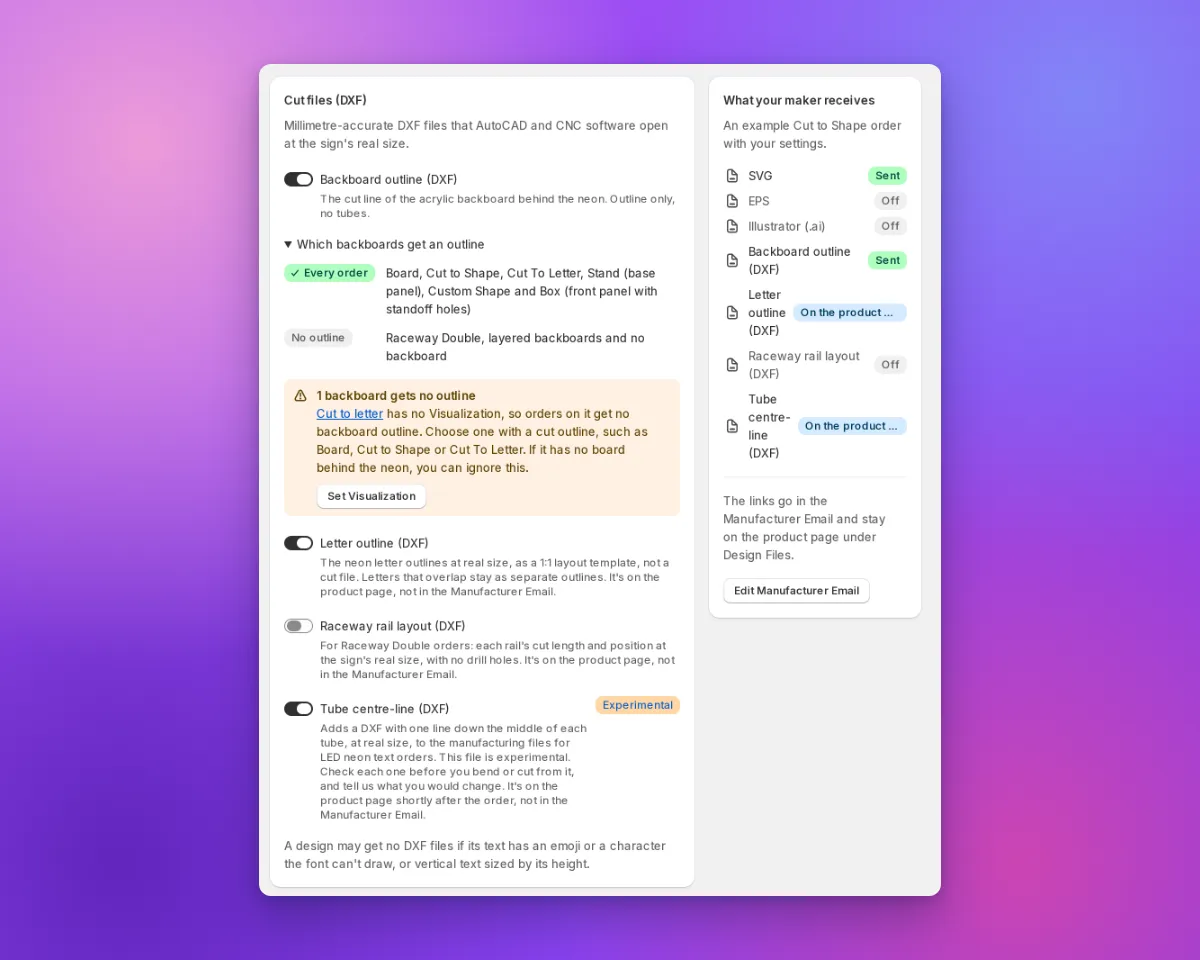
Manufacturing files page for a neon customiser, with three DXF files on and the What your maker receives card
  • Manufacturing files pageThe page is in Core Setup, after How customers buy. Use its switches to turn SVG, EPS, Illustrator (.ai) and DXF files on or off. These settings are no longer in General Settings. Lightbox customisers do not have this page.
  • Cut outline DXF for every cut sign typeAcrylic, metal, aluminium, wood, wood frame, braille, metal cut-out and stencil customisers can make a DXF of the cut outline. Turn on Cut outline (DXF). This update does not turn it on in your existing customisers.
  • Real-size filesDXF, SVG, EPS and AI files have the real size of the sign. If Sign Customiser cannot be sure of the size, the file has no size, and the design can get fewer DXF files or no DXF files.
  • AI Sign Designer designsThese designs get the DXF files of their sign type. When Tube centre-line (DXF) is on, a neon design that the AI Sign Designer draws as tubes also gets the tube centre-line DXF. A UV print gets no line. An AI design that is not drawn as tubes does not get the tube centre-line DXF.
  • Icons in the filesNeon and cut-out orders with an icon now get the icon in their files. Before, these files had the letters but not the icon.
  • LimitsOrders from before this update do not get a DXF. Letters that touch or overlap are not always joined into one outline. In these cases, join the letters in your cutting software.

Neon DXF files

  • Backboard outline (DXF)This file has the cut line of the acrylic backboard, without the tubes. Board, Cut to Shape, Cut To Letter, Stand, Custom Shape and Box backboards get an outline. Raceway Double and layered backboards do not.
  • Letter outline (DXF)This file has the letter outlines. Use it as a 1:1 layout template, not as a cut file. It is off by default.
  • Tube centre-line (DXF), experimentalThis file has one line down the middle of each tube. Use it to bend the tube. It is off by default. Check each file before you bend or cut from it, and tell us what you would change.
  • Where to find the neon filesThe letter outline and tube centre-line files are on the order’s product page, under Design Files. They are not in the Manufacturer Email.
  • Raceway rail layout (DXF)For Raceway Double orders, this file has the cut length and position of each rail. It is off by default.

Quotes and orders

  • Sizes measured from the drawn lettersBefore, the customer customiser measured each letter a little too small, so a width or height could be wrong. Per-letter prices and tier prices do not change. Prices that use the area of the sign can increase or decrease.
  • Metal cut-out Frame Fit sized as the panelThe order size is now the panel, not the full preset box, so some prices change. For example, at $75 plus $0.05 per cm², a 50 cm Rectangle panel changed from 50 × 50 cm at $200.00 to 50 × 27.27 cm at $143.18.
  • API price previewWhen the request has a backboard_id, the API v3 price preview and the MCP preview_price tool now use the same panel size as the customer customiser. The new priced_size field shows the size that the quote uses.
  • Order email subjects by sign typeLetter sign orders no longer all show “New Dimensional Sign Order”. Metal, wood, aluminium, braille, wood frame and lightbox orders show their sign type, for example “New Metal Sign Order”. Acrylic and other letter sign orders show “New Sign Order”. If you filter your inbox on “New Dimensional Sign Order”, update the filter.
  • Flat-Cut LettersThe new template has its own entry: Flat-Cut Letters in six materials.
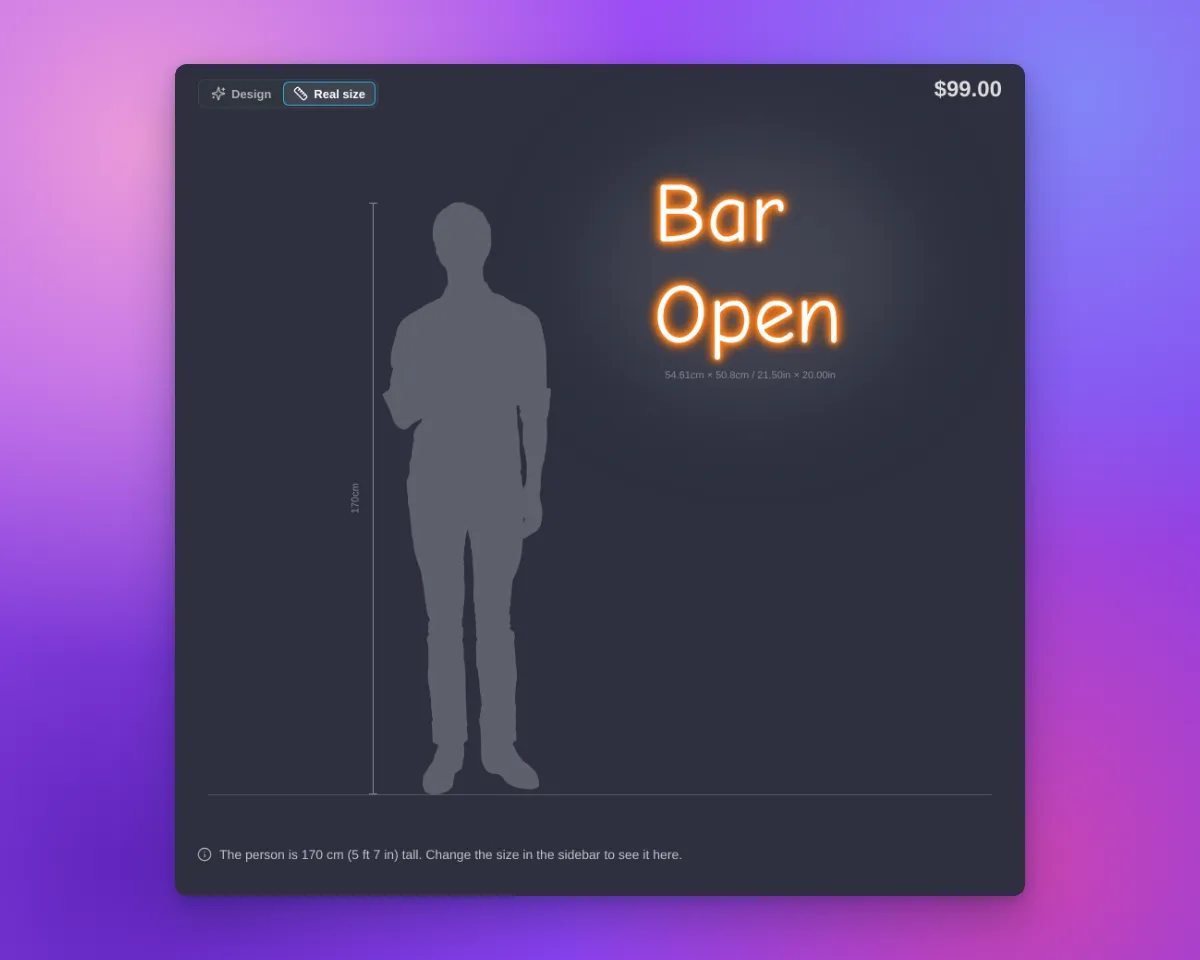
See the real size of a sign next to a person

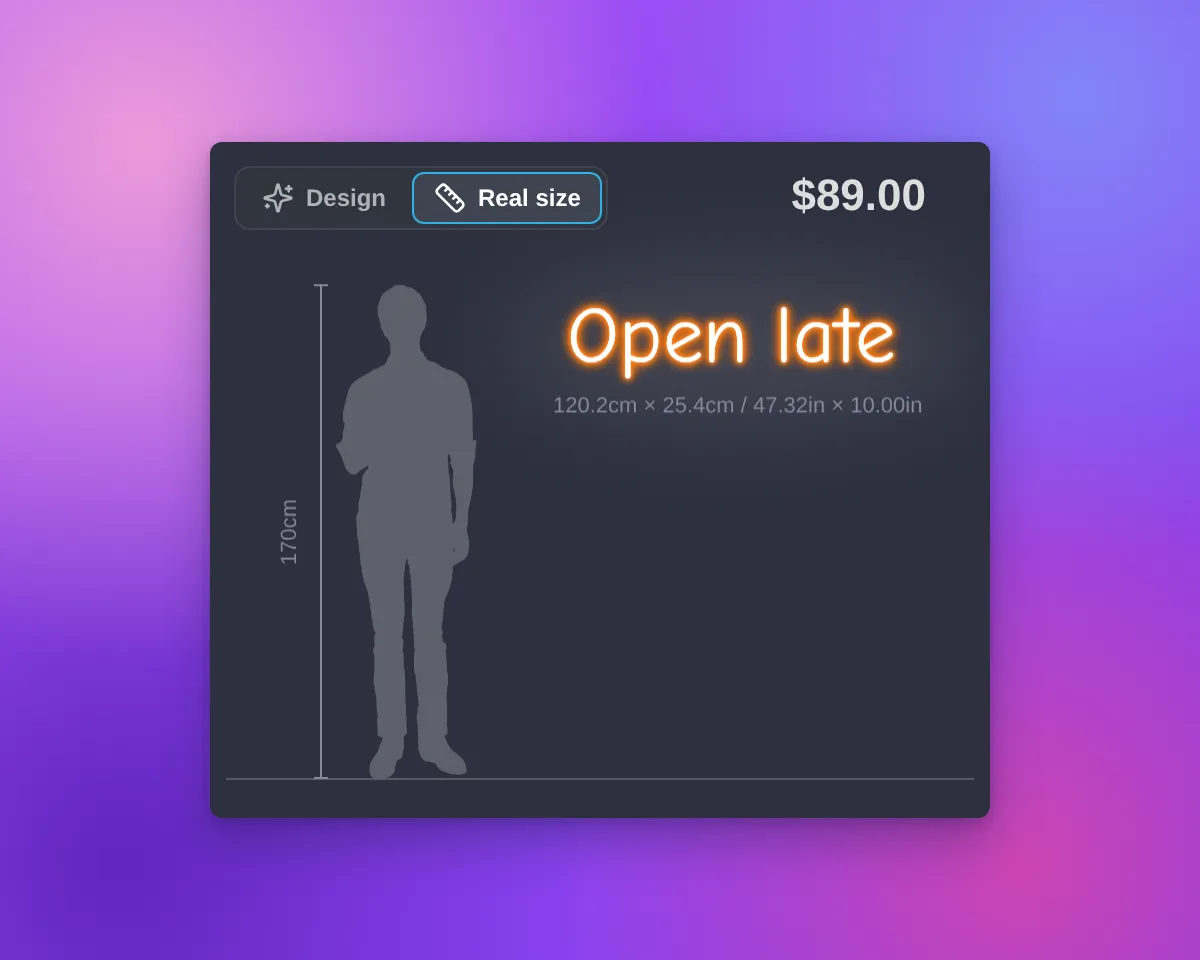
The sign preview in Sign Customiser has a new Real size view. The view shows the customer’s sign next to a person who is 170 cm (5 ft 7 in) tall. The sign and the person have the same scale. Customers can see how big the sign is before they order it.

Real size view on desktop with a neon cut-to-letter sign next to a person silhouette and a height railReal size view on a phone with a neon cut-to-letter sign next to a person silhouette and a height rail

What’s Changed

  • Design | Real size switchThe switch is at the top left of the preview. The view opens only when a customer selects “Real size”. When the customer selects “Design”, the preview shows the design and the background again, with the sign in the centre.
  • One scaleThe Real size view uses the final width and height of the sign. This is the same size that the measurements on the preview show. The sign is on a wall next to the person, with a floor line and a height rail.
  • All sign shapesSquare, wide, tall and small signs fit in the preview on desktop and on phones. If the preview is too small, the “Real size” option shows a message.
  • Text signs and AI designsThe Real size view works for text signs and for designs from the AI sign designer.
  • Tools hiddenIn the Real size view, the preview does not show the tool buttons, “Share my design”, “Upload Background” or the backgrounds. The sidebar stays available. When the customer changes the size, the view shows the change.
  • Your measurement settingsThe size label of the sign follows your “Show/hide Measurements” setting. The height of the person and the size of the sign use your “Measurement Unit” setting.
  • On for new customisersNew customisers show the switch, except lightbox customisers. Customisers that you already have do not show it until you select the option. A duplicate customiser keeps the setting of the original customiser.
  • Where to find the optionOpen your customiser. Go to “Features → Scene Editor - Background Images”. In the “Visualiser Scaling” section, select “Show Real size view”. Click “Save”. You can use this option on every plan and with “Drag, Scale, Rotate”.
  • Your own wordsYou can change and translate the switch labels, the caption and the messages. They are in the “Visualiser” section of each language, in “Settings → Languages” of your customiser.
  • Not for lightbox signsThe Real size view is not available for lightbox signs.
  • Live preview onlyProduct images, the cart and shared design links show only the sign. They do not show the person.

For the full steps, read the Real size view article.

Default scene background sizing and product image fixes

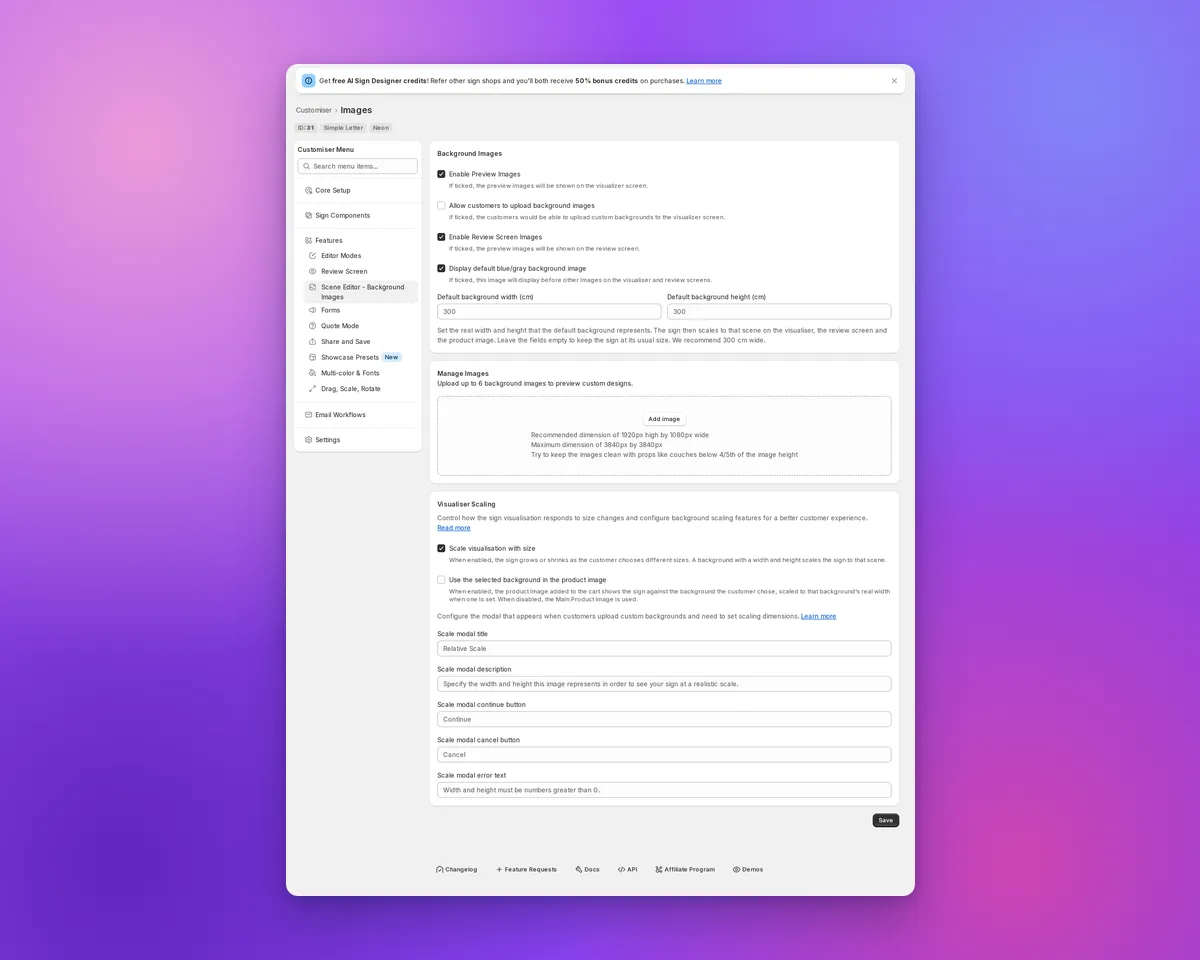
Sign Customiser keeps the built-in blue/grey background consistent for compatible sign customisers. Select it and enable “Use the selected background in the product image” to carry it into cart and order product images. Enter a positive real width to scale the visualiser and Review screen, then use the same option to scale the cart and order image. Without saved dimensions, the sign keeps its usual fit, while an enabled product-image option still uses the selected built-in colour.

Scene Editor showing default background size fields and visualiser scaling

What’s Changed

  • Set the default background size. In the Scene Editor, enter a positive width under “Display default blue/gray background image”. You can also save a height, but the width drives proportional scaling. The fields show when preview or Review images and the default background are enabled. “Scale visualisation with size” must be on, and Drag, Scale and Rotate must be off. They start blank, with 300 cm as a recommended placeholder.
  • Scale every preview consistently. With “Scale visualisation with size” on and a positive default background width, the visualiser and Review screen scale the sign against the built-in background. Enable “Use the selected background in the product image” for compatible customisers to scale cart and order product images too. Leave the fields blank to keep the usual fit.
  • Keep product images on the chosen backdrop. With “Use the selected background in the product image” enabled, supported non-Lightbox Konva customisers show the selected built-in background as a flat colour in product images. This includes Neon, Channel, cut-out, stencil and wooden sign types. This replaces the previous fallback image, including the demonstration photo when no Main Product Image is configured.
  • Keep Material Length sizes in order. Advanced Letter (Material Length) customisers with an unset size limit no longer show Medium or Large smaller than Small on backgrounds without dimensions. The Small preview stays the same.

Sign board previews now match every size

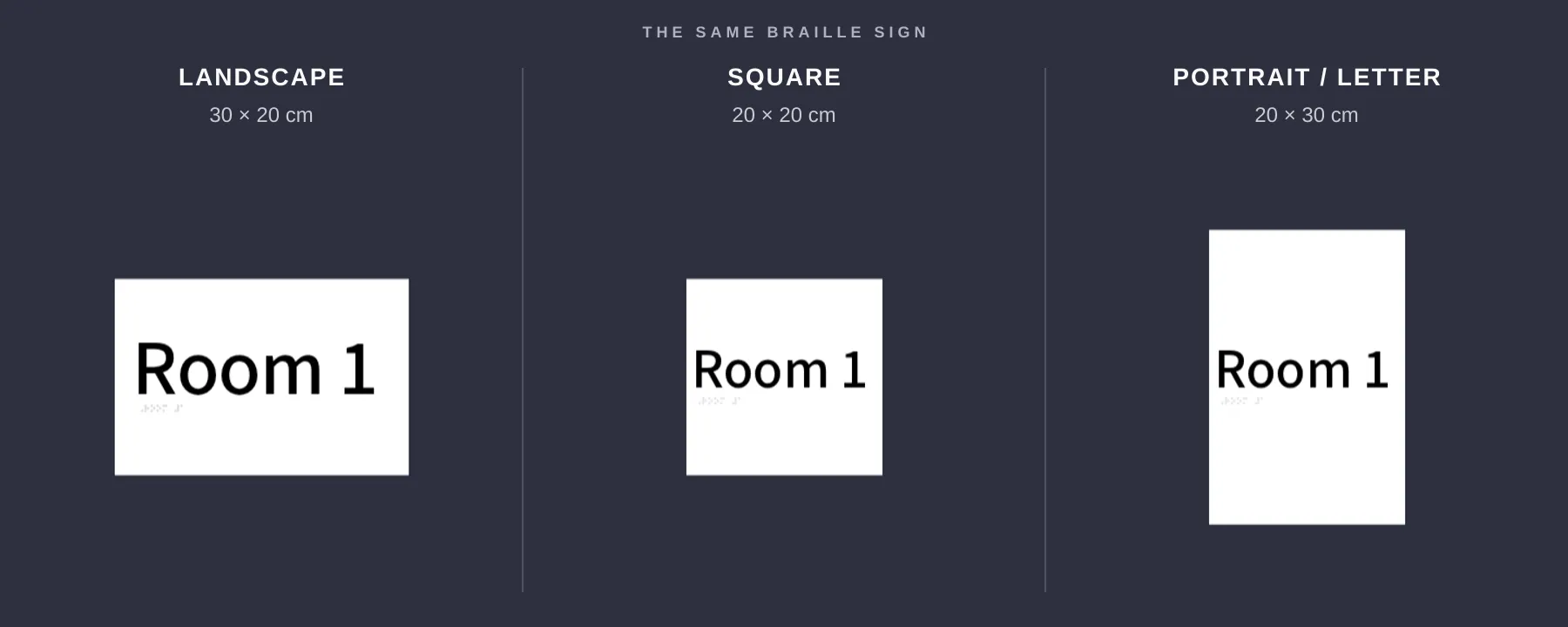
Sign Customiser now shows each rectangular sign board in the shape your customer selected. A square board stays square, while portrait and landscape formats look visibly different before the customer orders.

Three sign board previews showing landscape, square and portrait size proportions

What’s Changed

  • True-to-size previews. Square, portrait and landscape boards keep the width-to-height ratio the customer selects.
  • Accurate boxes and stands. Rectangular boxes and stands use the same proportions as the chosen sign size.
  • Matching product images. Newly generated product images keep the board shape customers saw while designing their sign.
  • Clearer measurements. Width and height guides line up with the board itself, making each format easier to compare.
  • No setup needed. Eligible customisers update automatically, and pricing stays the same.

Categorised Shopify product types for generated signs

Sign Customiser now gives each newly generated Shopify product a product type that matches its sign category. This makes it easier to build collections, shipping rules and other Shopify automations for different kinds of signs.

What’s Changed

  • Product types now match the signNew acrylic, metal, stencil, wooden, aluminium, braille, wood-frame and lightbox products receive their own clear product type.
  • Neon remains familiarNew neon products keep the existing Custom Neon product type, so established neon workflows continue to work.
  • Existing products stay unchangedThe new product types apply when Sign Customiser creates a product. Products already in Shopify are not renamed.

Open original

Get started

Add Sign Customiserto your store today

Install now
36+ verified reviews

Login

Universal Sign In
  • WordPress
  • Wix
  • Etsy
  • Squarespace
  • Webflow

Or, if on Shopify, navigate to your store admin to login.