

Quick Start
Last updated:
Use this guide after you install the app on your platform. It shows you how to create your first customiser.
Step 1: Before You Create Your First Customiser
You can make signs yourself or use a manufacturing partner. In both cases, you enter your own sizes, pricing and options into the customiser. Before you start, collect this information:
-
Pricing structure
-
Available sizes
-
Sign types
-
Fonts and colours
-
Optional components, such as backboards and mountings
Step 2: Decide Sign Type
Decide which sign types you want to offer. The create flow shows these sign types. Each link opens a demo.
-
Neon Letter Signs: neon and flex LED neon letter signs.
-
Channel Letter Signs: acrylic or metal letters with optional backboards. Open the acrylic demo or the metal demo.
-
Wood Letter Signs: flat or 3D wood letters.
-
Wood Frame Signs: wooden backboards with carved text.
-
Aluminium Plate Signs: aluminium plate signs.
-
Lightbox Signs: custom-size 3D lightbox signs.
-
Metal Cut-Out Signs: metal panels with text or artwork cut out as negative space.
-
Braille Signs: accessible braille plate signs.
-
Stencils: Mylar sheets with bridged stencil lettering.
-
Address Sign Numbers: vertical stacked address numbers. This sign type has no demo.
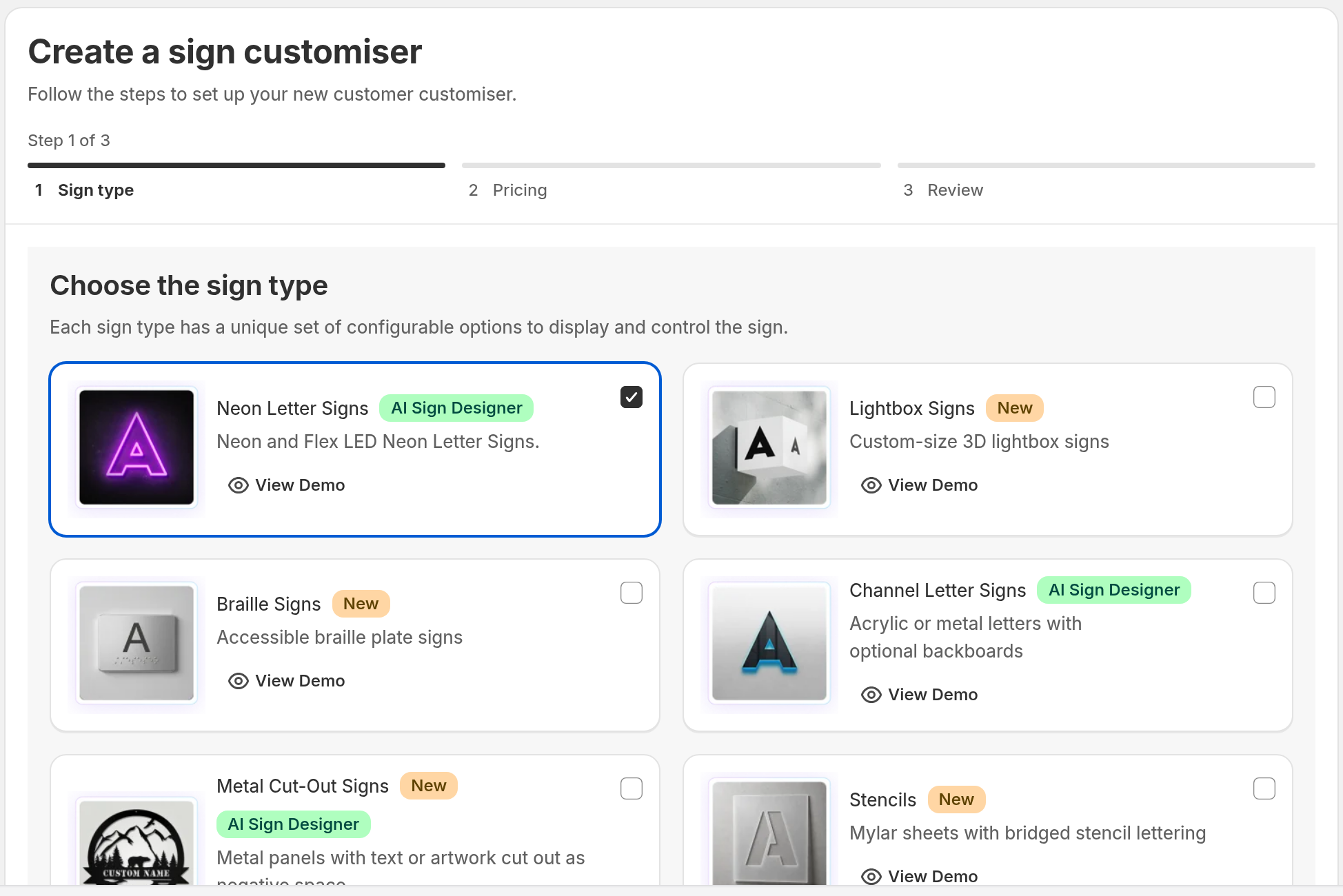
Some plans do not include Lightbox Signs or Braille Signs. On those plans, the card shows Upgrade Your Plan.
Step 3: Choosing the Right Pricing Model for Your Sign
Start with the way your manufacturer prices signs. Find out if the price is based on:
-
Number of characters
-
Amount of material used
-
Total sign area
-
Fixed dimensions
-
Custom sizing
Available Pricing Models
Sign Customiser has three pricing models. They calculate size and price in different ways. Some features depend on the model. For example, only the Advanced Letter Model and the Frame Fit Model can offer shoppers a custom size, when you turn on custom sizing.
-
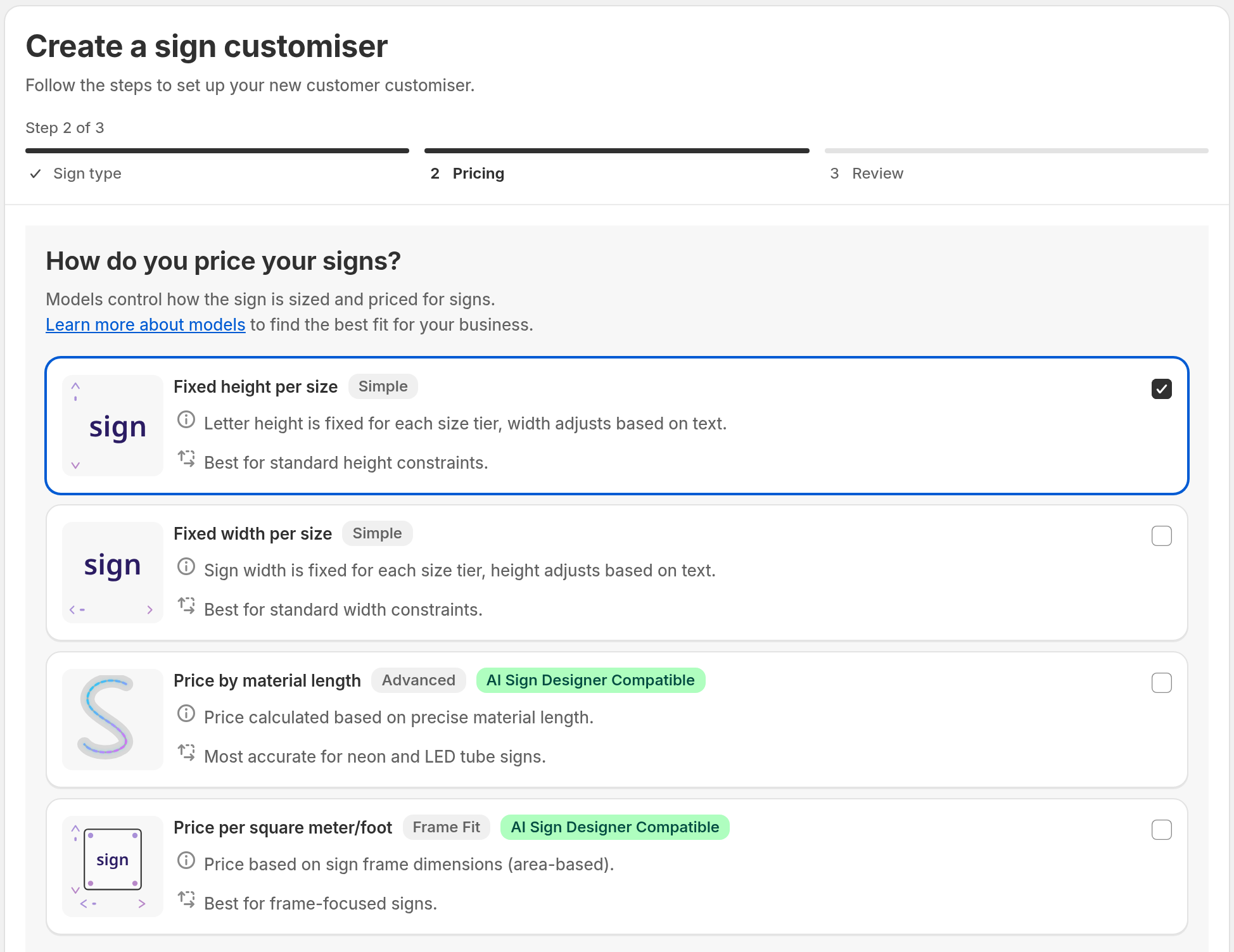
Simple Letter Model: in the create flow, choose Fixed width per size or Fixed height per size. With fixed width, each size has one width and the height follows the text. With fixed height, each size has one letter height and the width follows the text.
-
Advanced Letter Model: in the create flow, choose Price by material length. The price follows the length of material that the sign uses.
-
Frame Fit Model: in the create flow, choose Price per square meter/foot. The price follows the size of the sign frame, so it is based on area.
Each sign type offers different models:
-
Neon Letter Signs, Channel Letter Signs and Wood Letter Signs offer all three models.
-
Stencils and Address Sign Numbers offer the Simple Letter Model only.
-
Lightbox Signs, Braille Signs, Metal Cut-Out Signs, Wood Frame Signs and Aluminium Plate Signs offer the Frame Fit Model only.
If a sign type has only one model, the create flow does not show the Pricing step.
The Fixed Height model is old. You cannot use it for new customisers. To keep the letter height fixed, choose Fixed height per size.
Need help choosing a model?
If you are not sure which pricing model is correct for your business, contact our support team for help or book a demo. We are happy to help.
Step 4: Create Your First Customiser
Now you know your sign type and your pricing model. Create your first customiser.
-
Open the Sign Customiser app:
-
Universal users: Go to Home in your account.
-
Shopify users: In the Shopify admin, open the Apps page. Then open the app you installed.
-
-
Start the create flow:
-
If you have no customisers, select Create your first customiser.
-
If you have a customiser, select Create new customiser. Or select Customisers in the app menu, then Create customiser.
-
-
For your first customiser only: In the Measurements step, choose how you measure your signs. In the Contact email step, check the email address. The app suggests an email address for you. Change it if it is not correct.
-
In the Sign type step, choose your sign type. Then select Next.
-
In the Pricing step, choose your pricing model. Then select Next. Some sign types do not show this step.
-
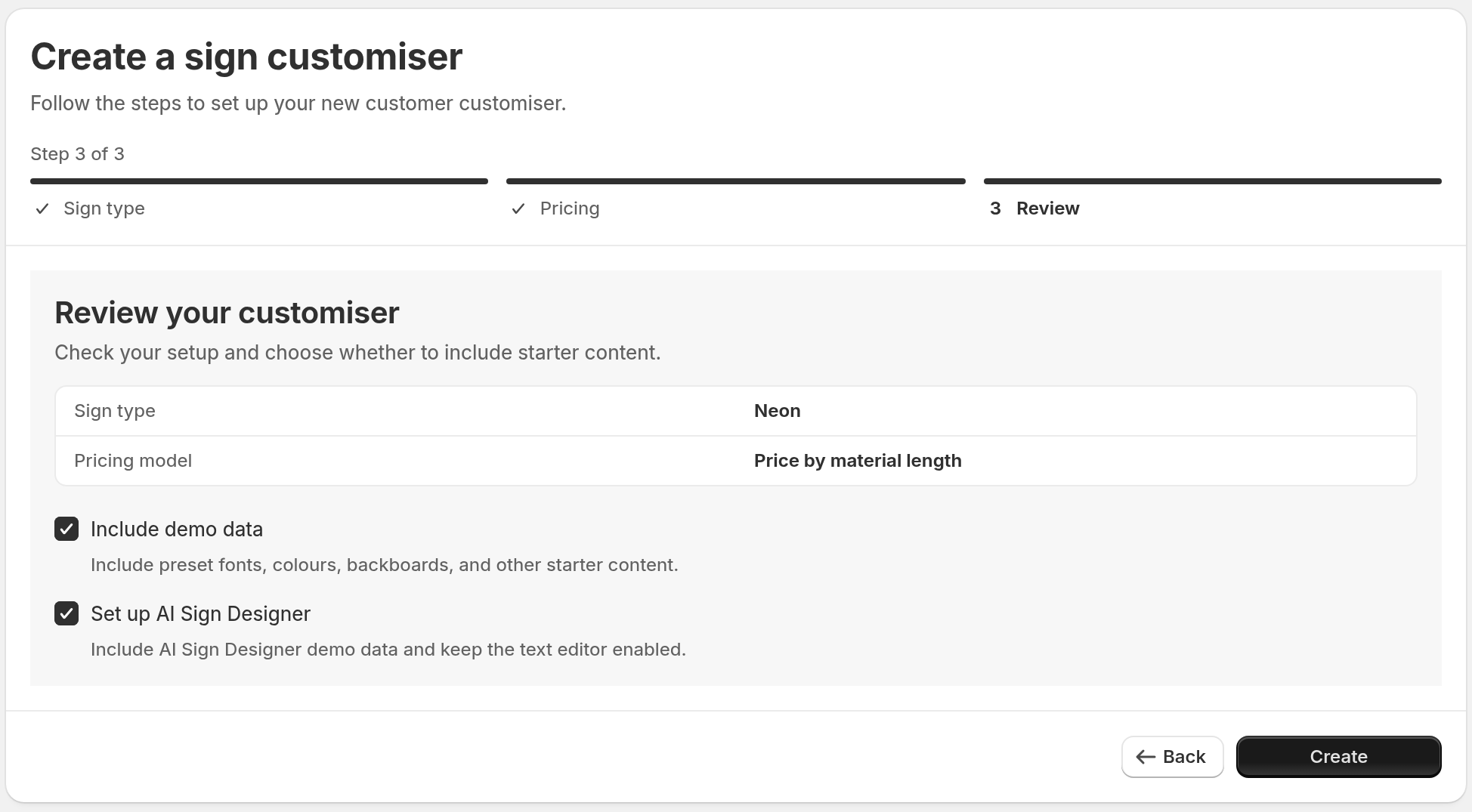
In the Review step, check your choices. Include demo data adds preset fonts, colours, backboards and other starter content. For Neon Letter Signs, Channel Letter Signs and Metal Cut-Out Signs, you can also select Set up AI Sign Designer. This option shows only when you chose Price by material length or Price per square meter/foot, and it needs Include demo data to be selected. It does not show on the set-up page that opens just after you register an account.
-
Select Create.
The image below shows the Review step. In this example, the pricing model is Price by material length.
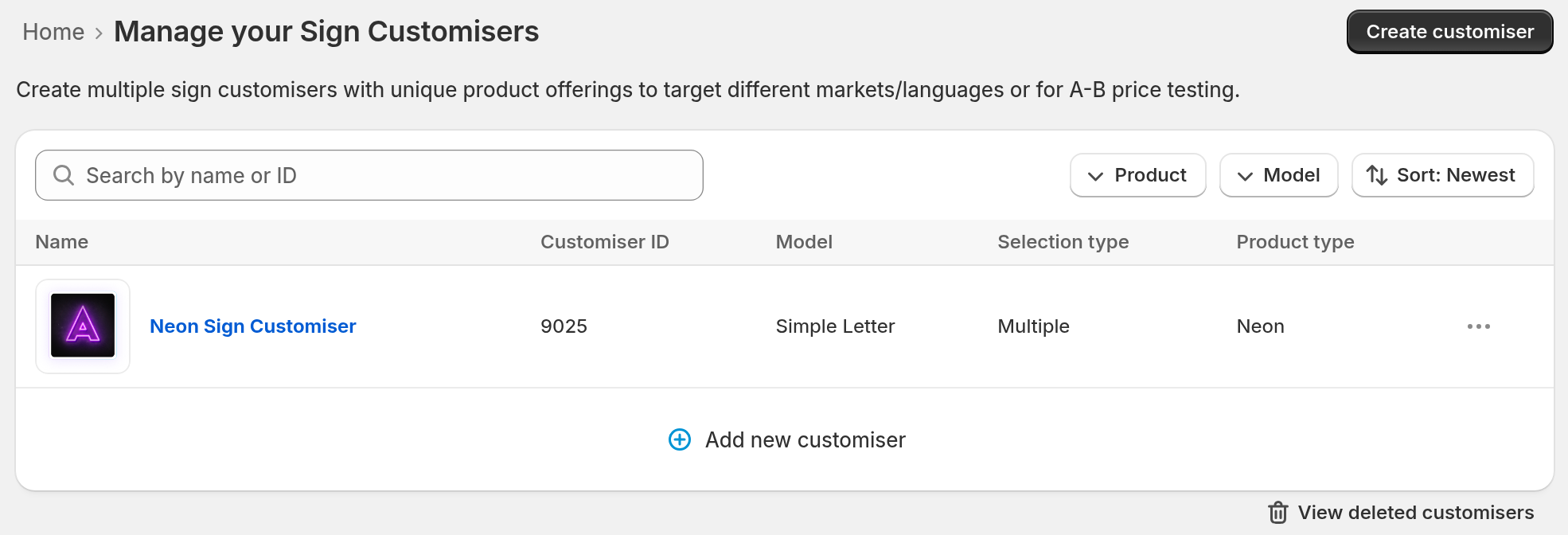
Your customiser opens. It also appears under Customisers in the app menu.
You can build and preview your customiser for free. To show it on your own site, your Store needs an active subscription. On Universal, a trial also counts when a payment method is on file. Read Subscribe to Sign Customiser.
Step 5: Populate Your Customiser With Data
Core setup
Next, set up sizes, pricing and fonts. The steps depend on the pricing model that you chose.
Open the guide for your model.
Step 6: Other Sign Components and Features
Your sign type decides which of these items you need:
-
Backboards, Sheets, Panels or Plates. The name depends on the sign type: Sheets for Stencils, Panels for Metal Cut-Out Signs and Plates for Braille Signs.
-
Letter Types, Lightbox Types or Tactile text styles. The name depends on the sign type: Lightbox Types for Lightbox Signs and Tactile text styles for Braille Signs.
-
Mountings
-
Jackets (Neon Letter Signs only)
-
Additional Input Options
-
Forms
-
Fonts
The Features section has guides for most of these items.
Step 7: Understand How Order Fulfilment Works
Before you go live, learn how orders go from the app to production. Read the order fulfilment guide:
Order fulfilment for in-house and outsourced production
Step 8: Add the Customiser to Your Website
The way to add the customiser depends on your platform.
-
Shopify users: Add the customiser to a page or a product page in your theme.
-
Universal users: Connect the app to your platform. Then add the customiser to a page. To share your customiser without a website, use Customiser Links under Your Store in the menu.
Open the guide for your platform:
Step 9: Hide Generated Sign Products From Appearing On Your Storefront
When a customer adds a customised sign to the cart, the app creates the sign as a “product” in your backend. The app needs this product for order processing and checkout, as with other products in your store.
These products are customised signs. You can hide them from your public storefront.
Open the guide for your platform.
For Shopify:
For WordPress/WooCommerce:
The app already creates generated products as hidden from the catalogue. To delete them, read: