
How AI credits work: monthly allowance and purchased credits
See how Free Monthly Credits and AI purchased credits work, which one Sign Customiser uses first, and how to check your balance and buy more.
Last updated:
AI credits pay for AI Sign Designer conversions. Your Store has two kinds of credit. Free Monthly Credits come with some plans. AI purchased credits are credits that you buy.
This article shows how each kind works. It also shows which kind Sign Customiser uses first, how to check your balance, and how to buy more. It is for the person who manages billing for your Store.
What uses an AI credit
A successful AI Sign Designer conversion uses 1 AI credit. A failed conversion does not use a credit.
Each of these actions uses 1 credit when it succeeds:
-
A customer uploads artwork in a customiser that has AI Sign Designer on.
-
You test an image in the AI Converter on the AI Design Files page.
-
A file arrives through a form and Auto-process uploaded images with AI is on.
All customisers in your Store use the same balances.
The two kinds of credit
Free Monthly Credits
Where the Free Monthly Credits feature is on, Seed, Growth and Ultimate plans include Free Monthly Credits. The number depends on your plan. The plan slider in Billing shows each plan as an order limit.
Plan | Order limit on the plan slider | Free Monthly Credits each month |
Seed | Up to 5 | 15 |
Growth 10 | Up to 10 | 30 |
Growth 20 | Up to 20 | 60 |
Growth 30 | Up to 30 | 90 |
Growth 40 | Up to 40 | 120 |
Growth 50 | Up to 50 | 150 |
Ultimate | Unlimited | 180 |
A yearly plan gets the same monthly number as the matching monthly plan. Other plans do not include Free Monthly Credits.
Free Monthly Credits follow these rules:
-
They reset on the same day of each month as your first billing date. At each reset, the balance returns to the full plan amount. After an upgrade to a larger amount, the reset day becomes the upgrade date.
-
Unused credits do not roll over. The reset replaces the old balance. It does not add to it.
-
When you upgrade to a plan with a larger amount, your balance becomes the larger amount at once. A new monthly cycle starts.
-
When you change to a plan with a smaller amount, the smaller amount starts at your next reset.
-
When your plan stops, your unused Free Monthly Credits expire.
AI purchased credits
You buy AI purchased credits in packs. They do not expire. They stay in your Store until you use them.
Pack | Price (USD) | Price for each credit |
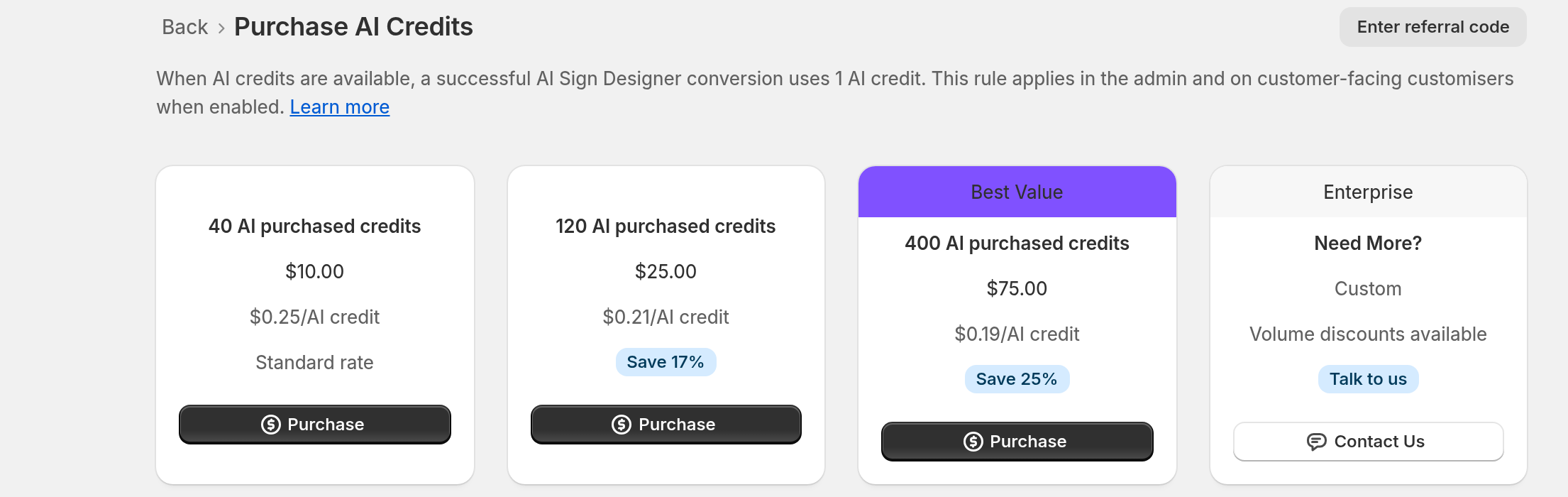
40 AI purchased credits | $10 | $0.25 |
120 AI purchased credits | $25 | About $0.21 (save 17%) |
400 AI purchased credits | $75 | About $0.19 (save 25%) |
Larger packs cost less for each credit. For bigger volumes, use the Enterprise card on the same page to ask about volume discounts.
Which credits Sign Customiser uses first
Sign Customiser uses Free Monthly Credits first. When they are gone, it uses AI purchased credits. Your purchased credits stay unused until the monthly credits are gone.
Each conversion uses 1 credit. It comes from Free Monthly Credits if any remain. If none remain, it comes from AI purchased credits. Each conversion adds one line to the transaction history.
Check your balance
-
Open the Sign Customiser admin.
-
In Shopify, select Subscription/Credit. In the Universal admin, select Billing under Your Company.
-
If the page lists more than one Store, select the button for your Store. The button reads Manage subscription for an active subscription. It reads Resume subscription if the subscription is ending.
-
On the Your Subscription page, find the AI credits card.
The card shows two balances:
-
Free Monthly Credits shows your balance and the date of the next reset.
-
AI purchased credits shows your purchased balance.
The card shows only when your Store has an active subscription.
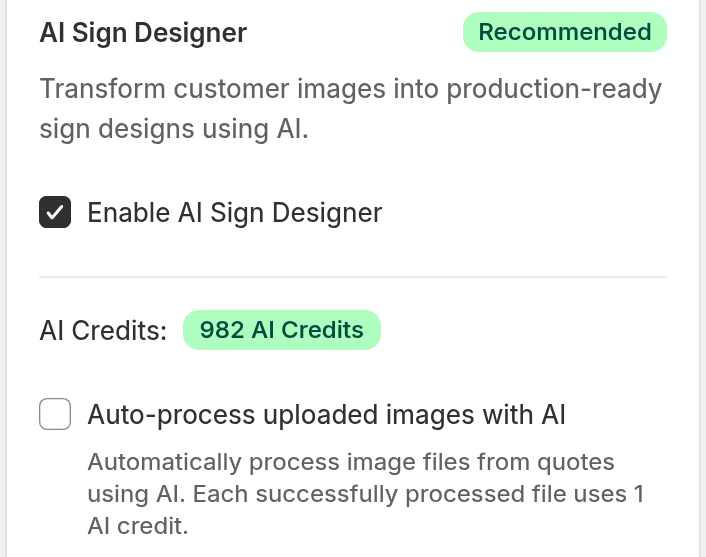
You can also see your total on the Custom Design page of a customiser. Check Enable AI Sign Designer, then look next to AI Credits:. When the total is 0, a Get more AI credits link shows there.
See each credit and use
-
On the AI credits card, select Transaction history.
-
The AI Credit Transaction History page opens.
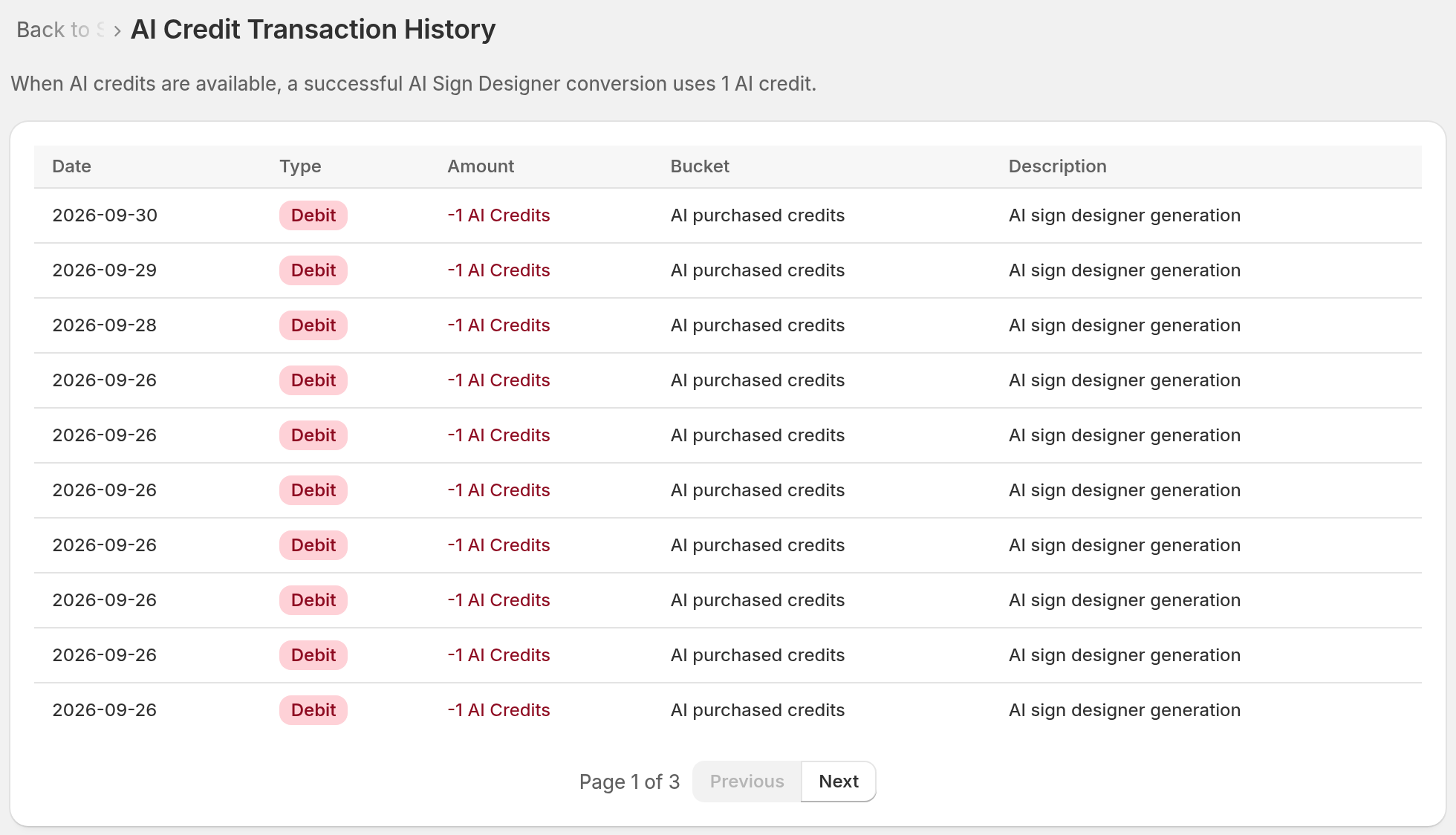
The table has five columns: Date, Type, Amount, Bucket and Description. The Type column shows Credit or Debit. The Bucket column shows Free Monthly Credits or AI purchased credits. The page shows 10 lines at a time.
Buy AI purchased credits
-
Open Subscription/Credit in Shopify. In the Universal admin, open Billing.
-
If the page lists more than one Store, select the button for your Store.
-
On the AI credits card, select Purchase AI credits.
-
On the Purchase AI Credits page, choose a pack.
-
Select Purchase.
-
Complete the payment.
The payment process depends on your platform:
-
Shopify: Shopify asks you to approve the charge.
-
Universal: Stripe Checkout opens. Stripe creates an invoice for the purchase.
The credits show in your balance after Sign Customiser confirms the payment.
Low balance email
Sign Customiser sends an email with the subject “[Action Required] Your AI credit balance is running low”. It sends this email one time in each Free Monthly Credits cycle. It sends the email after a conversion leaves you with no Free Monthly Credits and 1 to 4 AI purchased credits. It does not send the email when your total is 0.
What your customers see when credits run out
When your Store has no AI credits, customers cannot start a new AI Sign Designer conversion.
-
If the customiser has a fallback form, customers see the form. They can send you a design request.
-
If the customiser has no fallback form, customers cannot upload artwork for AI conversion.
-
If your Store has no credits when the customer opens the customiser, the AI upload area does not show.
On the AI Design Files page, the AI Converter shows your AI credit balance next to a Get more AI credits link.
Buy a pack before your balance reaches zero.
Limits
-
Free Monthly Credits do not roll over.
-
AI purchased credits belong to one Store.
-
Pack sizes and prices are fixed. For other amounts, select Contact Us on the Enterprise card.