

Mobile Style Options
Last updated:
Choose how the customer customiser shows its options on mobile. Every customiser can use Stacked all at once or One Selection at a Time.
These settings apply on tablets and phones. These are screens less than 1025 px wide. Customers on a desktop-width screen do not see them.
In the merchant admin, open your customiser and go to Settings > General Settings. Scroll down to Mobile Style Options.
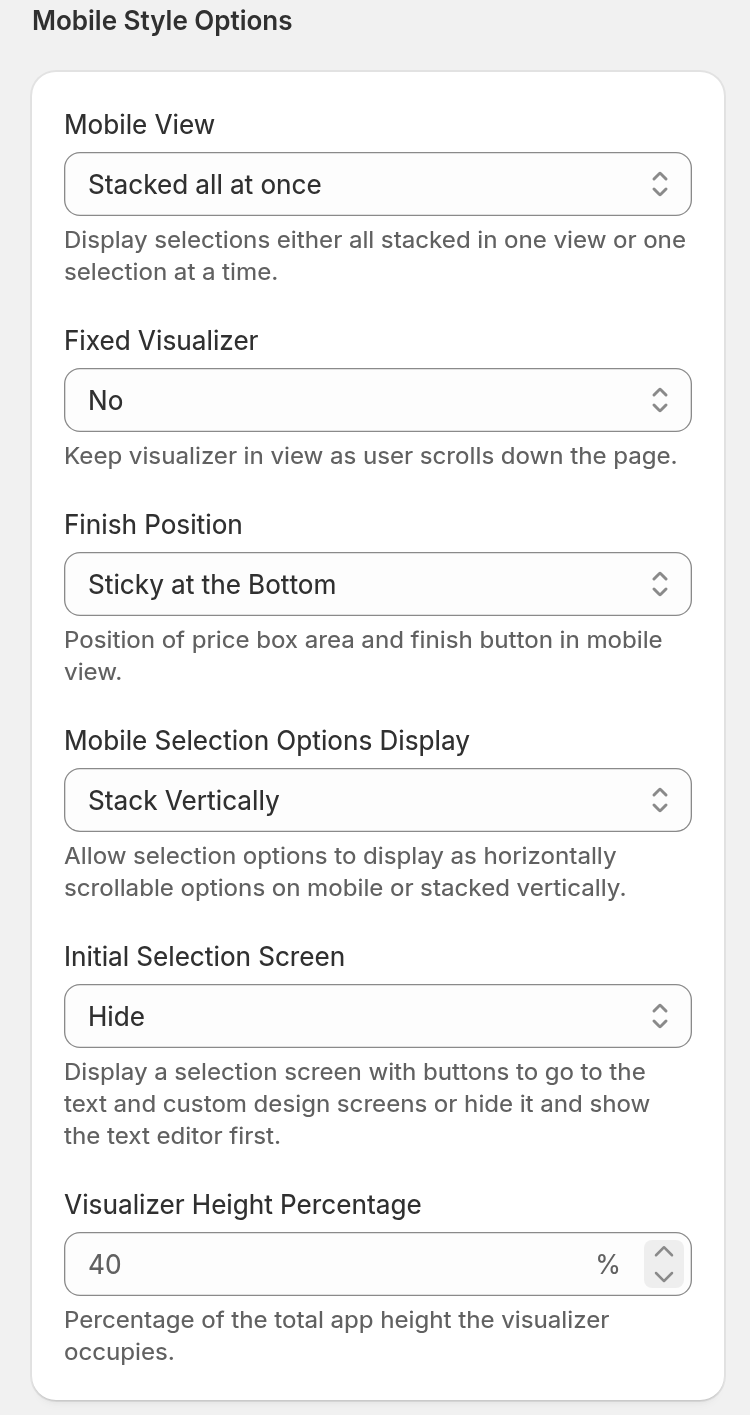
Choose a mobile view
Use the Mobile View setting to choose one of these layouts:
-
Stacked all at once: Shows all customisation options on one scrollable page.
-
One Selection at a Time: Shows separate steps, such as Text, Font, Size and Letter Type. Customers use the pill navigation or the Previous and Next controls to change steps.
One Selection at a Time is available for every new and existing customiser.
Settings for Stacked all at once
When you select Stacked all at once, two more settings show:
-
Fixed Visualiser: Keeps the visualiser in view when customers scroll.
-
Finish Position: Sets the position of the price and the finish button. Select Sticky at the Bottom or Below selections.
When you select One Selection at a Time, these two settings are hidden.
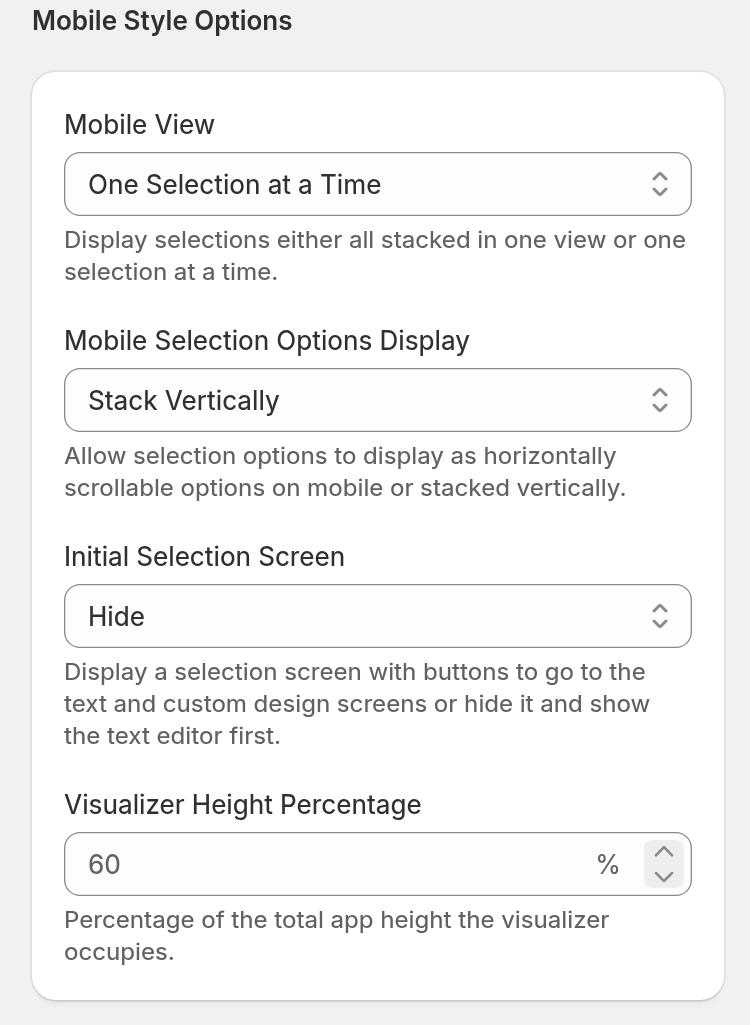
Settings shared by both views
-
Mobile Selection Options Display: Shows selection options in a horizontal scroll or a vertical stack.
-
Initial Selection Screen: Shows or hides the opening choice between text and custom design. This screen shows only on tablets and phones. It also needs a custom design option and the text editor to be on. For the text editor, see Editor Modes.
-
Visualiser Height Percentage: Sets how much of the mobile screen the visualiser uses. If you leave the field empty, the customiser uses 40% for Stacked all at once. It uses 60% for One Selection at a Time.