

Linking to an External Page for Custom Designs
Last updated:
You can add a link to an external page. Use the link instead of a custom form in the customiser. With the Link Only display, the link is at the top of the selections column.
How to Add a Link to an External Page in Your Customiser
-
Open the Sign Customiser admin:
-
Universal users: Go to Home in your account.
-
Shopify users: Go to Shopify admin → Settings → Apps. Then open the app.
-
-
Select Customisers in the menu.
-
Select the customiser that you want to change.
-
In the left-hand menu, go to Core Setup → Custom Designs.
-
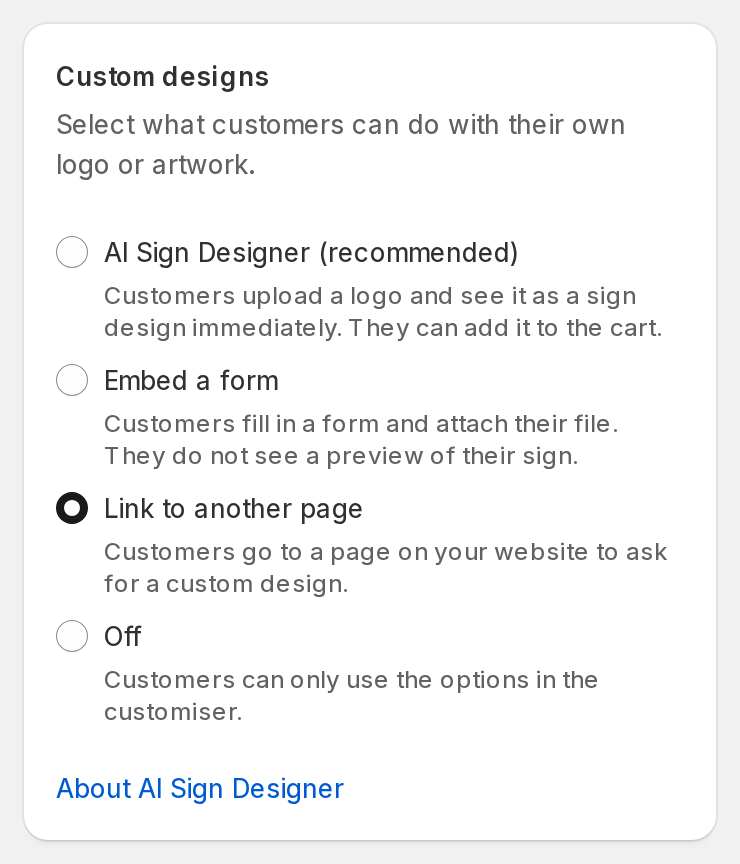
In the Custom designs card, select Link to another page. The Link to external page section then shows below it.
-
Selecting this option turns off AI Sign Designer for this customiser.
-
Some sign types do not have AI Sign Designer. For these, the AI Sign Designer (recommended) option does not show. The option is grey when your plan does not include it or when the pricing model does not support it. Its help text says why.
-
-
The Link to external page section shows. Enter the full URL in the URL of external page field. The URL must start with
https://orhttp://. Select Test URL to make sure that the link opens in a new tab. -
(Optional) Change the link text in the Phrase for url to external page field. The field starts with the text “Got a logo? Get a quote”.
-
Choose a Display option:
-
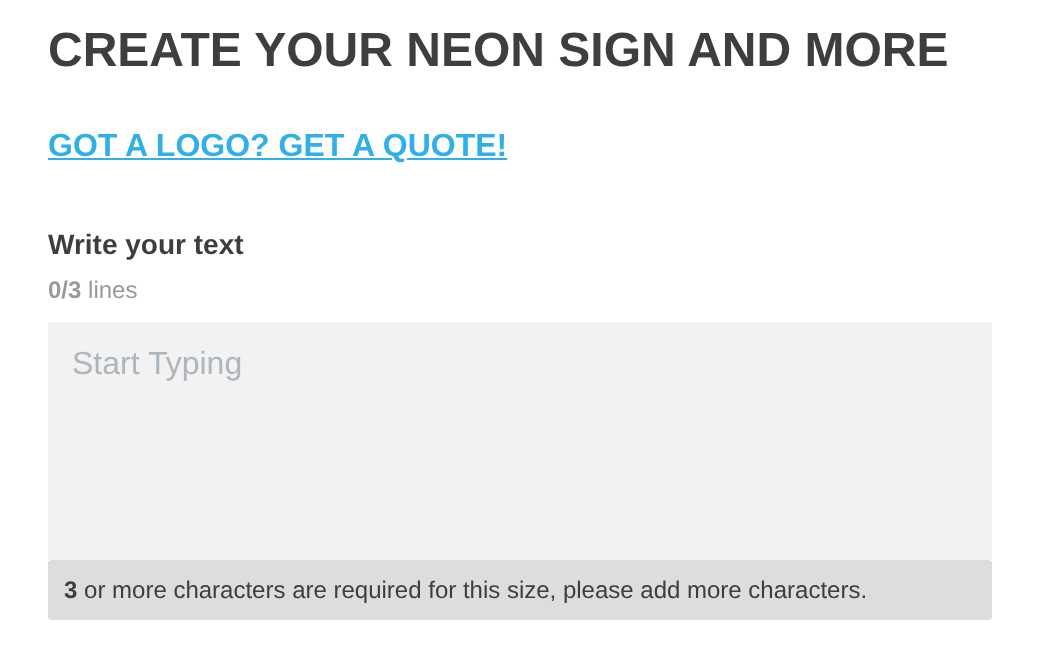
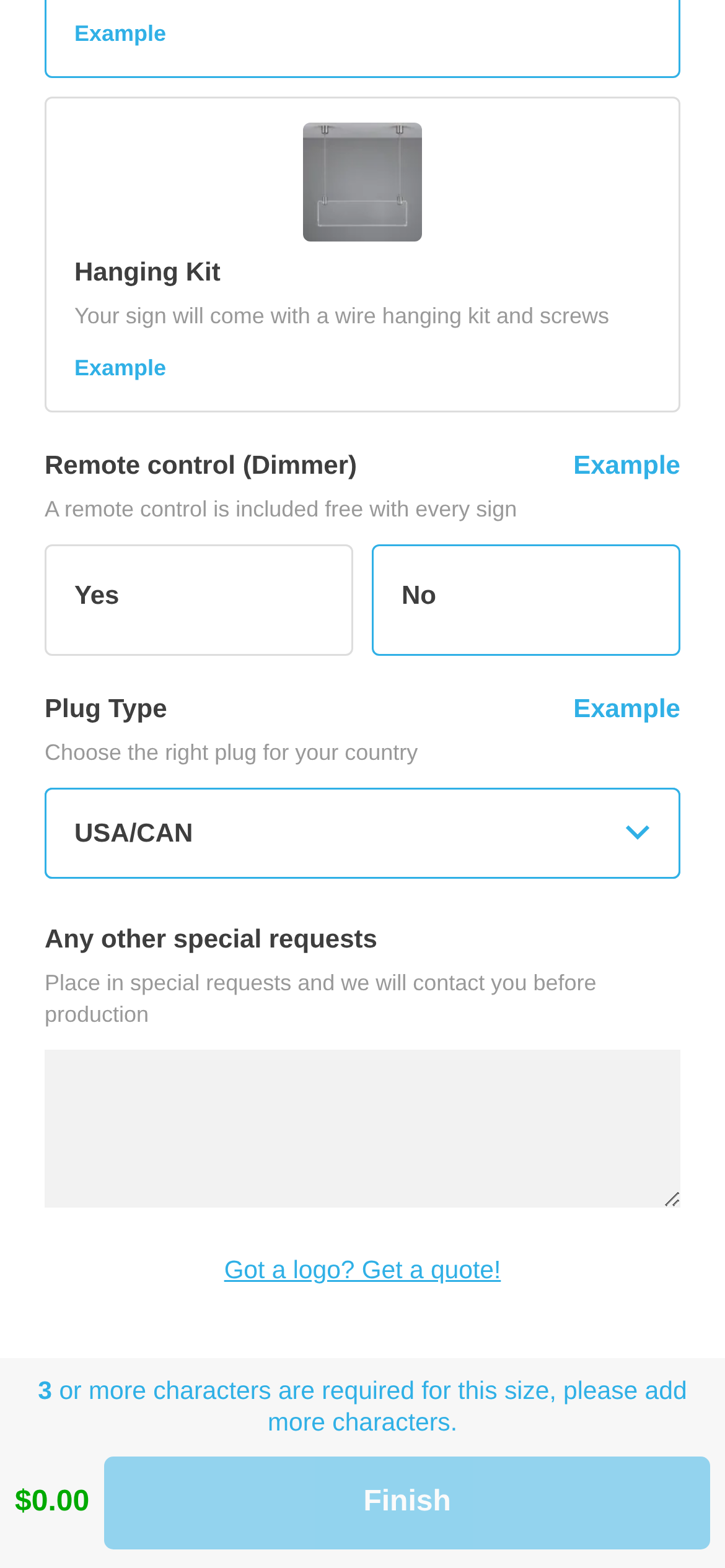
Link Only (Placed at top of options side bar) – This shows a simple link at the top of the selections column. (On the default stacked mobile layout, the link is after the selections.) The link shows only when Enable Text Editor is on in Features → Editor Modes.
Desktop view:
Mobile view:
-
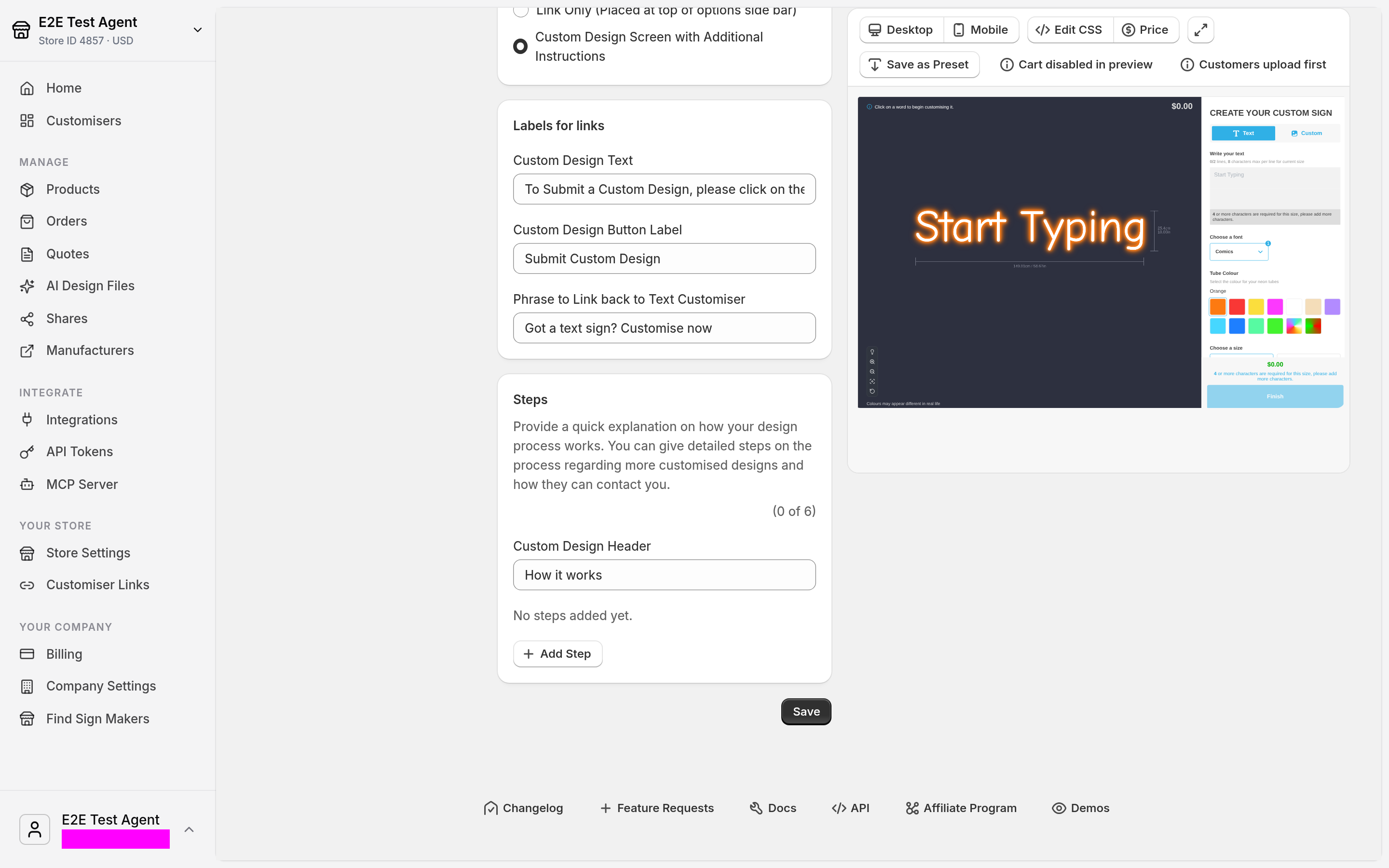
Custom Design Screen with Additional Instructions – This shows an extra screen before customers go to the external page. In this mode, the phrase field is Phrase for url to external screen (mobile only). It sets the text of the mobile button. On desktop, Custom Design Button Label sets the text of the button. Two more sections show:
-
Labels for links: Custom Design Text, Custom Design Button Label, and Phrase to Link back to Text Customiser.
-
Steps: a header and up to six steps that explain your design process. For instructions, read the Change the instructions on the Custom Design screen guide.
-
-
-
Select Save.