

Editor Modes
Control the text editor and decide whether supported customisers can accept characters that a selected font cannot draw.
Last updated:
Overview
Editor Modes is a customiser setting. It controls which design interfaces your customers can use to make a sign.
You can enable the text editor and a custom design option together. Or you can disable the text editor. Then customers see only your custom design interface.
Simple Breakdown
When you disable the text editor, customers see only your custom design interface. This interface is the AI Sign Designer, an embedded form, or a link to an external design page.
The setting changes the customer journey:
-
Text Editor Enabled: Customers can type text in the customiser. If your custom design option can show as a tab, they can also use the tab switcher to go to the custom design interface.
-
Text Editor Disabled: Customers go directly to the custom design interface. The tab switcher does not show.
Use this setting if most of your orders come from customer artwork, complex custom designs or forms.
Editor Modes is not available for Lightbox signs.
Prerequisites
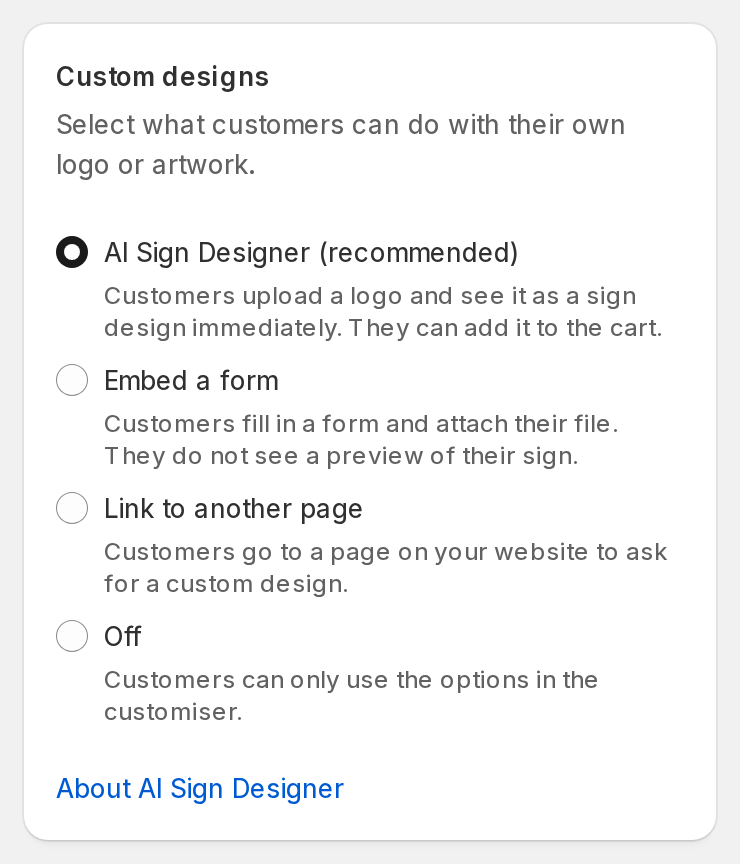
Before you disable the text editor, set one custom design option for your customiser. Open Custom Designs in the menu, in the Core Setup section. In the Custom designs card, use one of these options:
-
AI Sign Designer (recommended): Customers upload an image. The AI Sign Designer changes it into a production-ready sign design. Select AI Sign Designer (recommended) in the Custom designs card to use it. It has these requirements:
-
The customiser is a neon, channel letter (acrylic or metal) or metal cut-out customiser.
-
The customiser uses Frame Fit or Material Length pricing. Other pricing models do not support AI Sign Designer.
-
The same customiser has a fallback form. The form must have a required customer Email field and a File Upload field. When you select AI Sign Designer, the page selects an eligible form in Fallback form. You can select a different form there.
-
If no form is eligible, click Create a fallback form in the Set up AI Sign Designer card. It creates a form named AI Sign Designer Form and selects it.
-
Your plan includes AI Sign Designer. If it does not, the option shows Your plan does not include AI Sign Designer. and a link to Upgrade your plan.
-
In the Set up AI Sign Designer card, select a Pricing model. For a Material Length customiser, the pricing model must be of type Material Length. Also enter the Minimum production height, Default width and Default height in the Sign Dimensions card.
-
-
Embed a form (in the Custom designs card): A custom form in the customiser. Customers must fill out the form to receive a custom design. You cannot use Embed a form on the Starter plan. On a Shopify Store on the Seed plan, the Embed a form choice is not kept when you save.
-
Link to another page (in the Custom designs card): A link to a page on your website for custom design requests. Set Display to Custom Design Screen with Additional Instructions. The Link Only (Placed at top of options side bar) display does not let you disable the text editor.
Set one of these options before you disable the text editor. Without one, customers would have no way to make their order.
How to Access Editor Modes
In the Universal admin (web.signcustomiser.com):
-
Click Customisers in the left sidebar.
-
Click the customiser that you want to change.
-
In the menu, open the Features section.
-
Click Editor Modes.
In the Shopify admin, open the app. On the Home page, click Customisers in the Menu card. Then do steps 2 to 4.
On a narrow screen, the menu is behind a Menu button. Click the button to show the menu.
The Editor Modes page has one checkbox: Enable Text Editor.
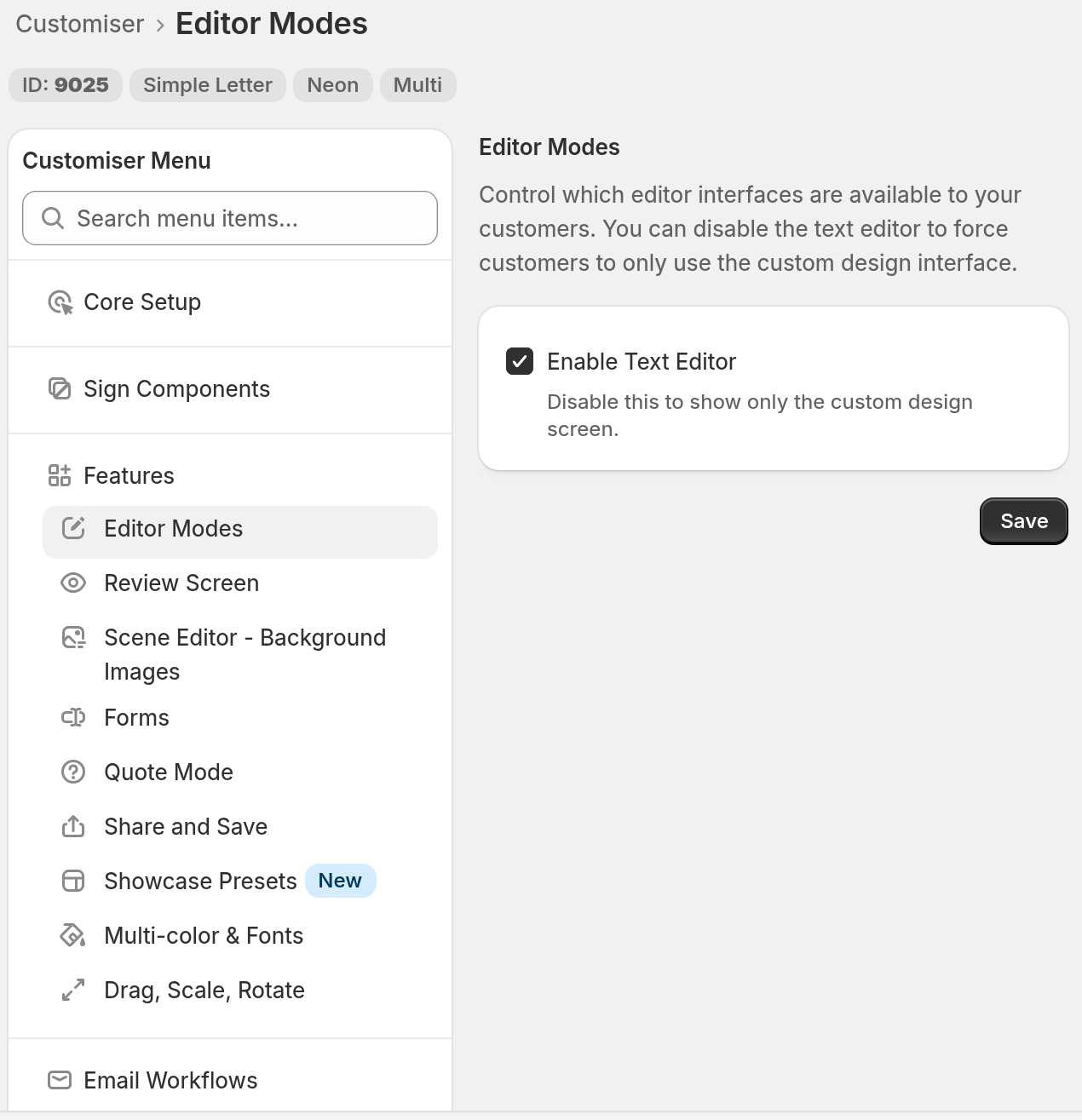
Enabling or Disabling the Text Editor
To disable the text editor:
-
Open the Editor Modes page.
-
If the warning “You must enable a custom design option before you can disable the text editor” shows, click Configure Custom Designs. Set a custom design option first.
-
The Enable Text Editor checkbox is active in these cases: the AI Sign Designer is set; Embed a form is set; or a link is set and Display is Custom Design Screen with Additional Instructions.
-
Clear the Enable Text Editor checkbox.
-
An information banner shows: “With the text editor disabled, customers will only see the custom design interface. The tab switcher will be hidden and customers will be directed straight to the custom design screen.”
-
Click Save.
To enable the text editor:
-
Open the Editor Modes page.
-
Select the Enable Text Editor checkbox.
-
Click Save.
Enable the text editor again before you remove or change your custom design option. If the text editor is disabled and the option is None, customers see no sign options.
Allow Unsupported Characters
Fonts do not contain a design for every character. The Allow unsupported font characters setting controls what happens when a customer types a character that the selected font cannot draw. The setting is in General Settings → Order safeguards.
-
Simple Letter and Frame Fit: unsupported characters are allowed by default. Clear the setting to block them.
-
Advanced Letter: unsupported characters are blocked by default. You can allow them only after you accept a production warning.
-
Fixed Height (deprecated): unsupported characters remain blocked. The setting does not show for this pricing model.
Read Why is add to cart blocked for some font characters? for setup steps and the checks that you must do before production.
Important
A design whose text is all unsupported characters is always blocked. A visible icon or an uploaded graphic in the design lets it through only when the unsupported-character setting allows it.
Customer Experience
When Text Editor is Enabled (Default)
When the text editor is enabled, customers see the standard customiser interface:
-
On a phone or tablet (a window narrower than 1025 px), customers can see an intro screen with two buttons. The screen shows only when a custom design option is set and Initial Selection Screen is Show. The buttons are:
-
A button for the text editor. Its default label is Text.
-
A button for the custom design interface. Its default label is Custom.
-
-
If your custom design option can show as a tab, customers see a tab switcher. They see it on a desktop. They also see it on a phone or tablet when Mobile View is Stacked all at once. A link with the Link Only (Placed at top of options side bar) display does not show as a tab. Customers use the tab switcher to go between these interfaces:
-
The text editor, where they type their text and choose options.
-
The custom design interface. This interface can be the AI Sign Designer, a form or a link.
-
To show or hide the intro screen, open General Settings and find Mobile Style Options. Set Initial Selection Screen to Show or Hide.
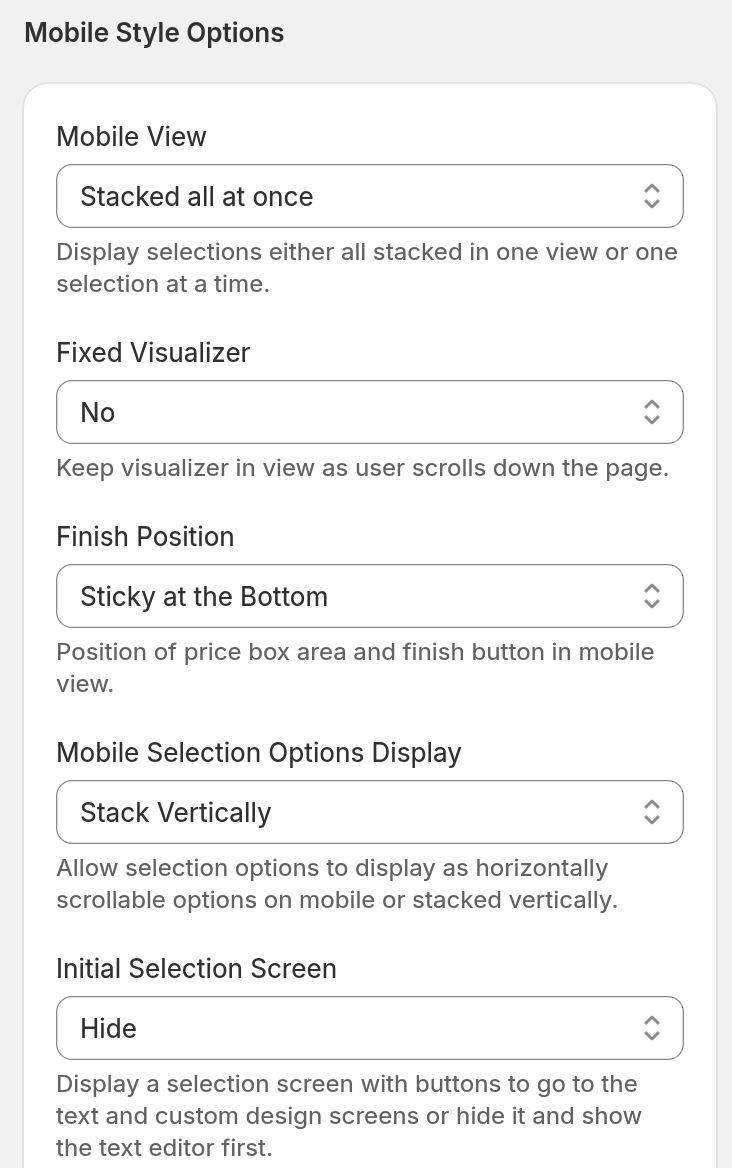
To rename the two buttons, open Languages in the Settings section. Change Text Tab and Custom Design Tab.
When Text Editor is Disabled
When the text editor is disabled, customers follow one path:
-
The intro screen does not show on phones and tablets. Customers go directly to the customiser.
-
The tab switcher does not show.
-
Customers go to the custom design interface that you set:
-
AI Sign Designer: Customers go to the AI sign design flow. They upload an image when your Store has AI credits. Without AI credits, customers see your fallback form.
-
Embed a form: Customers see the custom design form.
-
Link to another page: Customers see the custom design screen, which has your link.
-
-
Customers cannot use the text editor. They must use the custom design workflow.
-
If your Store has AI credits, the size, mounting and additional input steps show after the AI design is ready. Before that, customers see only the upload step. With a link or a form, these steps do not show. The review screen and quote mode follow your Review Screen and Quote Mode settings.
Use Cases
Use Case 1: AI Sign Designer-Only Workflow
A shop makes fully custom neon signs. The shop wants all customers to use the AI Sign Designer. The shop uses a neon customiser with Frame Fit or Material Length pricing.
-
Open Forms in the Features section. Create a form with a required customer Email field and a File Upload field.
-
Open Custom Designs. In the Custom designs card, select AI Sign Designer (recommended).
-
In the Set up AI Sign Designer card, check that Fallback form shows your form. The page selects an eligible form for you.
-
In the Set up AI Sign Designer card, select a Pricing model. For a Material Length customiser, also enter the Minimum production height, Default width and Default height in the Sign Dimensions card. Click Save on the Custom Designs page.
-
Open Editor Modes.
-
Disable the text editor.
-
Customers now go to the AI sign design flow. They cannot use the text editor.
Use Case 2: Form-Based Custom Orders
A shop needs detailed specifications for complex channel letter installations. This use case does not work on the Starter plan. On a Shopify Store on the Seed plan, it does not work because the Embed a form choice is not kept when you save.
-
Open Forms in the Features section. Create a form with all the fields that you need.
-
Open Custom Designs. In the Custom designs card, choose Embed a form. Click Save on the Custom Designs page.
-
Open Editor Modes.
-
Disable the text editor.
-
Customers go directly to the form and fill in the fields that you set.
Troubleshooting
The Enable Text Editor checkbox is greyed out and I cannot clear it.
You must set a custom design option first. Click Configure Custom Designs in the warning banner. Then select AI Sign Designer (recommended), Embed a form, or Link to another page in the Custom designs card. For a link, set Display to Custom Design Screen with Additional Instructions. Click Save on the Custom Designs page. Then open Editor Modes again. You cannot select Embed a form on the Starter plan. On a Shopify Store on the Seed plan, the choice is not kept when you save.
The Enable Text Editor checkbox is clear and greyed out, and I cannot select it.
You removed the custom design option while the text editor was disabled. Open Custom Designs. Set a custom design option again and click Save. Then open Editor Modes, select Enable Text Editor and click Save.
I disabled the text editor, but customers still see the text editor tab.
Make sure that you clicked Save after the change. Then reload the customiser page.
Customers see no sign options.
The text editor is disabled and the custom design option is None, or you removed it. Open Custom Designs. Set a custom design option again and click Save. Then open Editor Modes, select Enable Text Editor and click Save. To prevent this, enable the text editor before you remove or change the custom design option.
I cannot find Editor Modes in the menu.
Editor Modes is not available for Lightbox signs. On a narrow screen, click the Menu button to see the menu.
I want to enable the text editor again and keep my custom design option.
Select the Enable Text Editor checkbox on the Editor Modes page. Then click Save. Customers then see the text editor again. If your custom design option can show as a tab, they also see the tab switcher.
After I disabled the text editor, the review screen or quote mode does not show.
The review screen and quote mode are independent of the Editor Modes setting. They continue to work when the text editor is disabled. Check your Review Screen and Quote Mode settings.