
Download a quote as a PDF
Download any quote request or form submission as a PDF from the Quotes submission page, with its summary, product choices, answers, pictures and file list.
Last updated:
You can make a PDF from any quote request or form submission. The PDF shows the customer’s answers, product choices and pictures in one document. Use the PDF to share a quote with your team, keep it with a job, or check a price. This article is for merchants who receive quote requests or custom design requests.
Before you start
You need at least one submission in Quotes. A submission arrives in one of these ways:
-
A customer sends a quote request from a customiser that has Quote Mode on. The customer selects the quote button. The default label is Finalize Quote. For more information, see Quote Mode.
-
A customer sends a custom design form or an AI Sign Designer fallback request. For more information, see Custom Design Forms.
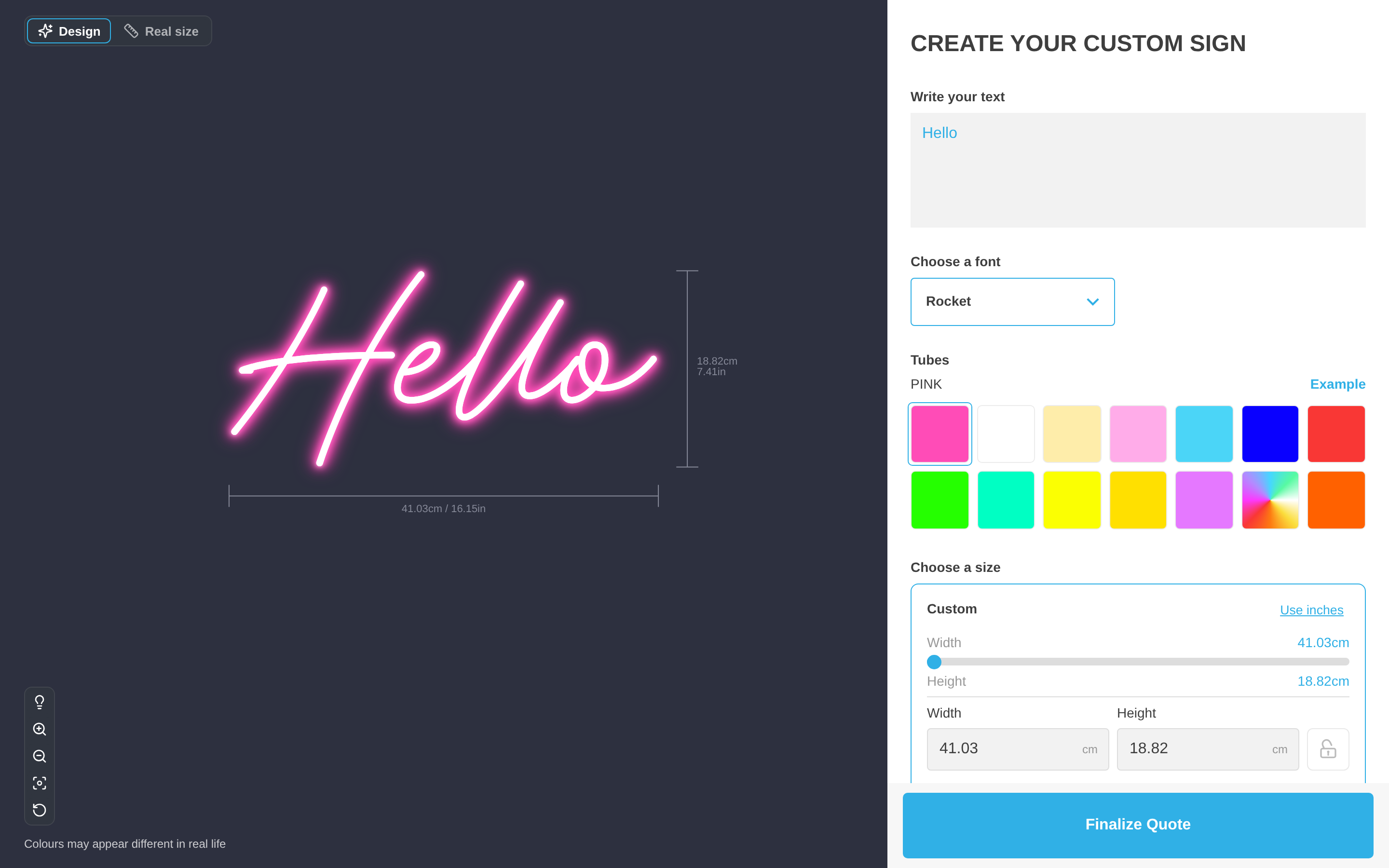
Download a quote
-
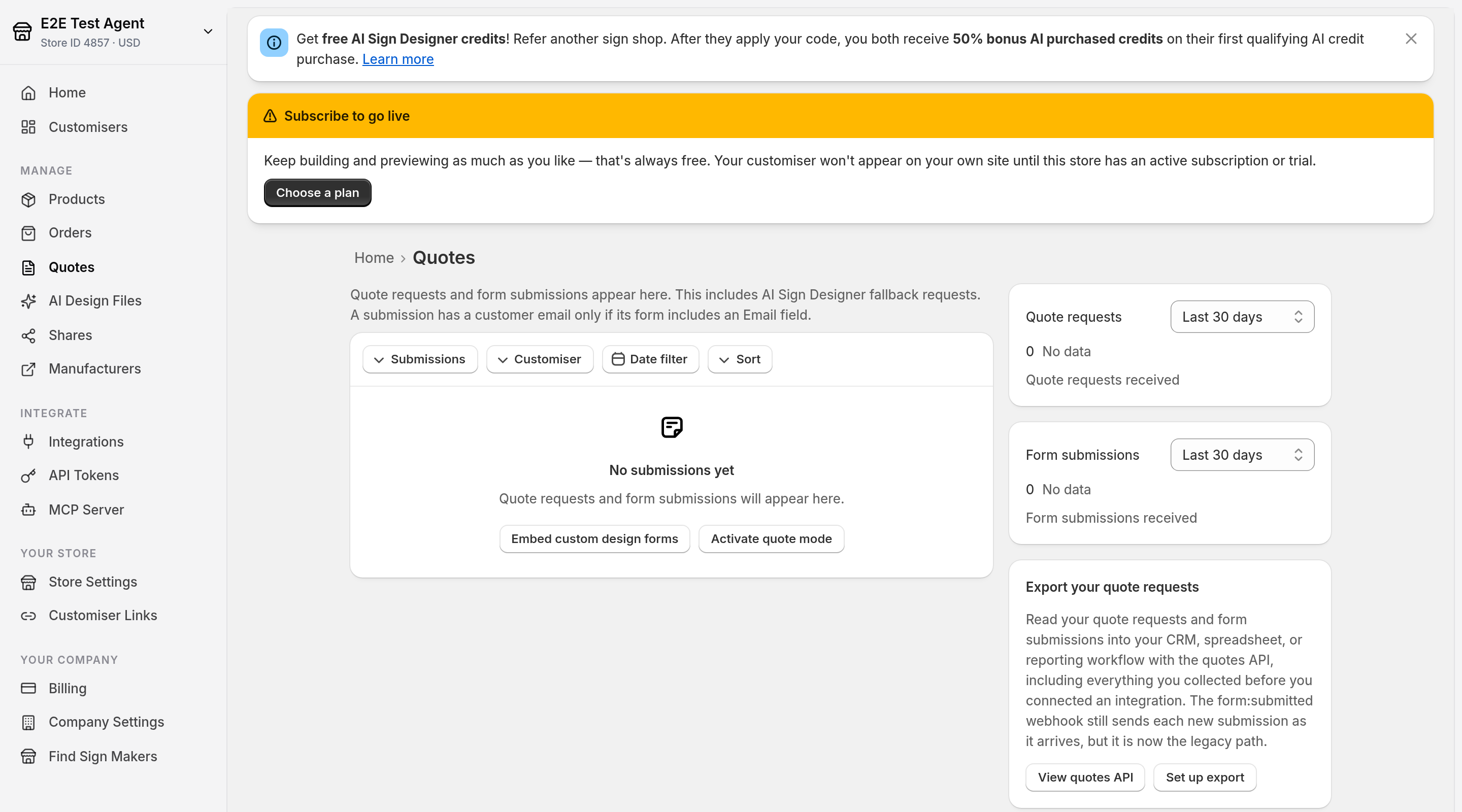
Open Quotes.
-
In the Universal admin, select Manage > Quotes in the sidebar.
-
In the Shopify admin, open the app. Then select Quotes in the app menu.
-
-
Find the submission. To make the list shorter, use Submissions, Customiser or Date filter. To change the order, use Sort.
-
Select the submission link. The link shows the number, for example #1042, and the form name.
-
On the submission page, select Download Quote.
Your browser saves the PDF. A quote request has a name such as quote-1042.pdf. A form submission has a name such as form-submission-1042.pdf.
The Actions menu on each row has only Resend email. Download Quote is on the submission page only.
If the download fails, the page shows an error message. Select Download Quote again.
What the PDF contains
The PDF uses A4 paper. It has these parts, from top to bottom. Title, Summary, Responses and Attached files always appear. The other parts appear only in the cases that this list gives.
-
Title. The title is “Quote #1042” for a quote request. The title is “Form submission #1042” for a form submission. Under the title are the form name, the customiser name, and the date and time of the submission.
-
Preview. This part appears when the submission has a rendered image of the customer’s sign. It is not a copy of the screen that the customer saw, so the background can be different. A quote request always has this part. If a quote request has no image, the PDF says “No rendered preview is available for this quote.” A form submission shows this part only when it has a rendered image.
-
Summary. The summary has these rows: Quote number (or Submission number), Form, Customiser, Submitted and Suggested price. Suggested price shows a dash when the submission has no price.
-
Product selections. This part shows the sign choices that the customer made. The choices can include Text, Text Align, Size, Material, Product Type, Support, Support Colour, Jacket and Mounting. This part appears only when the submission has product choices. The PDF shows only the choices that the submission has.
-
Responses. This part shows each form question that does not take a file, and the answer of the customer. File uploads appear under Attached files. Pictures among them also appear under Customer uploads. If the submission has no answers, the PDF says “No responses recorded.”
-
Customer uploads. This part appears only when at least one picture can be shown. It shows the pictures in the submission’s files. Each picture has its field name and its original file name. A picture that has no original file name, such as a letter image that the design generated, shows “Unnamed file”.
-
Attached files. This part lists every uploaded file. Each entry has the field name, the original file name and the web address. If the submission has no files, the PDF says “No files attached.”
Sign Customiser builds the PDF when you select Download Quote. Sign Customiser does not store the PDF. Each download shows the data as it is now.
Which pictures appear in the PDF
The PDF shows uploaded pictures in common formats such as PNG, JPEG, GIF and WebP. Sign Customiser reduces each picture whose longest side is more than 1000 pixels. Sign Customiser places each picture on a white canvas.
These files do not appear as pictures:
-
SVG files, PDF files, and any file that Sign Customiser cannot read as a picture.
-
A picture that is larger than 15 MiB (about 15.7 MB) or has more than 8 million pixels.
-
Any picture after the first 20.
-
Pictures that go over the total size limit.
These files stay in Attached files. To get the original file, go back to the submission page. Then select Download file in the Files section.