
Languages in Sign Customiser
Use one customiser for multiple shopper languages, manage each translation as a draft, and publish the right version across Shopify and Universal.
Last updated:
One customiser can serve shoppers in several languages. You manage each language in the same customiser, keep unfinished wording private as a draft, and publish it when it is ready.
Only published languages reach shoppers. Saving or previewing a draft does not change the public customiser.
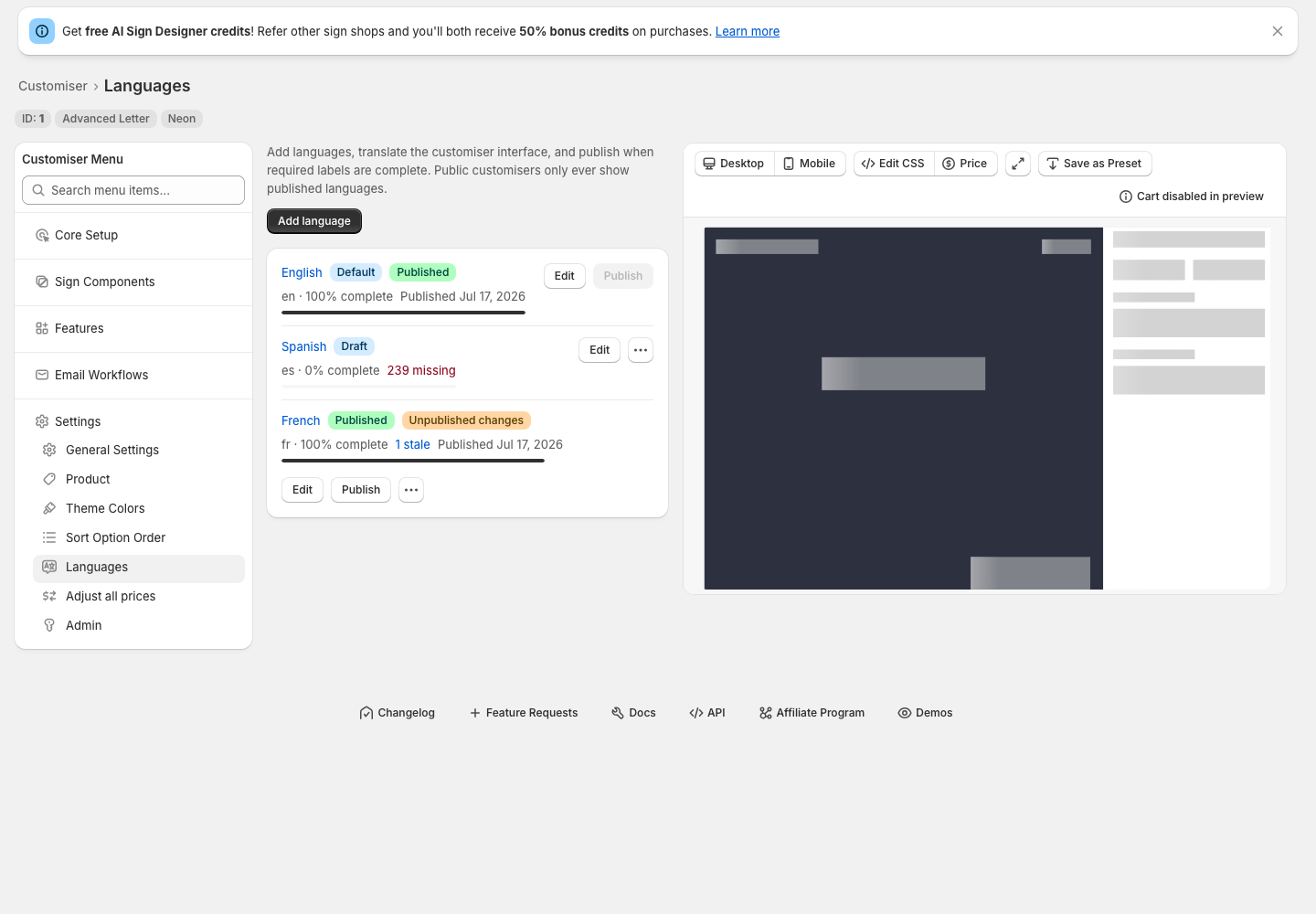
Set up another language
-
Open Customisers -> [customiser] -> Settings -> Languages.
-
Check the default language and finish its wording where practical.
-
Select Add language, choose the target and source languages, then choose whether to start blank or generate an AI-assisted first draft when that option is available.
-
Translate and review the wording, save the draft, and preview it.
-
Publish the language when all required fields are complete.
Follow Add, translate, preview and publish a language for the complete workflow.
What Sign Customiser translates
-
Interface text such as headings, buttons, prompts, warnings and errors.
-
Selection titles, descriptions and supported shopper-visible option names, including colours, sizes, fonts, materials, mountings, backboards, extras and product types.
-
Custom form labels, fields, choices, guidance and submission messages.
-
Review-screen labels and supported shopper-visible cart and order summary wording.
What stays unchanged
-
The wording a shopper types for their sign and text in saved customer designs.
-
Your Shopify theme, navigation, pages and other storefront copy.
-
Universal host-page content outside the customer customiser.
-
The product title. Change it under Settings -> Product.
-
Canonical option IDs, prices, SKUs, production and fulfilment values, currencies, dates and measurements.
-
Text direction. Configure right-to-left layout separately.
How shoppers receive a language
On Shopify, the customiser follows the active storefront language when you have published a matching customiser language. On Universal, an explicit integration language can select a published language. Without one, a supplied storefront language, browser preferences and then the customiser default are considered.
Sign Customiser does not add a shopper-facing language switcher. Shopify shoppers use the Store’s language selector. A Universal site must provide its own selector or language links when shoppers need a visible choice.
See Choose the customiser language on Shopify and Universal for matching, regional variants and testing.
Language terms
-
Default language is the fallback for shoppers who do not match another published language. It is also the source language selected by default when you add a language.
-
Source language is the version used as the starting point for a target translation.
-
Draft is saved privately and is not available to shoppers.
-
Ready for review means an AI-assisted draft has finished. It is still private.
-
Published means matching shoppers can receive the language.
-
Unpublished changes means the last published wording remains live while newer draft wording waits for publishing.
-
Missing marks an empty field. Required missing fields block publishing.
-
Stale means the source wording changed after translation and the target wording needs review.
Before you translate
-
Finish the source wording and option structure where practical.
-
Check that your fonts contain the characters needed for the target script.
-
Decide whether the language needs right-to-left layout.
-
Check the default language on older customisers instead of assuming it follows the Shopify Store’s primary language.