
Upload PDF artwork to the AI Sign Designer
Learn which PDF files the AI Sign Designer accepts, how it reads them, and what customers see when a PDF cannot be used.
Last updated:
Customers can upload a PDF to the AI Sign Designer. They can also upload a PNG, JPEG, WebP or SVG file. The AI Sign Designer changes the file into a sign design that the customer can configure and buy. You can test a PDF in the admin. This article is for merchants who use the AI Sign Designer.
Before you start
-
Turn on the AI Sign Designer for your customiser. Read How to Enable AI Sign Designer.
-
Make sure that your Store has at least one AI credit. A successful conversion uses one AI credit. A failed conversion does not use an AI credit.
Accepted files and limits
File type | Largest file |
25 MB | |
PNG, JPEG, WebP or SVG | 5 MB |
The upload step in the customer customiser shows these limits: “JPG, PNG, WebP, SVG, PDF (Max 5MB, 25MB for PDF)”.
The customer customiser tries to make a PNG, JPEG or WebP image smaller before it checks the size. The 5 MB limit applies to the smaller file. SVG and PDF files are not made smaller.
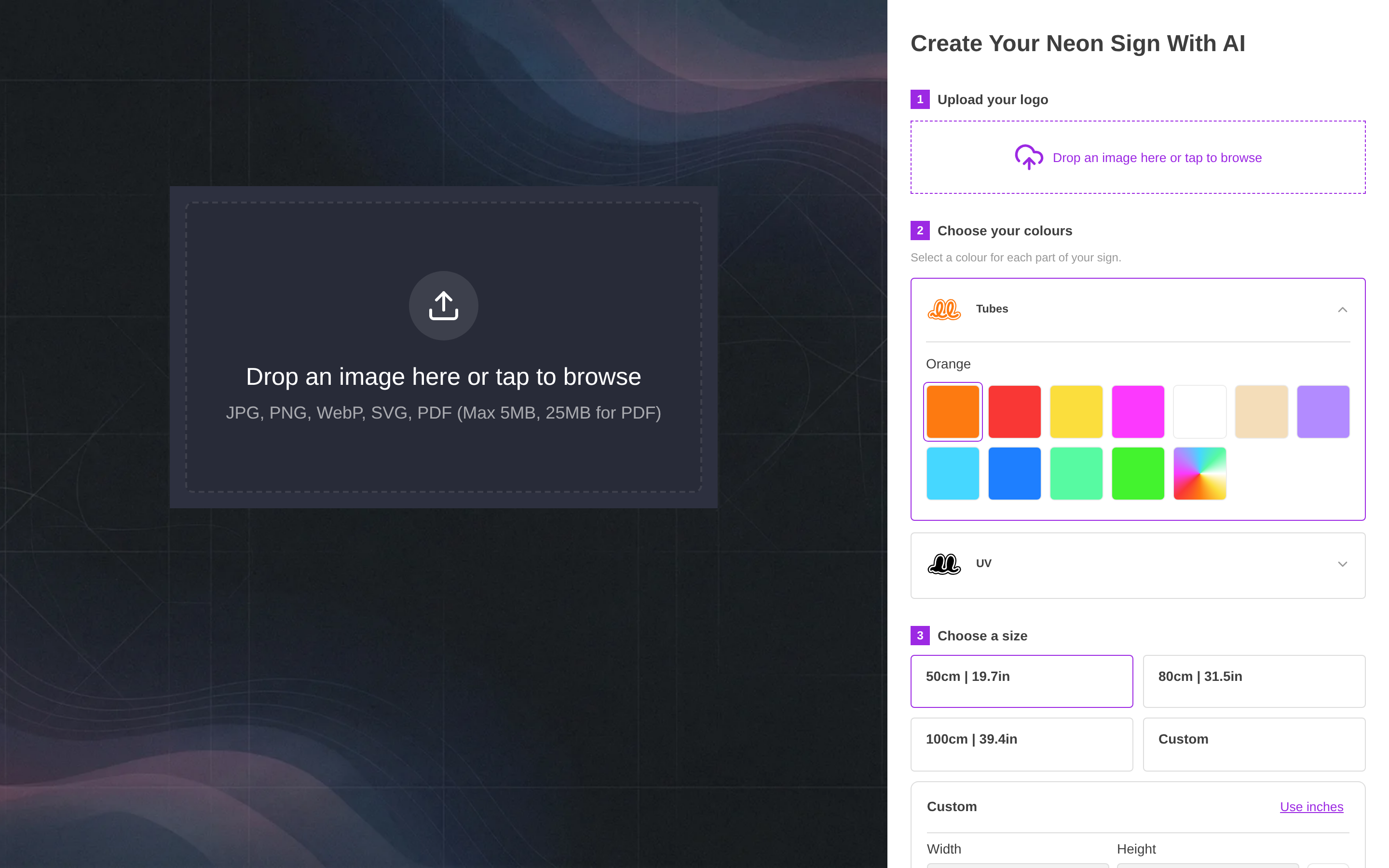
The AI Sign Designer reads only the first page of a PDF. It changes that page to an image. Then it processes the image in the same way as other uploads. If the design is on a different page, the customer must save that page as a separate PDF. The customer can also export that page as a PNG file. Then the customer uploads the new file.
If a file is too large, the customer sees “This file is too large. Choose a file up to 25 MB.” For other file types, the number is 5.
To change this message:
-
Open your customiser, then select Custom Designs.
-
Find the Language section.
-
Edit File too large message. Enter
{limit}where the number must show.
A file must be the type that its name shows. A customer can rename a different file to end in .pdf. Then the customer sees “This file’s contents don’t match its name. Open it in your design tool and export it again rather than renaming it.”
Test a PDF in the admin
-
In the Universal admin, select Manage, then AI Design Files. On Shopify, open AI Design Files from the app menu.
-
Find the AI Converter card. The card shows your AI credit balance.
-
Under Style, select Channel or Neon.
-
Select Add file, or drop a PDF on the card.
-
Select Convert to SVG.
-
Wait for the conversion. The card shows “Converting to SVG…”. After two minutes, the card also shows “This can take more than two minutes. Please be patient.”
-
Wait for the message “Conversion complete!”. Compare Original with AI Generated.
-
Select Download SVG, Download EPS or Download AI to save a file. The EPS and AI buttons show only when those files exist.
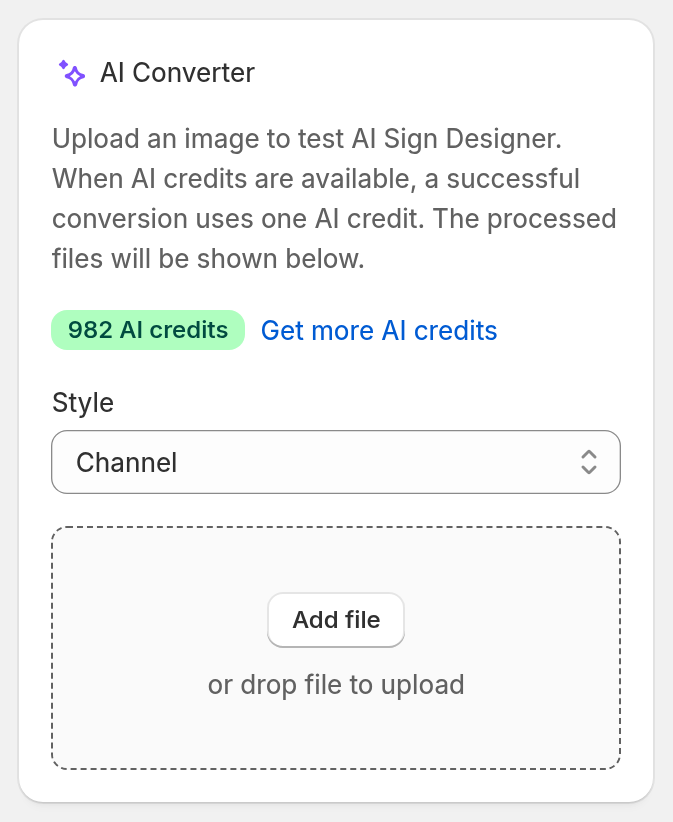
A successful test uses one AI credit.
What the customer sees
-
The customer chooses or drops a PDF in the upload step. The step title is “Upload your logo” unless you changed it.
-
The customer waits while the AI Sign Designer works. The customiser shows progress messages, for example “Reading your image”, “Designing your sign” and “Refining your design”.
-
The design shows in the customiser. The customer then selects a size and options. Then the customer adds the sign to the cart.
When a PDF does not work
When the AI Sign Designer cannot read the PDF, the customer sees a message. The title is “We couldn’t design this one” unless you changed the Upload failed title. The customer can select Try another image. If you set a fallback form, the customer can also use that form to send the artwork to you. For more information, read the AI Sign Designer Guide.
These are the PDF messages:
-
The file is not a valid PDF: “This PDF could not be read. Please upload a PNG, JPG, or SVG, or a flattened PDF.”
-
The PDF has a password or uses features that Sign Customiser cannot read: “We could not read this PDF. It may be password-protected or use unsupported features. Please upload a PNG, JPG, or SVG, or a flattened PDF.”
-
The first page is too large as an image: “We could read this PDF, but it becomes too large to process as an image. Please upload a simpler PDF or a PNG, JPG, or SVG under 10MB.”
-
PDF conversion is not available for a short time: “PDF rasterisation is temporarily unavailable. Please upload a PNG, JPG, or SVG instead.”
Tell the customer to do one of these actions:
-
Remove the password from the PDF.
-
Save a flattened copy of the PDF.
-
Export the first page as a PNG, JPEG or SVG file. Then upload that file.
The AI Converter card in the admin shows the same message in a red banner. Select Try Again to upload the same file again. Select Test Another to choose a different file. A failed conversion does not use an AI credit.
Limits
-
The AI Sign Designer uses only the first page of a PDF.
-
A PDF can be up to 25 MB. Other file types can be up to 5 MB. In the customer customiser, the 5 MB limit for a PNG, JPEG or WebP image applies after the image is made smaller.
-
The image of the first page must not be larger than 10 MB. Sign Customiser tries smaller image sizes before the conversion fails.
-
Auto-process uploaded images with AI does not process PDF files. It processes only PNG, JPEG and SVG files that customers send with a form. A PDF that comes with a form stays a manual file for your team.