NewTurn any image into a sign design.
Changelog

Changelog

Documenting our journey of creating a custom sign builder.

Filtered by:feature(182 updates)Page 3 of 19

Stay informed with updates every month

Or subscribe to ourRSS feed

Default scene background sizing and product image fixes

Sign Customiser keeps the built-in blue/grey background consistent for compatible sign customisers. Select it and enable “Use the selected background in the product image” to carry it into cart and order product images. Enter a positive real width to scale the visualiser and Review screen, then use the same option to scale the cart and order image. Without saved dimensions, the sign keeps its usual fit, while an enabled product-image option still uses the selected built-in colour.
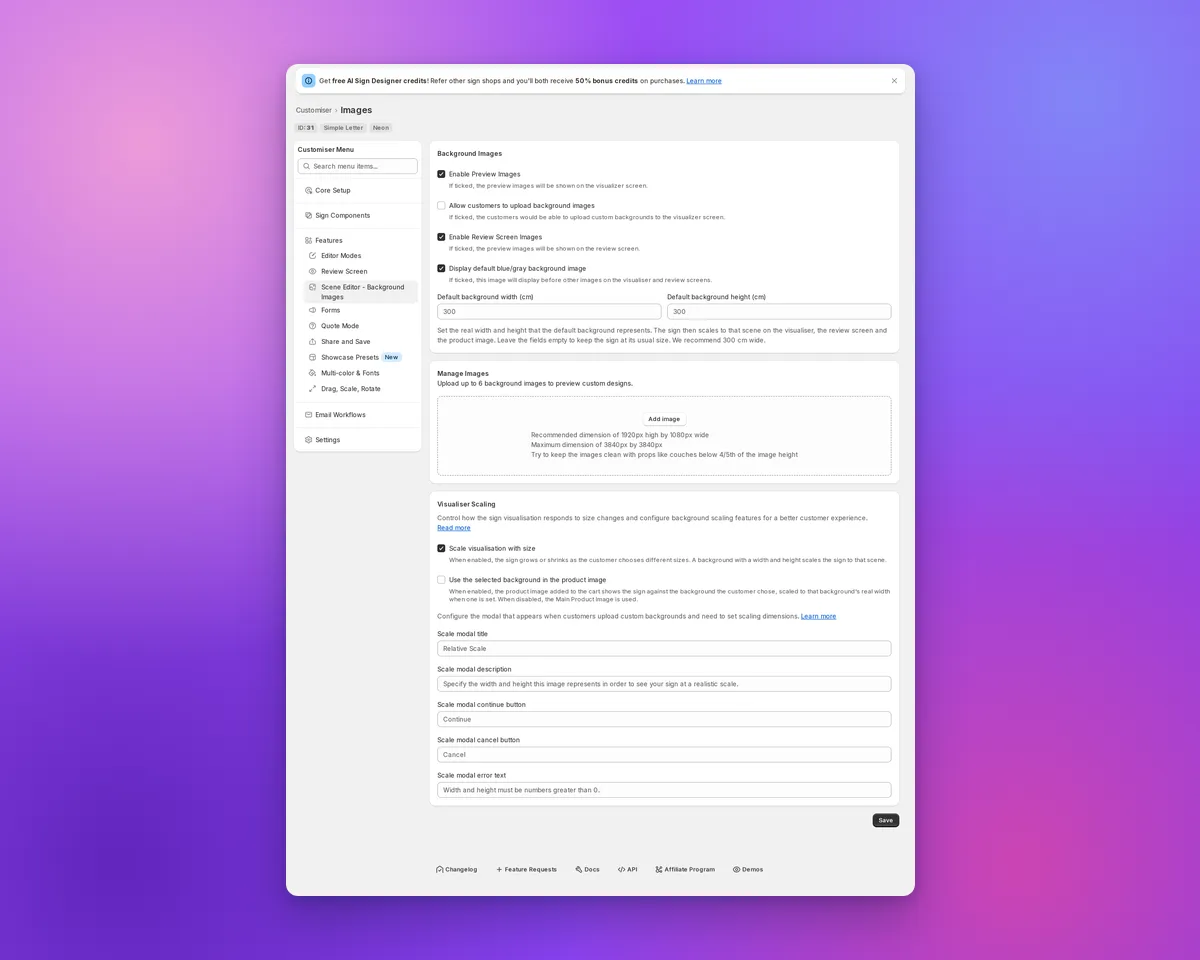
Scene Editor showing default background size fields and visualiser scaling

What’s Changed

  • Set the default background size. In the Scene Editor, enter a positive width under “Display default blue/gray background image”. You can also save a height, but the width drives proportional scaling. The fields show when preview or Review images and the default background are enabled. “Scale visualisation with size” must be on, and Drag, Scale and Rotate must be off. They start blank, with 300 cm as a recommended placeholder.
  • Scale every preview consistently. With “Scale visualisation with size” on and a positive default background width, the visualiser and Review screen scale the sign against the built-in background. Enable “Use the selected background in the product image” for compatible customisers to scale cart and order product images too. Leave the fields blank to keep the usual fit.
  • Keep product images on the chosen backdrop. With “Use the selected background in the product image” enabled, supported non-Lightbox Konva customisers show the selected built-in background as a flat colour in product images. This includes Neon, Channel, cut-out, stencil and wooden sign types. This replaces the previous fallback image, including the demonstration photo when no Main Product Image is configured.
  • Keep Material Length sizes in order. Advanced Letter (Material Length) customisers with an unset size limit no longer show Medium or Large smaller than Small on backgrounds without dimensions. The Small preview stays the same.
Aug 25, 2026

2026.8

Export quote PDFs from your Quotes inbox

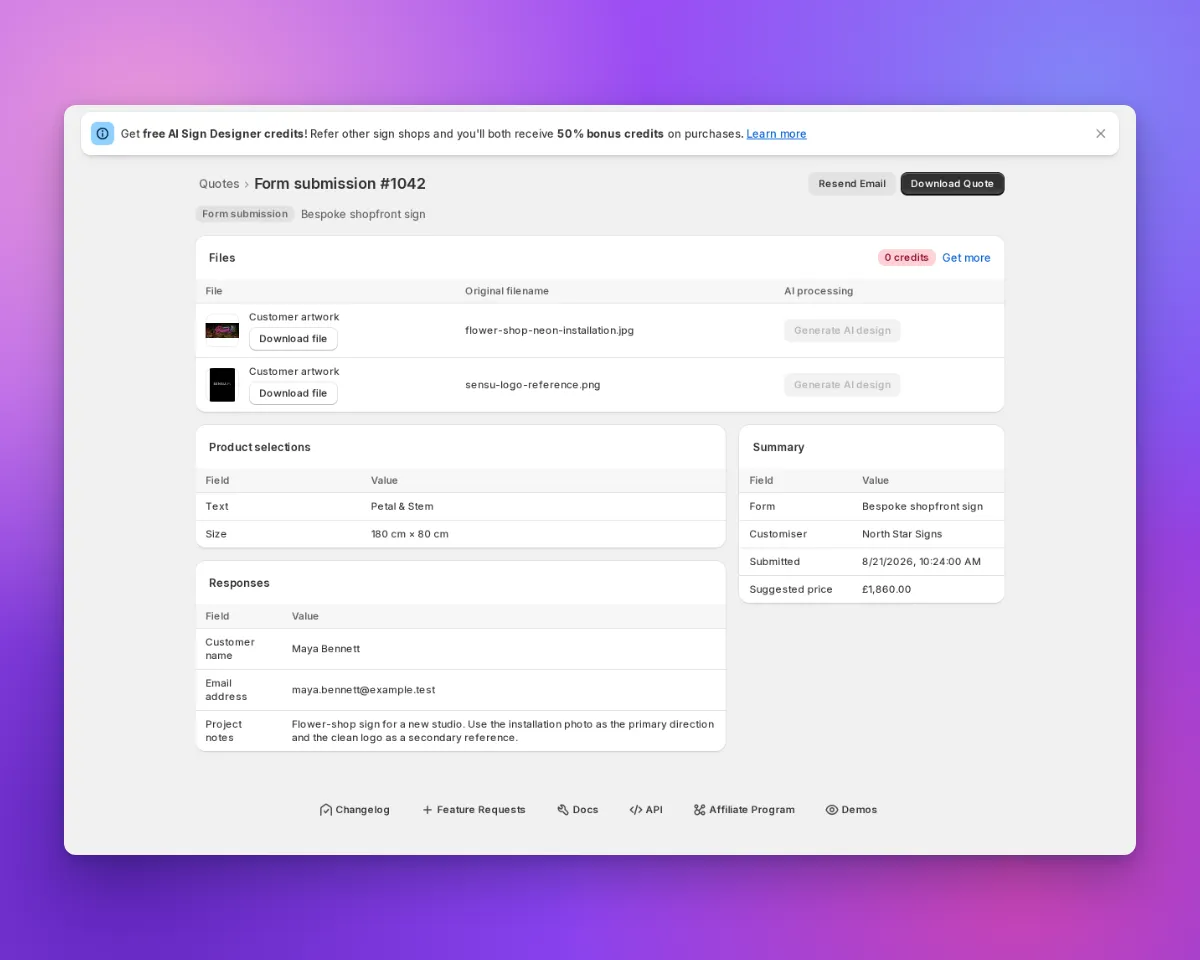
Sign Customiser now turns every quote request and custom design submission into a PDF your team can save, share or use while preparing a price. The redesigned Quotes inbox puts the customer’s details, answers, design choices and files on one clear page, so there is less digging when it is time to follow up.

Form submission detail page showing customer answers, two artwork uploads, Resend Email and Download Quote

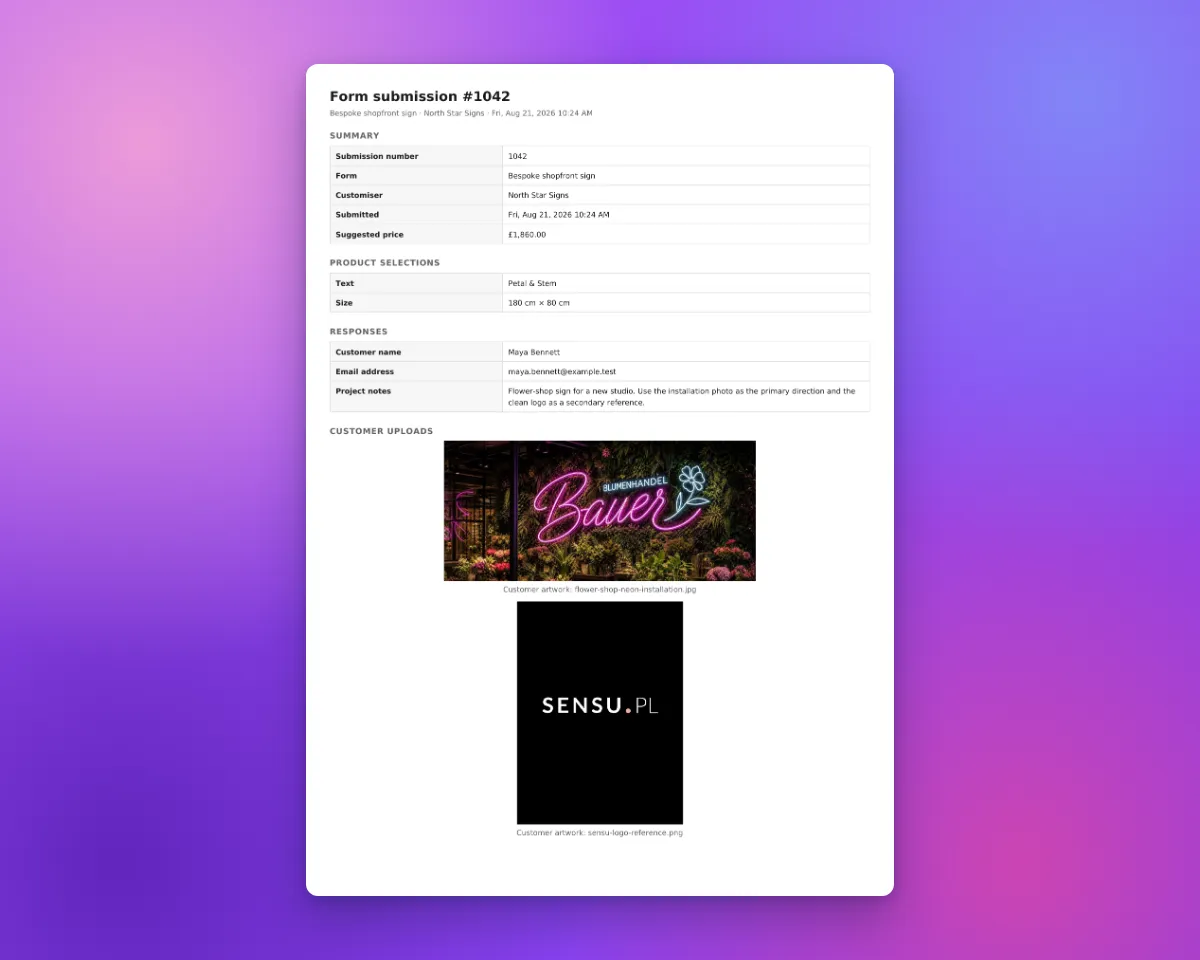
Download Quote carries the same information into a document that is ready to share or keep with the job.

Exported form submission PDF showing the summary, product selections, customer responses and two uploaded pictures

What’s Changed

  • Download a complete quote PDFUse Download Quote on any quote request or custom design submission to create a document with the information your customer supplied.
  • See customer pictures in the documentThe PDF includes compatible uploaded pictures alongside the submission details. Every attached file is still listed, even when it cannot be displayed as an image.
  • Find the full enquiry in one placeContact details, form answers, product selections, quoted price, design preview and files are grouped into clear sections when they are available.
  • Work through quotes fasterThe simpler Quotes inbox has clearer filters, compact rows and direct links to each submission, with Resend Email and Download Quote ready on the detail page.
  • Keep original files within reachPreview and download customer uploads from the submission page when your team needs the source artwork.

Aug 24, 2026

2026.8

Access all your quotes via the API

Until now the only automatic export for quote requests was the form:submitted webhook, which sends each enquiry once, as it arrives. If you connected your CRM after the enquiries came in, or a delivery was missed, that history stayed in your admin. The Sign Customiser API can now read it back, and it is the path we recommend for new integrations.

What’s Changed

  • Your quote history is availableThe new quotes endpoint returns the quote requests and custom design submissions your store has collected, newest first, so an integration set up today can still import everything that came before it.
  • Quotes and custom designs in one placeBoth kinds of submission come back from the same endpoint, each labelled with its type, matching the Quotes page in your admin.
  • Filter to the pipeline you wantNarrow the list by customiser, by form, by submission type, or to a date range, so a multi-product store can route enquiries to different teams.
  • Answers as your customer gave themEach submission carries the question labels that were on the form when it was filled in, so renaming or removing a question later never rewrites your history.
  • Attachments includedCustomer uploads, product previews and generated design files come back as their own list, with the original filename and a working download link.
  • Design details on quote requestsQuote Mode enquiries also return the options the customer chose and the price they were quoted, alongside their answers.
  • A separate permissionReading submissions needs its own quotes:read scope on your API key. A key that only manages your customisers cannot see customer contact details or uploads.

The form:submitted webhook keeps working and keeps firing on every new submission, but it is now the legacy export path and is deprecated in favour of the API. Nothing you have set up will stop working, and there is no cut-off date. If you are building something new, read from the API instead.

Your Quotes page now links straight to the reference for this endpoint. Quote requests sent to a form that was deleted a long time ago may not be readable, because the platform kept no proof of which store owned them.

Aug 24, 2026

2026.8

Connect an AI agent to your Store

Connect an AI agent to your Store in Sign Customiser. Ask it to set up customisers, change options and pricing, or find orders, quotes and revenue summaries.

Each connection has access to one Store. Review the permissions requested by the agent before you approve the connection. Review its activity or revoke its access from Tools & Settings > MCP server.

How it helps

  • Manage customisers. Add colours, fonts, sizes and materials, or change your pricing.
  • Find Store information. Ask your agent for orders, quotes and revenue summaries.
  • Review its work. See agent activity and Store changes in the merchant admin.

Get started

  1. Open the MCP server page to learn what your agent can do.
  2. Follow the setup guide.
  3. Enter https://mcp.signcustomiser.com when your agent asks for the server URL.
  4. Confirm the Store. If you have more than one Store, select the correct one.
  5. Review the requested permissions and approve the connection.

Aug 19, 2026

2026.8

Product images can now use the shopper's selected background

Sign Customiser can now carry your customer’s chosen scene background through to the product image, so the picture they see in their cart and order matches the design they built — sign, background and all.

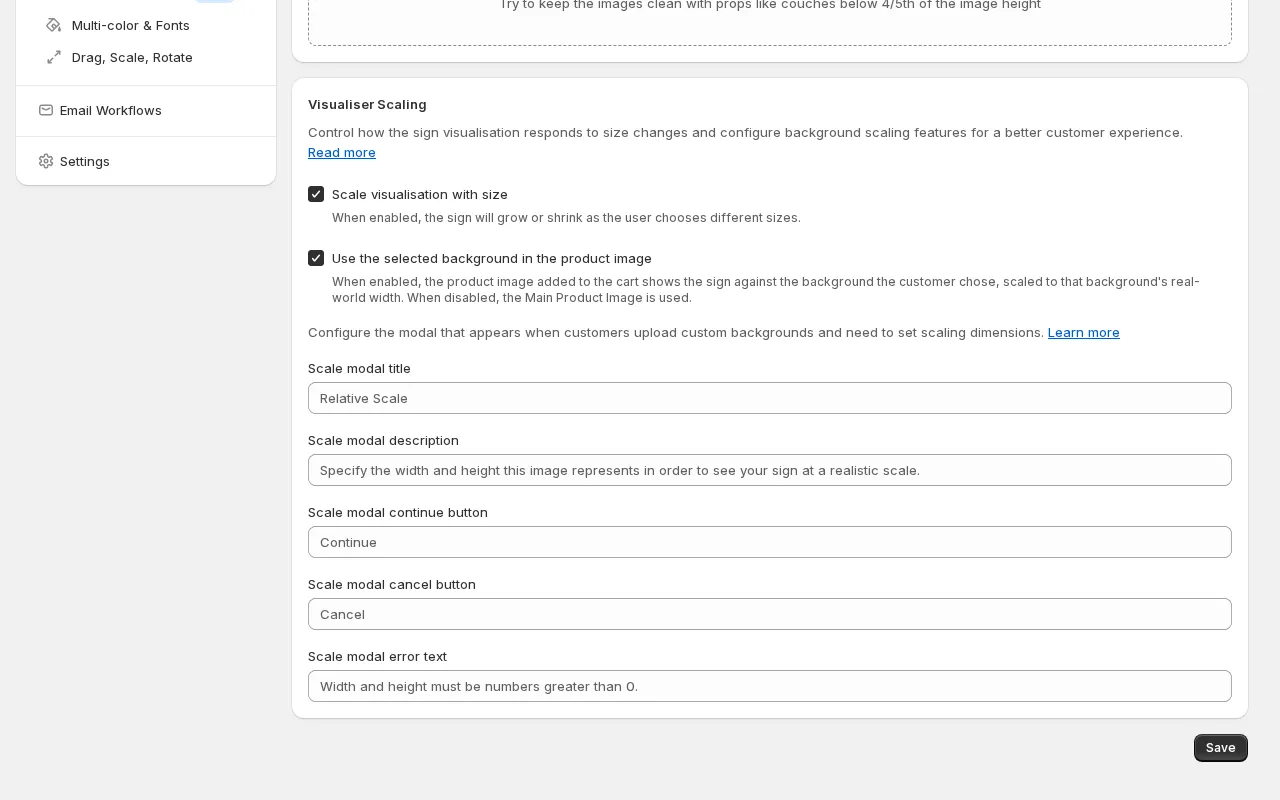
Customiser admin Visualiser Scaling settings showing the "Use the selected background in the product image" checkbox enabled beneath "Scale visualisation with size"

What’s Changed

  • Backgrounds follow the design into the cartWhen a shopper picks one of your scene backgrounds in the visualiser, the product image can now use that same background instead of the default product photo.
  • True-to-life sizingIf a background image has a real-world width set, the sign is scaled proportionally against it, so a small sign looks small and a large sign fills the scene — giving customers a realistic sense of what they’re ordering.
  • You’re in controlThe feature is off by default. Turn on “Use the selected background in the product image” from the Scene Editor page whenever you’re ready — existing customisers keep working exactly as before.
  • Works hand in hand with size scalingThe option pairs with “Scale visualisation with size”, so the product image only uses the scene background when the visualiser is showing the sign at its true scale.

Aug 5, 2026

2026.8

Automatic customer confirmation emails

Sign Customiser can now send customers an automatic confirmation when they submit a quote request or custom design form. Each customiser has its own opt-in setting, so nothing is sent until you turn it on.

What’s Changed

  • Automatic acknowledgementsGive customers immediate confirmation that their quote request or custom design submission has arrived
  • Separate wording for each formWrite a different message for quote requests and custom design submissions, with editable subject lines and email bodies
  • Your branding and reply addressUse your store’s email branding and route customer replies back to your inbox
  • Clear sending statusSee whether each submission flow is sending, with a direct link to fix any missing setup
  • Safe template controlsBrowse customer-safe variables and reset the wording to Sign Customiser’s default at any time

Aug 4, 2026

2026.8

Native discounts are finally in Shopify.

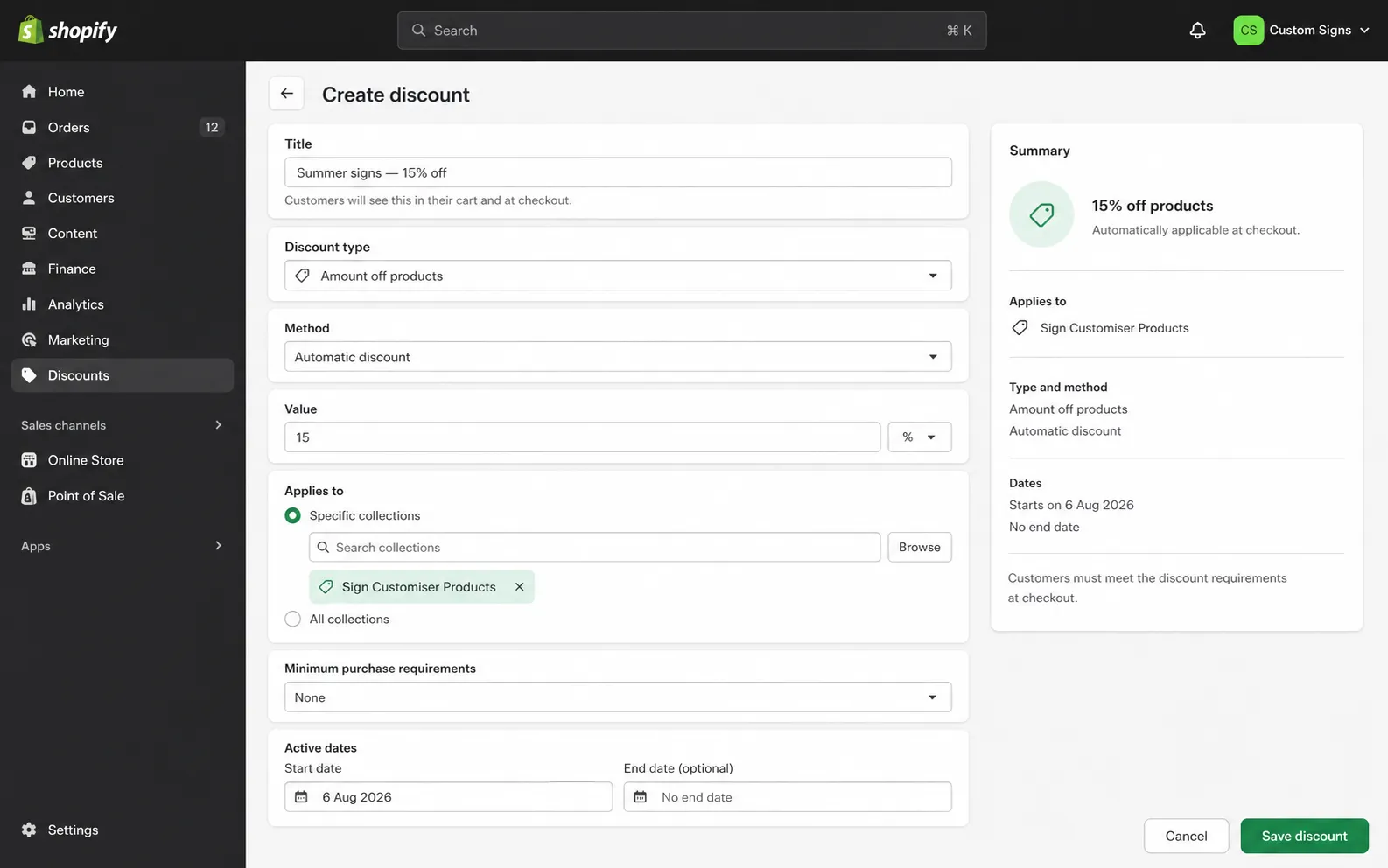
Shopify discounts can now target every sign generated by Sign Customiser, or only the signs created through one customiser. New products join the right Shopify collections as they are created, so collection-based discount codes and automatic discounts apply on the shopper’s first cart or checkout attempt.

Shopify admin Create discount screen prefilled with a 15% automatic discount for the Sign Customiser Products collection

What’s Changed

  • Target every generated signSign Customiser maintains a Sign Customiser Products collection for your store
  • Target one customiserEach customiser gets its own collection when it creates its first product. The collection uses the customiser’s name and follows later name changes
  • Apply discounts without a delayNew signs join both collections during product creation, so Shopify can apply collection-based discount codes and automatic discounts straight away
  • Build your own Shopify automationsEvery new product also carries the sign-customiser-generated tag and a tag tied to its customiser
  • Keep broad offers broadDiscounts set to all products still work as before

Shopify product discounts apply on top of the price set by your customiser. If more than one Shopify product discount overlaps, Shopify applies the better discount rather than adding the discounts together.

Shopify Starter and Retail do not support collection management. On those plans, discounts set to all products still apply to generated signs, but collection-based targeting is unavailable.

Categorised Shopify product types for generated signs

Sign Customiser now gives each newly generated Shopify product a product type that matches its sign category. This makes it easier to build collections, shipping rules and other Shopify automations for different kinds of signs.

What’s Changed

  • Product types now match the signNew acrylic, metal, stencil, wooden, aluminium, braille, wood-frame and lightbox products receive their own clear product type.
  • Neon remains familiarNew neon products keep the existing Custom Neon product type, so established neon workflows continue to work.
  • Existing products stay unchangedThe new product types apply when Sign Customiser creates a product. Products already in Shopify are not renamed.

Aug 2, 2026

2026.8

Price letters by position

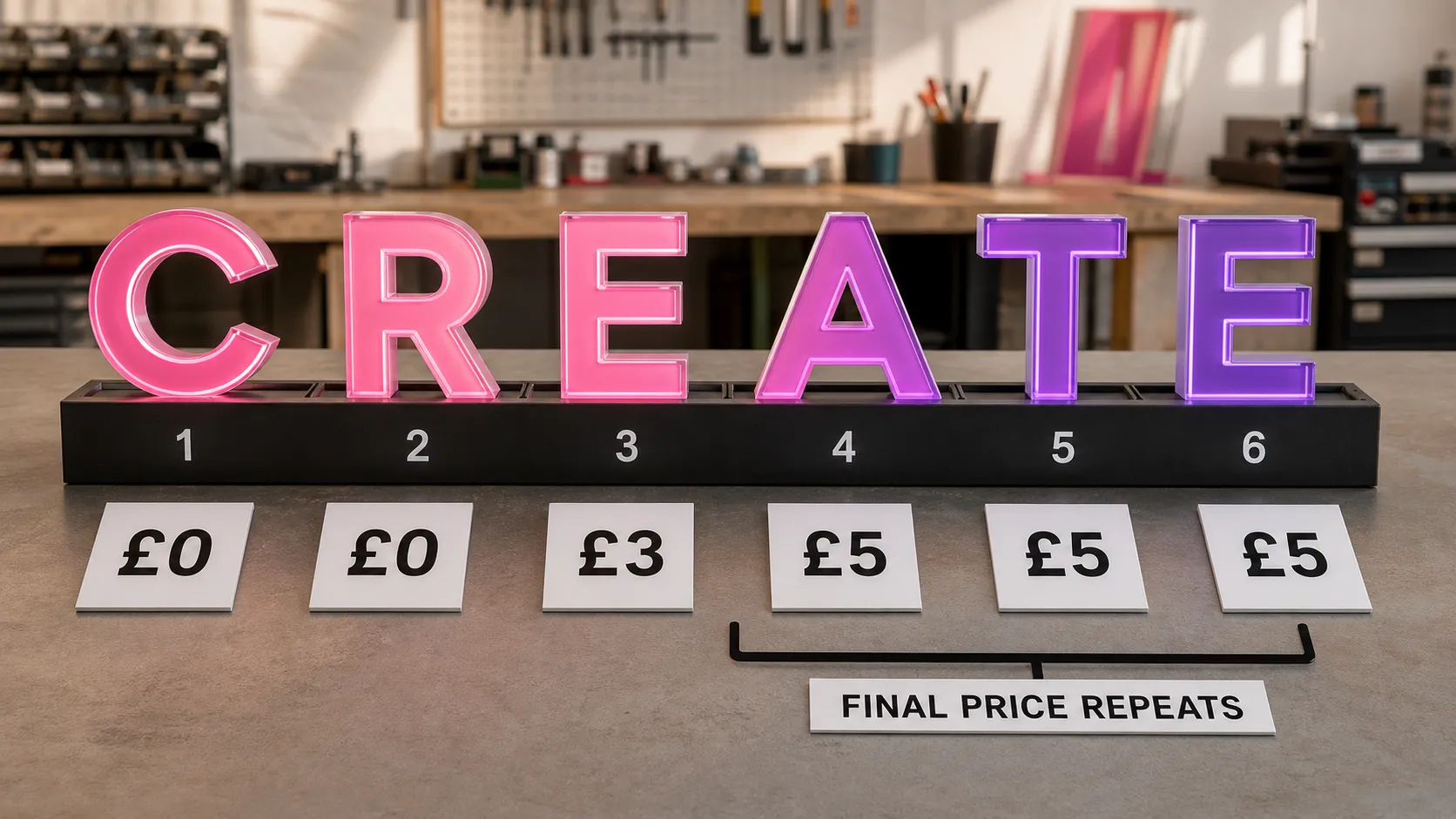
Sign Customiser now lets you set a different price for each letter position in Simple Letter and Advanced Letter customisers. You can include the first few letters at no extra cost, build a stepped pricing schedule, and charge longer signs accurately without configuring every possible text length.

Illuminated letters in six numbered positions with price cards showing the final price repeating

What’s Changed

  • Choose how letters are pricedKeep one consistent price for every letter or select Price by position for a more flexible schedule
  • Include free lettersSet any position to zero when you want early letters covered by the sign’s base price
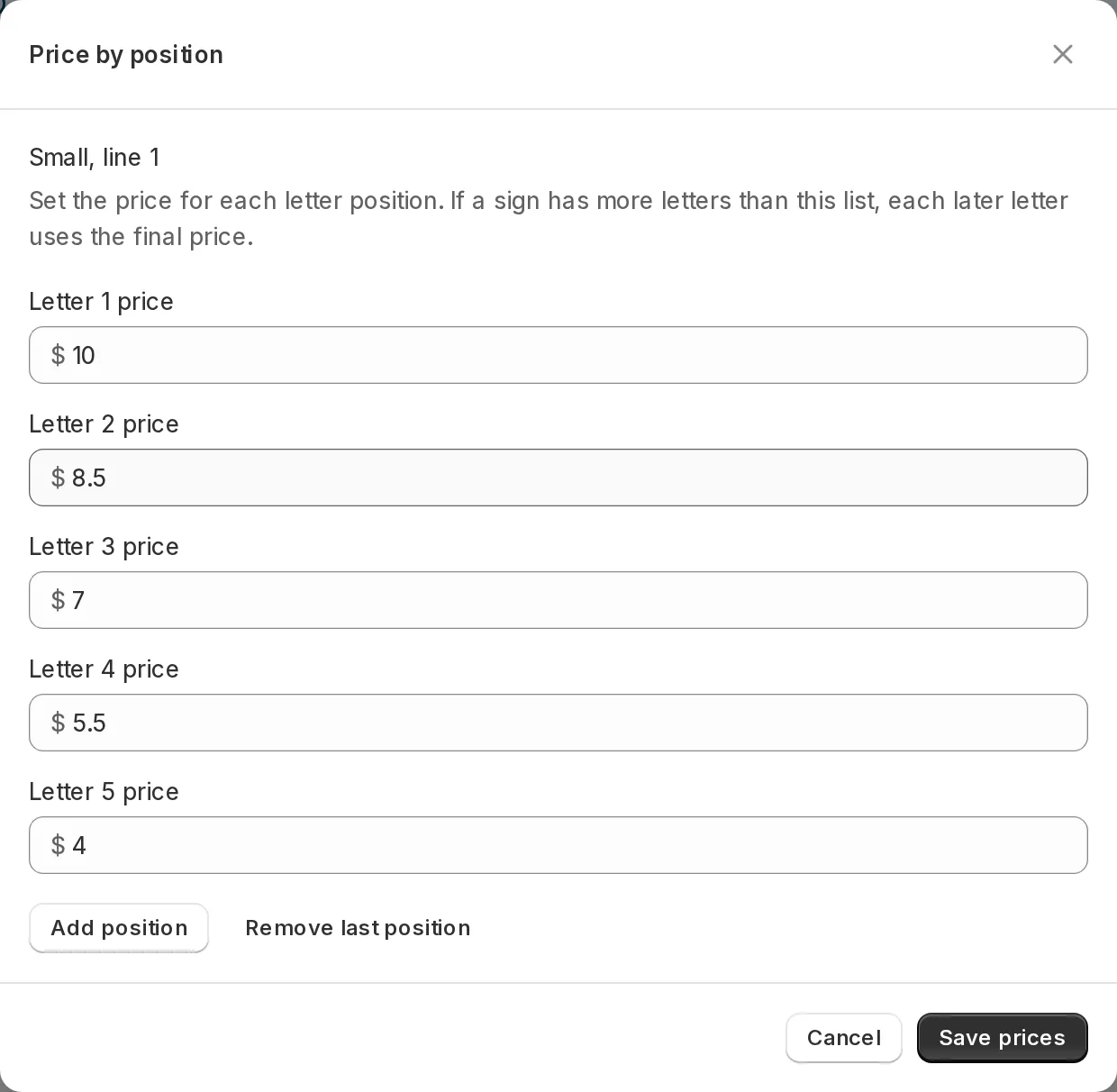
  • Cover longer text automaticallyOnce a customer types beyond your configured schedule, every later letter uses the final price in the list
  • Control up to 100 positionsAdd positions as needed, with each new position copying the last price to make longer schedules quick to set up
  • Handle multiple lines predictablySimple Letter restarts at position 1 on each configured line, while Advanced Letter continues one sequence across the whole sign
  • Switch modes without losing workSign Customiser keeps both pricing methods, so you can change modes and return to your saved values later

Choose Price by position beside the existing letter-pricing controls, then open the position editor for the size or line you want to configure.

Price by position editor showing five letter prices and the final-price fallback rule

Jul 29, 2026

2026.7

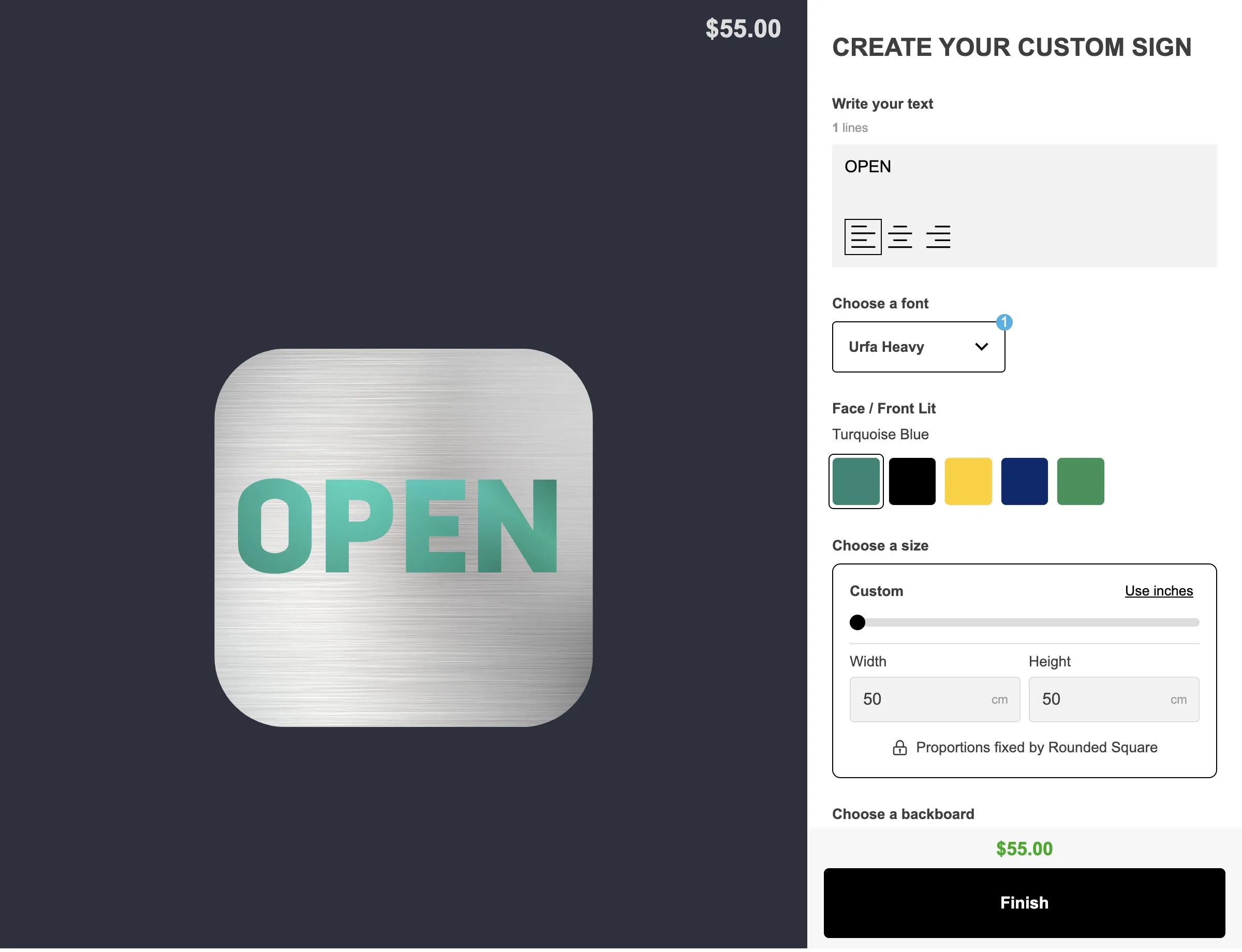
Accurate sizing and pricing for custom shape signs

Sign Customiser now measures every custom shape you upload — plaques, circles, stars, pill shapes — and uses its real proportions everywhere: on screen, in the price, and in the file your manufacturer cuts from. Upload any outline and trust that what your customer sees is what they get — a rounded square looks genuinely square, a circle is truly round, and the preview matches the finished sign.

Aluminium sign customiser showing a Rounded Square backboard drawn as a genuinely square shape, with Width and Height both 50 cm and a padlock reading "Proportions fixed by Rounded Square"

What’s Changed

  • True to real-life dimensionsA rounded square is now genuinely square on screen, not a stretched rectangle wearing the name. Every shape is drawn at the exact proportions it will be manufactured at, so the preview, the quoted size and the sign that arrives all agree.
  • Pixel-accurate to the shape you uploadEvery custom shape is measured against its true outline, so the shape your customer sees in the customiser matches the file you uploaded exactly. No more small drifts between the preview, the quoted size and the finished sign.
  • Proportions are never distortedA custom shape owns its own ratio. Your customer sets one dimension and the other follows automatically, so a circle stays a circle and a star stays a star at every size — there is no way to stretch or squash a shape out of proportion.
  • Custom sizing only for shapesPreset size cards no longer appear once a custom shape is selected, because a preset would either have to match the shape’s ratio or distort it. Customers drag the size slider or type a width or height, and a padlock confirms the proportions are fixed by the shape they chose.
  • Pricing that matches the real shapeSigns priced by area are now worked out from the shape’s true measured dimensions rather than an approximation, so the quote reflects the material actually being cut.
  • Manufacturing files that match the designOrders for a custom shape include a precise cut path for the exact outline and size the customer chose, with lettering converted to clean cut lines — ready to go straight to production.
  • Clearer guardrails when you set a shape upBorder margins and custom shapes are mutually exclusive, because a shape already owns its proportions, and the size settings now say so plainly instead of quietly ignoring the value. If a shape’s padding or your minimum and maximum size limits leave it with no usable size, Sign Customiser names the shape and tells you what to change.
  • Shape wording in your own voiceThe new customer-facing messages — the finished size readout, the note that proportions are fixed by the chosen shape, and the size-adjustment prompts — are all editable per customiser and translatable like every other label.

Open original

Get started

Add Sign Customiserto your store today

Install now
36+ verified reviews

Login

Universal Sign In
  • WordPress
  • Wix
  • Etsy
  • Squarespace
  • Webflow

Or, if on Shopify, navigate to your store admin to login.