Customers on the Universal Sign Customiser plan can now install the official WordPress plugin via the WordPress plugin directory.
The plugin not only allows you to easily get started, but you no longer need to manually download zip files from our website in order to receive updates.
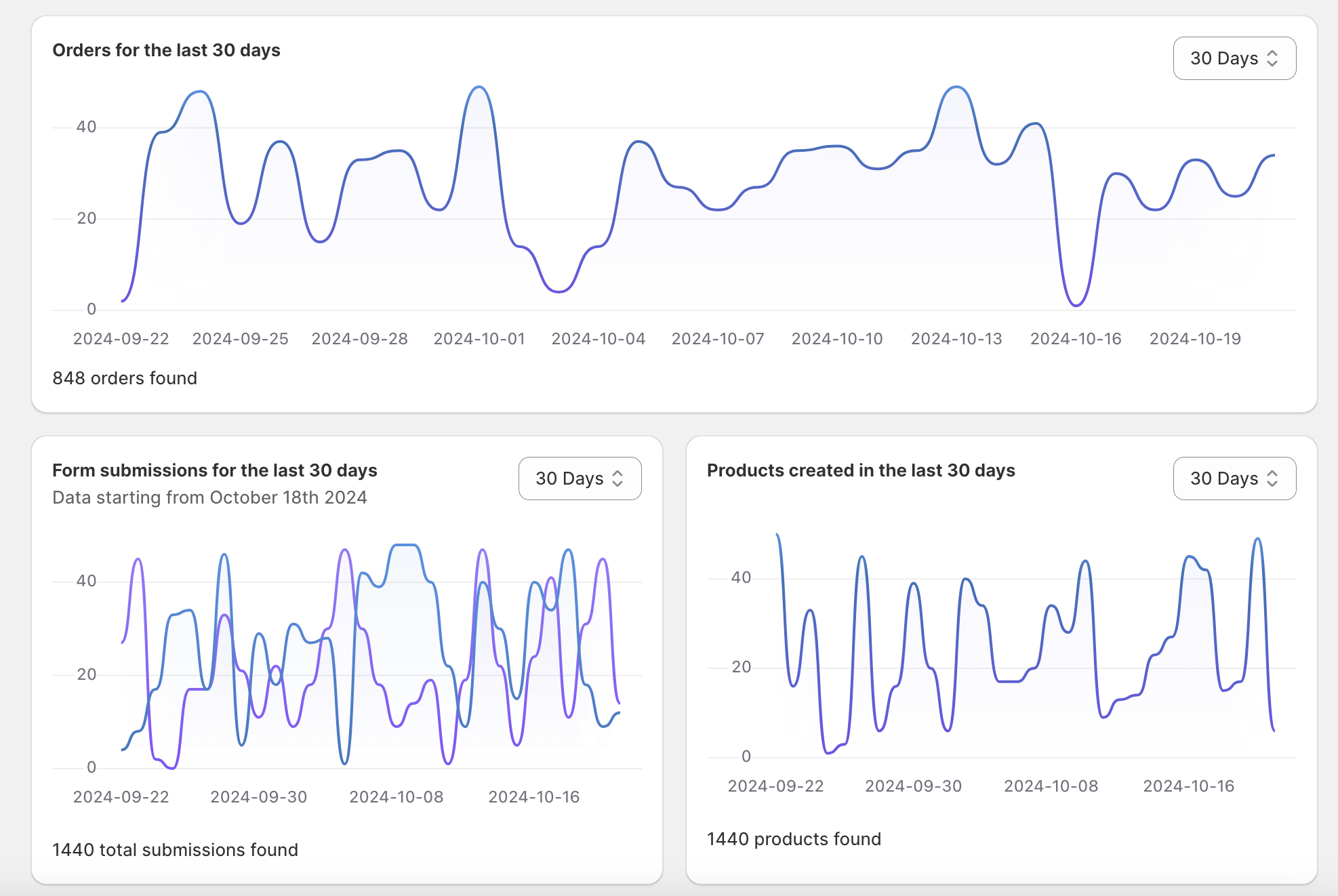
We have added new graphs to help you understand how your customisers are performing so that you can make more informed decisions on how to improve your customisers and win more sales.
You can now see the Orders over time, Form submission over time and Products created (add to carts) over time, all available in the home page of your admin app.
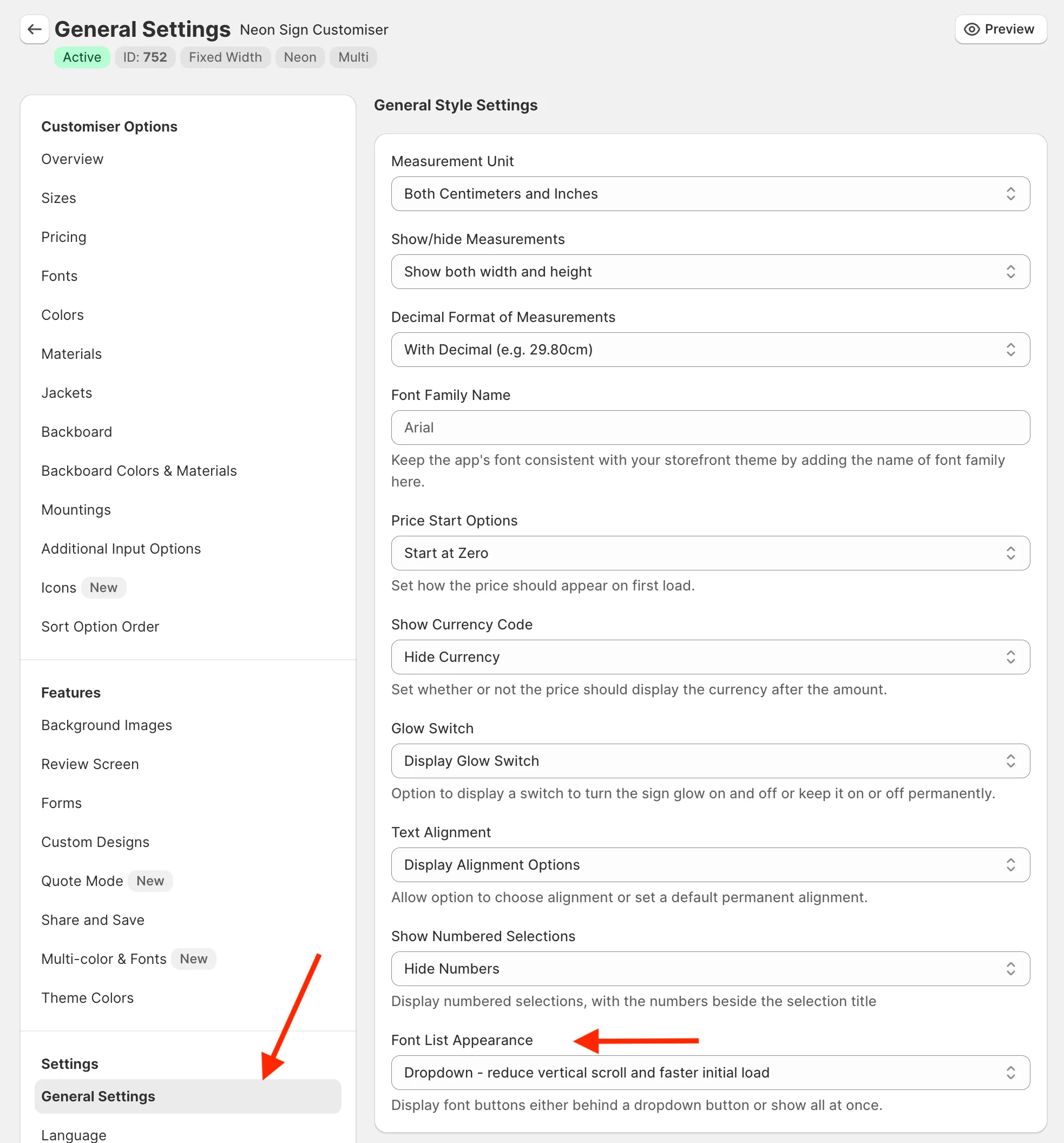
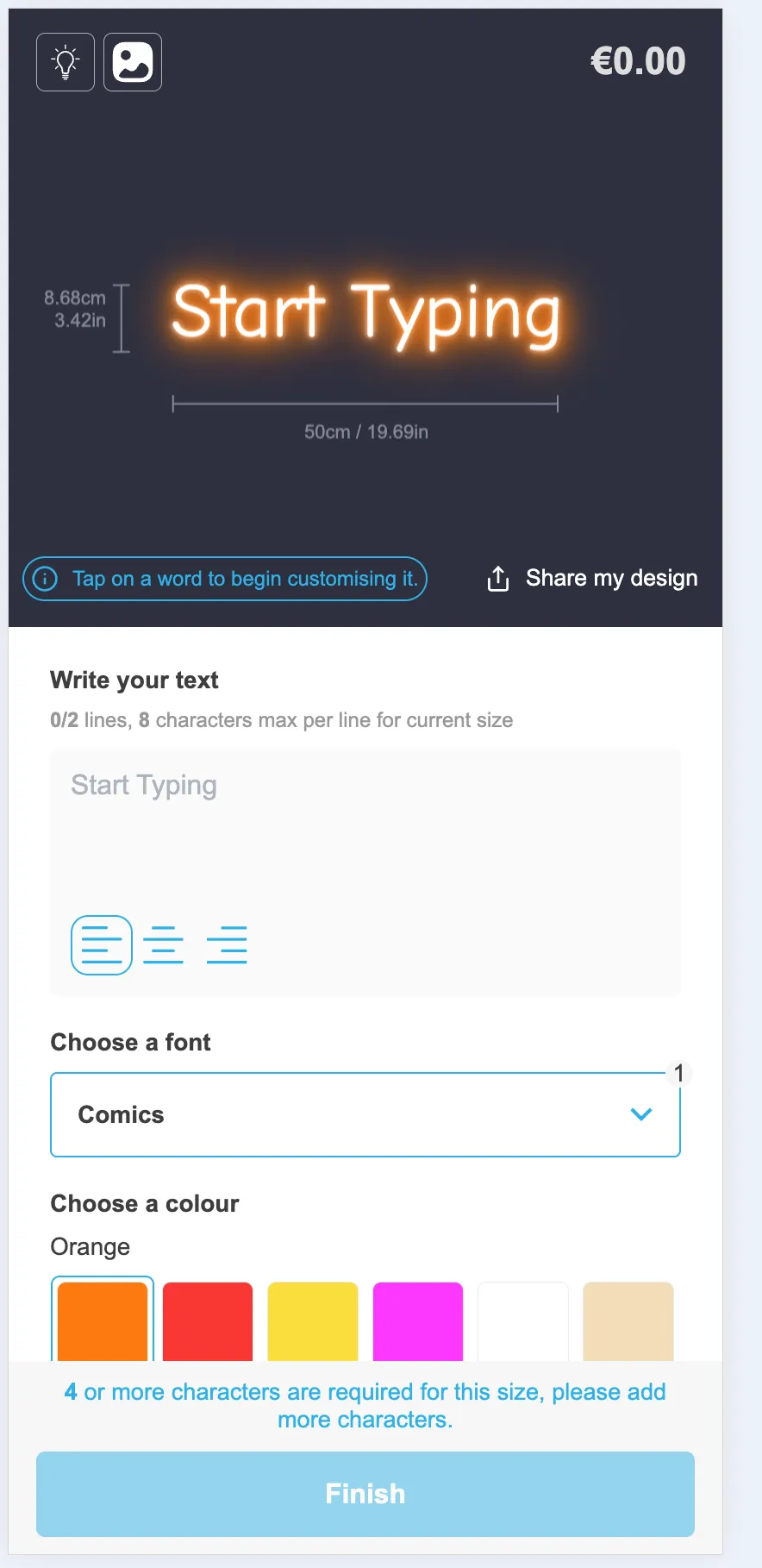
The “Font List Appearance” setting has been updated to support mobile users as well. This setting allows you to choose whether the font list should be displayed as a dropdown or as a list of buttons.
Enabling this setting saves screen space on mobile devices and can help improve page load times as not all fonts need to be loaded at once.
You can enable this setting by going to the “General Settings” tab of your customiser and finding the “Font List Appearance” option.
Once that setting is enabled, the font list will be displayed as a dropdown on mobile devices.
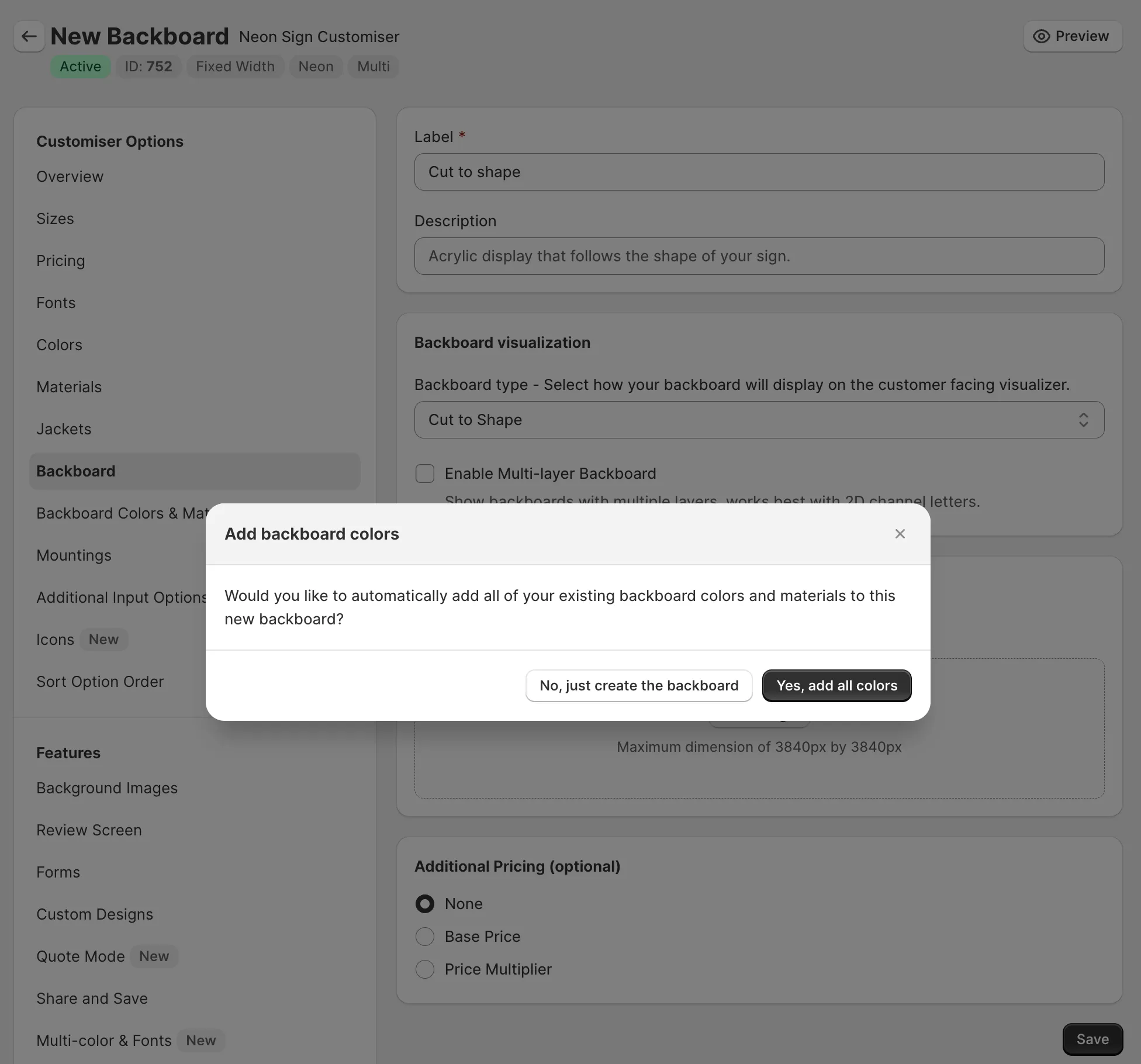
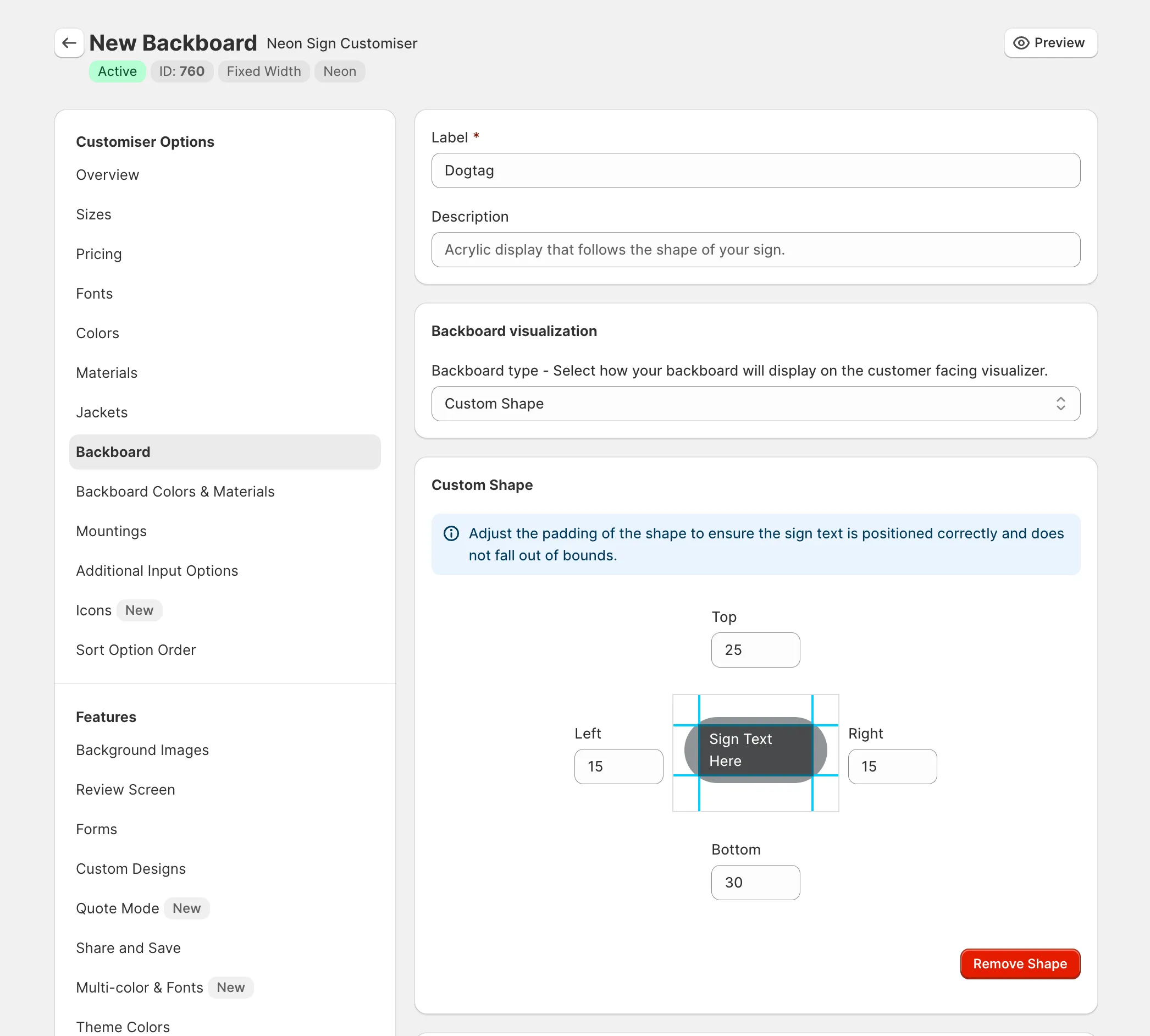
Adding colors to your new backboards used to be a time-consuming process as it required you to go into each color and manually add it to the new backboard.
Our latest update will now prompt you when creating new backboards to add all existing colours to the new backboard, saving you time and effort.
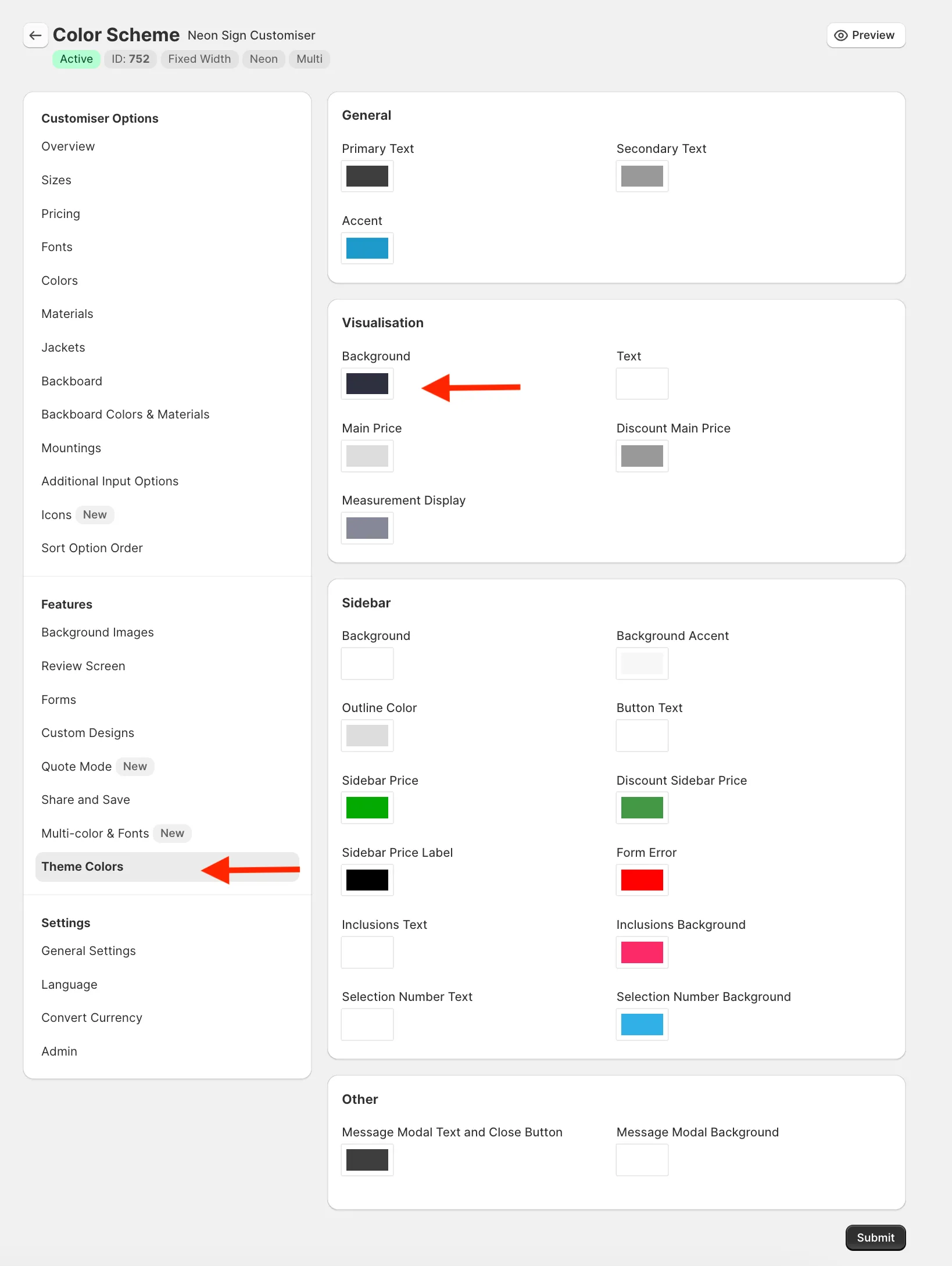
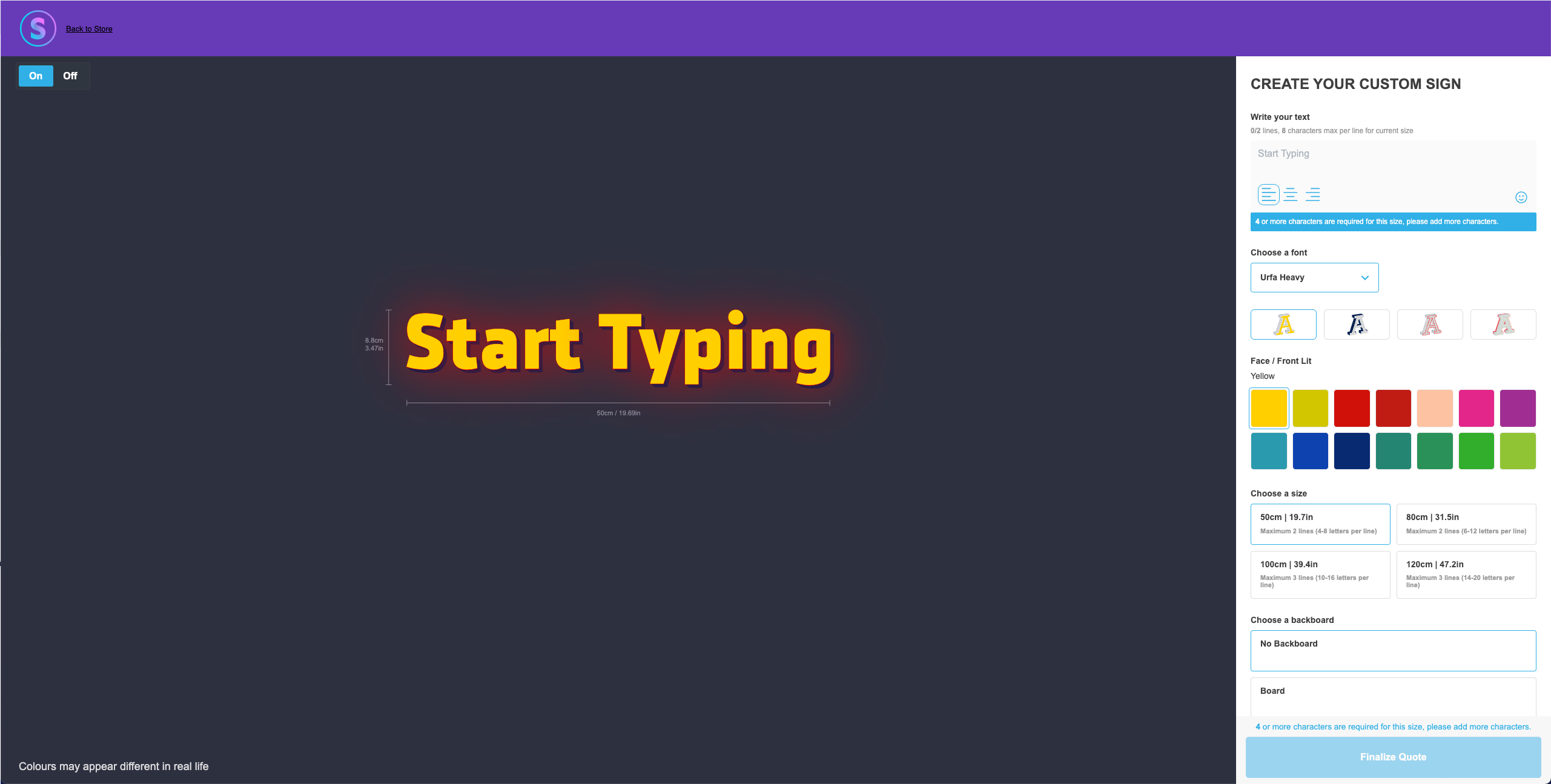
You can now customise the background colour of the visualiser from within the admin app. Previously you could only modify this via CSS, but now you don’t need to write any code.
To change the background colour, go to the “Theme Colours” section of the customiser settings and adjust the “Background” setting under the “Visualisations” card.
You can also adjust the colour of the text in case the default is not visible enough on your new background.
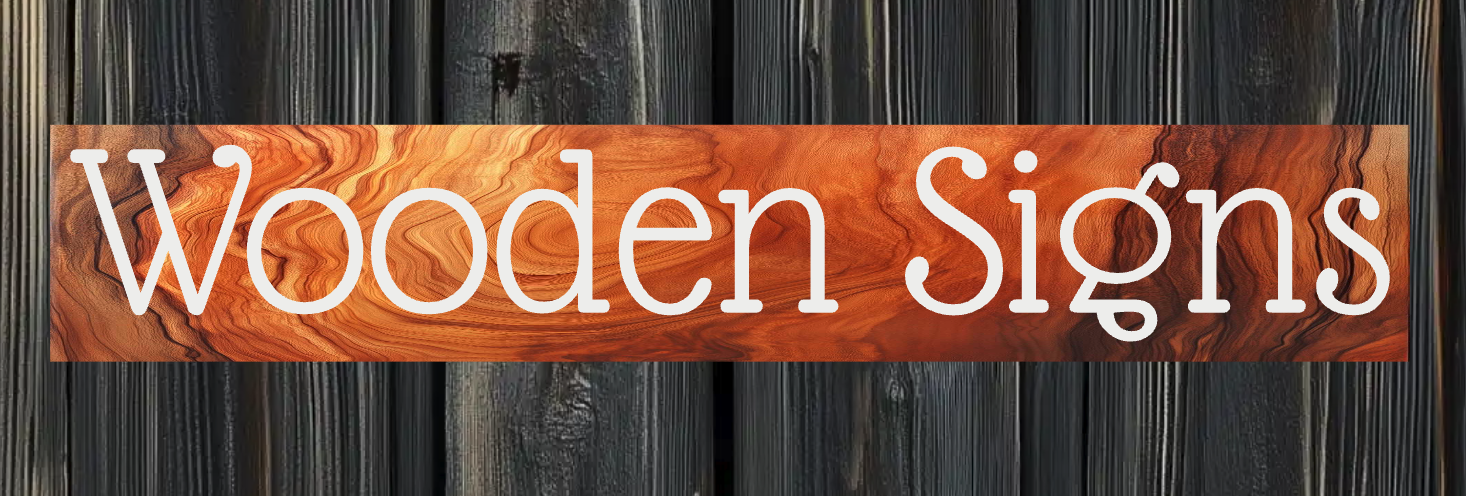
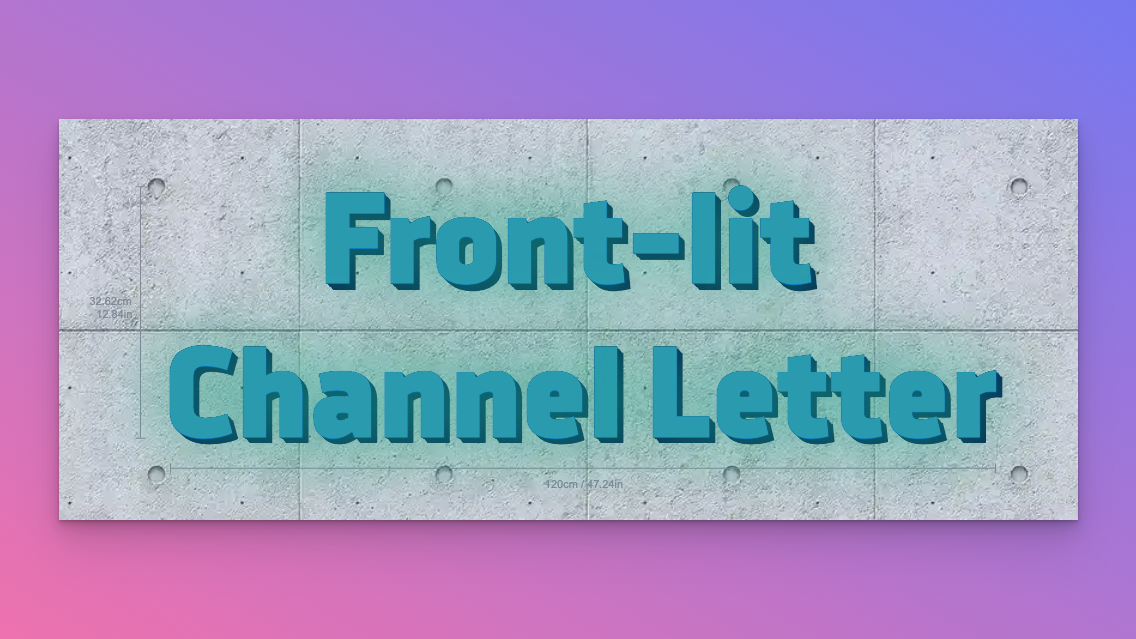
You can now upload a image to give the visual appearance of the real texture.
This is a great way to visually represent the material of your backboard to your customers as its clearly visible in the visualiser.
Using this feature allows you to sell new sign types like wooden signs or signs with visually unique material properties that extend beyond our current range of supportedsigns.
To find out more about how to create backboard textures, please visit our documentation:
You now have the ability to receive quotes of sign designs created by the user in our app.
As these designs have already been created by the user already, this will save alot of time with the design approval process by reducing revisions and winning the sale sooner!
By default, Sign Customiser is set to “Sales Mode,” which allows you to create a product and add it to your store’s customer cart so that they can purchase it from your store. This feature instead hides the price from the user and allows you to accept sign design quotes.
Forms used for quote mode are different than our existing feature to embed custom design forms as quote mode forms use the design of the sign created by our app (same image as presented in the visualizer) as one of the reference images attached to the email. These generated images contains the user-selected options, e.g. colors, sizes, backboards, etc.
Why you would want to use quote mode
Allow users to request a quote for a sign design they have created
Hide the price of the product from the user
Receive a visual representation of the sign design in the email
Receive an organised list of user-selected options in the email
Recieve the calculated price for streamlined quoting in the email (if you have added pricing for the options)
For instructions on how to enable quote mode, please refer to our documentation.