

Front-lit and back-lit channel letters
Last updated:
You can create channel letter signs. The customer can choose front-lit and back-lit colours for these signs.
How to enable the glow for front-lit channel letter signs
-
Open the Sign Customiser admin for your Store.
-
Click Customisers in the main navigation. In the Universal admin, it is in the sidebar. In the Shopify admin, it is in the app menu.
-
Click the customiser that you want to edit.
-
In the menu on the left, go to Sign Components → Letter Types.
-
Click the letter type that you want to edit.
-
In the Letter parts card, click Face / Front Lit. If you set a title for this part, click the title.
-
Scroll down to Light Source Settings.
-
Tick Acts as light source (Enable Front lit). The face colour then shows with a glow in the customiser.
-
Click Save.
Face / Front Lit is always on for channel letters. You cannot switch it off.
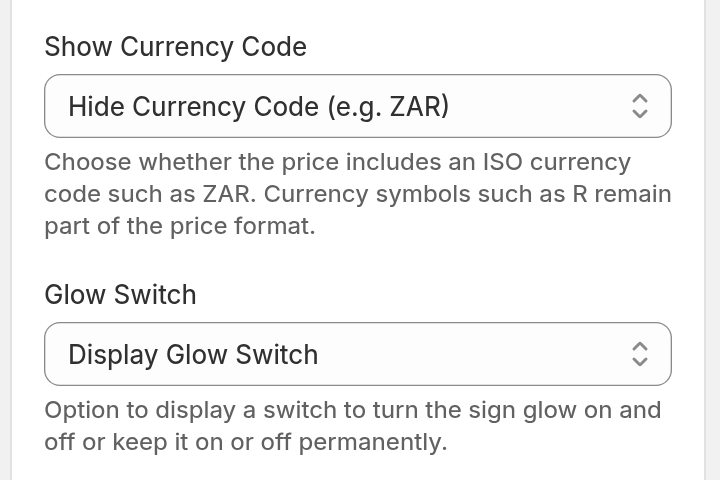
The Glow Switch setting also controls the glow. If the glow does not show in the customiser, make sure that Glow Switch is not set to No Glow. To find it, go to Settings → General Settings. Then look in the General Style Settings card.
How to create back-lit channel letter signs
-
Open the Sign Customiser admin for your Store.
-
Click Customisers in the main navigation. In the Universal admin, it is in the sidebar. In the Shopify admin, it is in the app menu.
-
Click the customiser that you want to edit.
-
In the menu on the left, go to Sign Components → Letter Types.
-
Click the letter type that you want to edit.
-
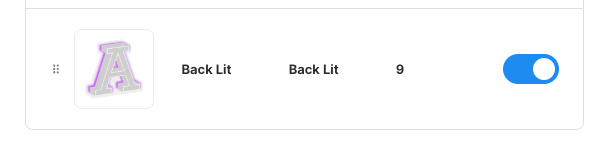
In the Letter parts card, switch on Back Lit in the Active column.
-
Click Save.
-
Click Back Lit to add colours to it. If you set a title for this part, click the title.
-
Click Add texture. Create at least one colour or material.
-
Click Save.
What the customer sees
When the customer sees two or more colour parts, each part is a colour card under one heading. The default heading is “Choose your letter colours”. The front-lit part shows as Face / Front Lit, and the back-lit part shows as Back Lit, unless you set a title for that part. The customer opens a card to choose a colour for that part.
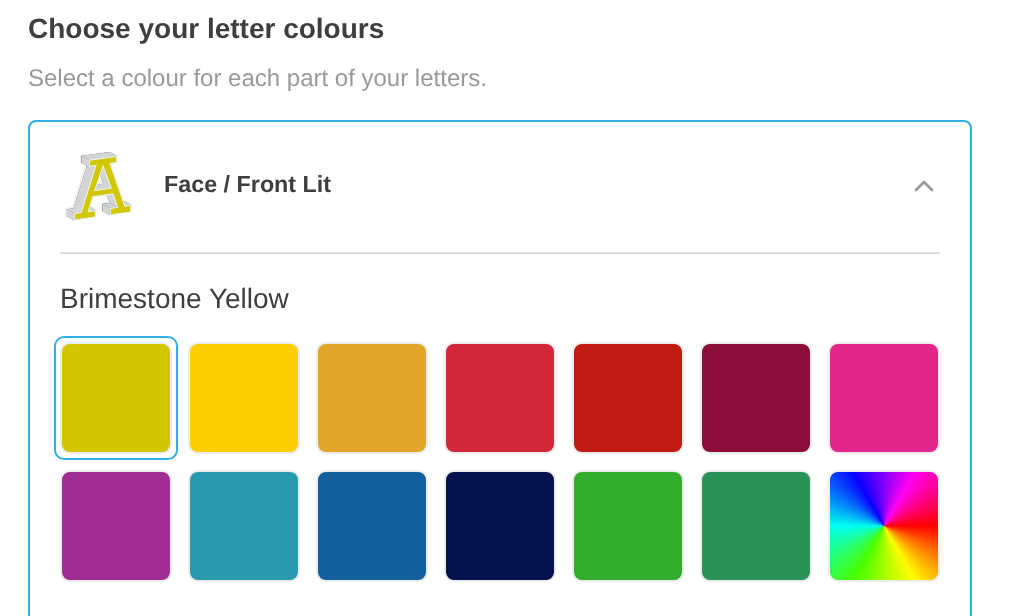
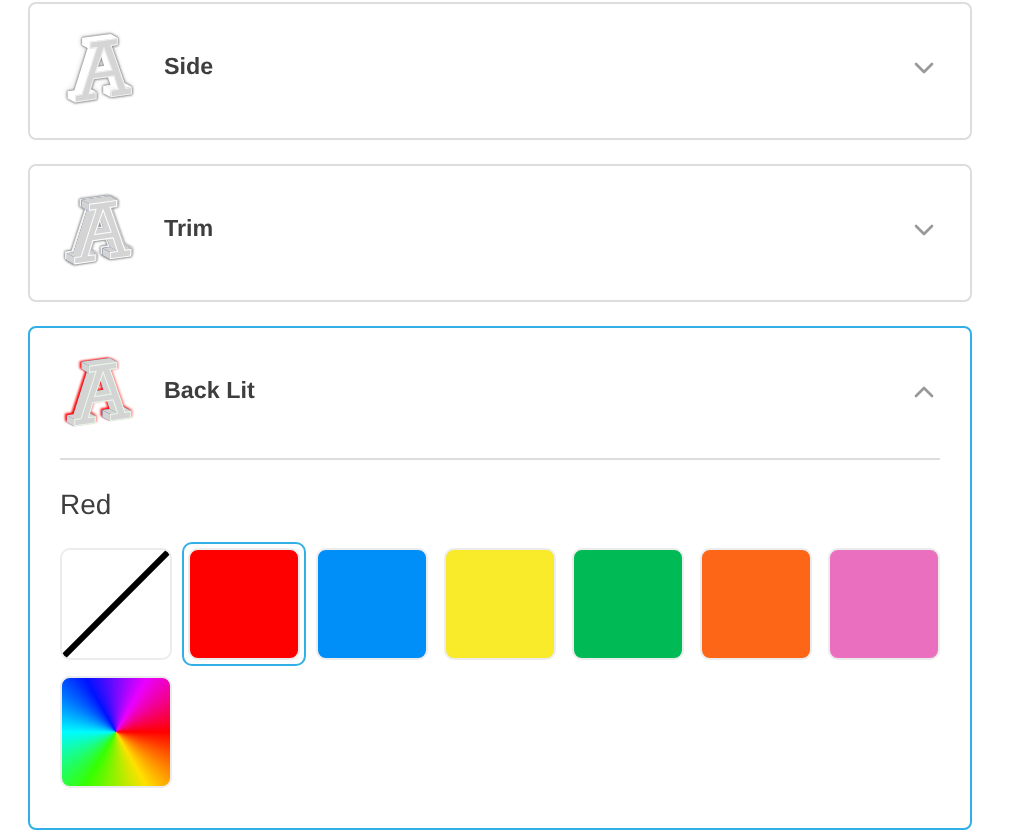
You can change the heading. Open a letter part colour page. Go to the Colour heading card. Enter a Colour heading title and a Colour heading description. Then click Save.