Add and Edit Custom Form Field Options
Last updated:
This guide will walk you through adding and editing fields in your custom form.
-
Go to the Sign Customiser Admin:
-
Universal subscribers: Go to Home in your account.
-
Shopify users: Navigate to Shopify admin → Apps → Sign Customiser.
-
-
Click on Customisers in the menu.
-
Select the customiser you want to edit.
-
In the left-hand menu, go to Forms.
-
Click Add New Form if creating a new form, or select an existing form to edit.
-
In the Fields section, click on Add New Field and choose the field type you need.
-
Configure the field settings:
-
Label (required) – The field title.
-
Description (optional) – Additional information for the user.
-
Placeholder (optional) – Example text inside the input field.
-
Required Field (optional) – Enable this option if the user must fill in this field before submitting..
-
Value (required for Dropdown, Multiple Choice, and Checkbox fields) – The selected value is shown in the submitted form.
-
-
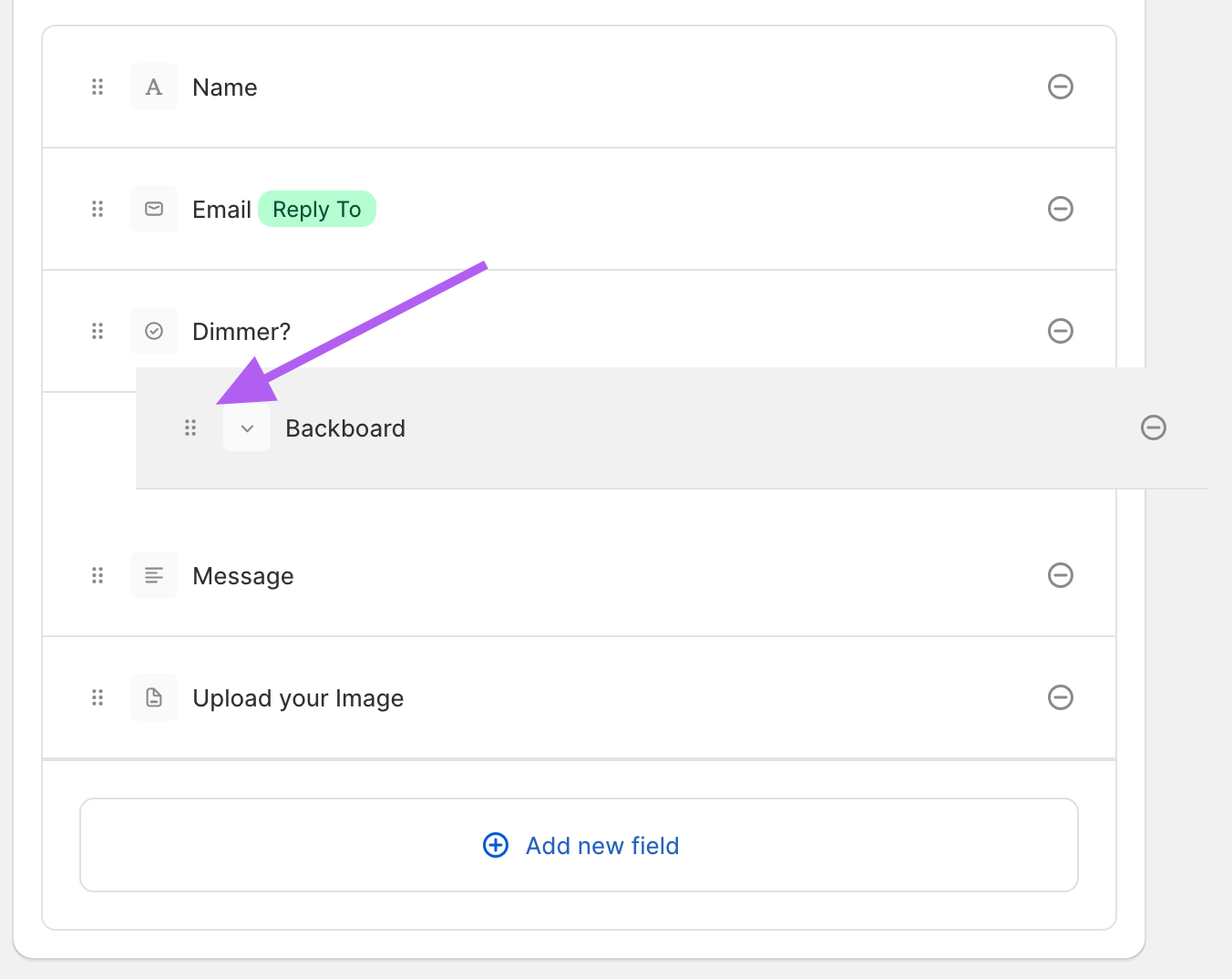
Arrange the fields by clicking and holding the drag icon (⋮⋮), then dragging them into the desired order.