

AI Sign Designer Guide
Last updated:
The AI Sign Designer converts a customer image into a vector SVG outline for sign production. Customers upload a PNG, JPEG, WebP, AVIF, SVG, or PDF. The AI makes a clean SVG file. Customers use this file immediately to configure and buy a sign.
This is different from a custom design form submission. With AI Sign Designer, customers get a result that they can buy after processing. Processing can take a few minutes. Without it, or when credits run out and you have set a backup form, customers send a request. You process this request manually later.
Finding AI Sign Designer in the admin
Open Customisers.
Select your customiser.
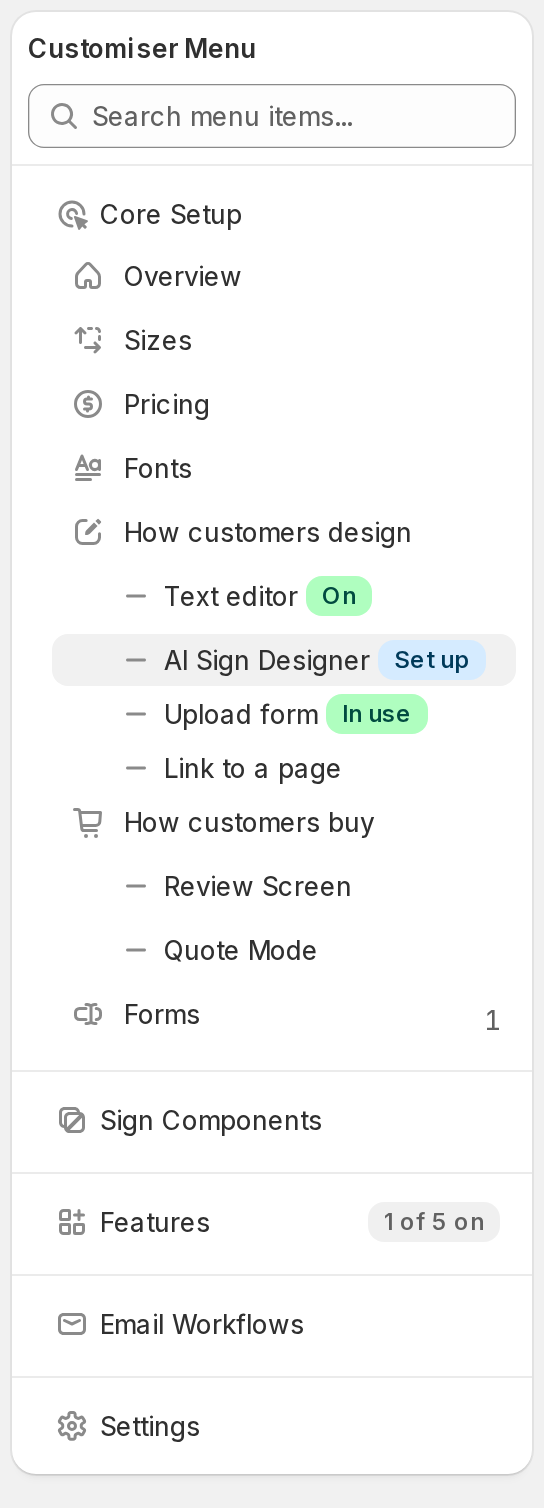
In the customiser menu, under Core Setup, select How customers design > AI Sign Designer. On a narrow screen, select Menu first.
To test an upload yourself, open Manage > AI Design Files on Universal. On Shopify, open AI Design Files from the app menu. Use the AI Converter card.
The menu shows a badge next to AI Sign Designer. Set up shows until you turn it on. In use shows when customers see it. Needs attention shows when it is on but a problem stops it.
On the customiser Overview page, the Get more from this customiser card can suggest AI Sign Designer. The card shows this suggestion only when AI Sign Designer is available for your Store and your customiser, and it is off. Select Set up on the suggestion to open the AI Sign Designer page.
What you receive per AI Sign Design conversion
Each successful conversion produces these items:
-
The original uploaded file
-
A vector SVG outline that is ready for sign configuration
-
An EPS file, when EPS generation is on for the customiser
-
An Illustrator-compatible PDF with an
.aifilename, when AI generation is on for the customiser
The SVG appears immediately in the customiser.
Sign Customiser makes the EPS file and the Illustrator-compatible PDF in the background from the SVG. They appear on the AI design files page in the admin when they are ready. Your production team gets them with no extra steps. To turn on the extra formats, see How to enable/disable SVG, EPS, and Illustrator-compatible PDF files for manufacturing.
Supported upload formats
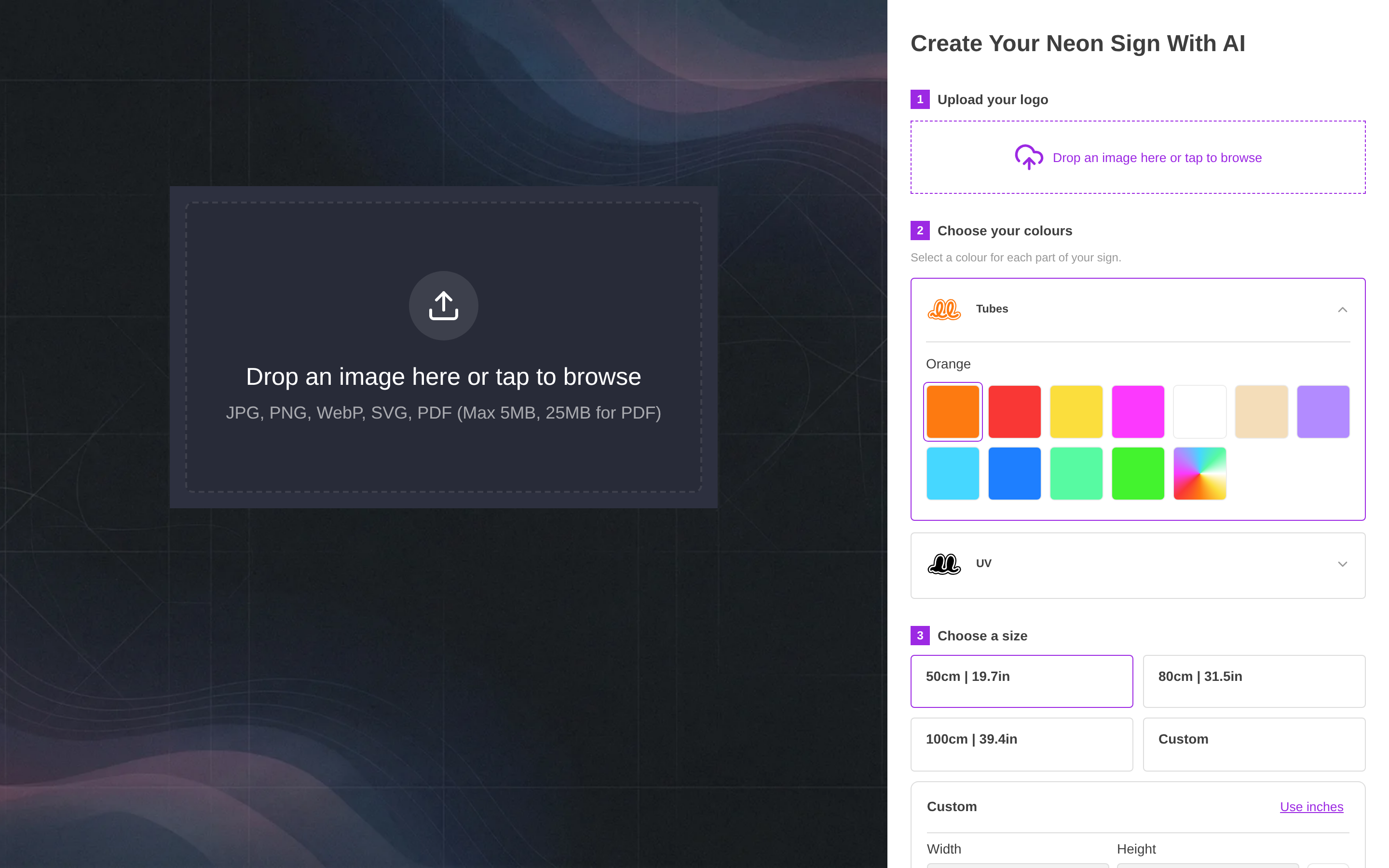
Customers and admins can upload PNG, JPEG, WebP, AVIF, SVG, and PDF files. An image or SVG can be up to 5MB. An AVIF image can be up to 8192 pixels on each side and up to 16,777,216 pixels in total. A PDF can be up to 25MB, because brand-guide PDFs are often larger.
For a PDF, the AI converts the first page to an image and processes that image. The result matches the first page of the file. If your design is not on the first page, save that page as a separate PDF. You can also export it as a PNG before you upload it.
The upload step shows these limits to the customer.
Supported Sign Types and Pricing Models
AI Sign Designer works with these sign types and pricing models:
-
Neon signs: Frame Fit or Material Length (Advanced Letter) pricing
-
Channel Letter signs (acrylic or metal letters): Frame Fit or Material Length pricing
-
Metal cut-out signs: Frame Fit pricing
Fixed Width (Simple Letter) pricing is not supported. If your customiser uses the Simple Letter model, the AI Sign Designer page shows only the Pricing model step. The step says: “AI Sign Designer doesn’t work with this customiser’s pricing yet. Support is coming soon. For now, it works with Material Length and Frame Fit pricing.” Select Create a customiser. Create a customiser with the Frame Fit or Material Length pricing model before you turn on AI Sign Designer.
When you create a customiser, eligible product types show an “AI Sign Designer” badge. Eligible pricing models show an “AI Sign Designer Compatible” badge. These badges show whether your setup qualifies.
Turning on AI Sign Designer
Open the AI Sign Designer page. Before AI Sign Designer is on, the page shows the Set up AI Sign Designer card. Under the heading, the card shows how many steps are done, for example “3 of 4 steps done”.
Complete each step in the card:
-
Pricing model: Select a pricing model. A Material Length customiser needs a pricing model of type Material Length. Select a pricing model with the Material Length badge.
-
AI credits: The step shows your balance, for example “Your Store has 120 AI credits. Each finished design uses 1 AI credit.” If the balance is 0, select Get AI credits.
-
Backup form: Select a form that has a required Email field and a File Upload field. See “Configuring the Backup Form”.
-
Sign size: Material Length customisers only. Set the box and the smallest sign height. Then select Save sign size. See “Sign size and price for Material Length”.
A step that is done shows a green tick and one sentence. One step is open at a time, except Pricing model, which always shows its select. A Frame Fit customiser has three steps, because it has no Sign size step.
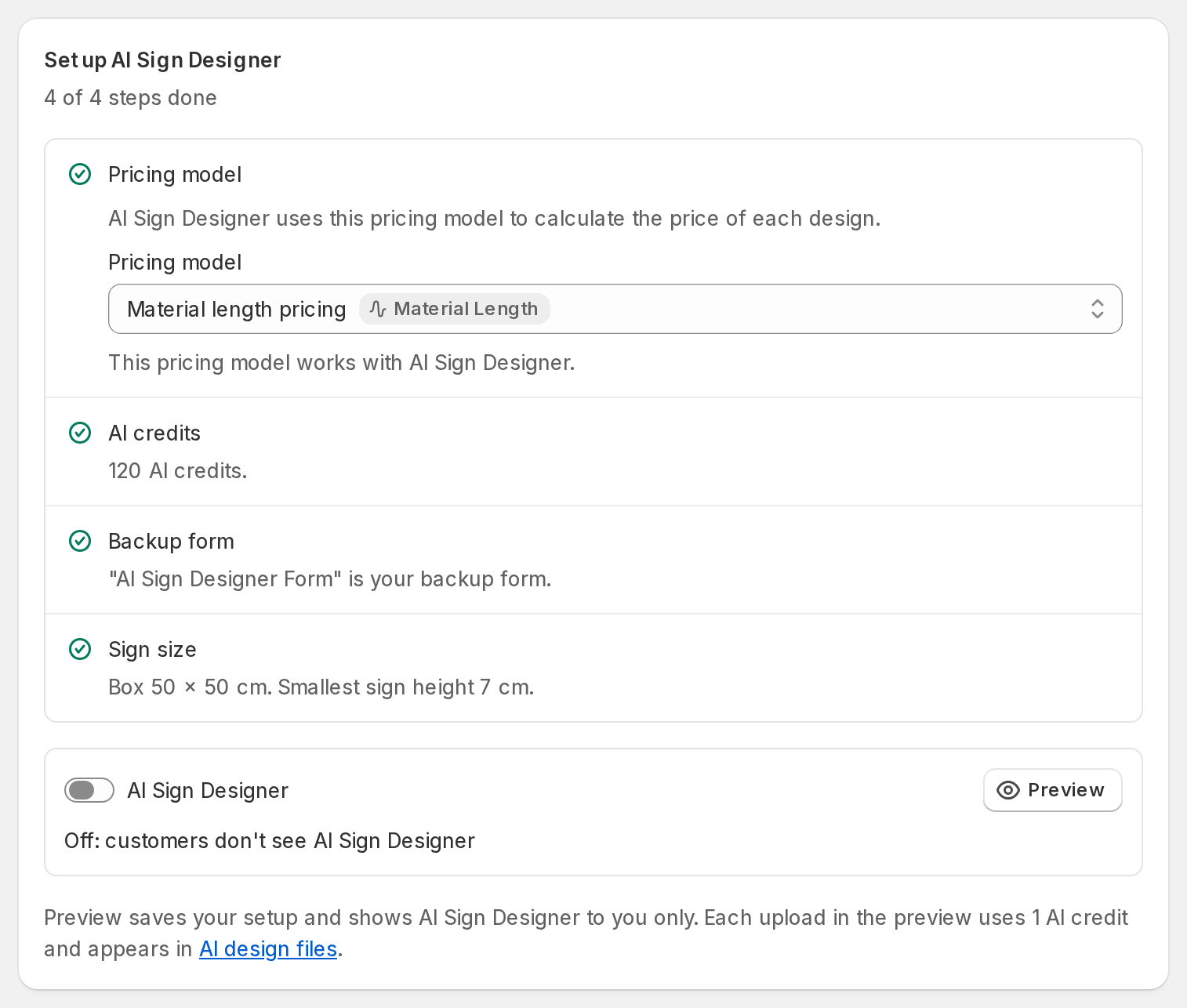
Under the steps, select Preview to test AI Sign Designer before customers see it. The text under the card says: “Preview saves your setup and shows AI Sign Designer to you only. Each upload in the preview uses 1 AI credit and appears in AI design files.”
When every step is done, turn on the AI Sign Designer switch. If a form or a link is live, the Switch to AI Sign Designer? dialog opens. Select Switch to AI Sign Designer. Until AI Sign Designer can turn on, the switch is disabled. The text under the switch gives the reason, for example “Finish every step to turn on AI Sign Designer.”
After AI Sign Designer is on, the page shows these sections:
-
Sign size and price. The box, the sizes, the smallest sign height and the pricing model of the customiser. The What customers get table shows example sizes and prices. See “Sign size and price for Material Length”.
-
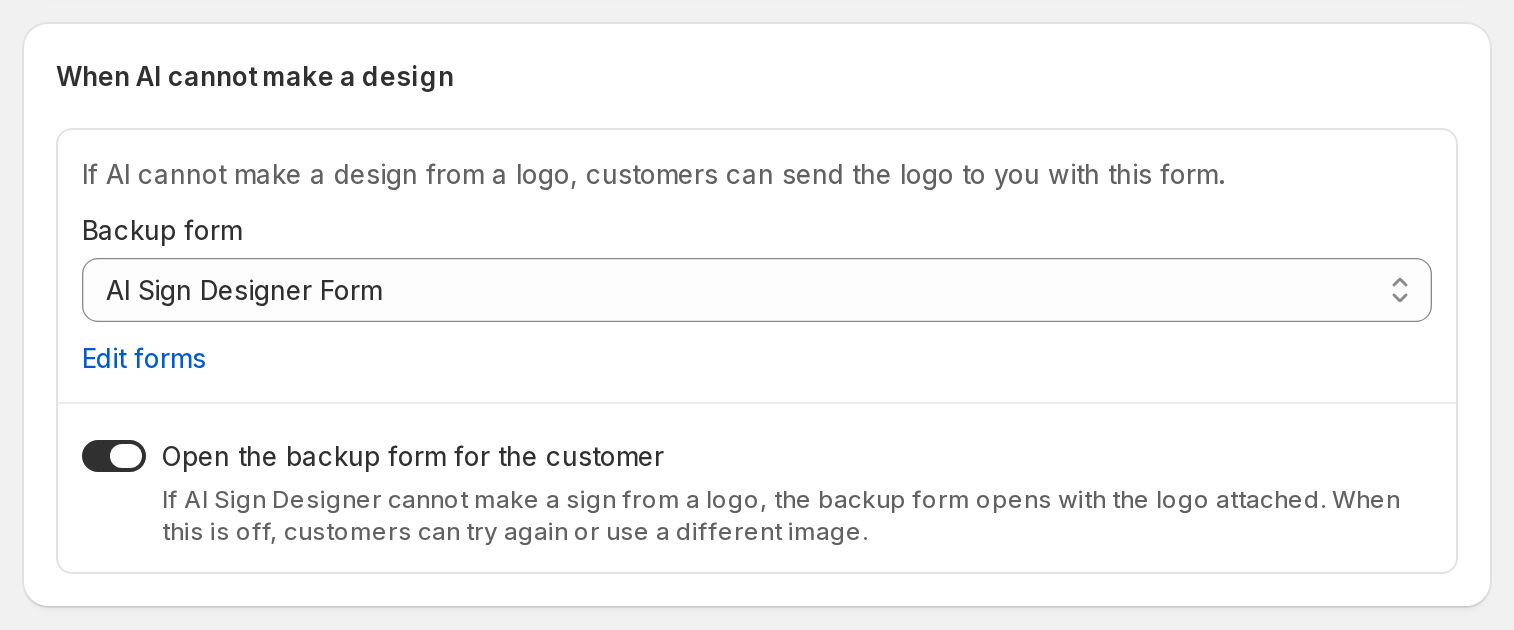
When AI cannot make a design. The Backup form and the Open the backup form for the customer switch. See “Configuring the Backup Form”.
-
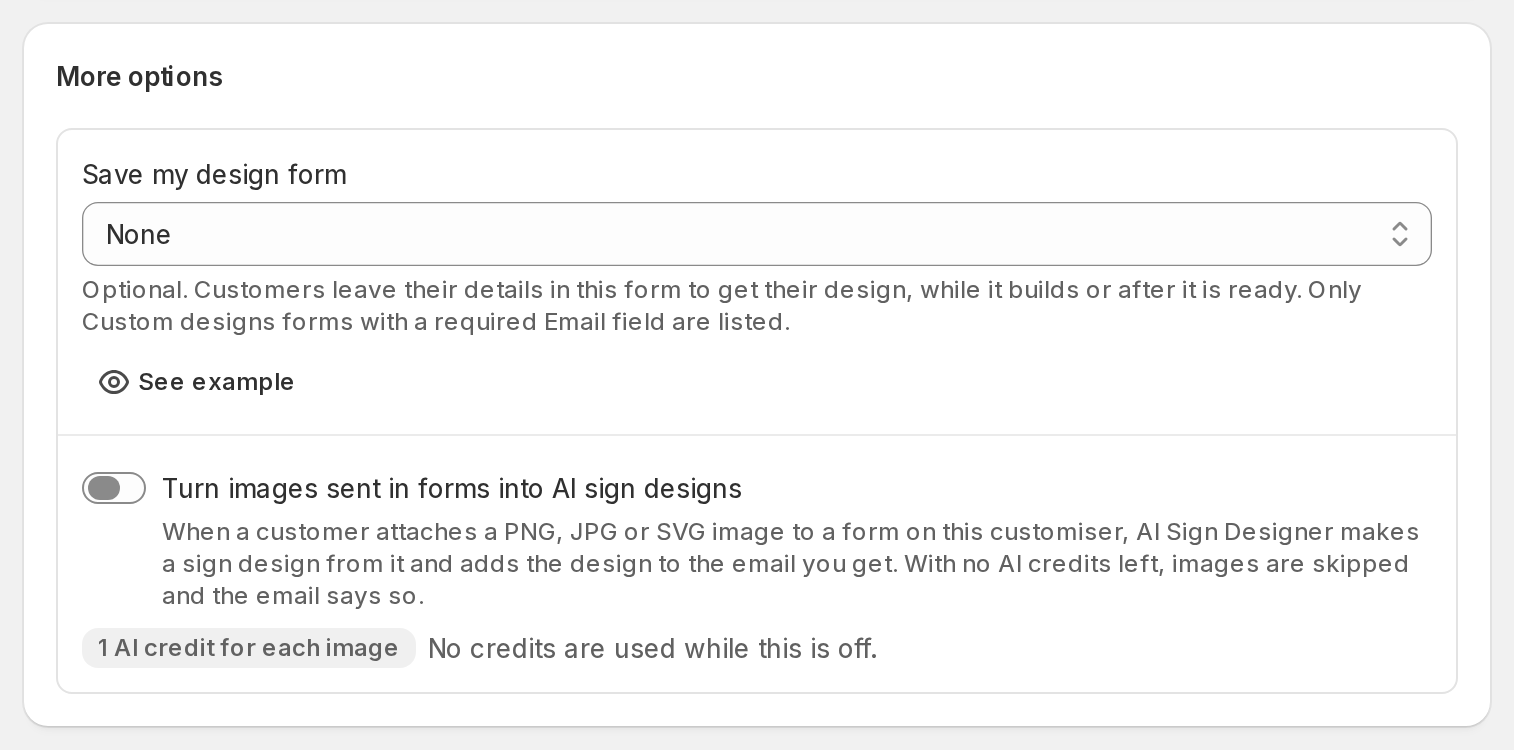
More options. This section has two optional settings. See the list below.
-
AI Sign Designer language. Select Edit language to change or translate the words customers see on AI Sign Designer screens.
More options has these settings:
-
Save my design form. Customers leave their details in this form while their design builds or after it is ready. The list shows only Custom designs forms that have a required Email field. See “Processing Time”.
-
Turn images sent in forms into AI sign designs. When a customer attaches a PNG, JPG or SVG image to a form on this customiser, AI Sign Designer makes a sign design from it. It adds the design to the email you get. WebP and PDF files are not processed automatically. Each image uses 1 AI credit.
Select Save to apply your changes to these sections. The AI Sign Designer switch saves at once.
For each step, see How to Enable AI Sign Designer.
Sign size and price for Material Length
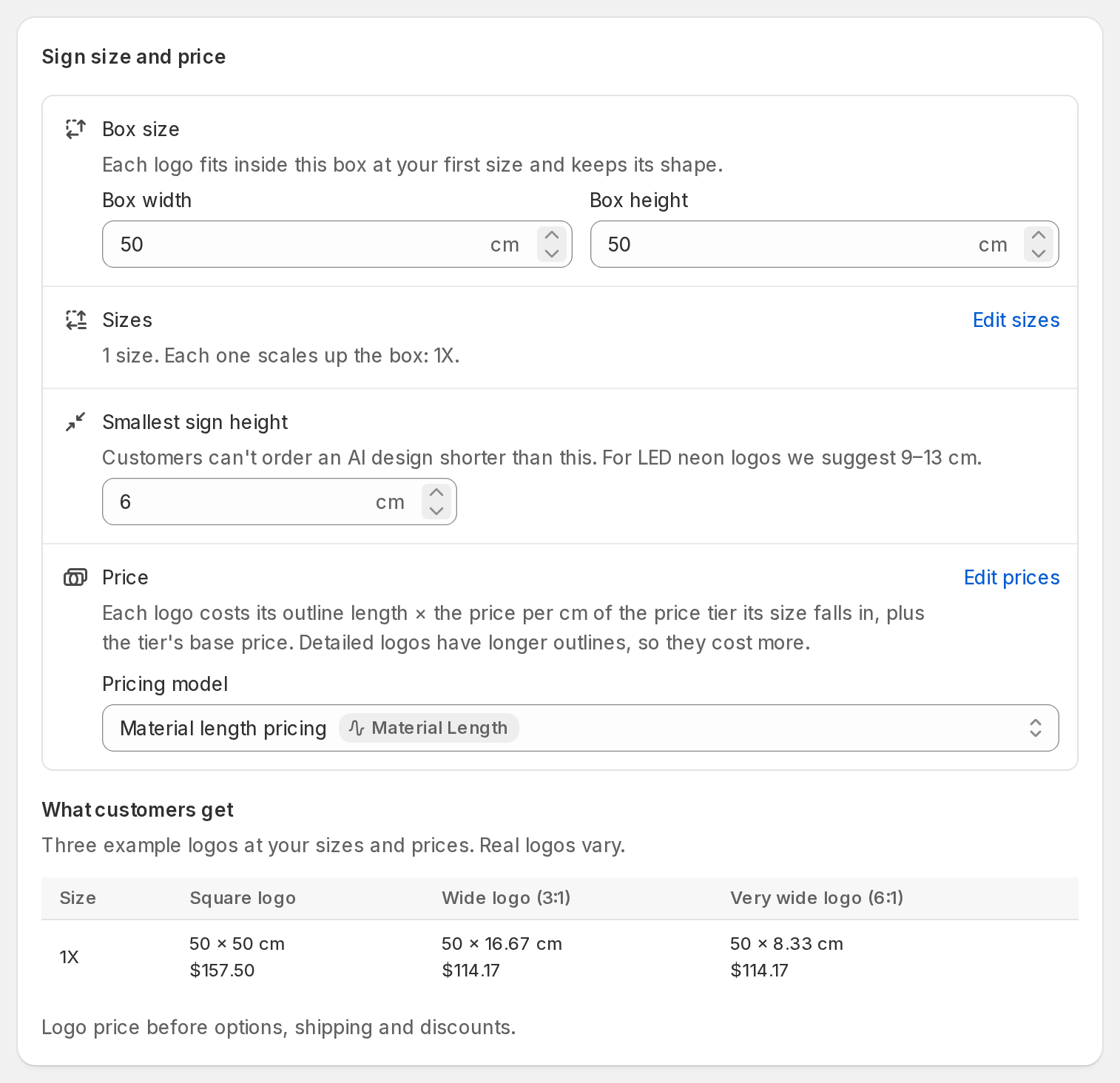
If you use Material Length pricing, set the box and the smallest sign height in the Sign size step of the setup card. After AI Sign Designer is on, change them in the Sign size and price section of the AI Sign Designer page.
Box size
Set the Box width and the Box height. “Each logo fits inside this box at your first size and keeps its shape.” Sign Customiser keeps the original proportions. A wide logo fills the width and leaves space above and below. A tall logo fills the height instead.
In the setup card, an empty box gets 60 × 60 cm (24 × 24 in on an inch Store). While no box is saved, customers get a 50 × 50 cm box.
Larger sizes scale up from this box. For example, the box width is 50 cm. A 1.5× size then gives a sign that is 75 cm wide, with proportional height.
What customers get
The What customers get table shows “Three example logos at your sizes and prices. Real logos vary.” The columns are Square logo, Wide logo (3:1) and Very wide logo (6:1). Each row is one of your sizes. Each cell shows the width × height and the price of the logo at that size. The table changes while you type. Use it to check that your box works for typical uploads.
-
Too small shows when the logo at that size is shorter than your smallest sign height.
-
“No price” shows when no pricing model is selected.
-
The prices are “Logo price before options, shipping and discounts.”
Smallest sign height
This is the smallest height that the finished sign can have. “Customers can’t order an AI design shorter than this.” If the design is shorter than this height at the selected size, the customer cannot add it to the cart. The customer must choose a larger size.
Set this value for your manufacturing method. The page gives a suggestion for your sign type:
-
LED neon logos: 9–13 cm (3.5–5 in)
-
Channel letter logos: 10–20 cm (4–8 in)
-
Cut-out metal logos: 3–5 cm (1.25–2 in)
In the setup card, an empty smallest sign height gets the lowest suggestion for your sign type.
Very wide logos
The page shows a warning when a very wide logo (8:1) at your first size is shorter than your smallest sign height. For example: “A very wide logo (8:1) is only 6.3 cm tall at your first size, under your smallest sign height of 7 cm. To fix this, make the box at least 56 cm wide or lower the smallest sign height.” To clear the warning, set the box width to at least eight times the smallest sign height. You can also lower the smallest sign height. For example, with a smallest sign height of 12 cm, the box must be at least 96 cm wide.
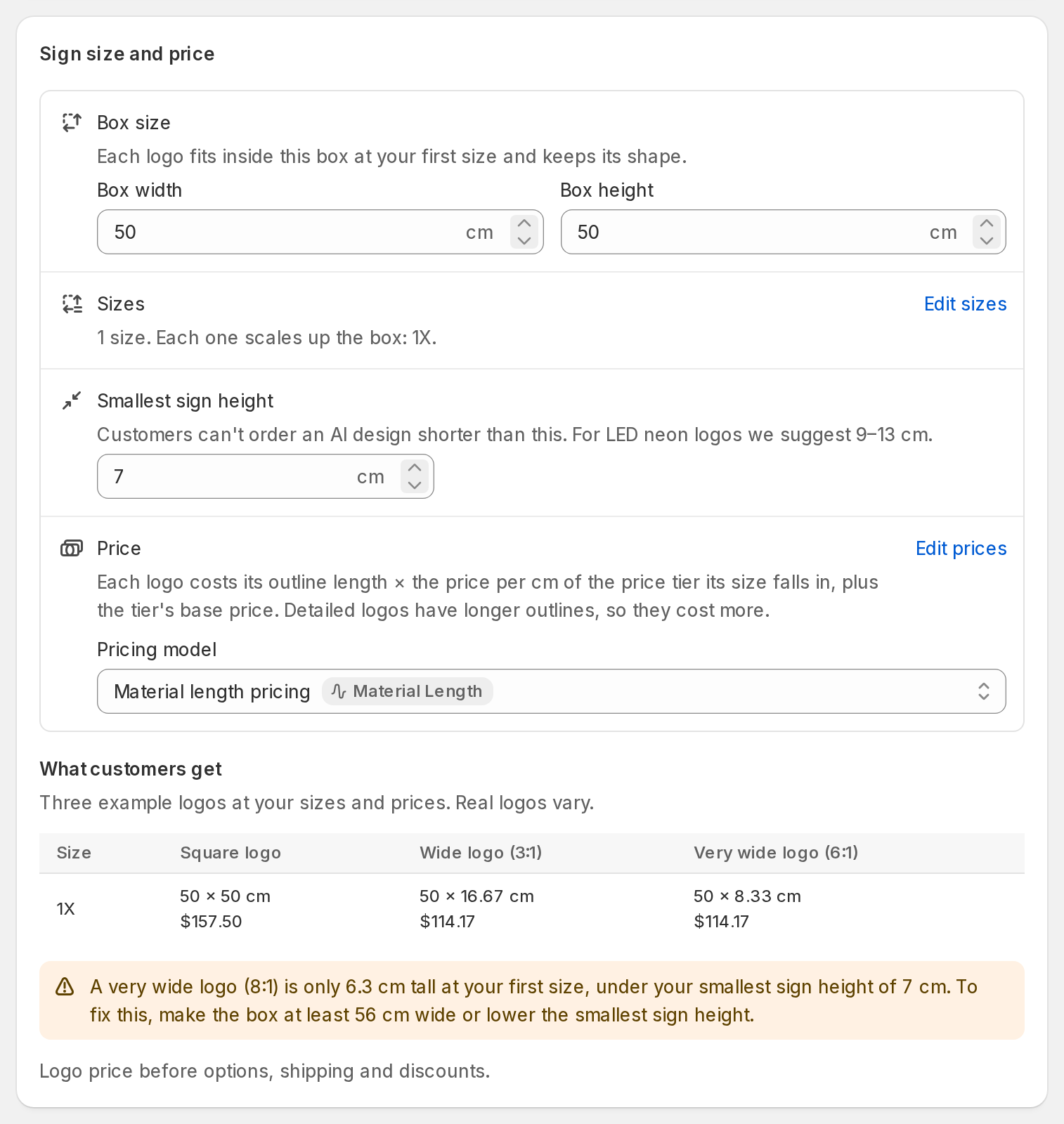
Frame Fit customisers have no box and no smallest sign height. On a Frame Fit customiser, Sign size and price shows Sizes and Price. Each size has its own box. The pricing model in Price is the price list that customers pay from for an AI Sign Designer logo.
How Pricing Works for AI Designs
The pricing model of your customiser sets the price of an AI design.
Frame Fit: The price is based on the total area of the sign (width × height). Text-based Frame Fit signs use the same area calculation.
Material Length (Advanced Letter): The price is based on the material length of the design.
For Material Length, size tiers scale up from the box size. Each tier multiplies the base dimensions. The price changes to match.
The What customers get table on the AI Sign Designer page shows example prices at your sizes.
For more information about Material Length pricing, see Pricing - Advanced letter model.
How UV Print Works for AI Sign Designer
From 1 October 2026, AI Sign Designer does not add a UV print to new neon designs.
-
Tube colours stay in your supported LED tube colours.
-
When the order data shows a face colour that comes from the uploaded design, the name is
Custom UV (#HEX). This name shows that the colour does not come from your UV palette.
Your manual UV print options do not change. Use the UV Colours page to set the UV print colours that customers can select. To hide these options from customers, clear Show manual UV print options to customers.
In short:
-
UV palette swatches = optional manual presets
-
New AI neon designs = no UV print
How Credits Work
When AI credits are available, each successful AI Sign Designer conversion uses one AI credit. A failed conversion does not use AI credits.
If Turn images sent in forms into AI sign designs is on, AI Sign Designer processes form images. It makes a sign design from each PNG, JPG or SVG image that a customer attaches to a form on this customiser. WebP and PDF files are not processed automatically. Each image uses 1 AI credit. With no AI credits left, images are skipped and the email says so.
Where the Free Monthly Credits feature is on, current ladder plans include Free Monthly Credits each month. These credits reset on your monthly billing anniversary and do not roll over. A yearly plan gives the same monthly allowance as the equivalent monthly plan.
Your monthly allowance depends on your plan:
-
Seed: 15 Free Monthly Credits
-
Growth 10: 30 Free Monthly Credits
-
Growth 20: 60 Free Monthly Credits
-
Growth 30: 90 Free Monthly Credits
-
Growth 40: 120 Free Monthly Credits
-
Growth 50: 150 Free Monthly Credits
-
Ultimate: 180 Free Monthly Credits
For an open cycle, the revised allowance starts at the next monthly reset. An eligible upgrade can apply the larger allowance immediately.
Sign Customiser uses Free Monthly Credits before AI purchased credits. AI purchased credits never expire.
Current pricing for AI purchased credits
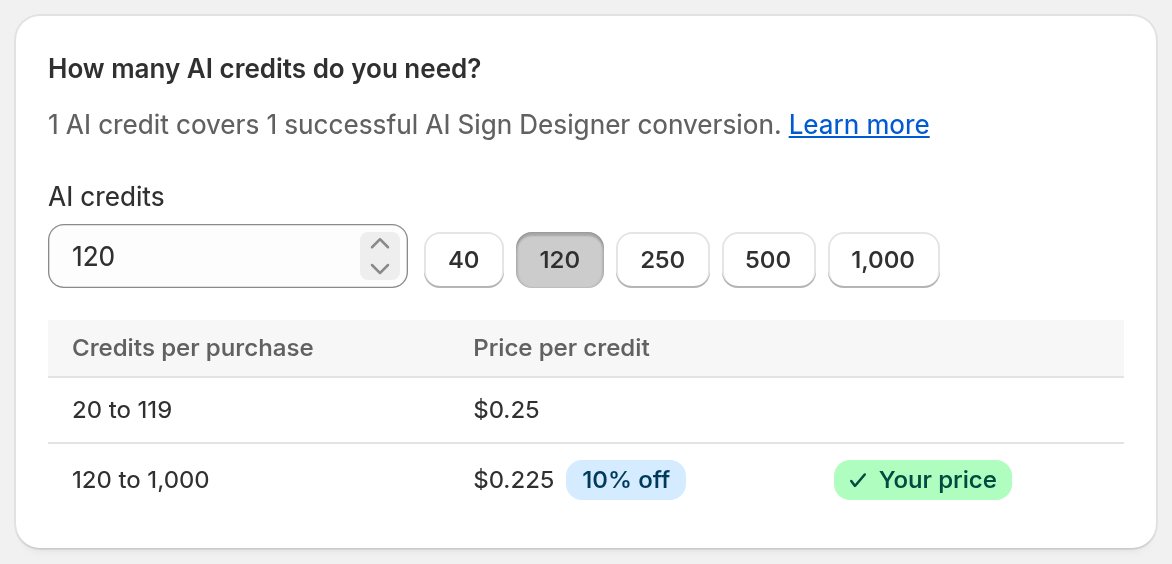
You can buy from 20 to 1,000 AI purchased credits in one purchase, in steps of 10.
-
20 to 119 credits: $0.25 USD per credit
-
120 to 1,000 credits: $0.225 USD per credit, 10% off every credit in the purchase
For example, 40 credits cost $10.00 USD, 120 credits cost $27.00 USD and 1,000 credits cost $225.00 USD.
Contact us for enterprise volume pricing
To buy more than 1,000 AI credits, select Contact us at the bottom of the Buy AI credits page.
All customisers in your Store use the same AI credit balances.
Checking Your Balance
For Shopify, select Subscription/Credit. For Universal, select Billing. If the page lists more than one Store, select Manage subscription for the Store.
When your Store has an active subscription, the Your Subscription page shows the AI credits card. This card shows Free Monthly Credits and AI purchased credits separately. It also shows the reset date of the Free Monthly Credits when this date is available.
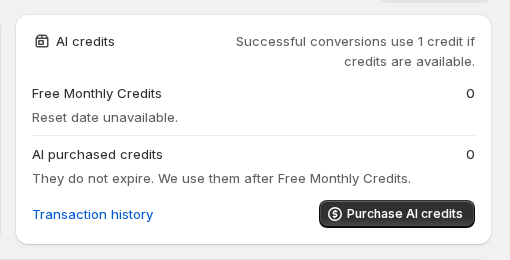
Select Transaction history to see each credit grant, purchase, and use.
Other places also show your balance. Before AI Sign Designer is on, the AI credits step in the Set up AI Sign Designer card shows it. After it is on, the AI Sign Designer card shows it, for example “120 AI credits left.” The AI Converter card on the AI Design Files page also shows it.
Low Balance Warning
Sign Customiser sends a low-balance email when you have no Free Monthly Credits and one to four AI purchased credits. It sends this email at most one time in each Free Monthly Credits cycle.
Sign Customiser does not send this warning when your total balance is zero.
What Happens When Credits Run Out
When your balance is zero, the AI Sign Designer stops for customers. The effect is different in the admin dashboard and in the customer-facing customiser.
In the admin dashboard:
The AI Converter card shows your balance in red. It also shows a Get more AI credits link. Buy more AI credits before you test another image.
For customers:
If your Store has no AI credits when the customiser loads, the customiser hides AI Sign Designer from customers.
-
If you set a backup form, customers see the backup form. They use it to send a design request to your team. Each new backup form request includes the required email address of the customer.
-
If you did not set a backup form, customers do not see an AI Sign Designer step.
If the balance reaches zero while a customer uses AI Sign Designer, the customer sees a “Credits Required” message. The message says that the Store has no AI conversion credits remaining. The customer cannot continue with AI Sign Designer. Set a backup form, so that the customer can send a request. To change this text, select Edit language in AI Sign Designer language on the AI Sign Designer page. Then change No AI credits title and No AI credits message in the AI Sign Designer section.
The difference matters. With AI Sign Designer, customers get an SVG that they can buy after processing. With the backup form, customers send a request that needs your manual action.
Configuring the Backup Form
Set the backup form in the Backup form step of the Set up AI Sign Designer card on the AI Sign Designer page. After AI Sign Designer is on, change it in When AI cannot make a design. You must select a backup form before you can turn on AI Sign Designer.
Requirements:
-
The form must contain a required Email field.
-
The form must contain a File Upload field.
-
The form must exist before you select it.
The Backup form list shows None and each form that meets these requirements. If no form meets them, the step shows “No form has a required Email field and a File Upload field.” Select Create backup form. The page creates a form named AI Sign Designer Form, selects it and saves the selection at once. This form has the fields Email, First Name, Last Name, Phone, Project Description and Upload Your Logo. If the customiser has forms, the page also shows Edit forms.
New forms include the required Email field. The merchant admin does not let you remove this field or make it optional.
Designs that cannot be made automatically
Some designs cannot be made automatically. The Open the backup form for the customer switch in When AI cannot make a design controls what the customer sees.
-
When it is on, the customer sees “We can’t make this one automatically”. Your backup form then opens with the logo attached.
-
When it is off, the customer can try again or use a different image. The customer does not go to the backup form.
The switch has no effect when you do not select a backup form.
Backup form requests appear under Quotes. The Form Quote Type setting of the form (Custom designs or Quote Mode) sets whether each request appears as a Form submission or a Quote request. Each request uses the label of the backup form.
To create a custom form, see Custom Design Forms.
To add fields to your form, see Add and Edit Custom Form Field Options.
Using AI Sign Designer in the Admin Dashboard
The AI Converter card lets you use the same AI Sign Designer for conversions in the admin. It is on the AI Design Files page. On Universal, this page is under Manage in the sidebar. On Shopify, open it from the app menu. Use it when you only want the AI image processing.
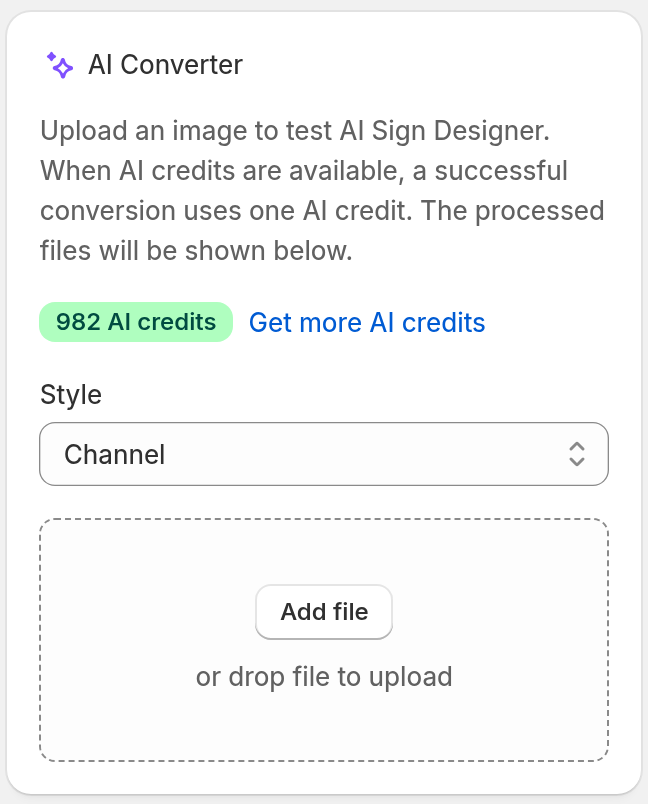
Upload an image or PDF. A PNG, JPEG, WebP, AVIF, or SVG can be up to 5MB. A PDF can be up to 25MB. For a PDF, the AI uses the first page. Before you upload, select a Style: Channel or Neon.
Processing can take a few minutes, depending on the complexity of the image. If processing takes longer than expected, the card shows a message and a Check Again button.
The card shows your AI credit balance and a Get more AI credits link. Each successful conversion uses one AI credit. Failed conversions do not consume credits.
Purchasing Credits
For Shopify, select Subscription/Credit. For Universal, select Billing. If the page lists more than one Store, select Manage subscription for the Store.
On the Your Subscription page, select Buy AI credits. This button shows when your Store has an active subscription.
On the Buy AI credits page, type the number of credits in the AI credits field. You can also select 40, 120, 250, 500 or 1,000. Then select the buy button, for example Buy 120 AI credits. Complete the payment.
For Shopify Stores: The purchase is a Shopify one-time app purchase.
For Universal Stores: Stripe processes the payment and creates a paid invoice for each purchase. To see invoices, select View invoices under Your Current Plan. For instructions, see How to find and download your invoices.
AI purchased credits appear in your balance after Sign Customiser confirms the payment.
Processing Time
Processing can take a few minutes, depending on the complexity of the image. While customers wait, the build screen shows “Reading your image”, then “Designing your sign”. You can change and translate most of the text on the build screen in Settings → Languages, in the AI Sign Designer section. To open it from the AI Sign Designer page, select Edit language in AI Sign Designer language.
When you select a Save my design form in More options, the form shows below the upload step while the design builds. The customer can enter an email address and then close the page. Sign Customiser links the request to the design. You get one email for each request. Sign Customiser sends it when the AI makes the design or fails, or after 10 minutes. It has the contact details and links to the original upload and the generated SVG.
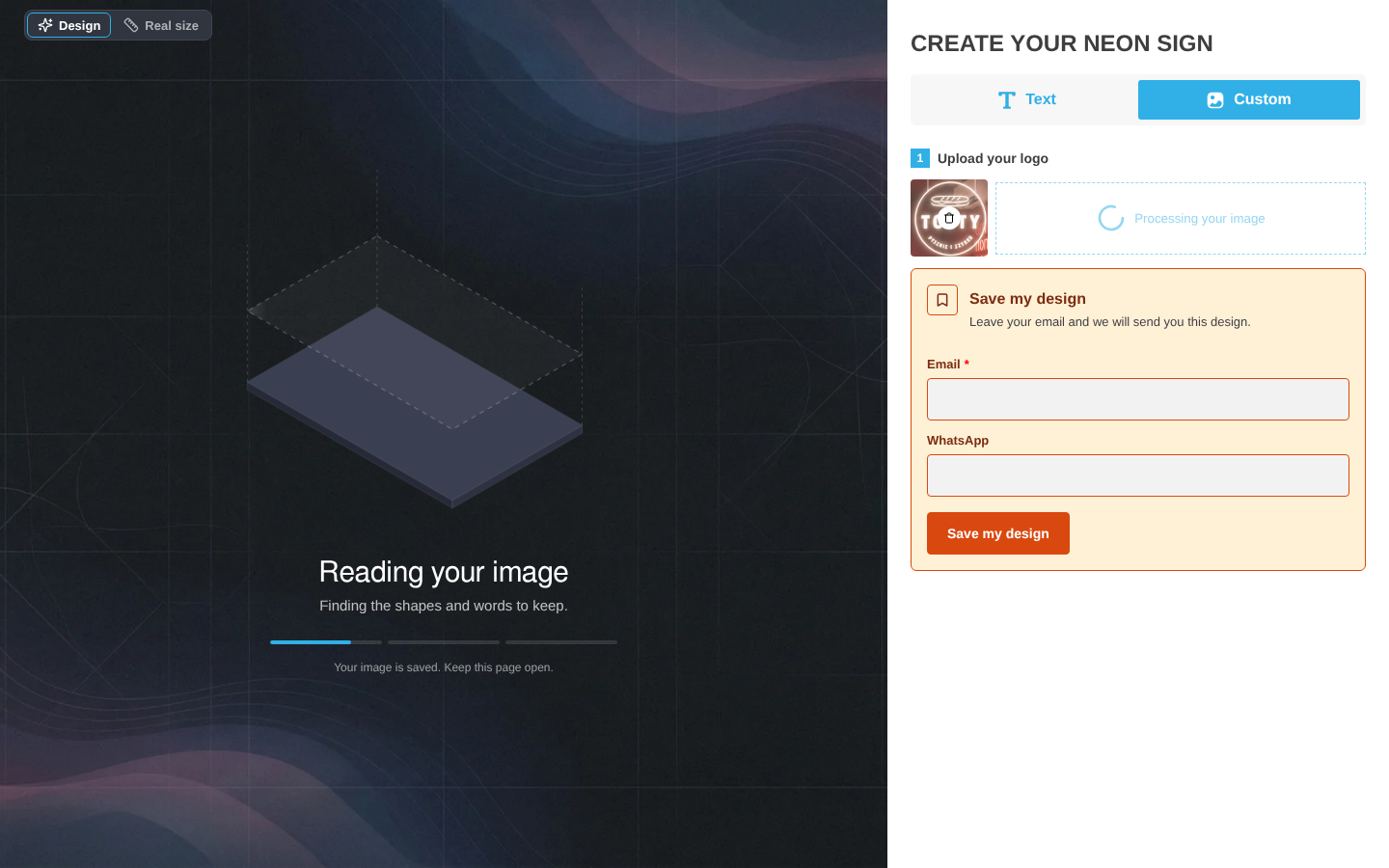
The form stays after the design is ready. The button below the price shows as usual. When the customer sends the form after the design is ready, Sign Customiser also sends the options, the price and the preview images. Each saved design is a request in Quotes.
To change the colours of the form, use the Save my design form group on the Theme Colours page.
If the AI refuses the design and Open the backup form for the customer is on, the backup form opens. If the run fails for another reason, the customer sees Try again and Use another image. When you set a backup form, the customer also sees Submit as a form request. See “Configuring the Backup Form”. If the customer sent the Save my design form, the backup form does not open for that design.
For the details, read Set up the AI Sign Designer build screen and fallback form.
Check the size of an AI design
When AI Sign Designer completes a design, customers can compare the size of the design with a person. Customers select Real size in the Design | Real size switch.
The Real size view shows the design next to a person who is 170 cm tall. If the Store uses both units, the caption reads “The person is 170 cm (5 ft 7 in) tall. Change the sign size in the sidebar to see it here.” If it uses inches only, the height in the caption reads 5 ft 7 in.
The switch shows only when you select Show Real size view for the customiser. For more information, see Real size view.
Credits on Different Platforms
On Universal, all customisers in your Store share the credits. On Shopify, you can use purchased credits only for that Store.