

Custom API Integration
Learn how to connect your custom ecommerce store with Sign Customiser using webhooks, product creation, and order processing APIs
Last updated:
This guide shows how to connect your own ecommerce platform to Sign Customiser. Your customers can then design custom signs on your website.
Overview
The integration has two parts:
-
Product creation: When a customer creates a sign, Sign Customiser sends the product to your system. Your system replies with an
external_id, which is the ID of the product in your system. -
Order processing: When a customer places an order, your system sends the order to the Sign Customiser API.
Part 1: Set up the integration in Sign Customiser
Step 0: Enable Custom API
Custom API is off by default. Enable it before you connect a custom integration. Custom API is for Universal Stores. The Custom API card does not show in the Shopify admin. The card also shows only when no other integration is enabled, because a Store can have one enabled integration at a time.
-
In the left sidebar, under Integrate, click Integrations.
-
Find the Custom API card (marked Advanced).
-
Click Connect Custom API.
-
In the Enable Custom API? window, click Enable Custom API.

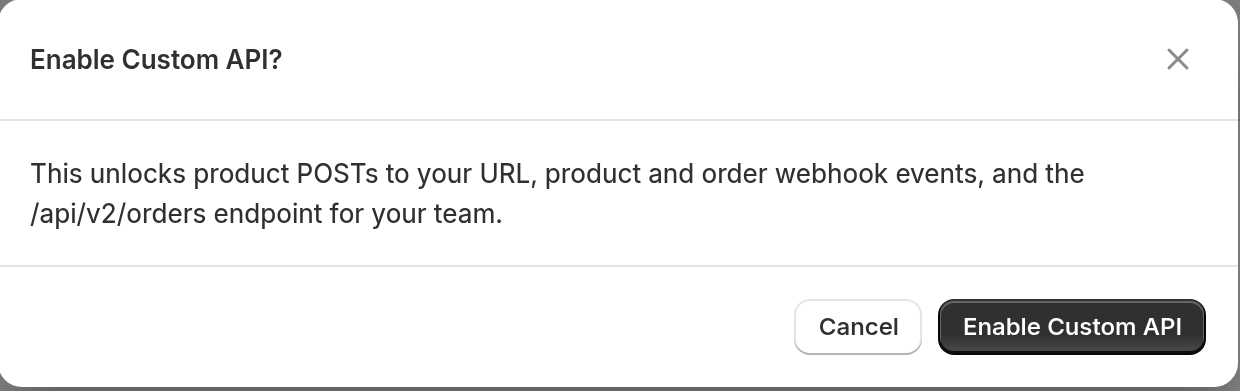
The text in this window names the older /api/v2/orders endpoint. For new integrations, use the v3 order endpoint in Part 3.
Custom API gives your Store these items:
-
The Create Product URL field
-
Delivery of the
product:createdandorder:createdwebhook topics -
The order API
To connect a different platform later, click Disable on the Custom API card. Then click Disable Custom API in the Disable Custom API? window. This disconnects your custom integration. Product and order webhook subscriptions stay saved but do not fire. Other webhook subscriptions, such as form:submitted, are not affected. If you enable Custom API again, enter your Create Product URL again. This creates a new integration with a new ID and a new secret, so update your embed code.
Step 1: Open the integration form
-
Sign in to your Sign Customiser account.
-
In the left sidebar, under Integrate, click Integrations.
-
On the Custom API card, click Configure.
If a custom integration already exists, Configure opens its detail page. Go to Step 3.
Step 2: Set your Create Product URL
The Create Integration window opens.
-
In Name, enter a name for the integration.
-
In Create Product URL, enter the full URL where Sign Customiser must send a POST request when a product is created.
-
Click Create.
The URL must point to an endpoint on your server that can receive and process product data. For example: https://yourstore.com/api/sign-customiser/products
Step 3: Get your embed code
After you create the integration, click View Details on its card. The detail page shows two items:
-
Integration Secret: Click Reveal to show it, or click Copy. You need the secret to verify signed requests from Sign Customiser.
-
Embed Instructions: Click Copy Code to copy the embed code.
The embed code looks like this:
<script src="https://integrations.signcustomiser.com/sign-customiser-embed.js"></script><sign-customiser-embed customiser-id="YOUR_CUSTOMISER_ID" integration-id="YOUR_INTEGRATION_ID" driver="custom"></sign-customiser-embed>Put this code on the pages where customers customise signs.
Under the embed code, add your own “add to cart” code for your platform:
<script>window.addEventListener("message", (event) => { if (event.data.type === "sc:product:created") { // add the product to cart // console.log("Product Data", event.data.product) }});</script>Part 2: Handle product creation
Your product creation endpoint
When a customer creates a sign, Sign Customiser sends a POST request to your Create Product URL. The payload looks like this:
{ "product": { // Product details from Sign Customiser } }The product object includes a product_id. Sign Customiser gives each product this ID. Save it with your own product ID. You need it in Part 3.
Verify the signature to check that the request came from Sign Customiser. Each request has two headers:
-
x-webhook-timestamp: The Unix timestamp when Sign Customiser sent the request -
x-webhook-signature: A SHA-256 HMAC, in hex, of the timestamp, a period, and the raw payload (see Step 3)
Note: You must use the raw request body to verify the signature. In Node/Express, use route-level raw body middleware before you parse the JSON. For example: express.raw({ type: “application/json” })
Implementation steps
Step 1: Extract headers and payload
When your endpoint receives a request, get the timestamp and the signature from the headers. Also capture the raw request body:
const timestamp = req.headers["x-webhook-timestamp"];const signature = req.headers["x-webhook-signature"];const rawPayload = req.body.toString("utf8"); // Raw JSON stringStep 2: Verify the timestamp (prevent replay attacks)
Make sure that the timestamp is a number and is not more than 5 minutes old:
const currentTime = Math.floor(Date.now() / 1000);const webhookTime = Number.parseInt(timestamp, 10);const timeDiff = Math.abs(currentTime - webhookTime);if (!Number.isFinite(webhookTime) || timeDiff > 300) { // 5 minutes in seconds return false; // Reject missing, invalid, or old timestamps}Step 3: Create the signature string
Join the timestamp and the raw payload. This is the string that Sign Customiser signed:
const stringToSign = `${timestamp}.${rawPayload}`;Step 4: Calculate the expected signature
Use your secret from the detail page to calculate the signature that you expect:
const expectedSignature = crypto.createHmac("sha256", webhookSecret).update(stringToSign).digest("hex");Step 5: Compare signatures securely
Use a constant-time comparison. This helps prevent timing attacks. Check the lengths first, because crypto.timingSafeEqual throws an error when the two buffers have different lengths:
const received = Buffer.from(signature, "hex");const expected = Buffer.from(expectedSignature, "hex");const isValid = received.length === expected.length && crypto.timingSafeEqual(received, expected);Step 6: Create the product in your system and return the ID
Your endpoint must reply in 15 seconds. Send a success status (200 is recommended). Send a JSON object with a non-empty external_id key. The value must be a string:
{ "external_id": "your-product-id-123" }The external_id is the unique ID of the product in your system. Sign Customiser needs it to finish product creation. A slow reply, an error status, or a missing external_id counts as a failed request.
If a product does not reach your system, open the integration from Integrations and look at Activity Logs. Use the Errors Only filter to see requests that returned a 4xx or 5xx status. Timeouts, connection failures, and replies that have a success status but no external_id appear under All Logs only.
Part 3: Process orders
When a customer places an order that has Sign Customiser products, send the order to Sign Customiser. Use the v3 order API.
Create an API key
-
In the left sidebar, under Integrate, click API Tokens.
-
Click Create API key.
-
In Name, enter a name for the key. For example: “Order sync”.
-
Under Access, All access is selected by default. Clear each checked permission, then select Write orders.
-
Click Create key.
-
Copy the key and keep it in a safe place. Sign Customiser shows the key only one time.
-
Click I’ve saved this key, close window.
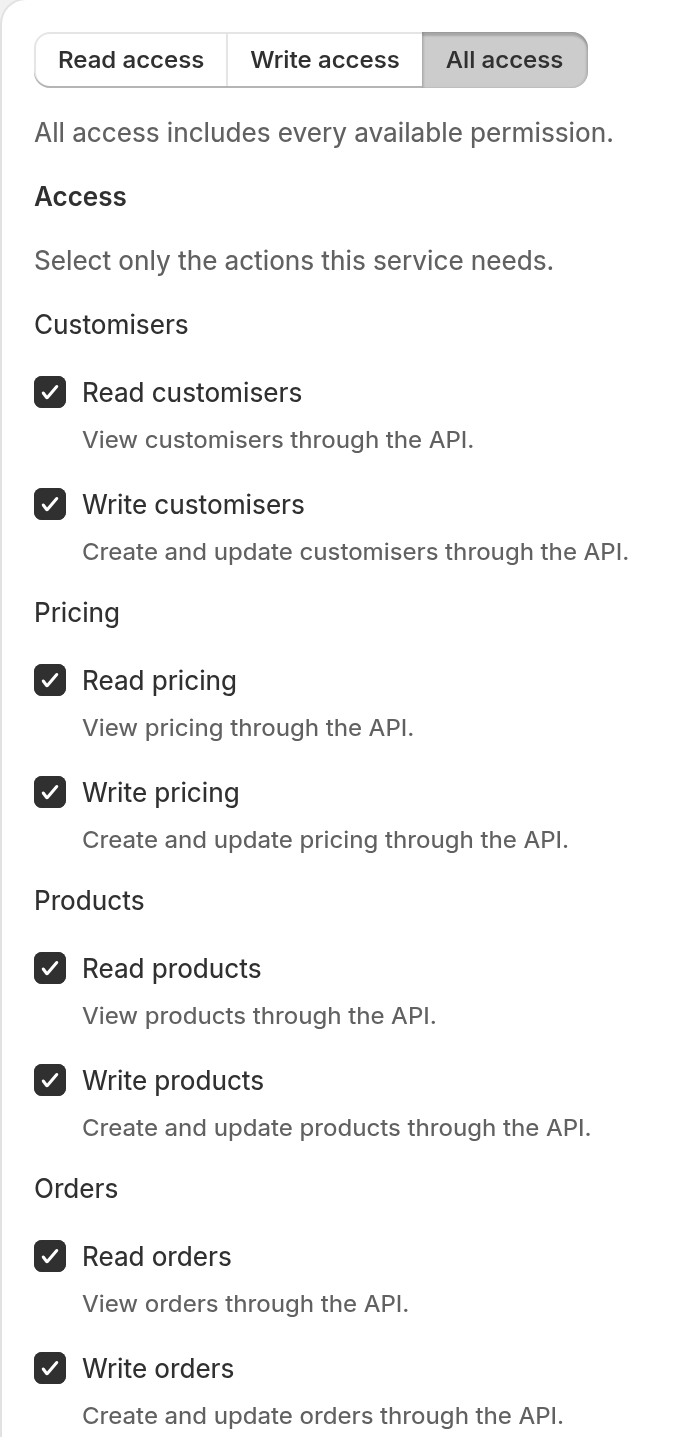
The Write orders permission is the orders:write scope. For more detail, read How to create an API key.
Keys from the API Tokens page work only with the v3 API. They fail on the older /api/v2 endpoints.
Send orders to Sign Customiser
Send a POST request to this endpoint:
Endpoint: https://web.signcustomiser.com/api/v3/orders
Headers:
Authorization: Bearer YOUR_API_KEYContent-Type: application/jsonAccept: application/jsonIdempotency-Key: A_UNIQUE_VALUE_FOR_THIS_ORDERUse a new Idempotency-Key for each order. If a request fails because of a network error or a server error, send it again. Use the same key and the same body. Sign Customiser does not create the order two times.
Order payload structure
{ "integration_id": 42, "store_order_id": "your-order-id-456", "store_order_number": "ORDER-2024-001", "total_amount": 5998, "currency": "USD", "shipping_method": "Standard Shipping", "customer": { "first_name": "John", "last_name": "Doe", "email": "john@example.com", "phone": "+1234567890" }, "billing_address": { "first_name": "John", "last_name": "Doe", "email": "john@example.com", "phone": "+1234567890", "address_1": "123 Main St", "address_2": "Apt 4B", "city": "New York", "province": "NY", "postcode": "10001", "country": "US" }, "shipping_address": { "first_name": "John", "last_name": "Doe", "address_1": "123 Main St", "address_2": "Apt 4B", "city": "New York", "province": "NY", "postcode": "10001", "country": "US" }, "line_items": [ { "product_id": 731, "quantity": 2 } ]}Field requirements
Required fields
-
integration_id: Your Sign Customiser integration ID. It is theintegration-idvalue in your embed code. -
store_order_id: Your internal order ID. An integration accepts eachstore_order_idone time. -
store_order_number: The order number that people can read. -
total_amount: The order total as a whole number in the smallest currency unit. For example: 5998 is $59.98. -
currency: A three-letter uppercase currency code. For example: “USD”. It must match the currency of your Sign Customiser Store. -
line_items: An array of 1 to 100 products. -
line_items[].product_id: Theproduct_idthat Sign Customiser sent when it created the product (see Part 2). Use each product one time in an order. -
line_items[].quantity: A whole number from 1 to 10,000.
Optional fields
-
shipping_method: A description of the shipping method. -
customer:first_name,last_name,email, andphone. -
billing_addressandshipping_address:first_name,last_name,company,address_1,address_2,city,province,postcode,country,email, andphone. Sendcountryas a two-letter uppercase code. For example: “US”.
Important notes
-
Product IDs:
line_items[].product_idis the ID that Sign Customiser gave to the product. It is not yourexternal_id. The product must come from the same integration and from an active customiser. This links the order to the correct sign. -
Prices: Do not send a price for each product. Sign Customiser uses the price that it saved with the product. Send all amounts in the smallest currency unit (cents for USD, pence for GBP).
-
Response: A successful request returns
201with the order indata. The order status isreceived. If you send astore_order_idthat the integration already used, with a newIdempotency-Key, the API returns409(store_order_id_conflict). If you repeat the original request with the sameIdempotency-Keyand body, the API returns the original201response with the headerIdempotency-Replay: true.
If you use the v2 order endpoint
Earlier versions of this guide used POST /api/v2/orders. That endpoint is deprecated. Its scheduled sunset date is 22 January 2027. Sign Customiser does not remove the endpoint automatically on that date. The v2 endpoint does not accept keys from the API Tokens page.
To move to v3, change these items:
-
Change
external_idtostore_order_id. -
Change
external_order_numbertostore_order_number. -
Change
shipping_linetoshipping_method. -
Change
productstoline_items. Change eachexternal_idto the Sign Customiserproduct_id. -
Add
total_amount. -
Add the
Idempotency-Keyheader. -
Add
currency. v2 used USD when the field was missing. v3 requires it. -
Add
quantityto each line item. v2 used 1 when the field was missing. v3 requires it. -
Remove
products[].price.
For all the changes, read the v2 to v3 migration guide.