

Upload background images
Allow your customers to supply their own images for the background of the sign visualiser.
Last updated:
Customers can upload their own background image. The image shows behind the sign on the visualiser.
Customer-uploaded background images are not used as product images. They do not show on the review screen. They show in the visualiser.
To let customers upload background images, do these steps:
-
In the admin, click Customisers.
-
Click the customiser that you want to edit.
-
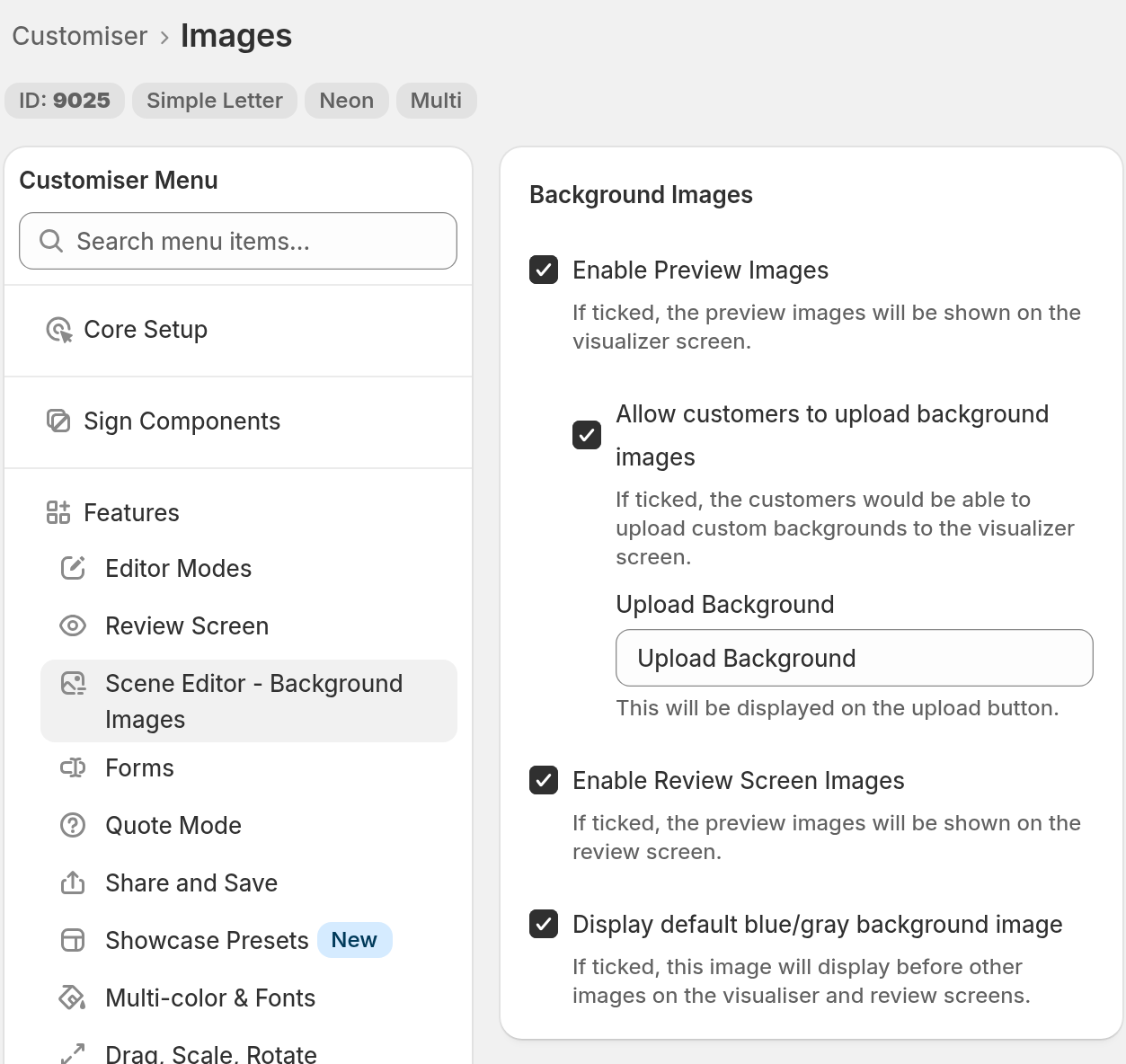
In the menu, under Features, click Scene Editor - Background Images. If the Features group is closed, click it first. On a screen narrower than 799 px, click Menu first to show the menu.
-
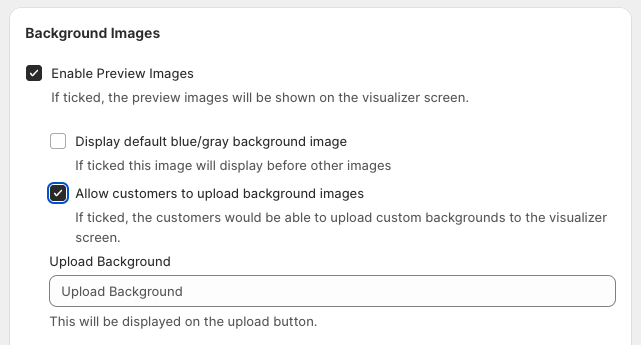
Make sure that Enable Preview Images is selected.
-
Select Allow customers to upload background images. This option shows only when Enable Preview Images is selected.
-
Optional: in Upload Background, enter the text for the upload button. The default text is “Upload Background”.
-
At the bottom of the form, click Save.
What your customers see
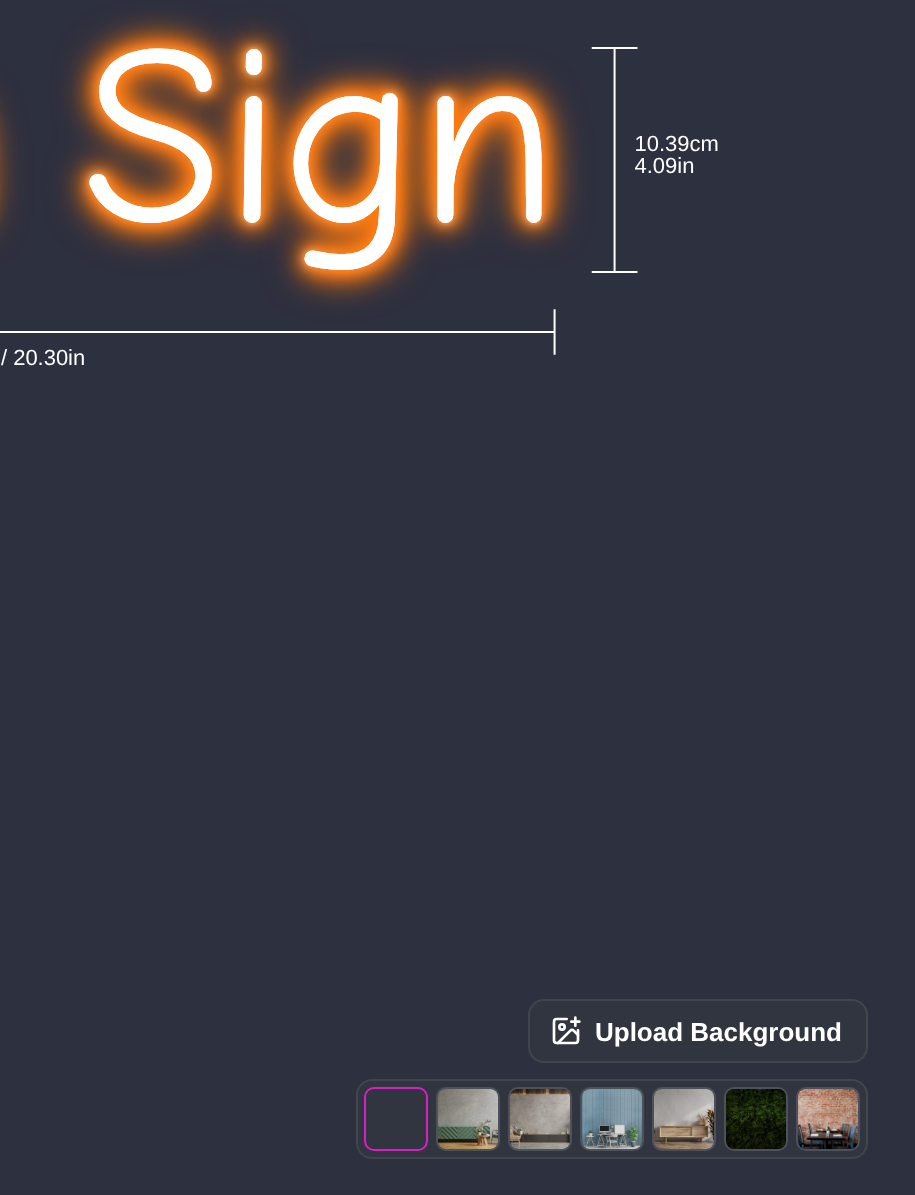
On a desktop screen (1025 px wide or more), the visualiser shows an Upload Background button at the bottom right. If you changed the button text, the button shows your text. On a narrower screen, customers tap the image icon to open the background options. They then tap the upload tile, which has a dashed border.
Customers can upload PNG, JPEG or SVG files. The customiser does not accept other file types.
After the customer chooses a file, the Relative Scale window can show. The customer can enter the real width and height of the image. The unit is centimetres or inches. If Scale visualisation with size is on (in Visualiser Scaling, on the same page) and the customer enters both the width and the height, the sign then shows at a realistic scale for the background. The customer can leave both fields empty and click Continue. Stores on a legacy plan do not see this window.
Things to know
-
The Upload Background button does not show in Real size view. The customer must click Design to upload.
-
On lightbox signs, customers use the image icon in the control bar of the visualiser to choose a background or to upload one. On a screen narrower than 1025 px, customers first tap the sliders button to show the control bar.
-
To add your own background images, see Scene Editor.