

How to unsubscribe from plan
Cancel your Sign Customiser subscription from the Billing page. This article covers each dialog and what happens next on Universal and Shopify.
Last updated:
You can cancel your Sign Customiser subscription on the Billing page (Universal) or the Subscription/Credit page (Shopify) of your merchant admin. This article shows where to find the cancel link. It also shows each dialog and what happens after you confirm.
Before you start
-
On Universal, the Billing menu item is locked for users who are not the Company Owner. If Billing shows a lock, click Billing. The message Admin only opens. Ask the Company Owner to cancel the subscription. The Subscription/Credit page in Shopify has no lock.
-
On a current plan, the Cancel subscription link shows only when your Store has an active subscription with no end date. If the subscription has an end date, the card shows Resume Subscription (Universal) or Select New Subscription (Shopify). A Store on a legacy plan sees the link on its Legacy Plan card.
-
A Shopify development store on the free developer plan has no cancel link.
-
Each Store has its own subscription. If your Company has more than one Store, cancel each Store separately.
-
On Universal, if you cancel the primary Store, Sign Customiser assigns a new primary Store only when another Store in your Company has a subscription with no end date. That new primary Store loses its discount.
Cancel your subscription
-
Open your merchant admin.
-
Universal: go to web.signcustomiser.com and sign in.
-
Shopify: open the Sign Customiser app from your Shopify admin.
-
-
Open the Billing page.
-
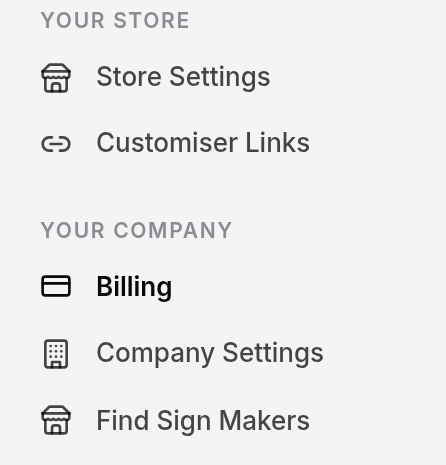
Universal: in the sidebar, under Your Company, click Billing.
-
Shopify: click Subscription/Credit.
-
Alternative: on the Home page, click View Plans in the Subscription/Credit card.
On Universal, a Company with more than one Store sees the Billing Management page. Find the card for the Store. Then click Manage subscription.
-
-
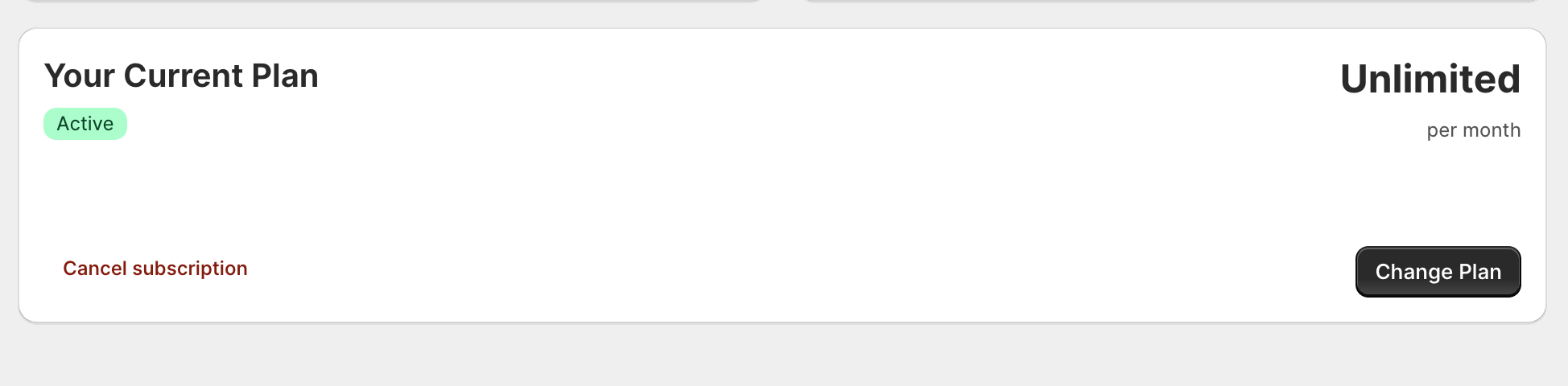
On the Your Current Plan card, click Cancel subscription. This red link is at the bottom left of the card.
-
The dialog Before you go… opens. It lists what you lose when you cancel. Click Continue to cancel. To stop, click Keep My Subscription.
-
Some accounts see the dialog Wait! Here’s a special offer for you. It gives 40% off with the code LOYALTY40.
-
To keep your subscription with the discount, click Keep Subscription with 40% Off.
-
To continue the cancellation, click Cancel my subscription anyway.
-
-
The last dialog is Confirm Cancelling Subscription. It warns that your customisers will no longer accept orders after your subscription runs out. If you cancel the primary Store of a Company with more than one Store, it also warns that Sign Customiser will assign a new primary Store.
-
Click Cancel Subscription. To stop, click Keep Subscription.
What happens next
-
Universal: Stripe hosts the next page. Finish the cancellation on that page. Then you return to your merchant admin.
-
Shopify: The app cancels the subscription in Shopify. Then the app shows the Home page. You cannot resume a cancelled subscription in the app. To subscribe again, click Subscription/Credit and select a new subscription.
If an error message shows, try again. If the error continues, contact support.