

Match your themes font family with Sign Customiser App
Last updated:
Use the Font Family Name setting to make the text in your customiser match the font of your theme. The setting changes the text that shoppers read and enter. This text includes the text box, option buttons, titles, and prices. The setting does not change the font of the sign. To change sign fonts, use the Fonts menu item.
Before you start
The setting does not load a font. It tells the browser which font family to use. Enter the exact family name of a font that your storefront already loads on the shop page.
-
If you leave the field blank, the customiser uses Arial.
-
If the browser cannot find the font, it uses a default font.
-
If you turn on Use iframe (experimental) in the Sign Customiser app block, the customiser shows in a separate frame. That frame cannot use the fonts of your storefront theme.
Change the font family
-
Open Sign Customiser.
-
In Shopify, open our app in your Shopify admin.
-
In Universal, go to web.signcustomiser.com.
-
-
Click Customisers.
-
Select the customiser you want to edit.
-
In the menu on the left, go to Settings → General Settings. If you see a Menu button instead of the menu list, click Menu first.
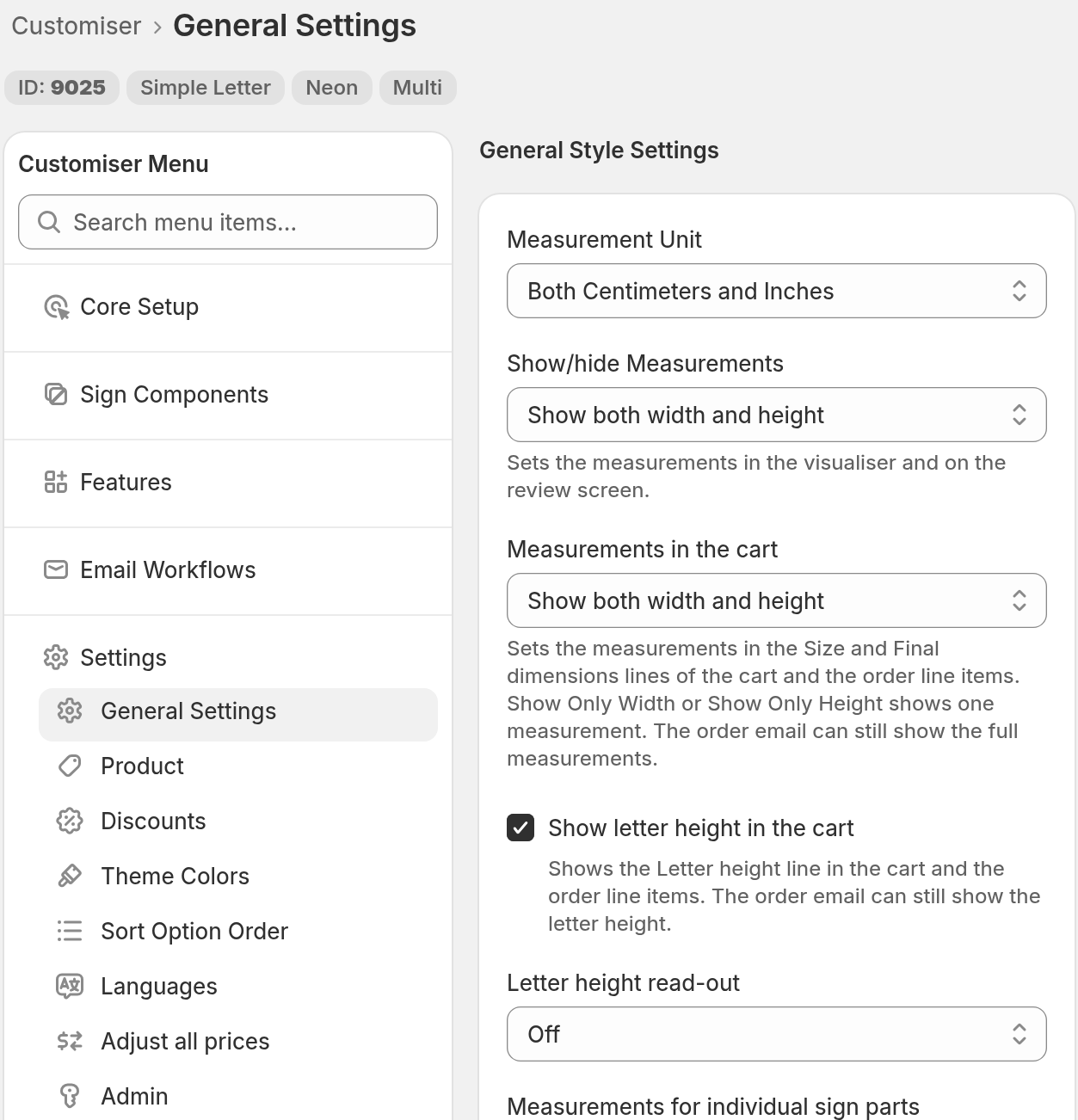
-
Find General Style Settings. Scroll down to the Font Family Name input.
-
Enter the family name of your theme font.
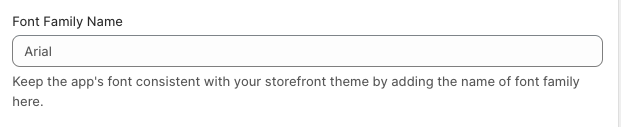
-
Click Save at the bottom of the form.
-
Open the customiser on your storefront. Make sure that the text uses your theme font.