

Choose the customiser language on Shopify and Universal
Set up one multilingual customiser and control how Shopify and Universal choose a published shopper language.
Last updated:
Use one customiser with several published languages. Shopify normally follows the shopper’s active Store language. Universal can use an explicit language code, a storefront signal, browser preferences, or the customiser default.
You no longer need one duplicated customiser per language. Existing duplicates can stay in place. For new multilingual setup, use the Languages page in one customiser.
Shopify
-
Add and publish each shopper language under Customisers -> [customiser] -> Settings -> Languages.
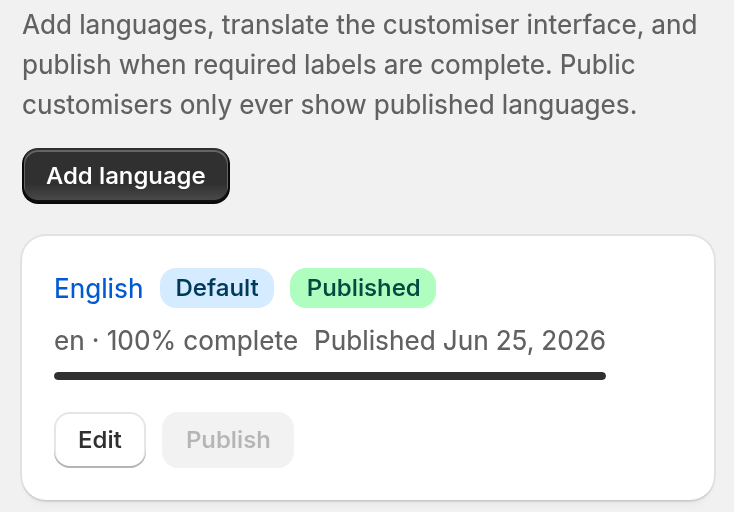
-
Publish the matching storefront languages under Settings -> Languages in the Shopify admin. Assign each language to the domain that your markets use.
-
Translate the theme, navigation and page copy with Shopify’s translation tools or another Store translation app.
-
Open the Sign Customiser theme block. Leave Language code override blank for normal automatic matching.
-
Test each live Store language route.
The theme block follows Shopify’s active storefront language for supported inline, iframe, app-embed and modal integrations. Use Language code override only when a special template or landing page must show one exact published language. Enter the exact code of a language that you published, for example fr-CA.
Universal links and embeds
Add and publish languages on the same Languages page.
Live Universal links and embeds work only after the Store has an active subscription, or a trial with a saved payment method. You can build and preview languages before then. Until the Store can go live, a live embed shows a blocked page, and a live Customiser Link shows an unavailable page. Neither shows the language. Shopify customisers are not affected.
To request one exact published language, add language_code to the URL.
-
For a Customiser Link, add
?language_code=fr-CAto the end of the link. Find the link under Your Store -> Customiser Links. Select Enable Customiser Link, then select Save. Then find the link in the Compatible Customisers list. That list shows only customisers that have Quote Mode on. If the Etsy integration is on, the list is called Add to your Etsy listings and shows every customiser. -
For an iframe, add the parameter to the iframe address.
Use a code that you published. This example needs a published fr-CA language:
<iframe src="https://web.signcustomiser.com/embed/YOUR_CUSTOMISER_ID?language_code=fr-CA" style="width:100%; height:700px"></iframe>For the supported custom element, use its language attribute:
<sign-customiser-embed customiser-id="YOUR_CUSTOMISER_ID" language-code="fr-CA"></sign-customiser-embed>Without an explicit language, a storefront language signal or a browser preference can select a published match. If none matches, the customiser uses its default language.
Matching languages
-
An explicit code must equal a published language code. This rule applies to the
language_codeURL parameter, thelanguage-codeattribute and the Shopify Language code override.-
Case and separator do not matter. For example,
fr_caequalsfr-CA. -
A broad code such as
frdoes not match a publishedfr-CA. -
A code that is not published selects the default language. The customiser does not check the storefront or browser signals.
-
-
A storefront language or a browser preference can use a broad code. A code such as
frcan match one published regional French variant, if there is only one clear choice. -
If a signal matches several regional variants, the customiser ignores that signal and checks the next signal. Without an explicit code, the default applies only when no storefront or browser signal gives one clear match.
Choose the default language
The default language is the fallback for shoppers who do not match a published language. To change the default, first complete and publish the new language. Then open its More actions menu on the Languages page and select Make default. For the full steps, follow Add, translate, preview and publish a language.
Provide a language selector when needed
Sign Customiser has no shopper-facing language switcher. On Shopify, the customiser follows the Store’s active language. A Universal site must have its own selector or language links if shoppers need a visible choice. Sign Customiser does not translate copy outside the customer customiser.
Test before launch
-
Publish the target customiser language.
-
On Shopify, test the live Store language route. Do not test only the admin preview.
-
On Universal, make sure the Store has an active subscription, or a trial with a saved payment method. Then test an explicit target code, a matching browser preference, an unsupported code, and no code.
-
Create a test product in at least one non-default language. Check the cart wording.
-
Check the character coverage of the selected font. Test the right-to-left layout separately.
Troubleshooting
-
The default always appears. Publish the target and check the platform signal. Remove an invalid override and check for ambiguous regional variants. For an explicit code, use the exact published code.
-
A Universal embed shows a blocked page, or a Customiser Link shows an unavailable page. The Store needs an active subscription, or a trial with a saved payment method.
-
The customiser translates but the Shopify theme does not. Translate the theme and page content in Shopify.
-
The wording is correct but the direction is wrong. Follow Use right-to-left languages.
-
Old wording appears. Publish the current draft, then reload.
Do you need to create or publish the target first? Follow Add, translate, preview and publish a language.