

Option Number List
Last updated:
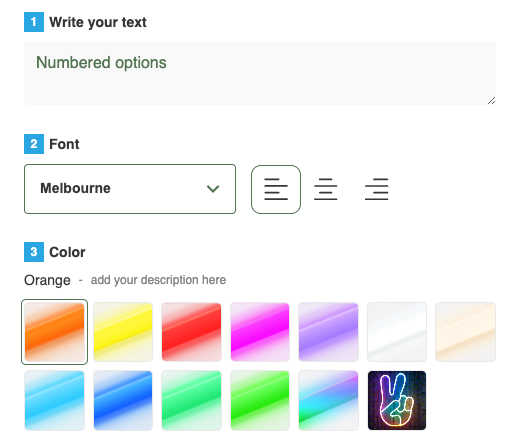
Numbered options show a number beside each step title in your customiser. Use them when you have many options. The numbers help customers to see the order of the steps.
The numbers follow the order that you set in Sort Option Order. If you move a step, its number changes. A step that does not appear for the sign gets no number. To change the order, see Arranging the option order.
How to add numbered options to your customiser
-
Open the Sign Customiser admin for your Store.
-
Click Customisers in the left-hand menu.
-
Click the customiser that you want to edit.
-
In the customiser menu, go to Settings → General Settings.
If you see a Menu button, click it to open the customiser menu.
-
Set Show Numbered Selections to Show Numbers.

-
Click Save at the bottom of the form.
Numbers on phones and small screens
Set Mobile View to One Selection at a Time. Then the numbers do not show on screens narrower than 1025 pixels. Stacked all at once shows the numbers on all screen sizes.
Mobile View is in General Settings, under Mobile Style Options. For more information, see Mobile Style Options.
Change the colour of the numbers
-
In the customiser menu, click Theme Colours.
-
Set Selection Number Text and Selection Number Background.
-
Click Submit.
For the colour settings on the Theme Colours page, see the Theme Colour Reference Guide.