

Fonts - Advanced Model
This guide explains how to configure fonts for the Advanced Letter Model, assign pricing models, adjust font spacing, and test measurement accuracy.
Last updated:
Set up your Pricing and Sizes before you add fonts. Fonts in the Advanced Letter model use the Sizes settings and the minimum heights of each font to calculate sign dimensions.
Accessing the Font Settings
-
Go to the Sign Customiser admin:
-
Universal accounts: Go to Home in your account.
-
Shopify users: From your Shopify admin, go to Settings > Apps, then open the app.
-
-
Click Customisers in the menu.
-
Select the customiser you want to edit.
-
In the left-hand menu, go to Core Setup → Fonts.
Setting the Font Section Title and Description
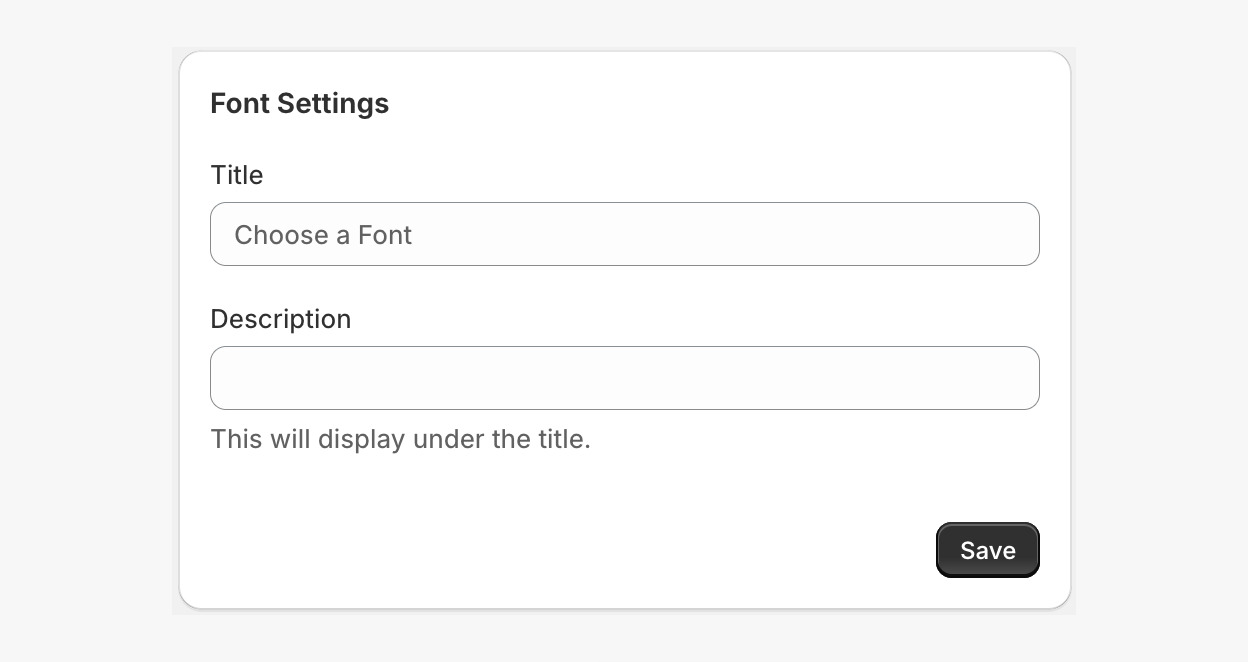
You can change the title and description above the font selector on your storefront.
-
In the Fonts section, scroll to Font Settings.
-
Enter:
-
(Optional) Title - the heading that shows above the font options.
-
(Optional) Description - the text that shows below the title. If you leave it empty, nothing shows.
-
-
Click Save.
Adding Fonts
Check that a font works with SVG generation and sign production before you add it. Test decorative and very complex fonts with extra care. Test every font before you publish your customiser.
Step 1: Add a Font
-
In the Fonts section, click Add Font.
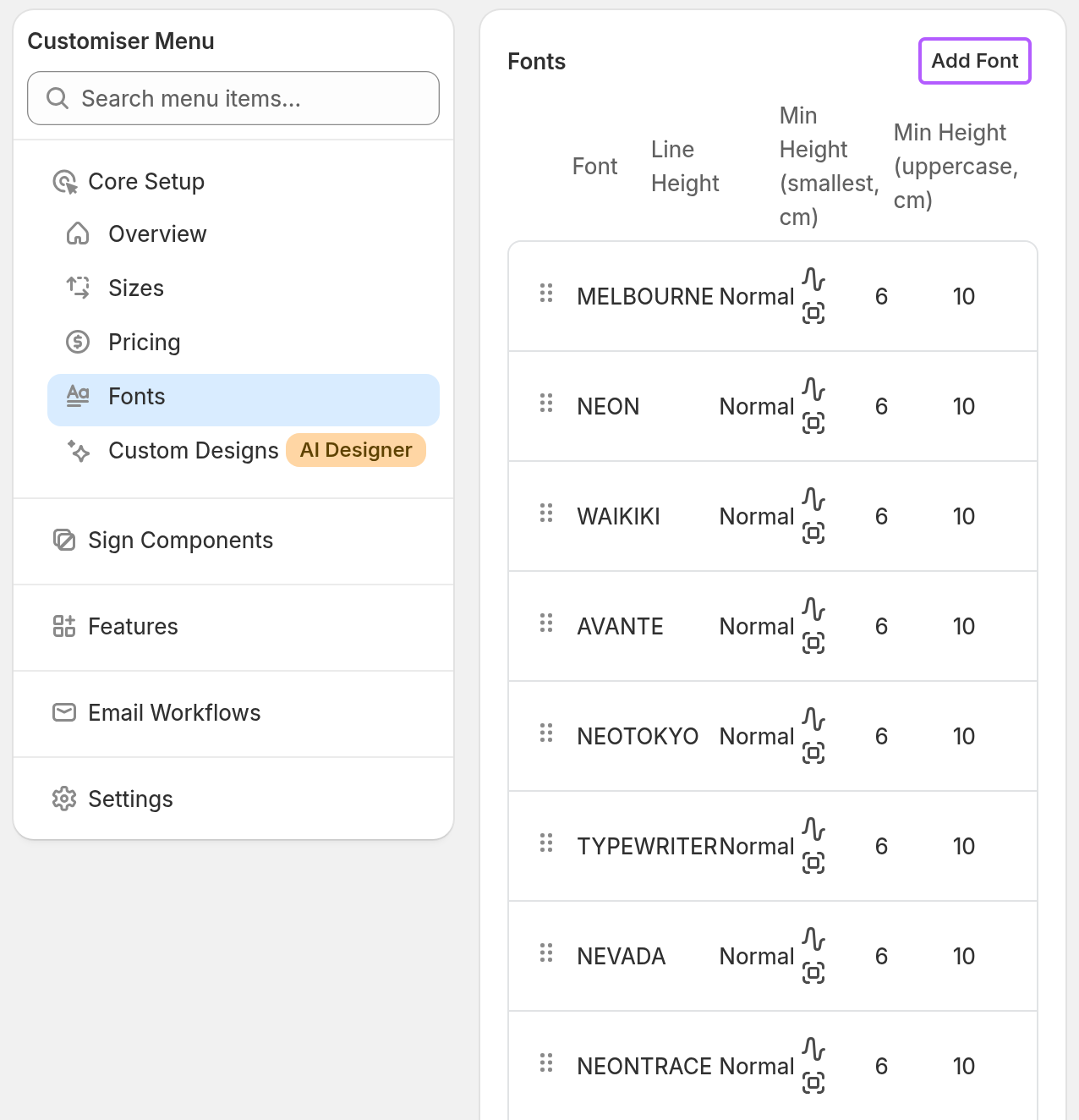
In an Advanced Letter customiser, the Fonts table also has two minimum height columns, for example Min Height (smallest, cm) and Min Height (uppercase, cm). The unit is the measurement unit of your Store.
-
In the Label field, enter the name of the font. Customers see this label on the storefront. For best results, use one word only.
-
In the Font section, choose one of the following:
-
Click Add file and upload your own font file (it must be .ttf), or
-
Select Use Google Font and choose a font from the Google Fonts list.
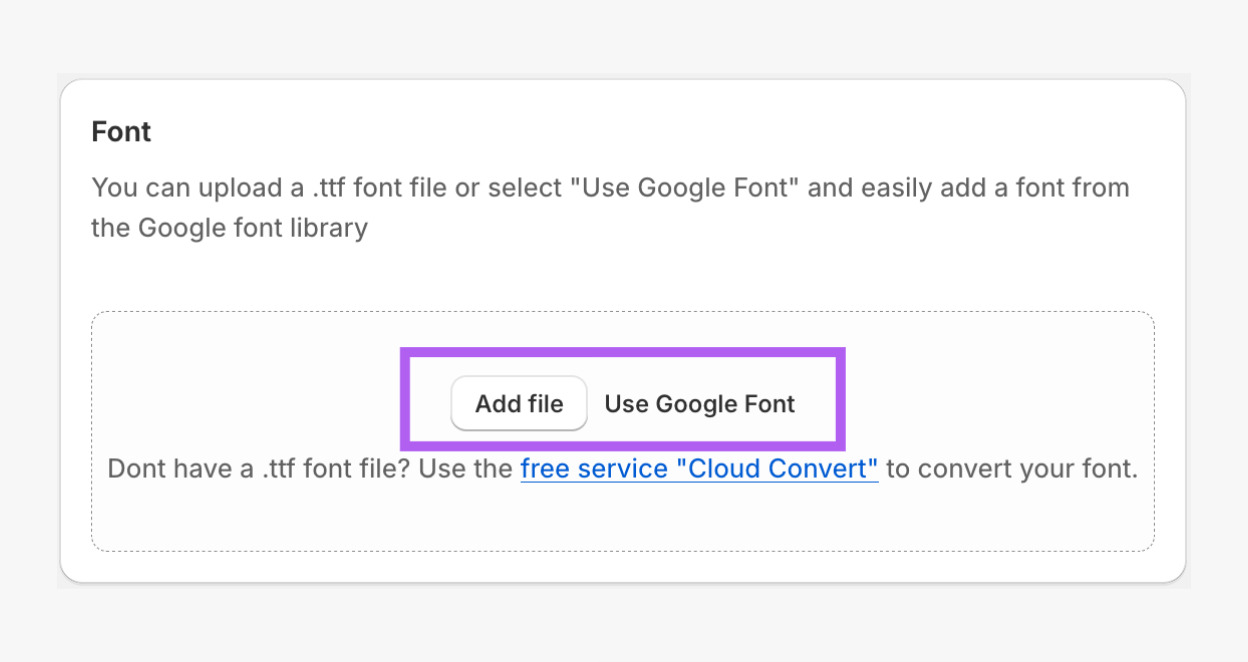
Don’t have a .ttf font file?
Use Cloud Convert to convert your font. Cloud Convert has a free plan with daily limits.
-
Step 2: Assign a Pricing Model
-
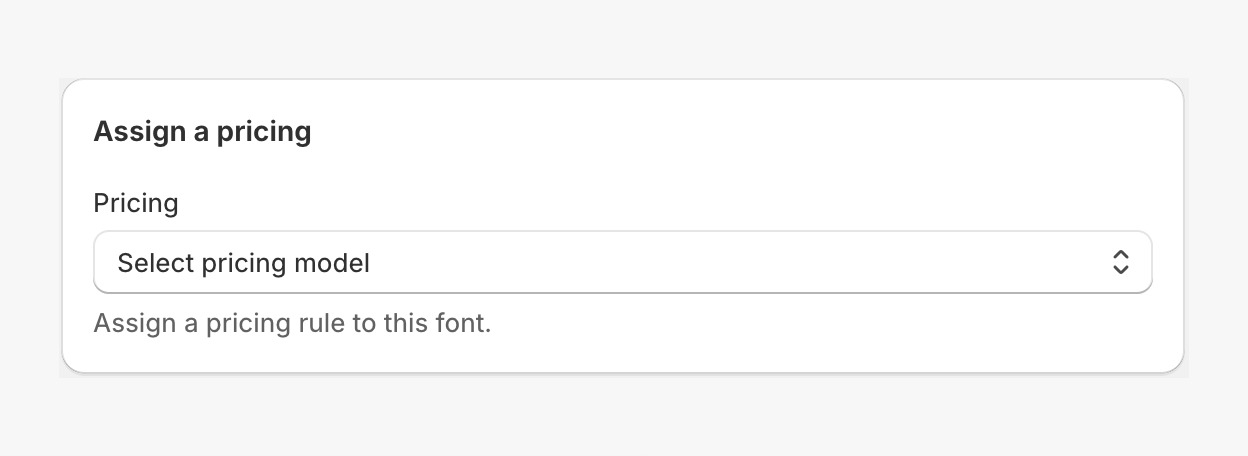
While you are still in the font form, scroll to the Assign a pricing section.
-
Select a pricing rule from the Pricing list.
Is your pricing not set up yet?
Follow the Pricing - Advanced letter model guide first.
-
Do not click Save yet. Complete Steps 3 to 5 first.
Step 3: Configure Font Measurements
The Advanced Letter model uses these values to calculate the real-world size of signs.
-
While you are still in the font form, scroll to the Minimum height of font letters section.
-
Enter:
-
Minimum Height of Smallest Letter – the minimum height of the smallest letter in the font. The system uses this value when the text is not all uppercase.
-
Minimum Height of Uppercase Letter – the minimum height of the uppercase letter in the font.
Enter each value in the measurement unit of your Store. The unit shows after the field. To see or change the unit, open Store Settings and find Measurement Unit in the Admin Settings section.
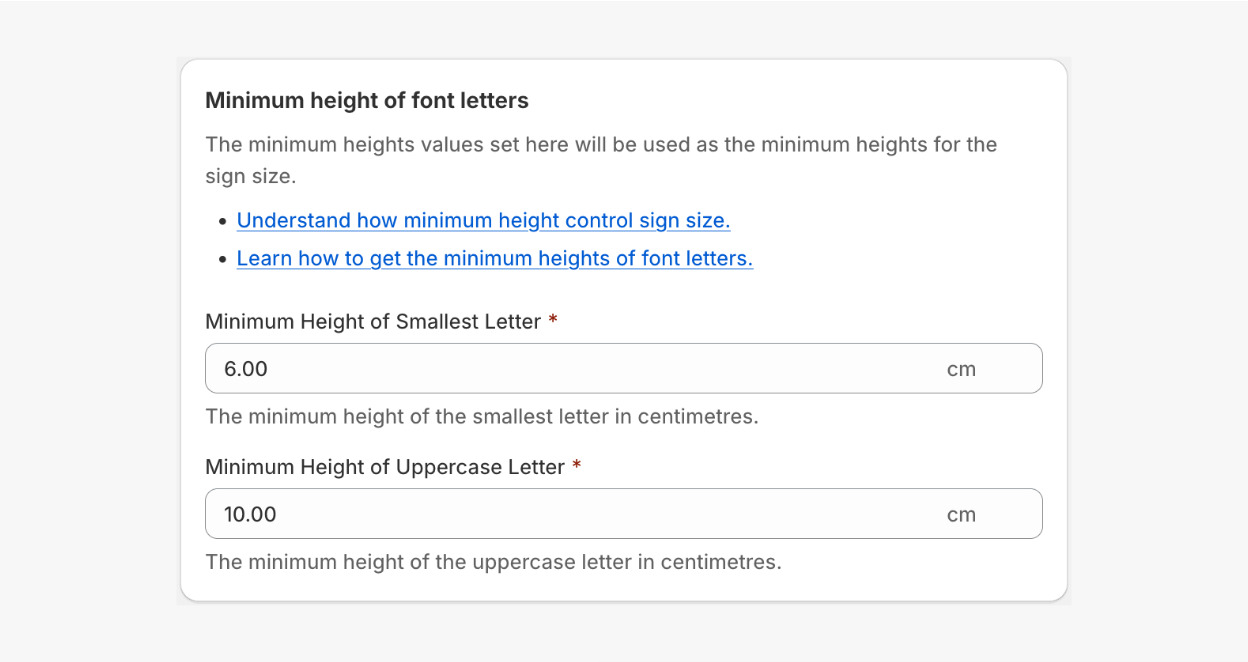
The system uses these values as the minimum letter heights when it calculates the final dimensions of the sign.
-
Decimal values: In the left-hand menu of the customiser, the Settings group has a General Settings page with a Decimal Format of Measurements option. If you select No Decimal, measurements show as whole numbers, for example 30cm. Minimum heights are not rounded. The Fonts page shows a Decimal values detected warning for fonts with decimal minimum heights when No Decimal is selected. On a Store that measures in centimetres, enter whole numbers to prevent this warning. The warning checks the value in centimetres, so on a Store that measures in inches a whole-inch entry (for example, 6 in is 15.24 cm) can still show it.
Step 4: Configure Font Style
Different fonts have different space between lines. Some fonts look spread out. Others overlap vertically. You can change this spacing for each font.
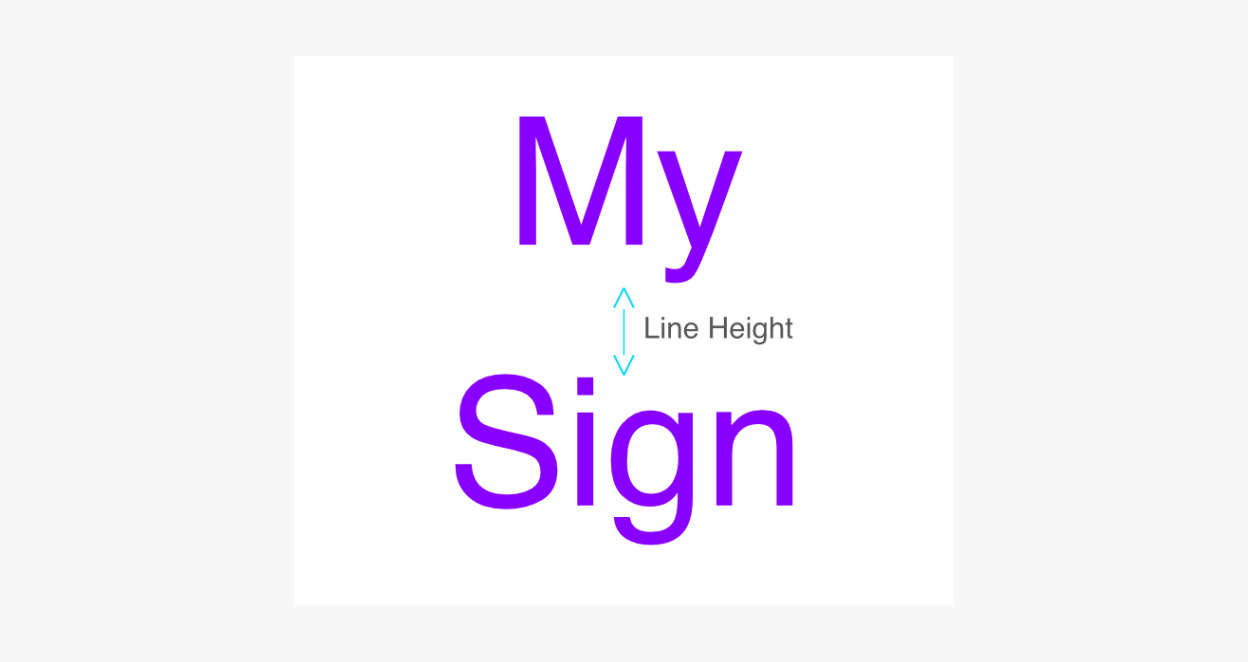
To set the line height:
-
While you are still in the font form, scroll to the Font Style section.
-
Select one of the following:
-
Normal (Default) – the system uses its default line spacing when you do not enter a value.
-
Specific Line Height – lets you set the space between lines yourself.
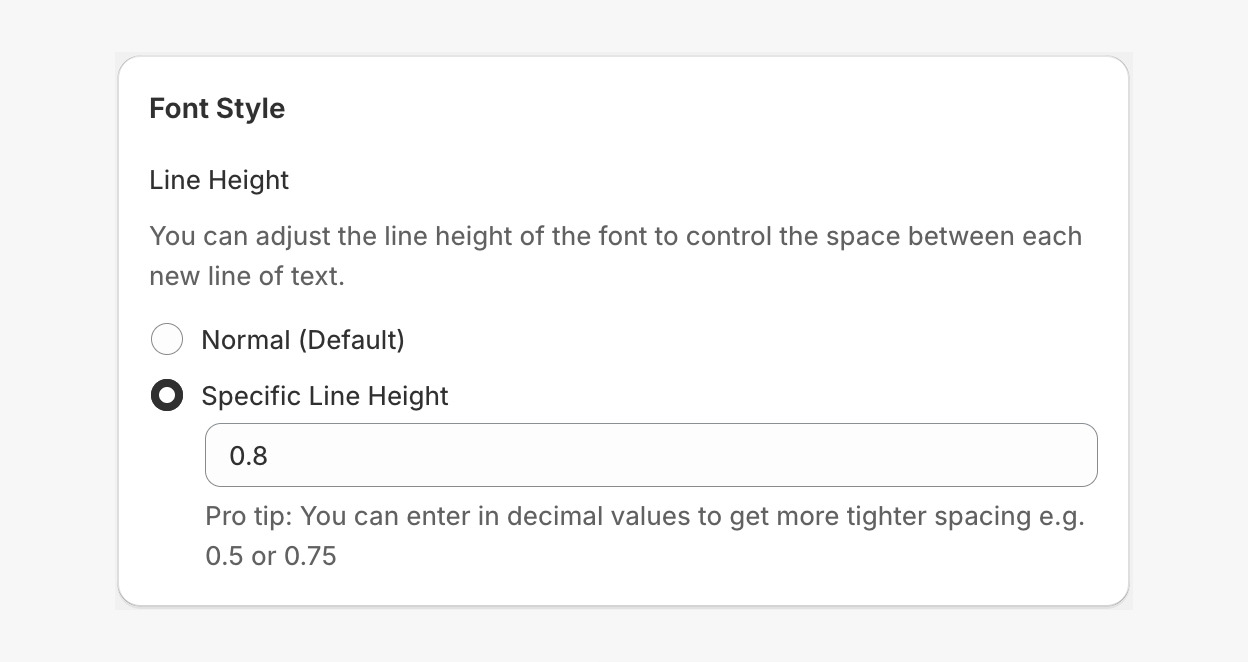
How Line Height Works
-
A value less than 1 gives tighter lines.
-
A value greater than 1 gives more space between lines.
-
To mark a font as stencil-safe:
The Font Style section also has a Stencil-safe (bridged) font checkbox. Use it to show if the letters of the font keep their centres when you cut them.
-
Selected – the letters of the font have bridges. The centres of letters such as O, A and B stay attached.
-
Not selected – the font loses the centres of its letters when you cut it.
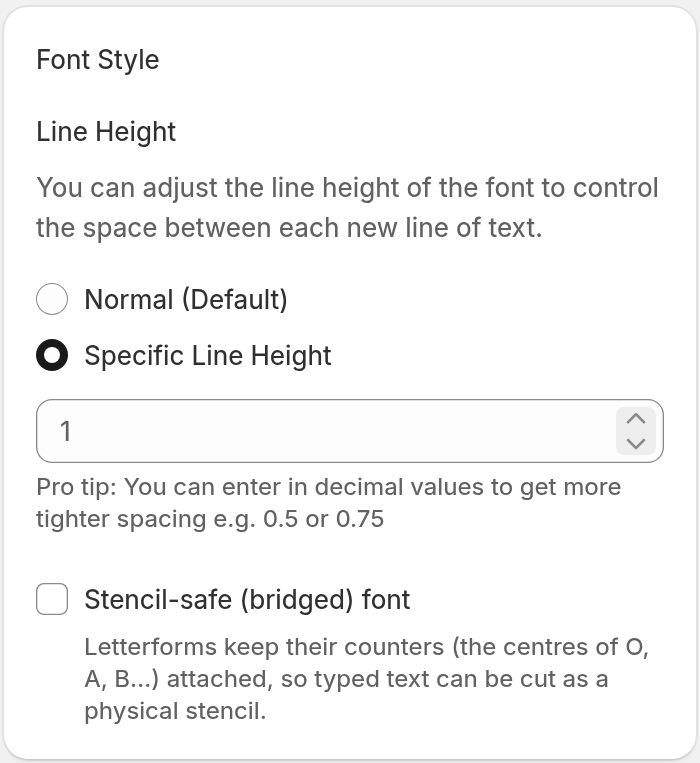
On a stencil customiser, the Fonts page shows one Fonts not marked stencil-safe warning that lists each font you did not select.
Step 5: Test Font Measurement Accuracy
The Advanced Letter model can make an SVG file of your font. Compare this file with one from Adobe Illustrator to test the measurement accuracy.
Test every font that you add. This is most important when you use:
-
Letter Material Cost pricing (see Pricing)
-
Precise manufacturing workflows
To generate an SVG file:
-
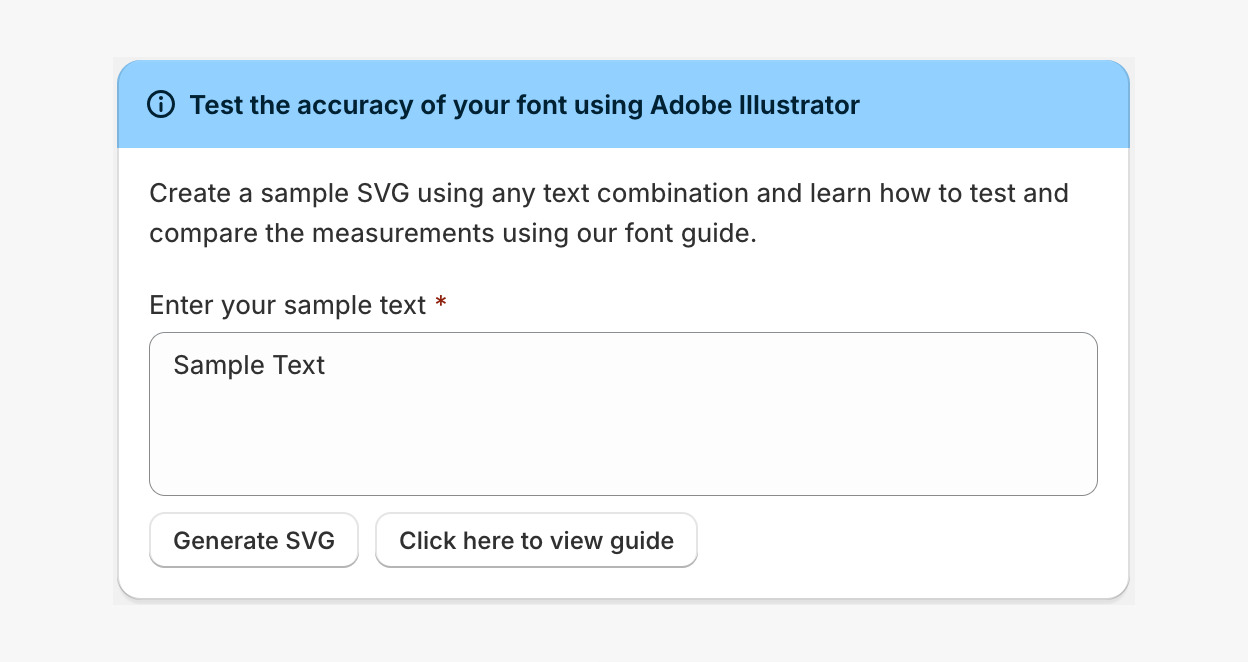
While you are still in the font form, scroll to the Test the accuracy of your font using Adobe Illustrator section.
-
Add a font file or select a Google font first. Until you do, the section shows Must upload font to create SVGs for testing.
-
Enter your sample text in the Enter your sample text text box.
-
Click Generate SVG.
-
Save the generated SVG file.
-
Compare the file against one generated in Adobe Illustrator.
Do you need help with this?
Follow this guide for more details: Test Sign Measurement Accuracy.
The Generate EPS and Generate AI buttons show only when EPS Image or AI Image is set to Yes for this customiser. To change these settings, go to Settings → General Settings and find Generate SVG image of sign.
Step 6: Save the Font
Click Save. The Fonts list opens.
Downloading Fonts from Your Customiser
To download the fonts of your customiser:
-
Go to the Fonts section.
-
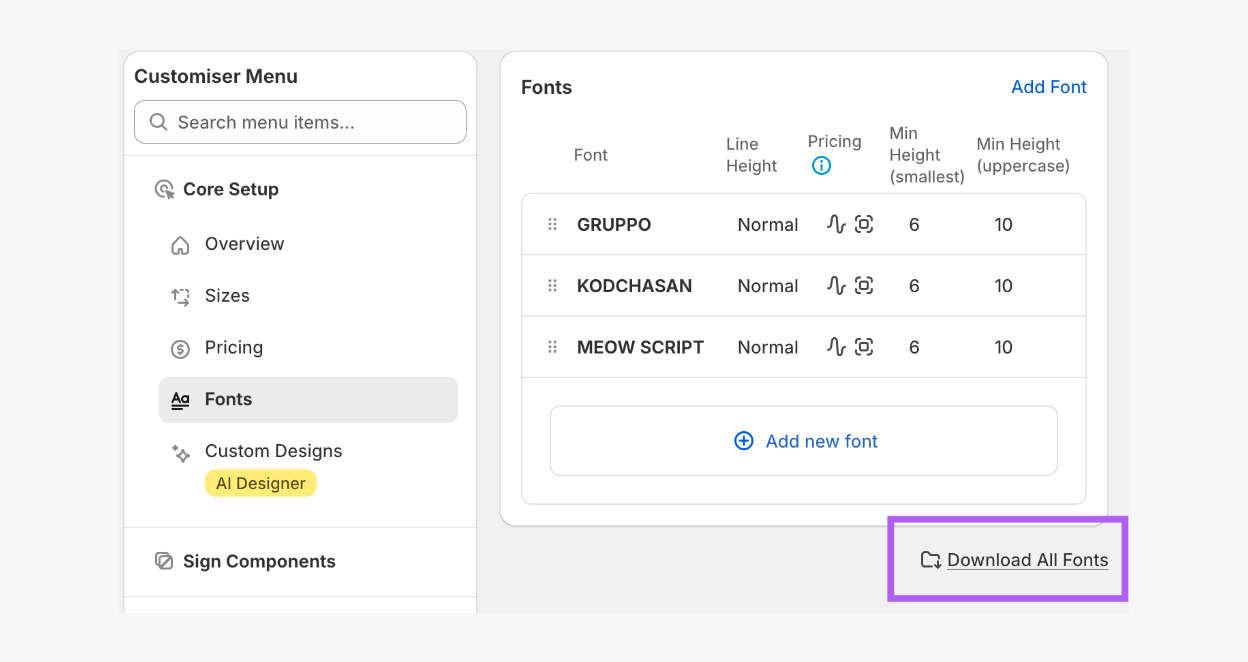
Click Download All Fonts. This button shows under the Fonts table when the customiser has at least one font.
-
Your browser opens a .zip file in a new tab. The file holds the fonts that have an uploaded .ttf file.
Troubleshooting
Why is my font not taking effect on the storefront?
If your font does not show correctly in the visualiser or in your font list, the font is probably not fully compatible with the customiser.
We recommend that you do these things:
Use fonts from a reputable font provider.
Use fonts from Google Fonts.
Test the font thoroughly before you publish.
How can I use English and other languages, for example Mandarin characters, and still get correct prices?
You have these options:
Create two or more customisers. One customiser shows only Latin-based font characters. Another shows Chinese-based font characters.
Use the Simple Letter model with fixed-width or fixed-height sizing, not the Advanced Letter model. Use this option if you do not need Advanced Letter pricing.
If you must use the Advanced Letter model (Price by material length), set the minimum height of the smallest letter and the uppercase letter for each font. Choose a value that lets you build the smallest character of any language that you support.