
Customiser Links
Share a customiser as a standalone link, hosted on signcustomiser.com — no website required.
Last updated:
What is a Customiser Link?
A Customiser Link is a unique URL for each of your customisers, hosted on our domain. It removes the need to set up a website, making it the fastest way to get a customiser in front of buyers. Add the URL to a button on your website, social profile, email signature, or an Etsy listing description.
How to set up a Customiser Link
Before you can share a Customiser Link, you’ll need a customiser to share. Follow our Getting Started Guides.
There are two ways to switch a Customiser Link on. Pick whichever fits how you want to take orders:
-
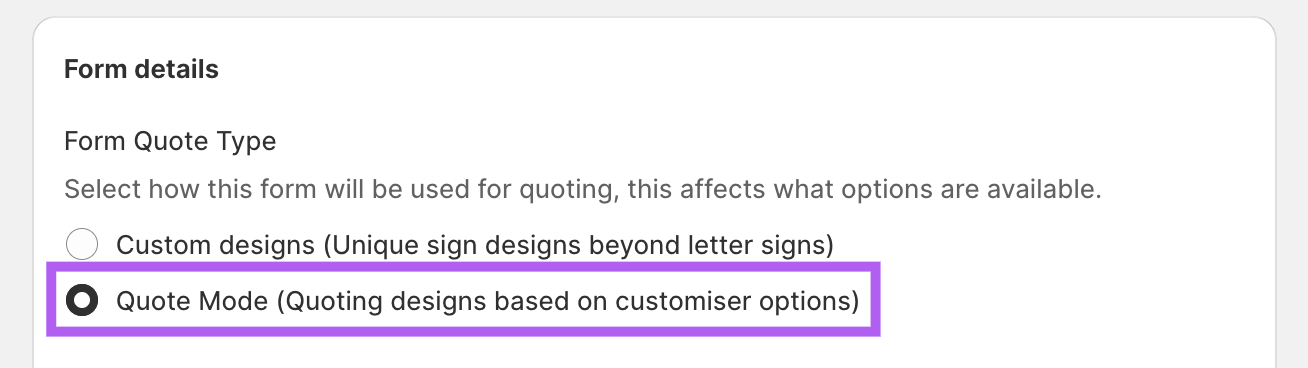
Quote Mode — per customiser. Customer designs are emailed to you so you can quote and invoice manually.
-
Etsy integration — store-wide. Connecting Etsy turns the Customiser Link on for every customiser in your store automatically. Customers paste a design summary into Etsy at checkout.
Option A: Quote Mode
Use Quote Mode if you want customer designs delivered to your inbox so you can quote and invoice manually.
-
Set up a Quote Mode form with the necessary fields. See Create and Edit a Form.
-
Enable Quote Mode on the customiser and select your form. See the Quote Mode guide.
Option B: Etsy integration
Use the Etsy integration if your orders live on Etsy. Connect Etsy once from Integrations and the Customiser Link switches on for every customiser in your store. Customers design on the link, copy a structured summary, and paste it into the Etsy personalisation box at checkout.
Note: The Etsy integration is available on the Universal platform only. Sign in at web.signcustomiser.com.
-
Open Integrations and click Connect Etsy. The activation prompt confirms two things will happen: Etsy is enabled, and the Customiser Link is turned on for your store.
-
For each customiser you want to pair with an Etsy listing, open Etsy listing settings and paste in the Etsy listing URL. This field is required so the Return to Etsy button knows where to send buyers. See the Etsy integration guide.
Get your Customiser Link
Once you’ve set up Quote Mode or connected Etsy, the link is ready. Where you find it depends on which option you used.
Quote Mode
-
Navigate to the Sign Customiser admin for your store.
-
Universal subscribers: Sign in at web.signcustomiser.com.
-
Shopify users: Open Shopify admin → Apps and select Sign Customiser.
-
-
Open the Customiser Links page.
-
Universal: In the left sidebar, under Your Store, click Hosted Customisers.
-
Shopify: On the home page, click Tools & Settings, then Link to your Customiser.
-
-
Find your customiser under Compatible Customisers. If it’s not there, enable Quote Mode on it first.
-
Tick Enable Customiser Link.
-
(Optional) Enter a Return URL so the “Back to Store” button in the link’s navigation sends buyers back to your site.
-
(Optional) Adjust the Navigation Colour and upload a Logo to match your brand.
-
Click Save and copy the URL.
Etsy
When Etsy is connected, the Customiser Link is already on for every customiser — there’s no per-customiser toggle to remember.
-
Sign in at web.signcustomiser.com and, in the left sidebar under Your Store, click Hosted Customisers.
-
Scroll to Add to your Etsy listings. Every compatible customiser is listed here with its hosted URL.
-
If a row shows a Missing Etsy listing URL warning, click Add listing URL and paste the Etsy listing URL into the customiser’s Etsy listing settings. Without it, the Return to Etsy button won’t work.
-
(Optional) Adjust the Navigation Colour and upload a Logo to match your brand. The Return URL field is hidden under Etsy — Etsy uses the listing URL for return behaviour instead, and the navbar’s “Back to Store” link is hidden so shoppers go back via the Etsy summary screen.
-
Copy the URL and paste it into your Etsy listing description. See Add your Customiser Link to an Etsy listing.
Your Customiser Link is now ready. Copy the URL and place it wherever you want: on your website, social media profiles, or an Etsy listing description.