

Wix Integration
Last updated:
How to Integrate Sign Customiser in Wix
Note: To make Sign Customiser live on your Wix site, your Store must have an active subscription, or a trial with a payment method added. Building and previewing are free. To choose a plan, go to Your Company > Billing.
Prerequisites
Before you start, make sure that you have:
-
A Wix site to add Sign Customiser to
-
A Sign Customiser account at web.signcustomiser.com. The Wix card does not show in the admin inside Shopify.
-
You are logged in to both Wix and Sign Customiser
Step 1: Connect from Sign Customiser
-
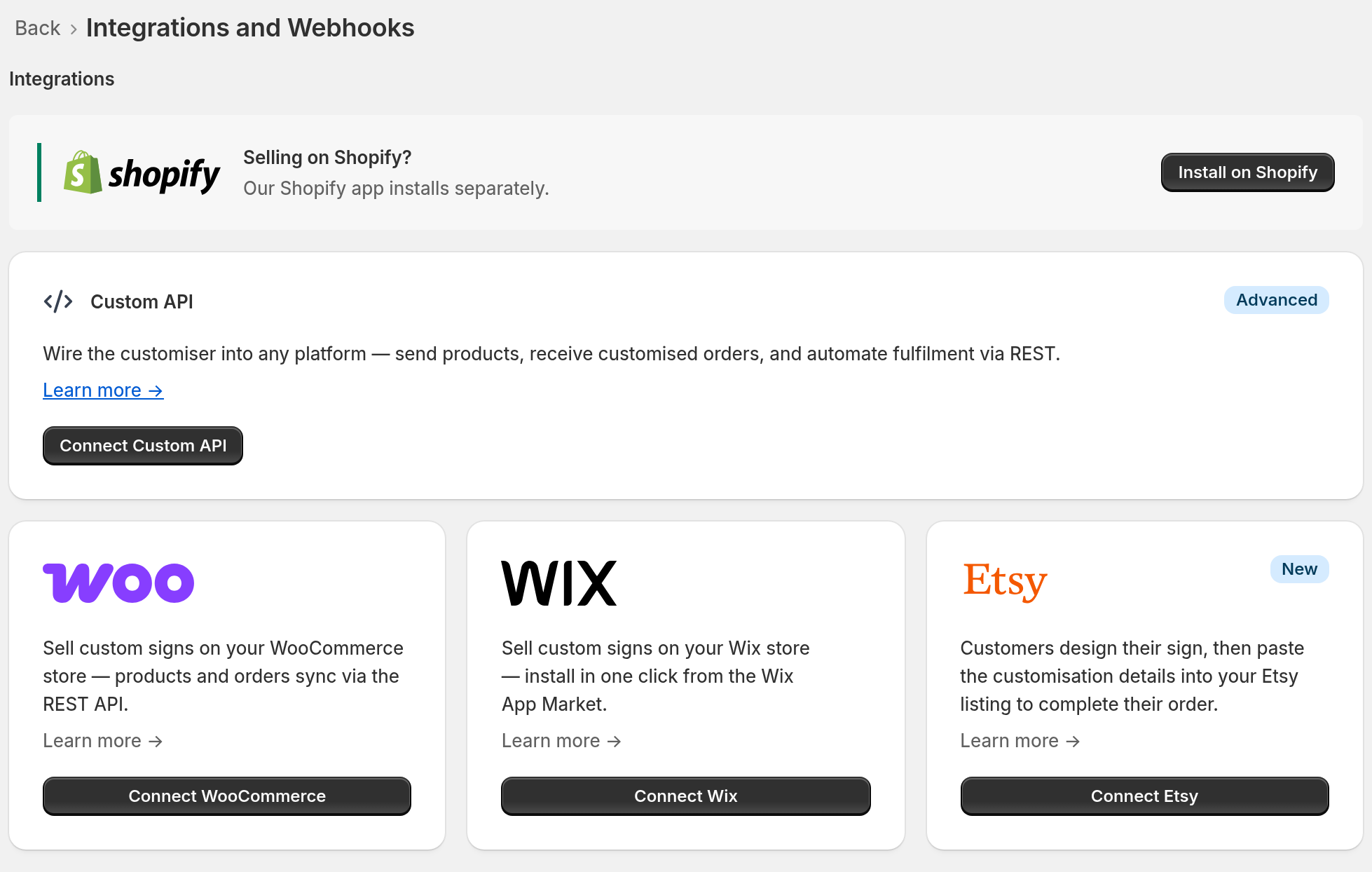
Go to Integrations
-
In the left sidebar, under Integrate, click Integrations.
-
The Integrations and Webhooks page opens.
-
-
Connect to Wix
-
Find the Wix card.
-
Click Connect Wix.
-
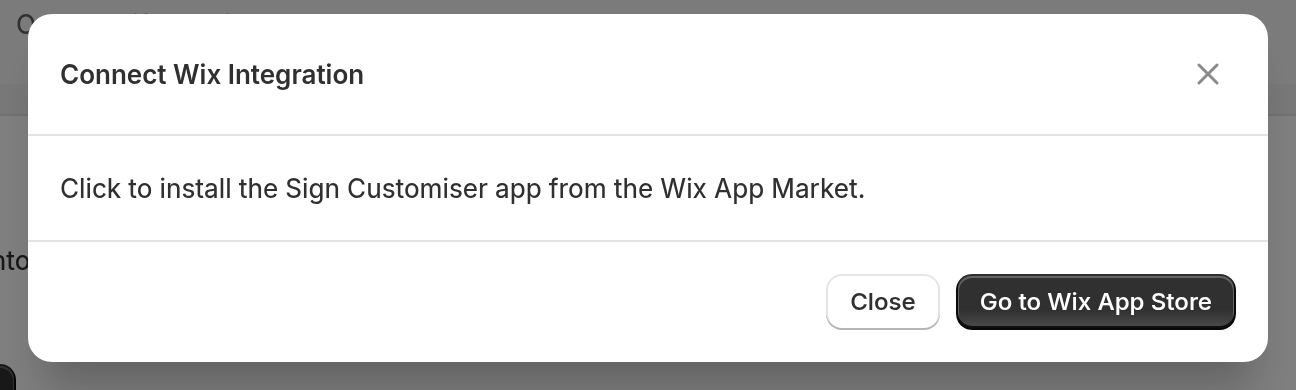
The Connect Wix Integration dialog opens.
-
-
Install on your Wix site
-
Click Go to Wix App Store.
-
Install Sign Customiser on your Wix site.
-
-
Authorise the connection
-
The Authorize Wix page shows the Store and User that you are signed in as.
-
Make sure that the Store is correct.
-
Click Connect Wix Account.
-
To stop, click Cancel. Sign Customiser does not connect your accounts.
-
If the connection succeeds, your accounts are connected.
-
-
Save your IDs
-
Sign Customiser opens the integration page for your new Wix integration.
-
Write down the Integration ID. It is the badge that starts with ID: in the page header.
-
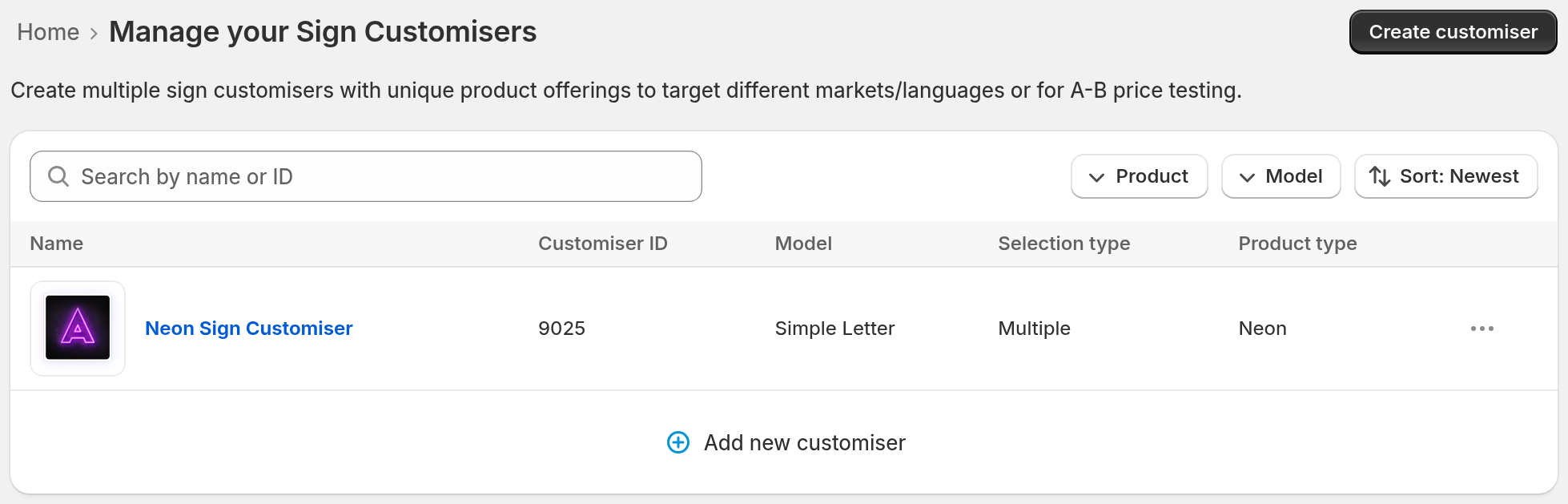
Write down the Customiser ID. In the left sidebar, click Customisers.
-
Find your customiser. Read the number in the Customiser ID column.
-
For help, read Find your Sign Customiser ID.
-
You need both IDs in Step 2.
-
Step 2: Add Sign Customiser to Your Wix Site
-
Open Your Wix Editor
- Open the Wix Editor for your site.
-
Prepare Your Page
-
Create a new page for your customiser, or
-
Go to the page where you want to add the customiser.
-
-
Check the Widget
- Make sure that the widget is on your page.
-
Configure the Integration
-
Select the widget on your page.
-
In the action bar of the widget, click Settings.
-
Enter your Customiser ID and Integration ID from Step 1.
-
-
Go Live
-
Publish your site from the Wix Editor.
-
Open your live site and test the customiser.
-
Done
Your Wix store is now connected to Sign Customiser.