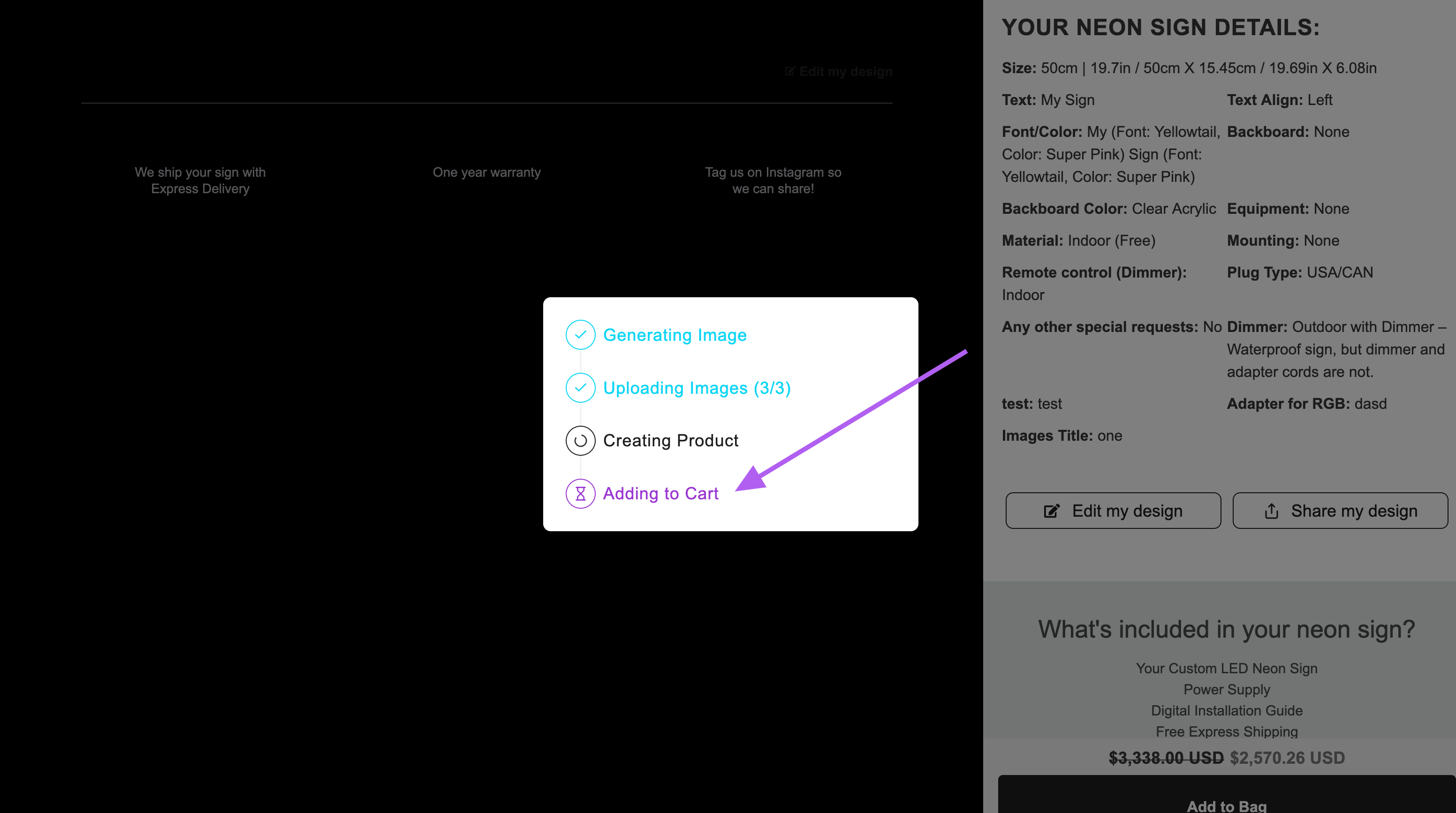
Theme Colour Reference Guide
Last updated:
This guide shows how to change the colours of your Sign Customiser. You can change the buttons, labels and backgrounds in the admin. You do not need to write CSS code.
To change the colours of a customiser:
-
Go to the Sign Customiser admin:
-
Universal accounts: Go to Home in your account.
-
Shopify users: In the Shopify admin, go to Apps and open the app.
-
-
Select Customisers in the menu.
-
Select the customiser you want to change.
-
In the menu on the left, select Theme Colours. The next paragraph says where it is.
-
Select a colour field. Use the colour picker to set the colour you want.
-
Select Submit to save your changes.
The place of Theme Colours depends on the width of the admin content area. This is the area to the right of the navigation. If the admin content area is 1200 px wide or more, the menu has the heading Customiser Menu, and Theme Colours is under Settings. If the admin content area is less than 1200 px wide, the menu has no Customiser Menu heading, and Theme Colours is the last item under Features. If the admin content area is less than 799 px wide, the menu opens from a Menu button. You can also type “Theme Colours” in the Search menu items… box.
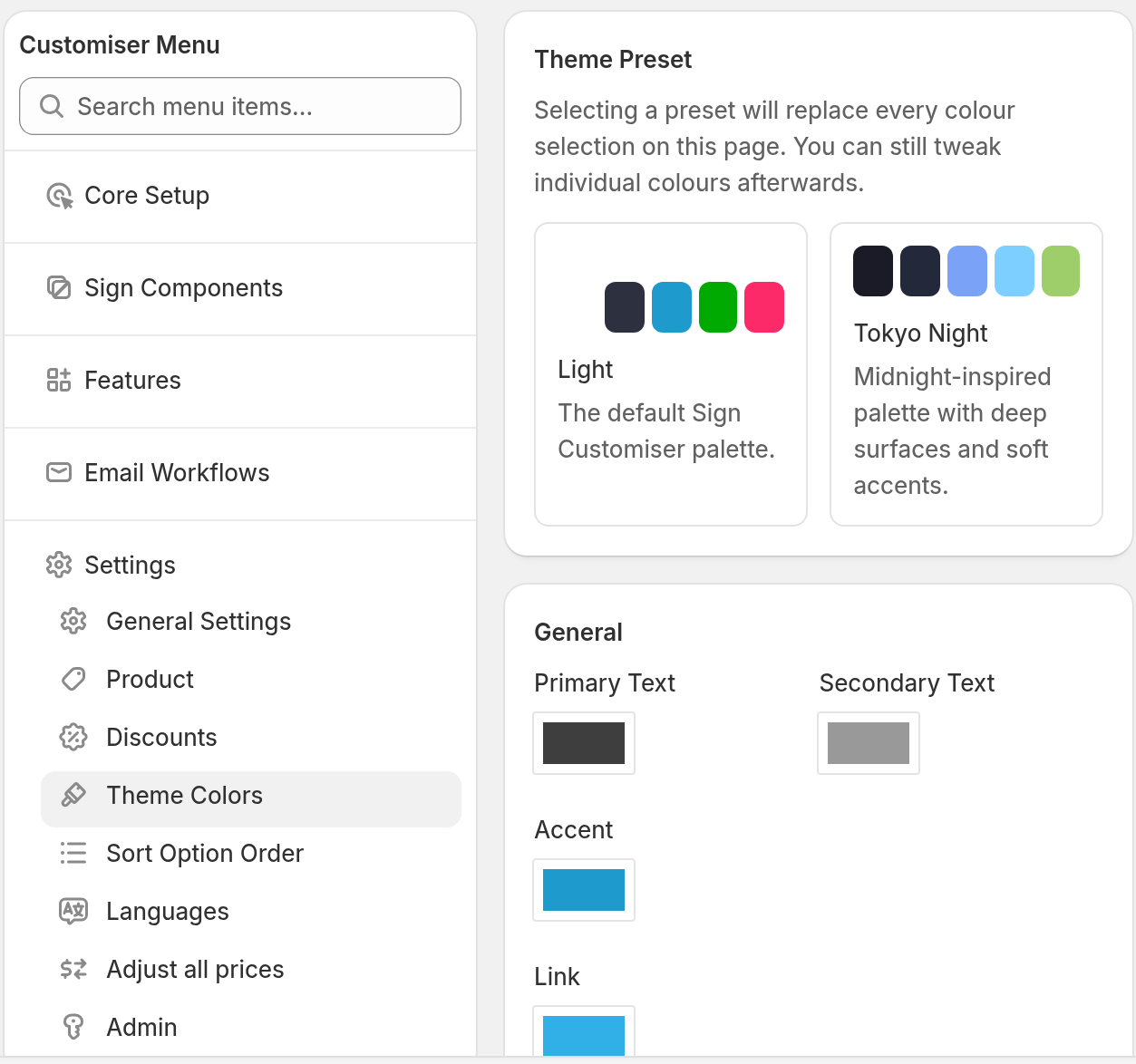
Reset to Defaults is also on this page. It puts the default colours in the form. Select Submit to save them.
Some advanced elements are not in the Theme Colours section. To change these elements, use CSS. This guide shows how to add CSS code correctly: Custom CSS.
Theme Preset
At the top of the page, select Light or Tokyo Night. A preset replaces every colour on the page. The page asks you to confirm before it applies the preset. After that, you can still change single colours.
General
Primary Text
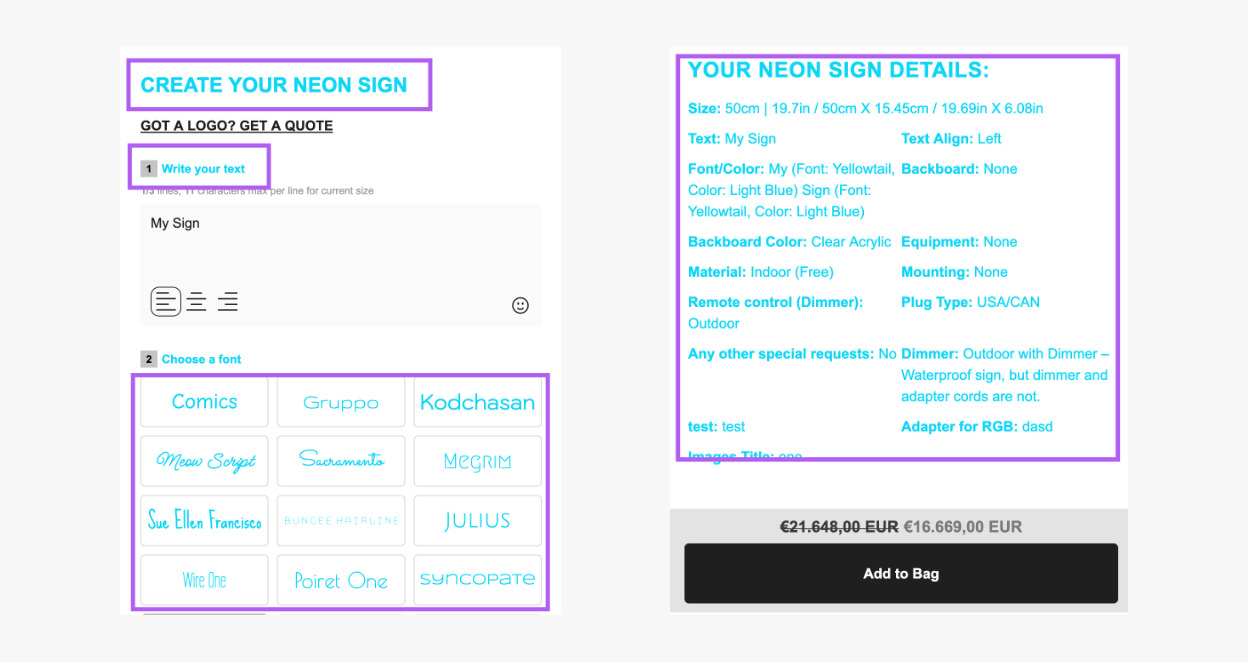
The Primary Text setting controls the colour of these items:
-
Main headings
-
Labels
-
Sign details (review screen)
-
Additional Information (review screen)
Secondary Text
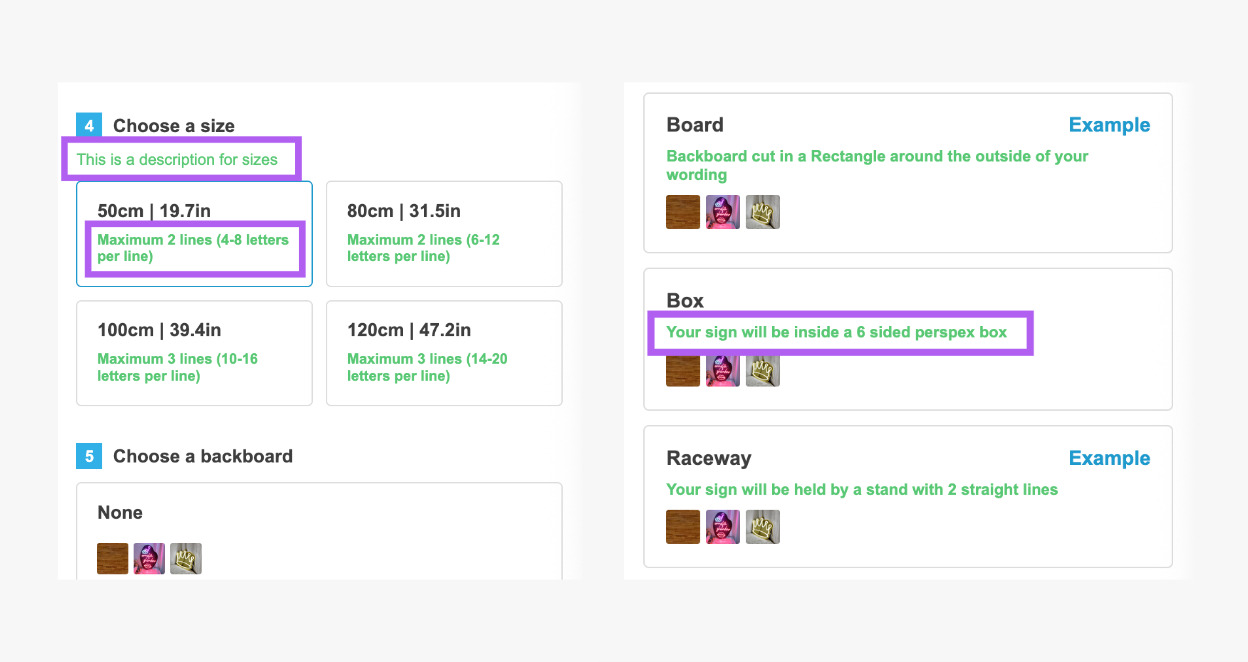
The Secondary Text setting controls the colour of option descriptions.
Accent
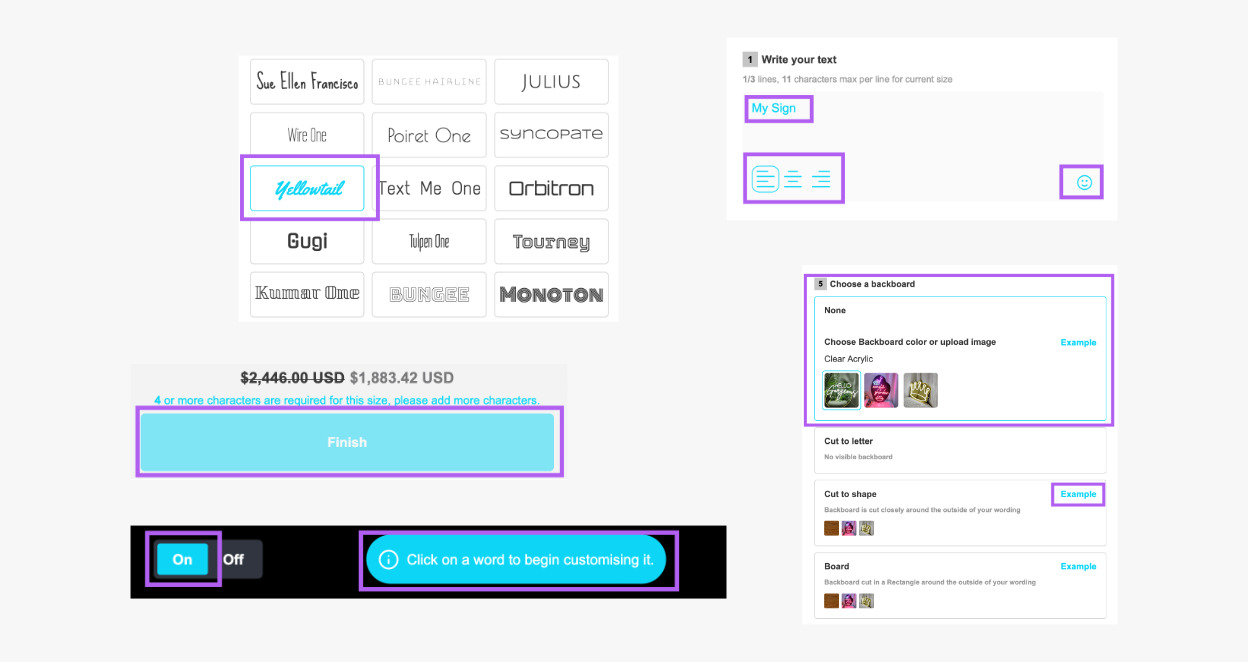
The Accent setting controls the colour of these items:
-
Buttons
-
Selected options
Link
The Link setting controls the colour of text links and link-style buttons in the customiser. Examples are the unit toggle on the upload background form and the help link in the add-to-cart progress panel.
Visualisation
Background
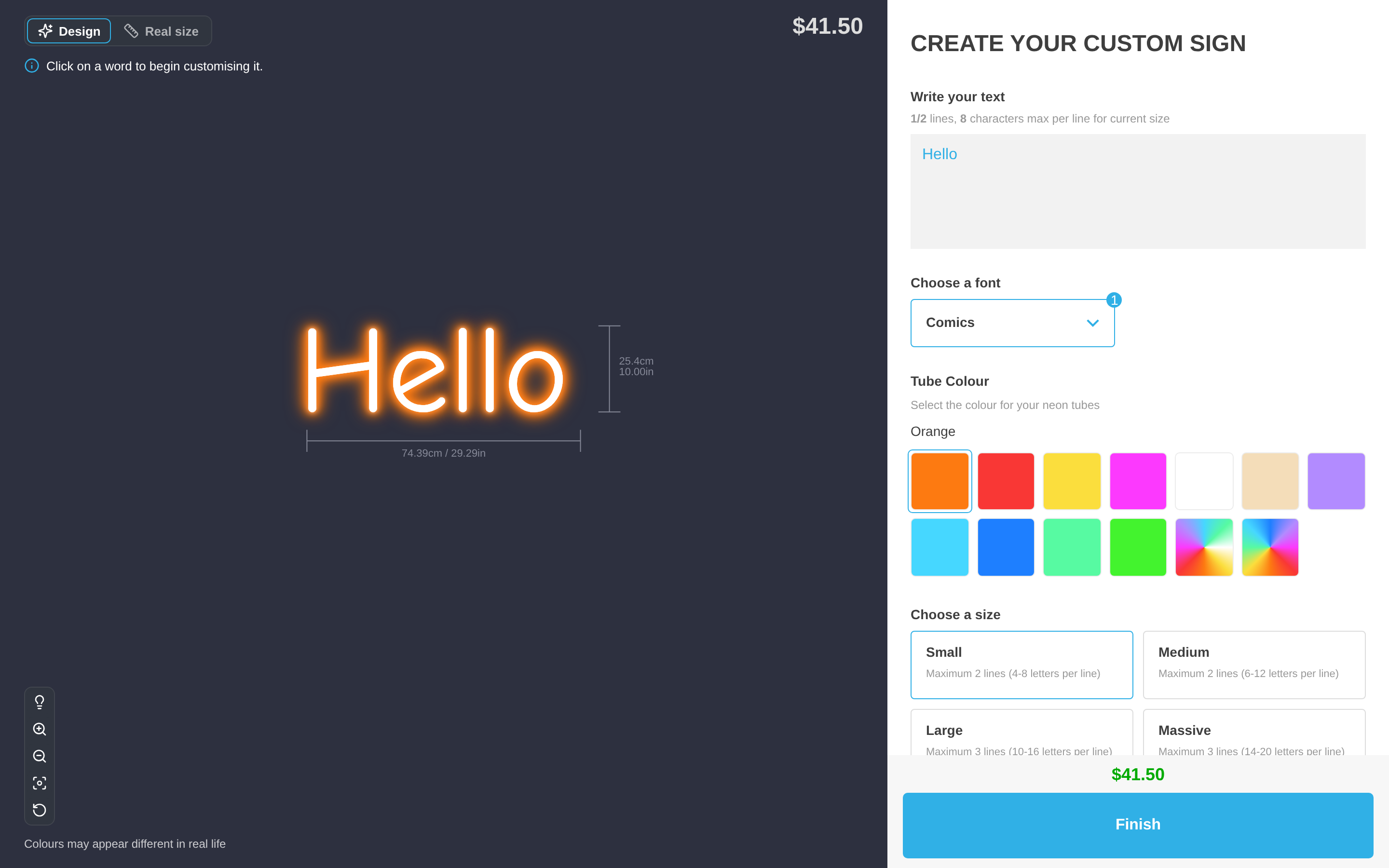
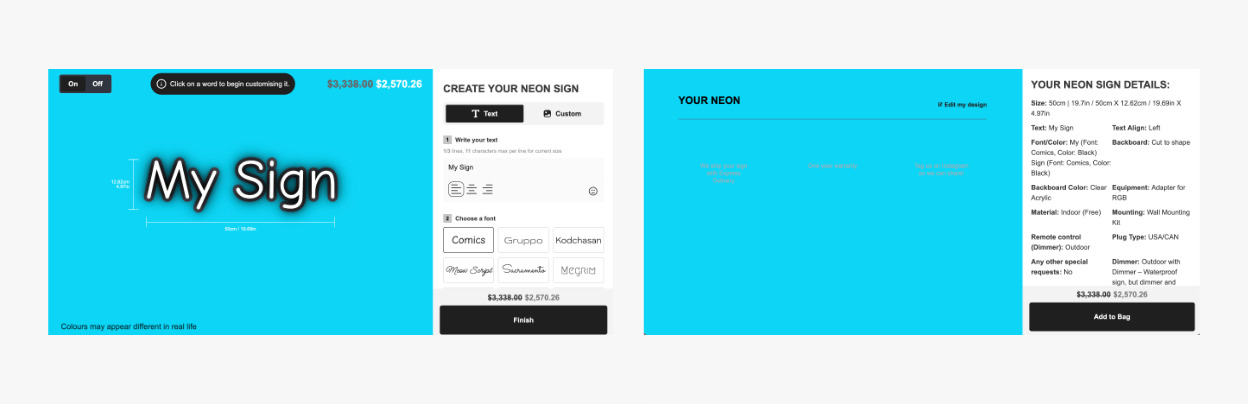
The Background setting controls the background colour of the visualiser and the review screen.
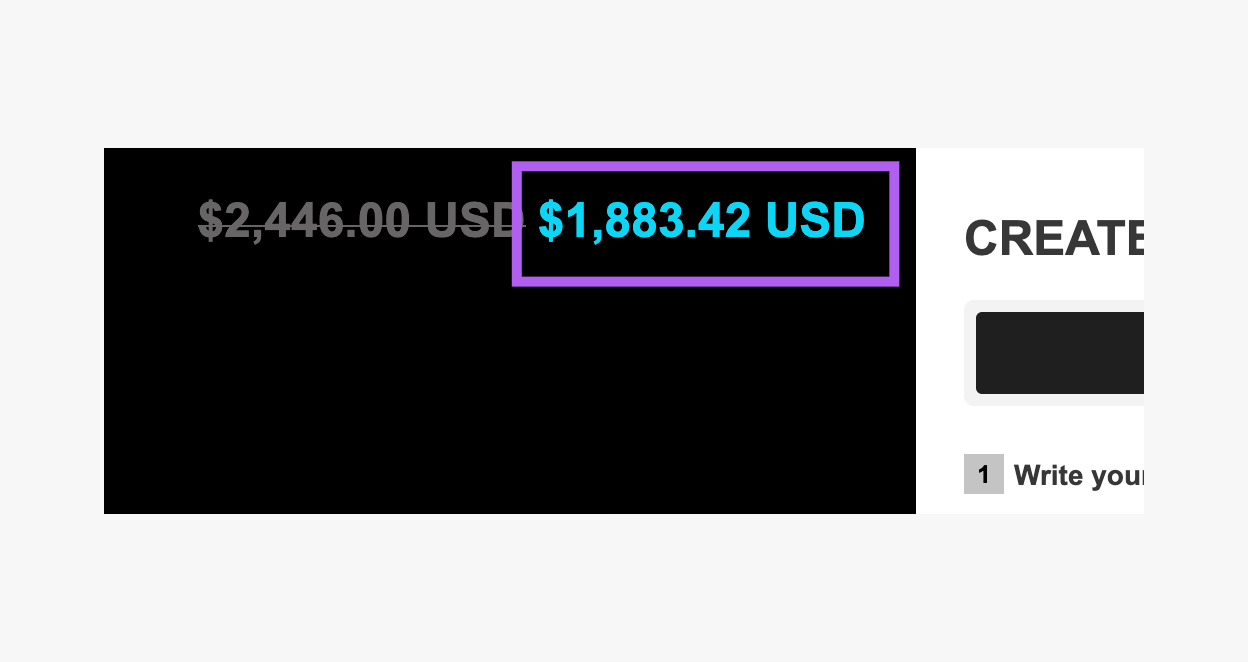
Main Price
The Main Price setting controls the colour of the price the customer pays. This is the total price on the visualiser.
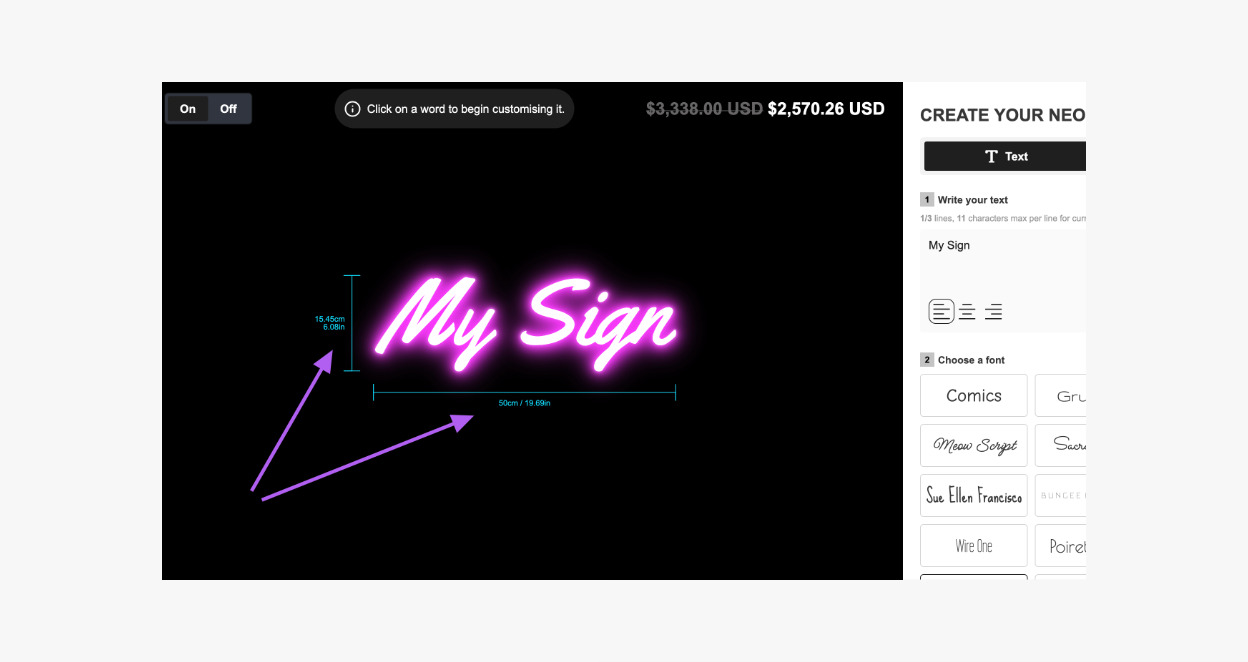
Measurement Display
The Measurement Display setting controls the colour of the measurement text on the visualiser.
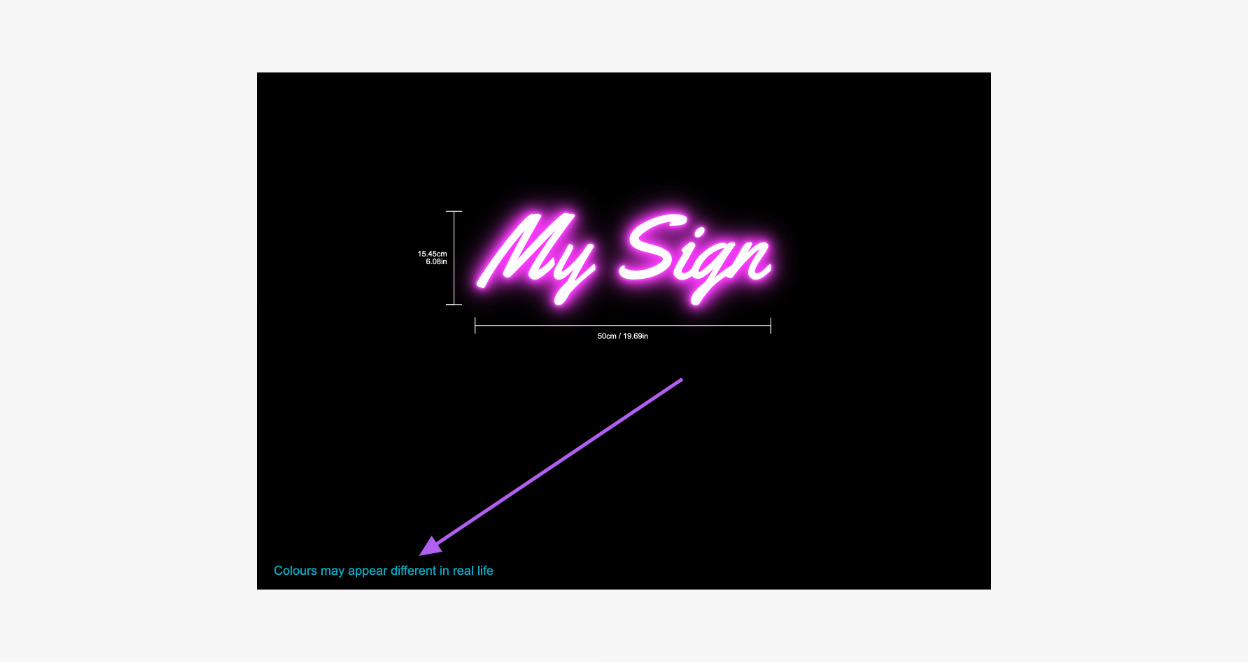
Text
The Text setting controls the colour of the text on the visualiser.
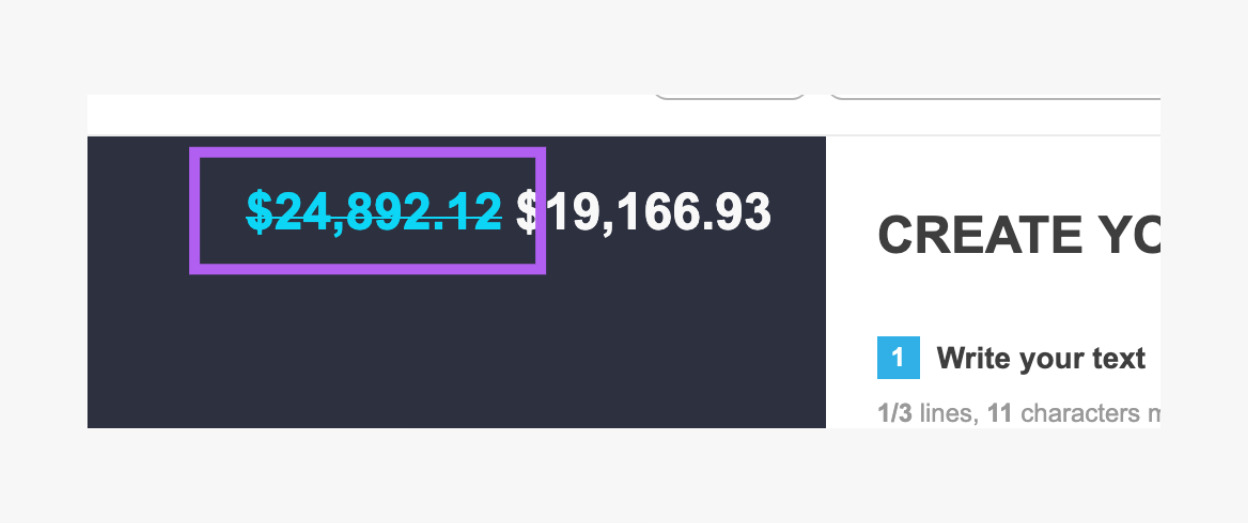
Discount Main Price
The Discount Main Price setting controls the colour of the crossed-out original price on the visualiser. The discounted price that the customer pays uses the Main Price colour.
This colour applies only when the built-in price discount is on. To turn it on, go to Settings → Discounts.
Sidebar
Background
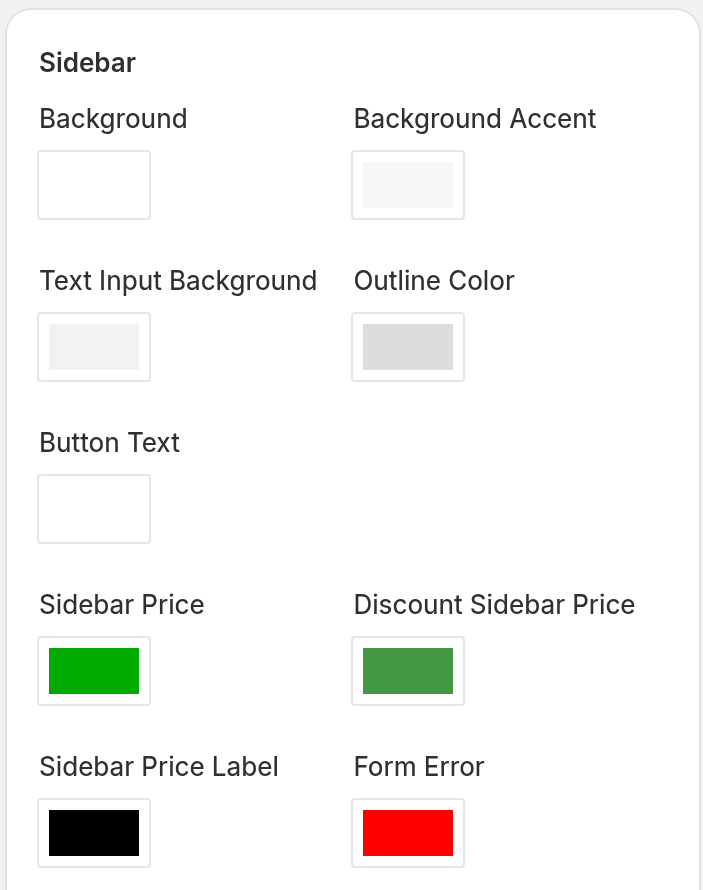
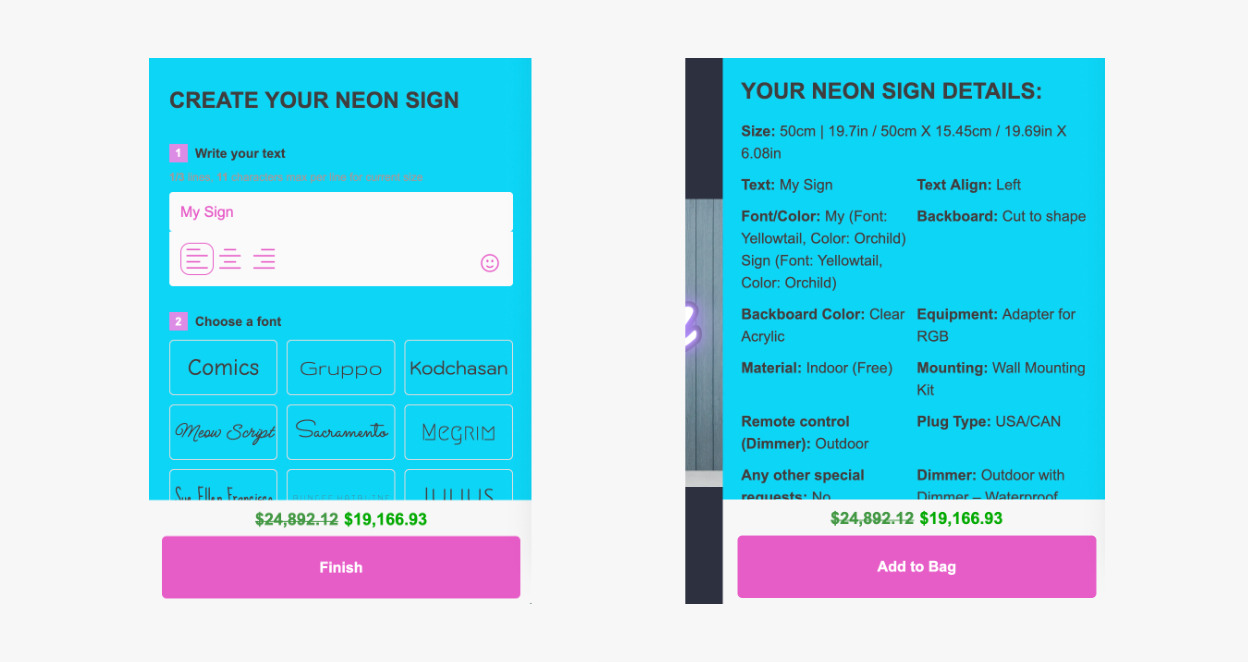
The Background setting controls the background colour of the sidebar on the main screen and on the review screen.
Outline Colour
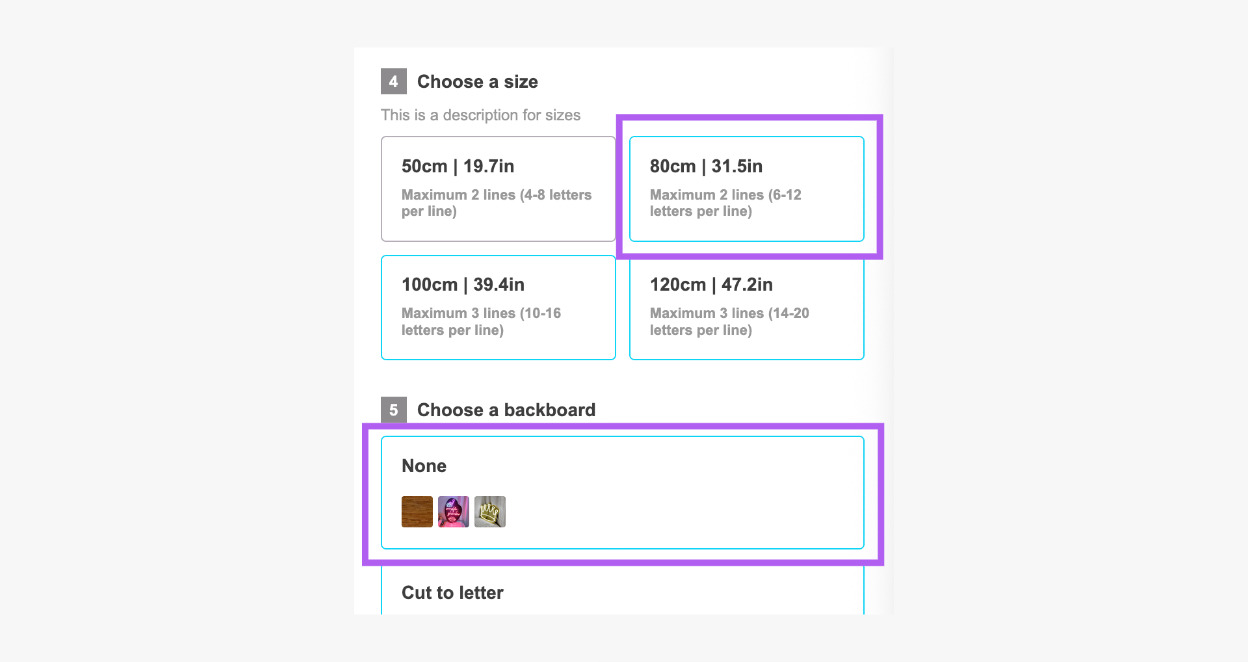
The Outline Colour setting controls the borders of the options that the customer did not select in the sidebar.
Text Input Background
The Text Input Background setting controls the background colour of the text input boxes in the sidebar. If no value is saved, the customiser uses a slightly darker shade of the sidebar Background. For a dark sidebar, it uses a slightly lighter shade.
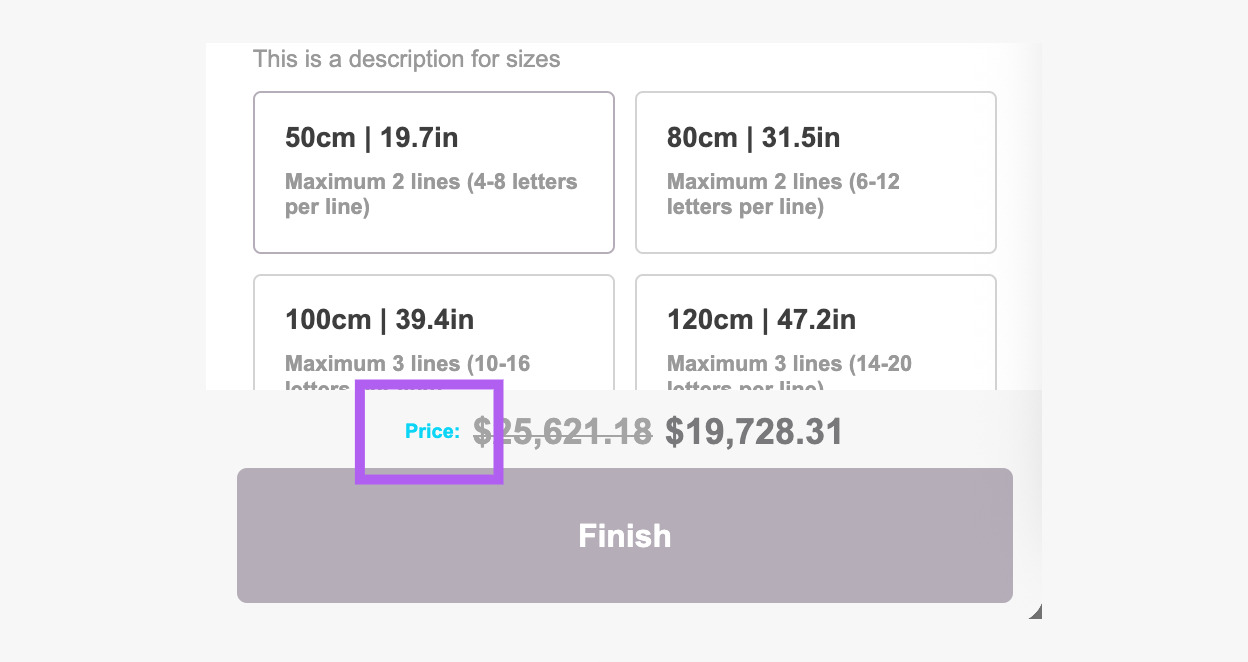
Sidebar Price
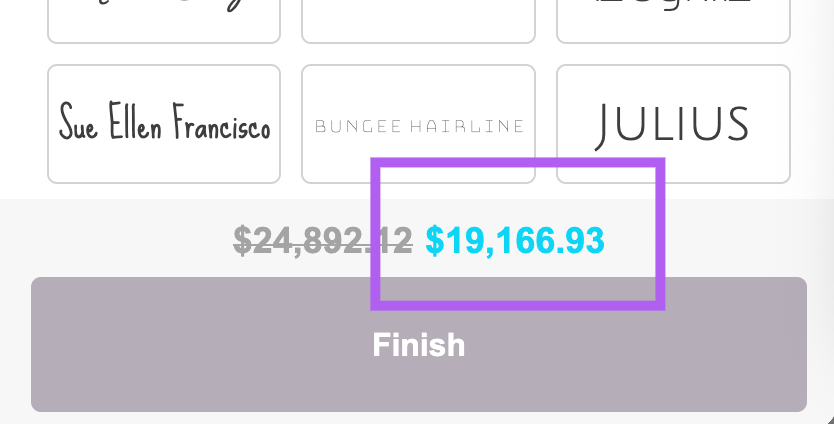
The Sidebar Price setting controls the colour of the price the customer pays. This is the total price in the sidebar.
Sidebar Price Label
The Sidebar Price Label setting controls the colour of the price label at the bottom of the sidebar. The label shows only if you enter text for it. To enter the text:
-
Go to Settings → Languages.
-
Select Edit for your language.
-
Open General labels.
-
Enter your text in Text before price value.
Inclusions Text
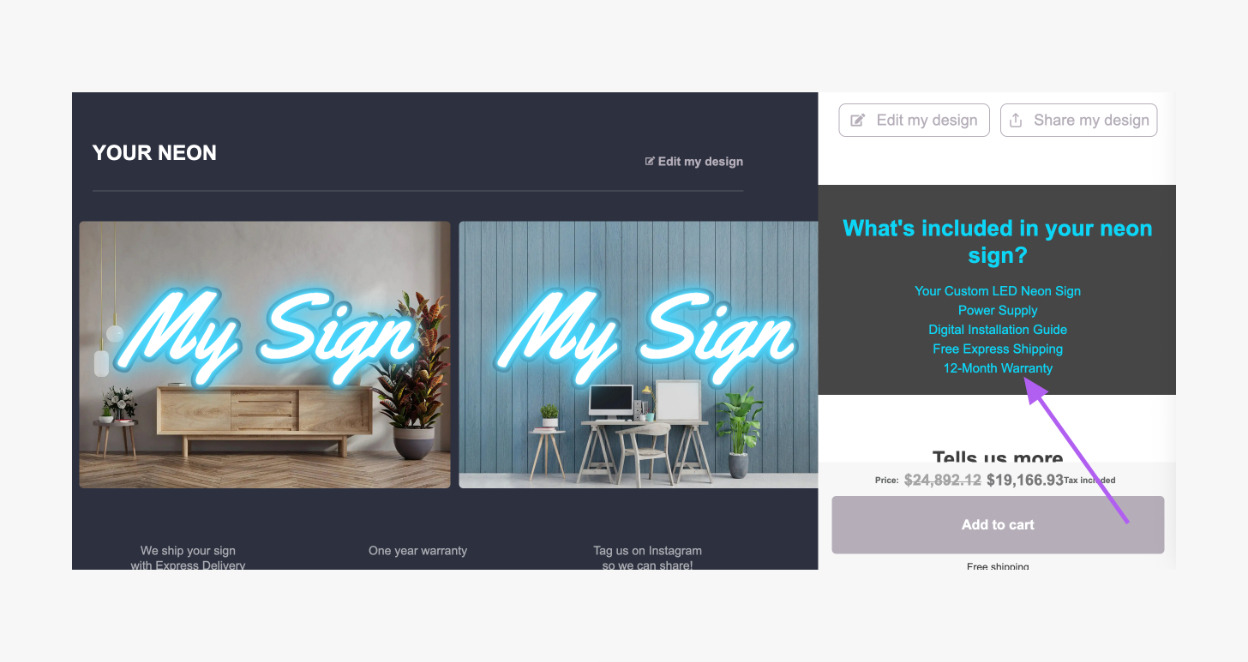
The Inclusions Text setting controls the colour of the text in the “Additional Items included” section on the review screen. You set the text of this section in Features → Review Screen, in the section Additional Items included (right handside by default on desktop).
Inclusions Background
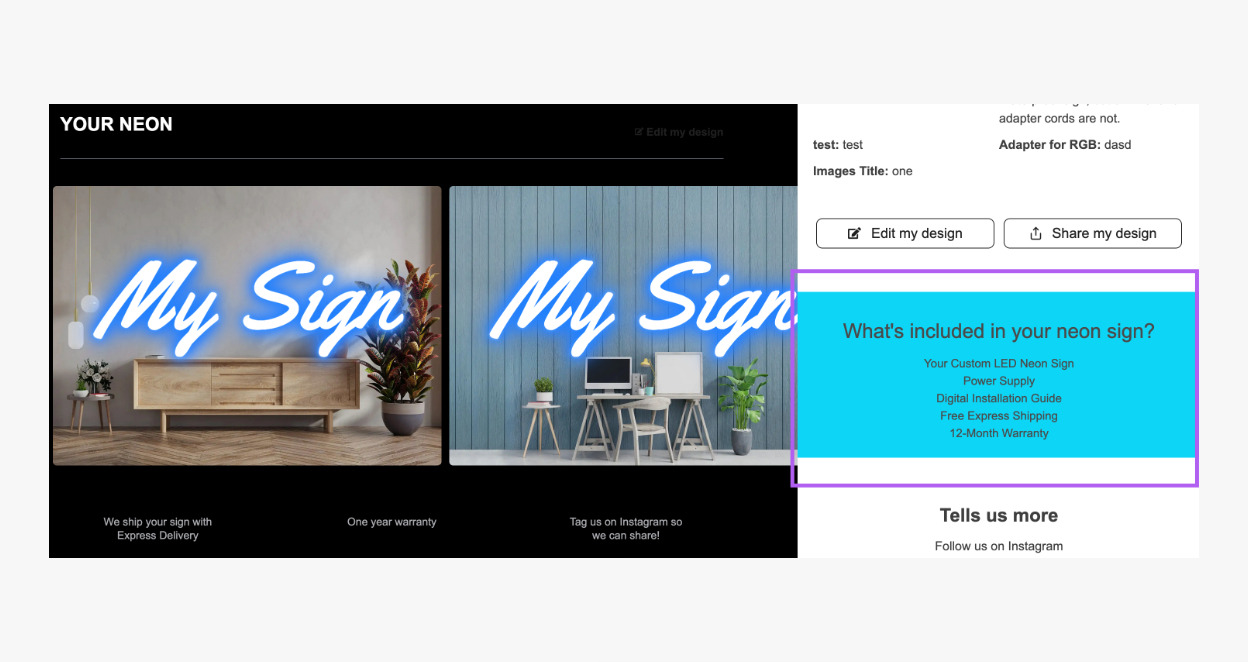
The Inclusions Background setting controls the background colour of the “Additional Items included” section on the review screen. You find the settings for this section in Features → Review Screen, in the section Additional Items included (right handside by default on desktop).
Selection Number Text
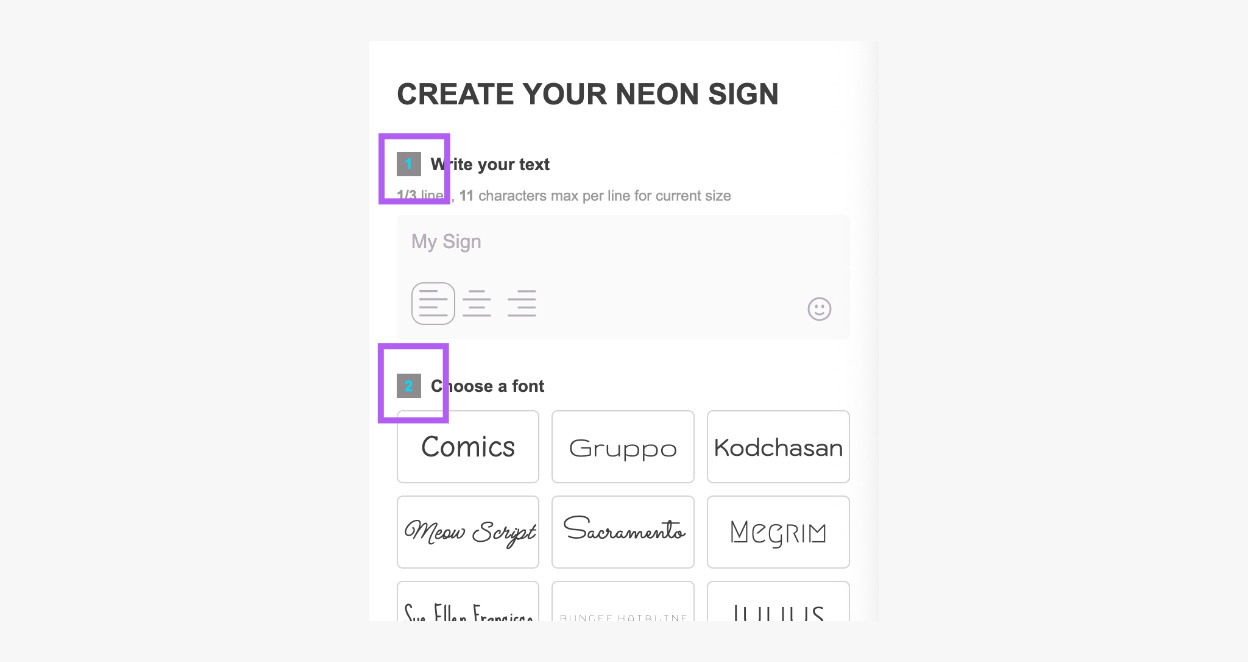
The Selection Number Text setting controls the colour of the number in the numbered list.
Selection Number Background
The Selection Number Background setting controls the background colour of the number in the numbered list.
The numbers show only when numbered selections are on. To turn them on, go to Settings → General Settings. Set Show Numbered Selections to Show Numbers. Then look at the preview.
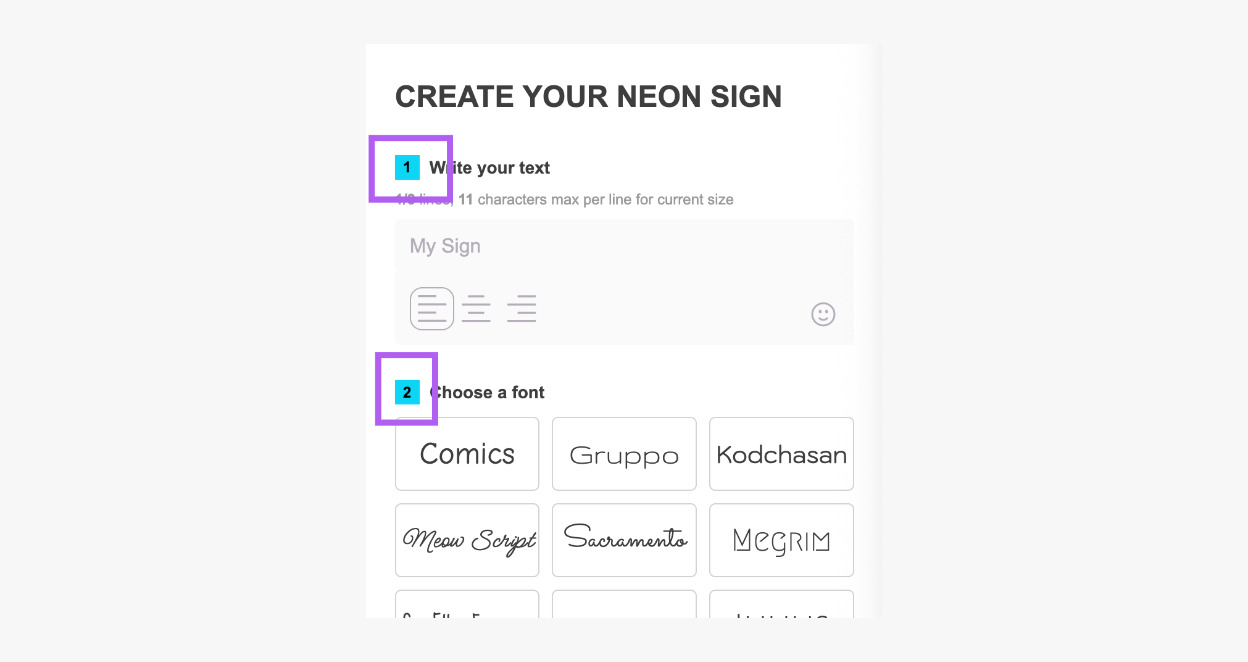
Background Accent
The Background Accent setting controls the colour of these items:
-
The total price and the add-to-cart button area
-
The background of the “Qualities” section on the review screen. You set the text of this section in Features → Review Screen → Qualities.
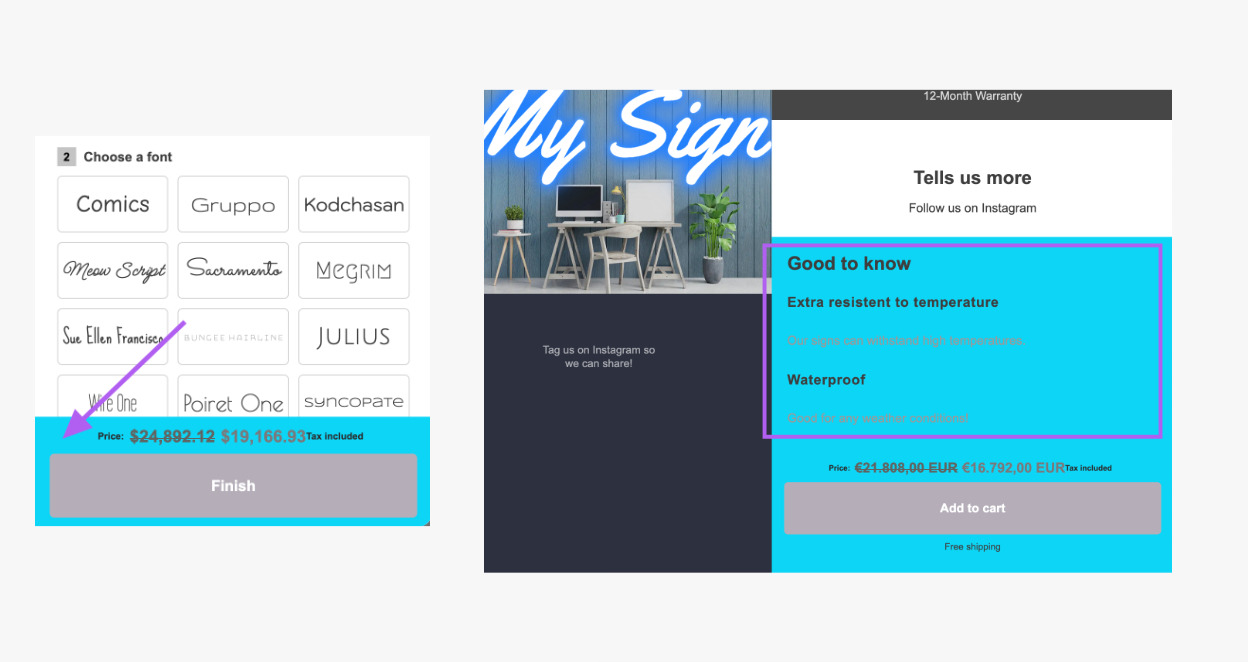
Button Text
The Button Text setting controls the colour of the text in the Finish button and in the add-to-cart button. The Finish button shows only if the review screen is on.
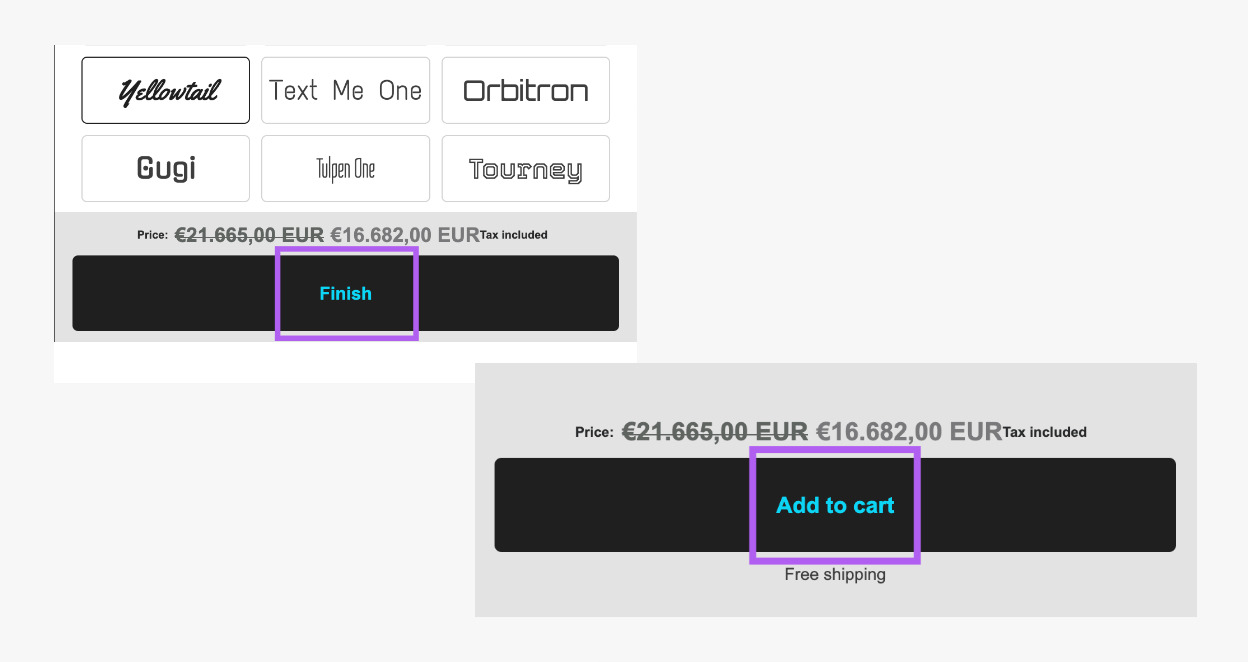
Discount Sidebar Price
The Discount Sidebar Price setting controls the colour of the crossed-out original price at the bottom of the sidebar. The discounted price that the customer pays uses the Sidebar Price colour.
This colour applies only when the built-in price discount is on. To turn it on, go to Settings → Discounts.
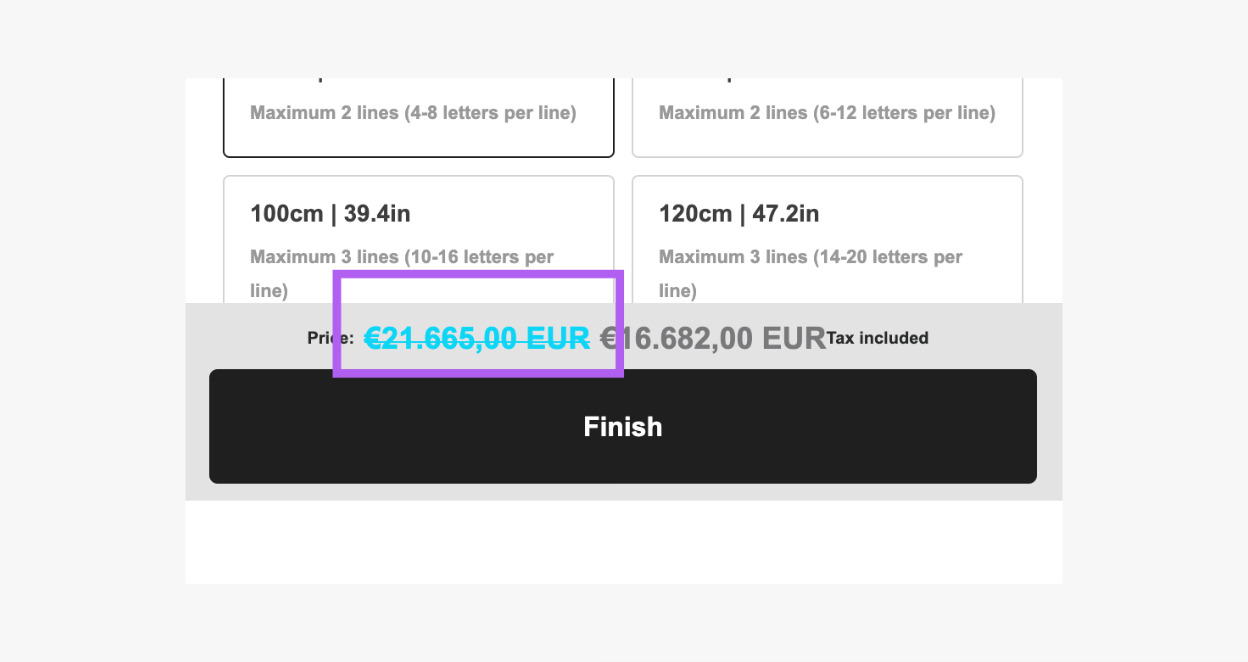
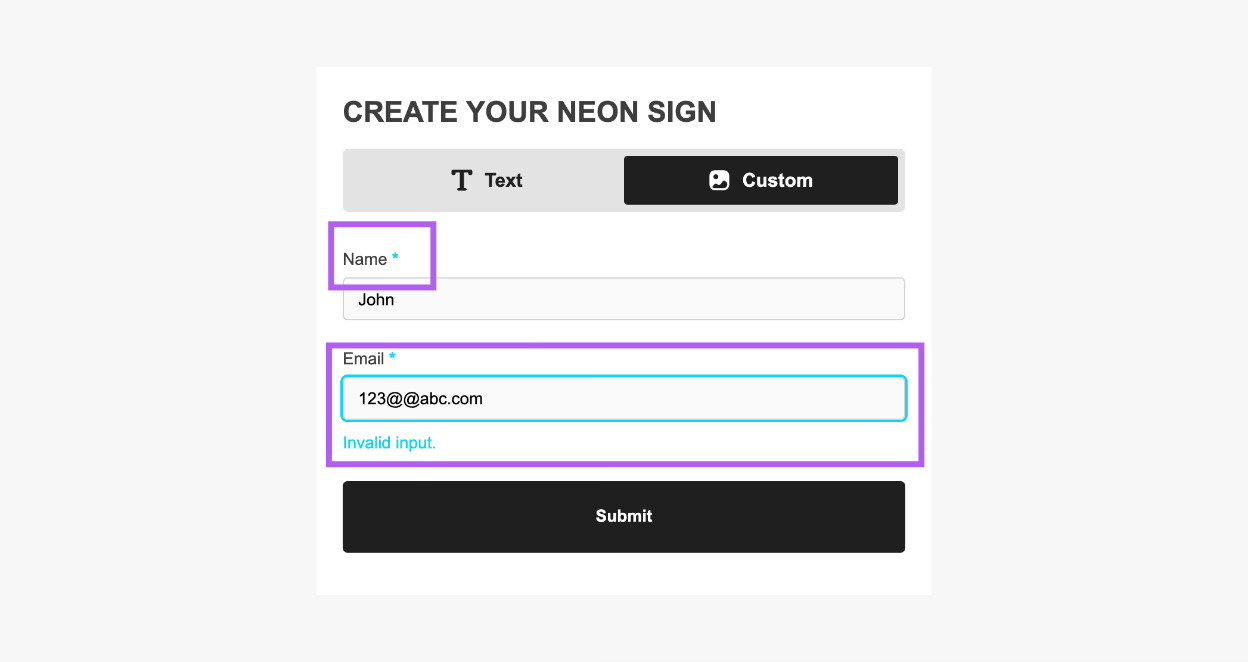
Form Error
The Form Error setting controls the colour of these items:
-
The asterisk (*) on required fields
-
Error messages
-
The outline of an input field that has an error state
Control Bars
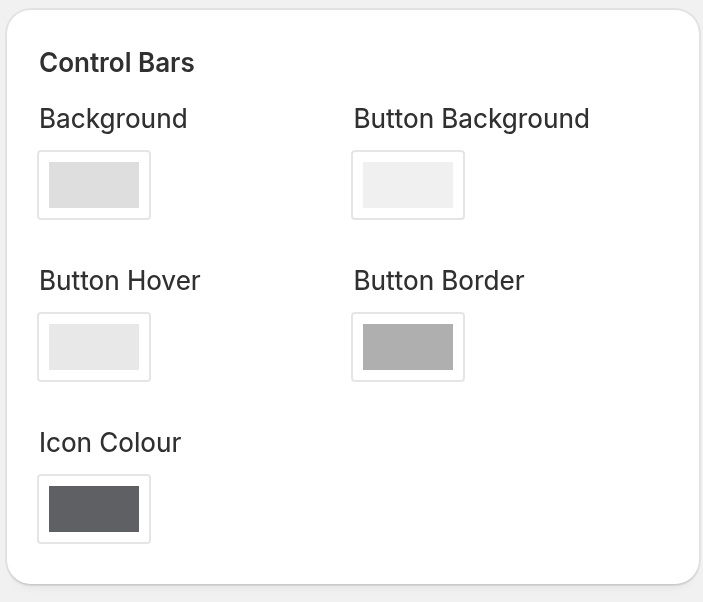
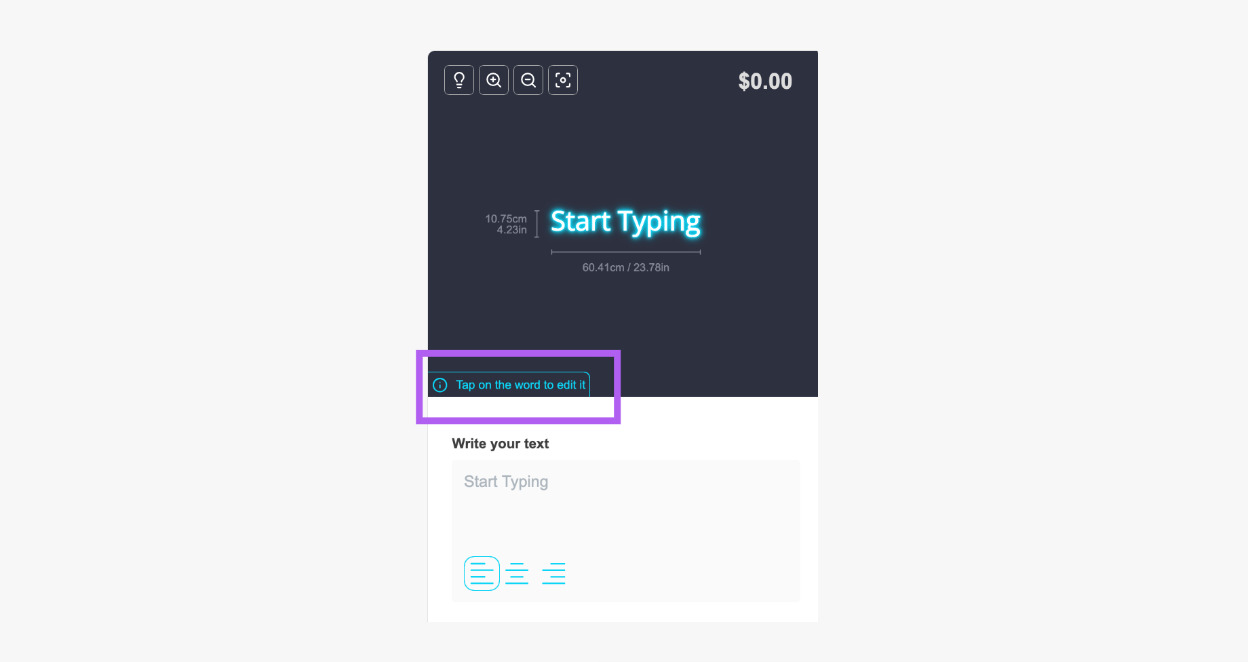
The Control Bars section controls the colours of the word toolbar over the visualiser. This is the pop-up bar that appears when a customer selects a word.
-
Background: The background colour of the bar.
-
Button Background: The background colour of the buttons.
-
Button Hover: The colour of a button when the pointer is on it.
-
Button Border: The colour of the button borders.
-
Icon Colour: The colour of the icons on the buttons.
Other
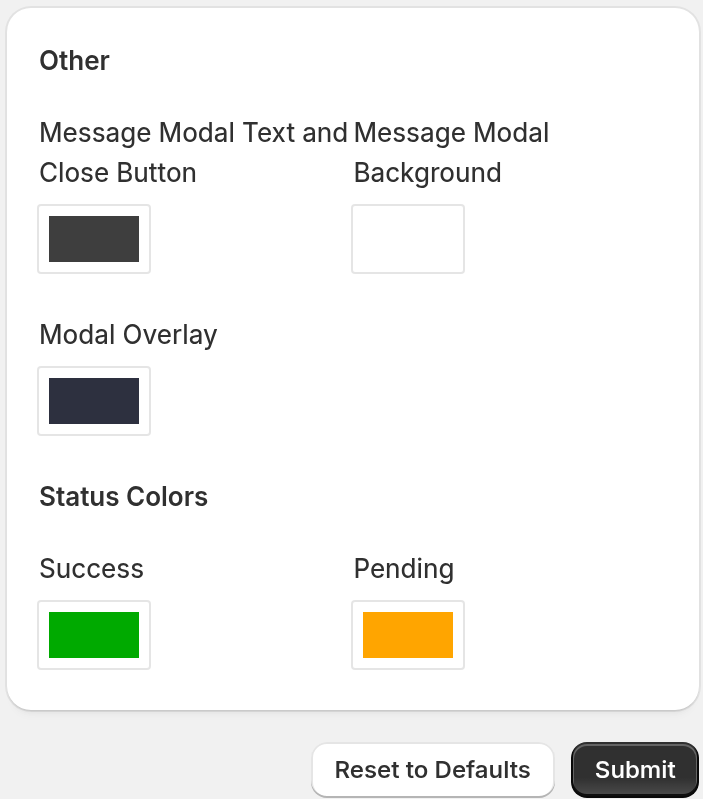
Message Modal Text and Close Button
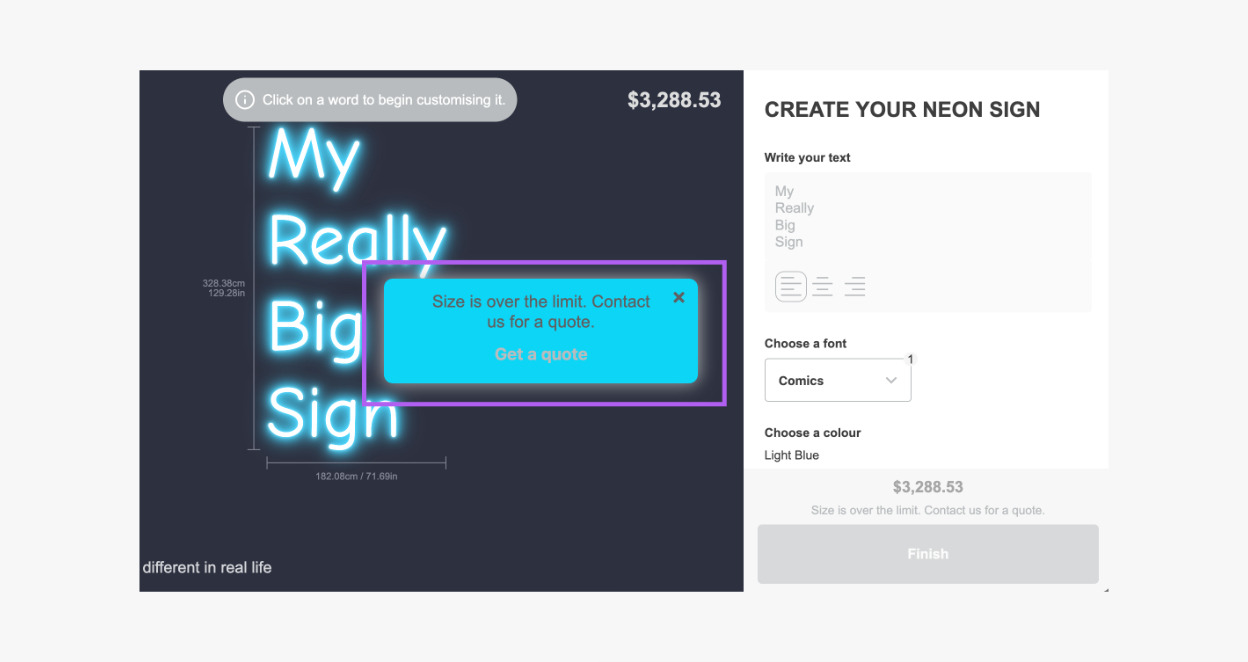
The Message Modal Text and Close Button setting controls the colour of the text and the close button in the pop-up that shows when a sign is over the limit set in your customiser.
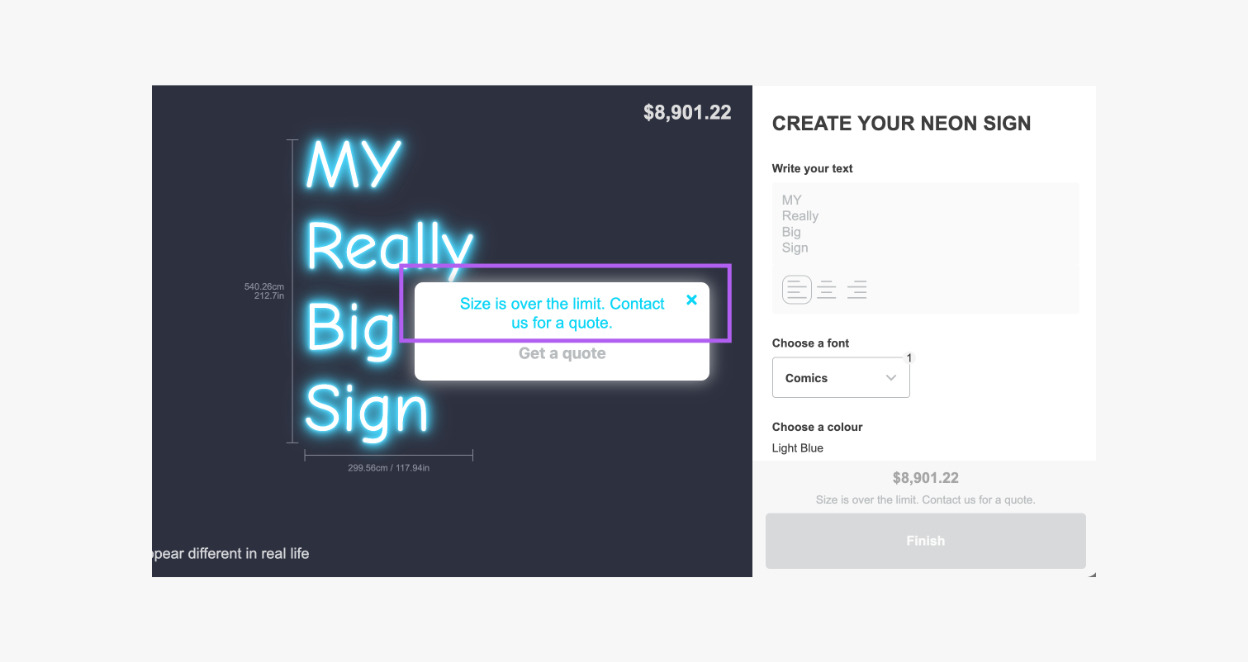
Message Modal Background
The Message Modal Background setting controls the background colour of that pop-up.
Modal Overlay
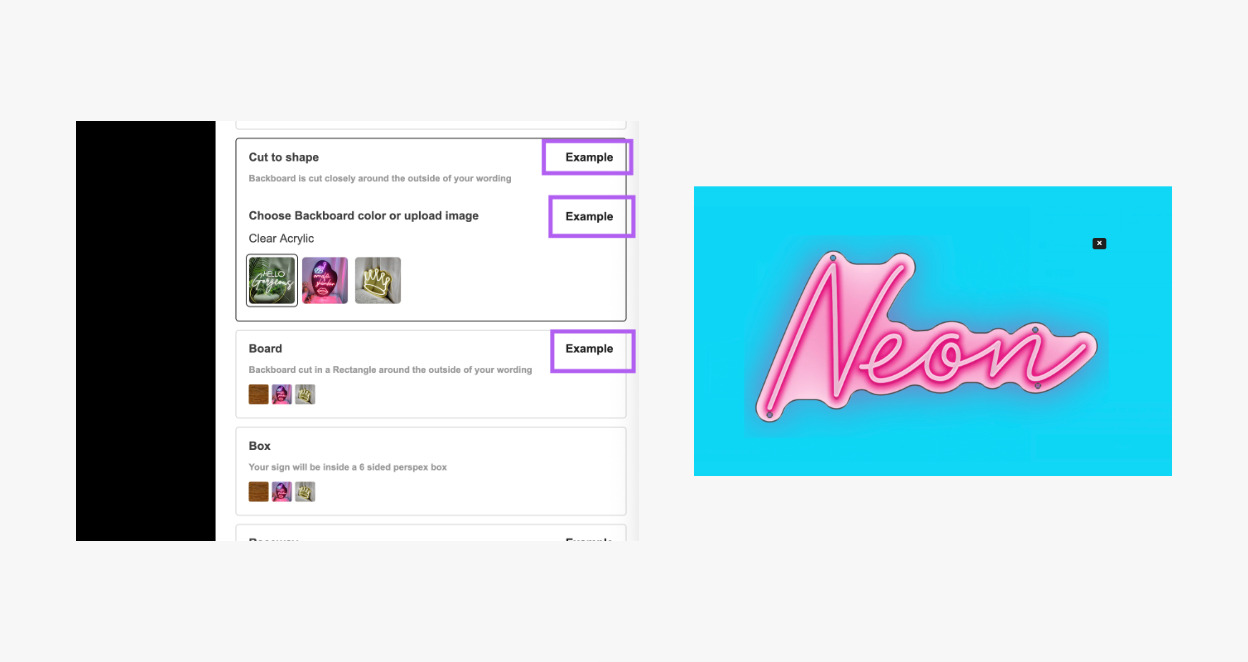
The Modal Overlay setting controls the colour of the overlay behind the “Example” pop-up images.
Status Colours
Success
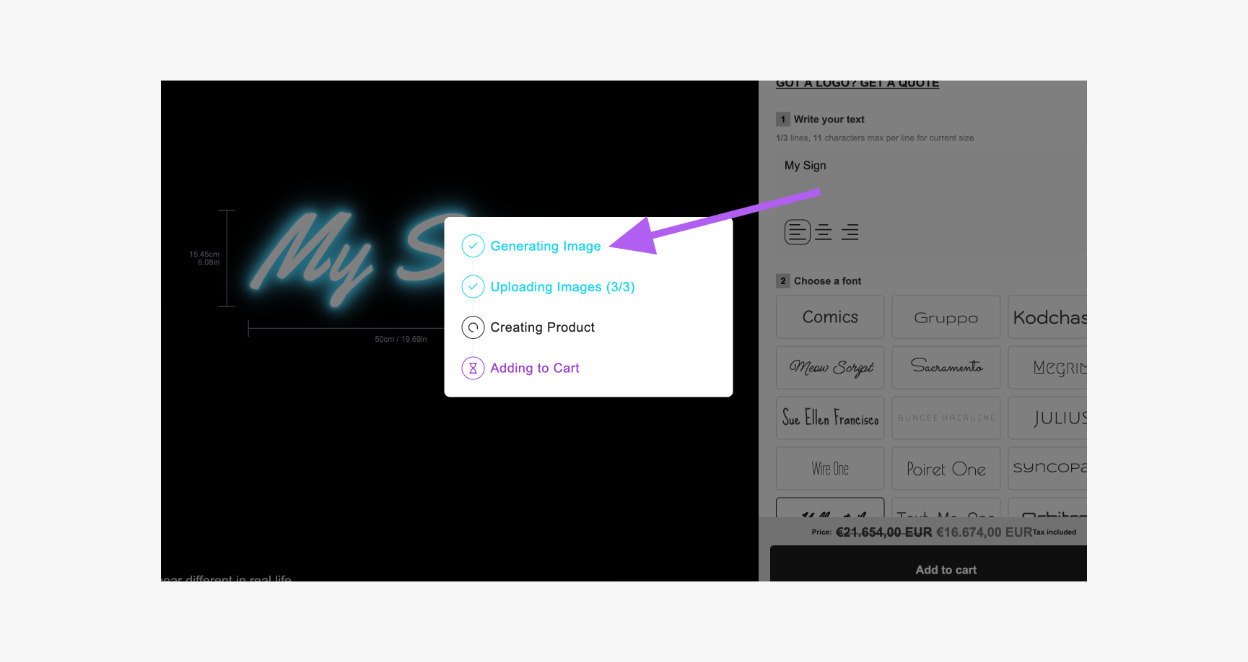
The Success setting controls the colour of the completed steps in the add-to-cart progress list.
Pending
The Pending setting controls the colour of the steps in the add-to-cart progress list that did not start.