

Letter Types
Last updated:
Letter types are groups of letter parts for channel-letter customisers. Use letter types to create unique sign designs. An example is 3D illuminated letters.
You can add more than one letter type to a customiser. If there is more than one letter type, customers see the Choose a letter type step by default. Then they choose a colour or texture for each active letter part.
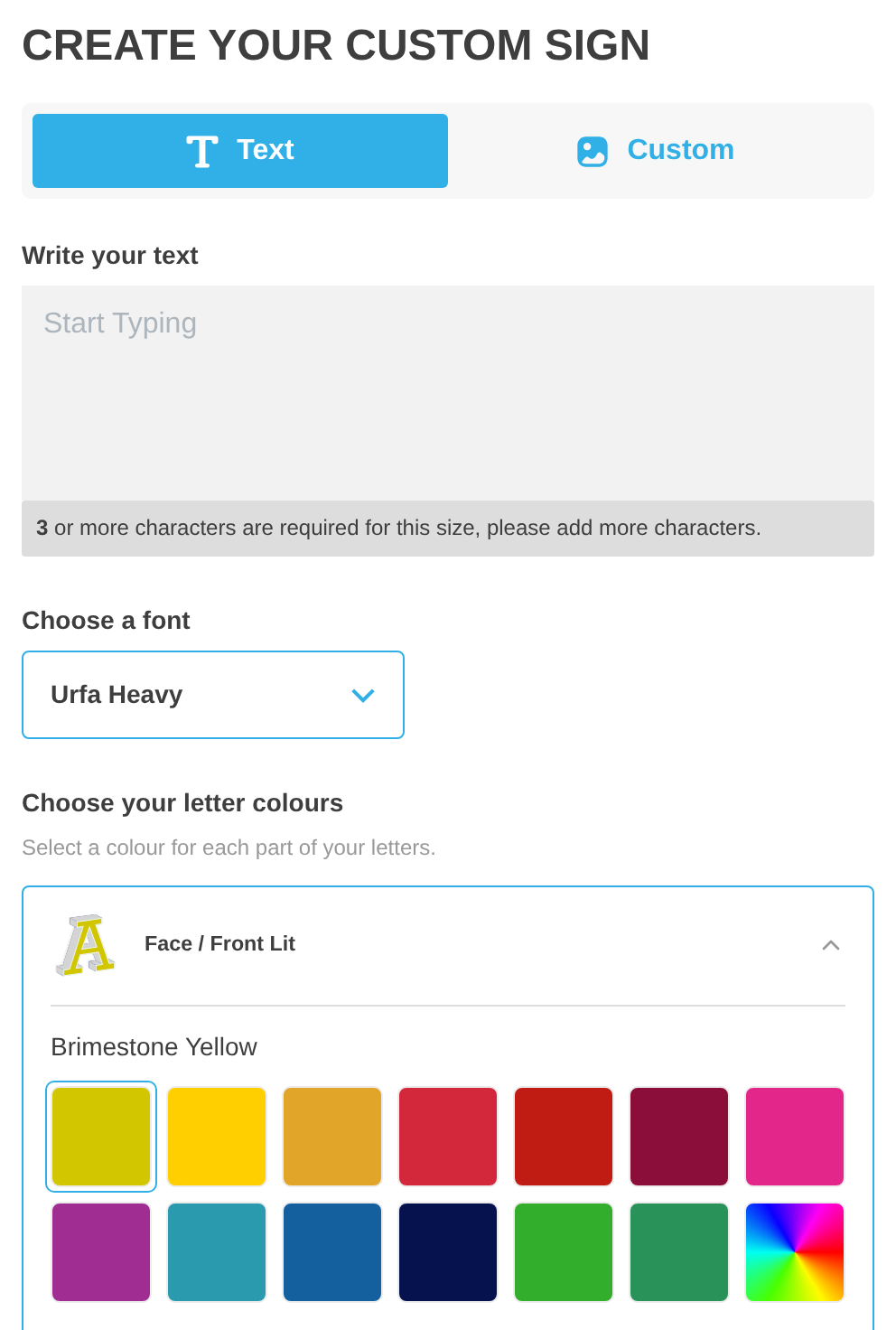
For more information about letter parts, read the Letter Parts article.
Lightbox customisers and Braille customisers use the same feature with different names:
-
Lightbox customisers: go to Sign Components → Lightbox Types. Read Lightbox Types.
-
Braille customisers: go to Sign Components → Tactile text styles. Read Braille Signs.
How to create a letter type
-
Open the Sign Customiser admin for your store.
-
Click Customisers.
-
Click the customiser that you want to edit.
-
In the left-hand menu, go to Sign Components → Letter Types.
-
Click Add letter type.
-
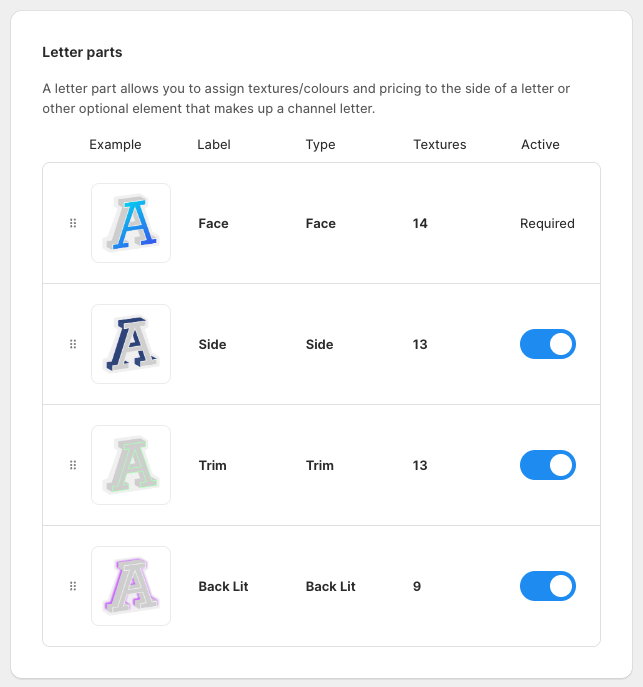
Find the Letter parts card. A letter part holds the textures and colours for one side of a letter. It can also hold the same data for another optional part of a channel letter.
-
In the Active column, switch on the letter parts that you need. Face / Front Lit is always on. Side, Trim and Back Lit are off in a new letter type.
-
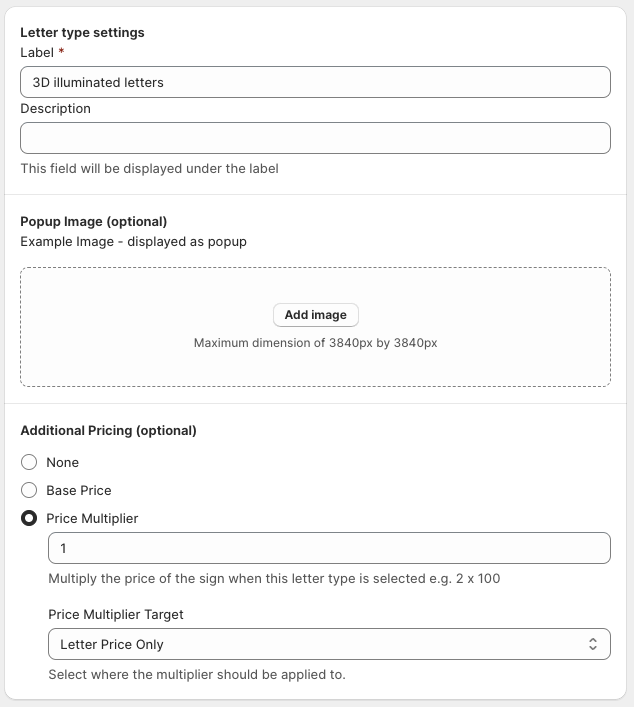
Scroll down to the Letter Types settings card. It is below the Letter parts card.
-
Enter a Label. This field is required.
-
Optional: enter a Description.
-
Optional: in Popup Image (optional), add an example image. Customers see this image in a popup. The image can be up to 3840 px by 3840 px and up to 2 MB.
-
Optional: in Additional Pricing (optional), select one option:
-
None adds no extra price.
-
Base Price adds a fixed amount when the customer chooses this letter type.
-
Price Multiplier multiplies the price. Use Price Multiplier Target to select the price that the multiplier changes.
-
-
If you selected Price Multiplier, for Price Multiplier Target, select Letter Price Only or Final Price (includes additional costs from other options).
-
Click Save at the bottom of the page.
The Letter Types list page has a card with the same name, Letter Types settings. That card is different. It sets the Letter Parts Title and the Letter Parts Description that customers see.
Add colours to each letter part
A new letter type is not ready after you save it. Before you save, you cannot open a letter part. After you save, the letter type page opens again.
An active letter part with no colour shows a Needs setup badge. A banner also shows Some letter parts need colours to be added. Face / Front Lit is always active, so it shows Needs setup until it has a colour.
-
Click a letter part that shows Needs setup.
-
If the list is empty, click Add New texture. If the list has a texture, click Add texture in the card heading. Each button opens the texture form.
-
Complete the form. To set a price for the texture, use Pricing (optional).
-
Save the texture.
-
Go back to the letter type.
-
Do steps 1 to 5 again for each active letter part. Stop when no Needs setup badge remains.
Prices belong to each texture, not to the letter part. For more information, read Letter Parts.
Assign backboards to letter types
On a channel-letter customiser, each backboard must belong to at least one letter type. Customers cannot choose a backboard that has no letter type.
-
Go to Sign Components → Backboards.
-
Open a backboard.
-
In the Assign to a letter type field, select the letter types that can use this backboard.
-
Click Save.
In the list, a backboard with no letter type shows a Not shown to customers badge. The admin also refuses to save it and shows an error. For more information, read Backboards.