

Webflow Integration
Last updated:
Tip: The customiser embeds the same way on Webflow as on any website. For sizing, display options, and how to take orders, see Embed the customiser on any website. The steps below cover the Webflow-specific parts.
What We Currently Support in Webflow
Feature support in Webflow:
-
iFrame embed (paste into a Webflow Code Embed element)
-
Customiser Links (needs Enable Customiser Link ticked, and either Quote Mode turned on for the customiser or Etsy connected. A Universal Store also needs an active subscription, or a trial with a payment method)
-
Add to Cart (requires custom implementation)
-
Order Integration (not built in)
-
Manufacturer Emails (not built in)
How to Integrate Sign Customiser in Webflow
To show the customiser on your Webflow website, subscribe to a plan on the Billing page. If your store is eligible, you can also start the 7-day free trial and add a payment method.
Steps to Find Your Customiser ID
-
Log in to your Sign Customiser account.
-
Create your customiser.
-
Click Customisers in the menu.
-
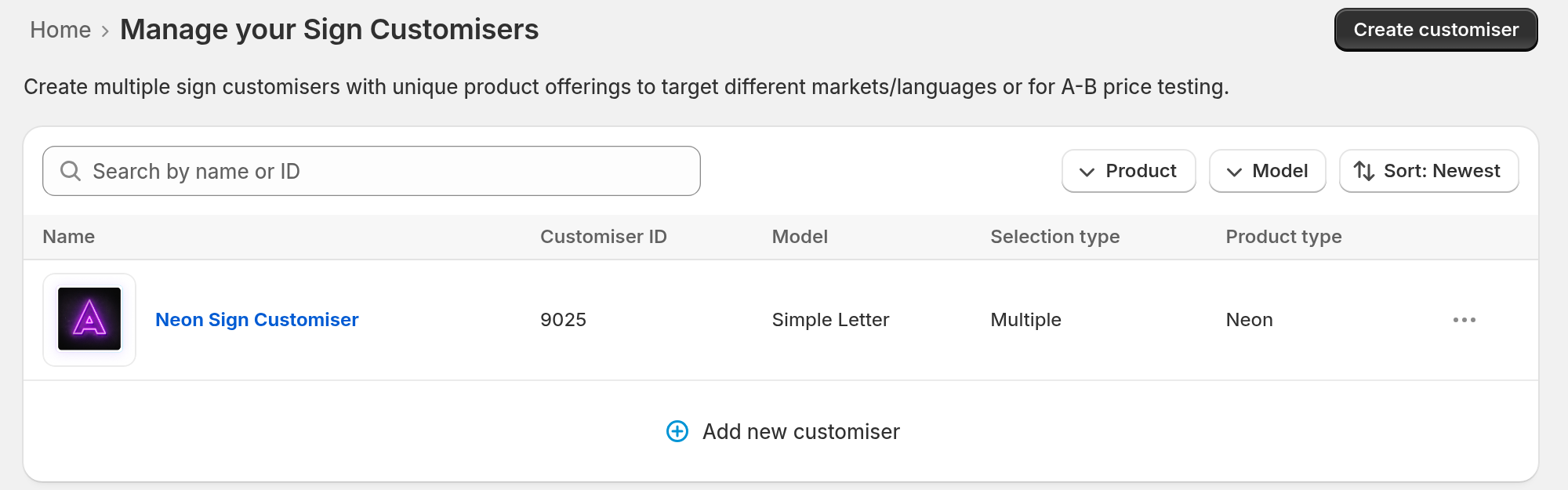
Find your customiser in the list. Write down the number in the Customiser ID column.
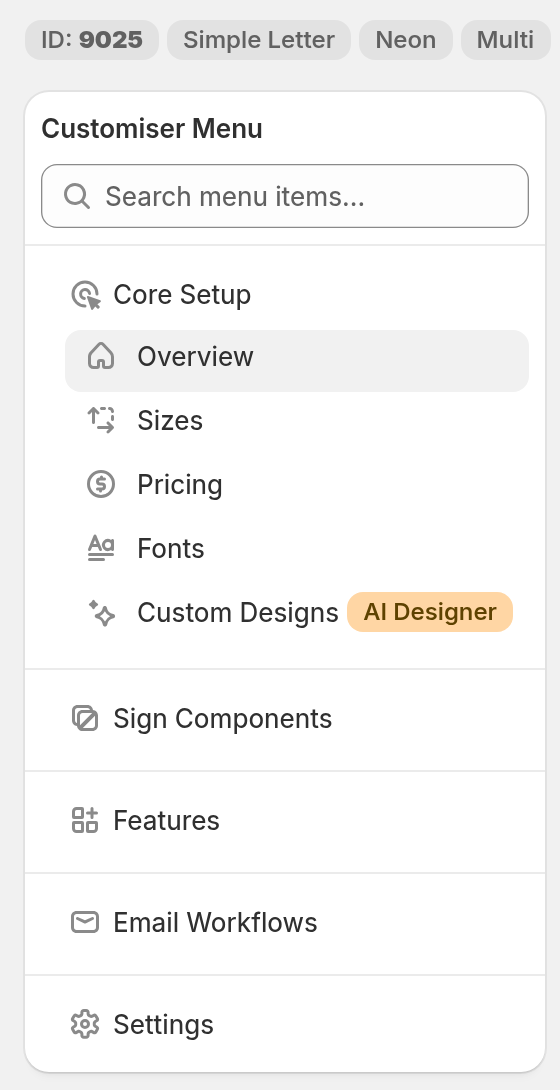
You can also click the name of your customiser. The Overview page shows the same number in the chip that starts with ID:.
For more help, see Find your Sign Customiser ID.
Embedding Sign Customiser in Webflow
-
Log in to your Webflow account.
-
Open the page where you want to show the customiser.
-
Select the layout element where you want to add the customiser.
-
Open the Add panel in Webflow.
-
Drag the Code Embed element from the advanced section into that element. See Code Embed element in Webflow University.
-
Paste this iframe code into the Code Embed element:
HTML <iframe src="https://web.signcustomiser.com/embed/YOUR_CUSTOMISER_ID" style="width:100%; height:100%"></iframe> -
Replace YOUR_CUSTOMISER_ID with your customiser ID.
-
Save your changes.
The style attribute makes the customiser fill the width of its container, and its height when the container has a set height. Keep it in the code. If the customiser is too small, set a fixed height in the iframe instead, for example height:700px.
FAQ
How do I connect Sign Customiser to use the “Add to Cart” functionality?
The “Add to Cart” feature requires custom implementation. To start, follow our Custom Integration: How to Handle “Add to Cart” Actions guide.