

Default text alignment
Use Sign Customiser to control the alignment of the text that shoppers type. You can show the alignment buttons to shoppers. You can also hide the buttons and set one fixed alignment.
Last updated:
Use Sign Customiser to control the alignment of the text that shoppers type in the main text box. You can show the alignment buttons to shoppers. You can also hide the buttons and set one fixed alignment.
How to show all the text alignment options
-
Open the Sign Customiser admin. In the Universal admin, go to web.signcustomiser.com. In Shopify, open the app from your Shopify admin.
-
In the Universal admin, click Customisers in the left-hand sidebar.
-
Click the customiser that you want to edit.
-
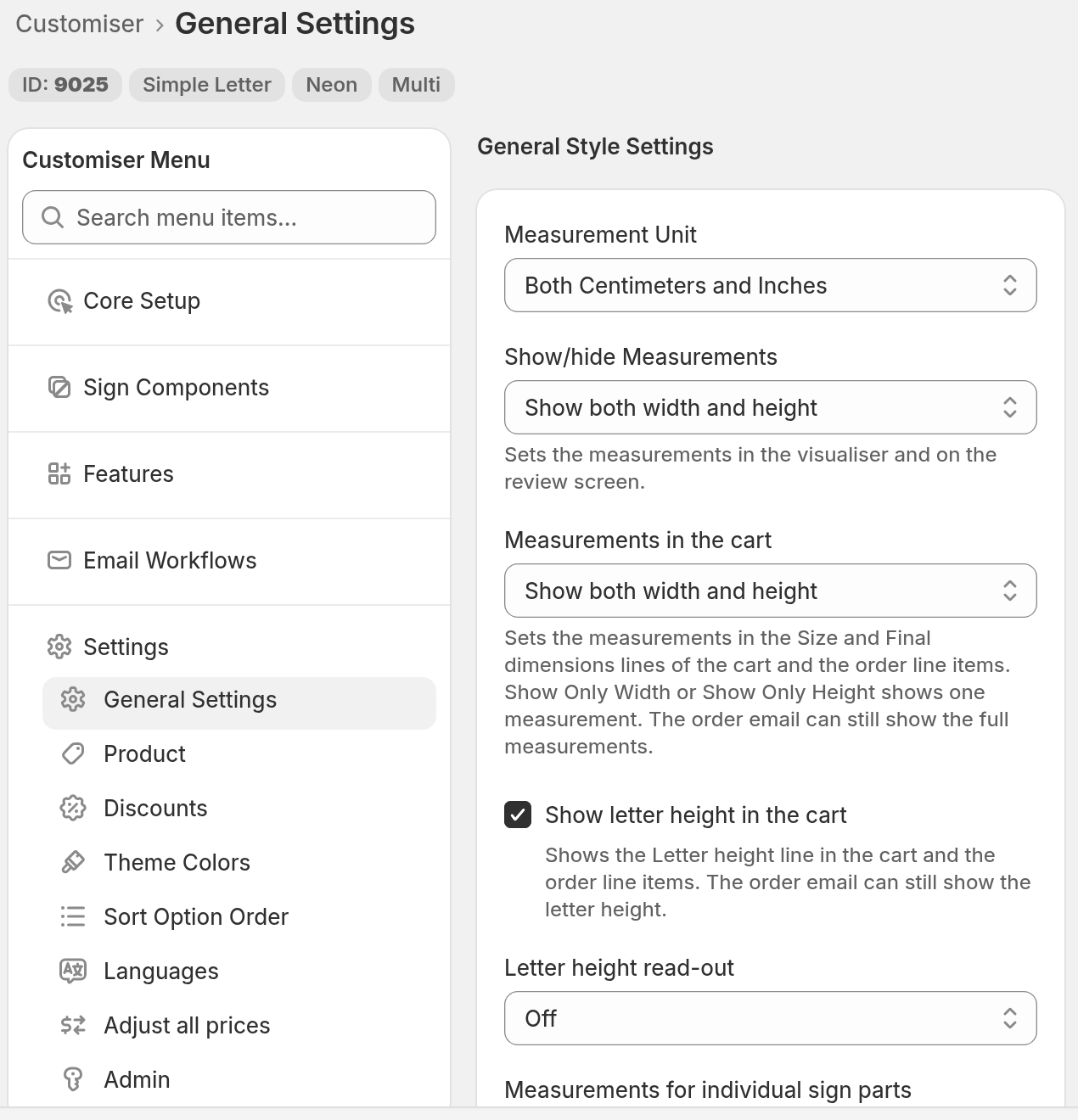
In the menu, go to Settings → General Settings. If the admin content area is less than 799 px wide, click Menu first.
-
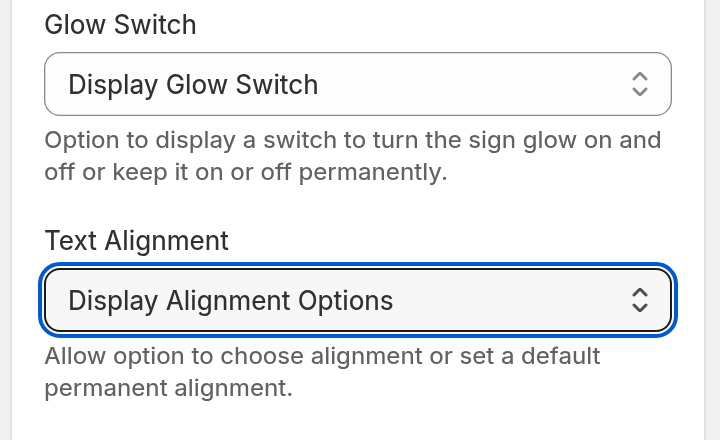
Scroll down to Text Alignment in the General Style Settings section.
-
Select Display Alignment Options.
-
Click Save at the bottom of the form.
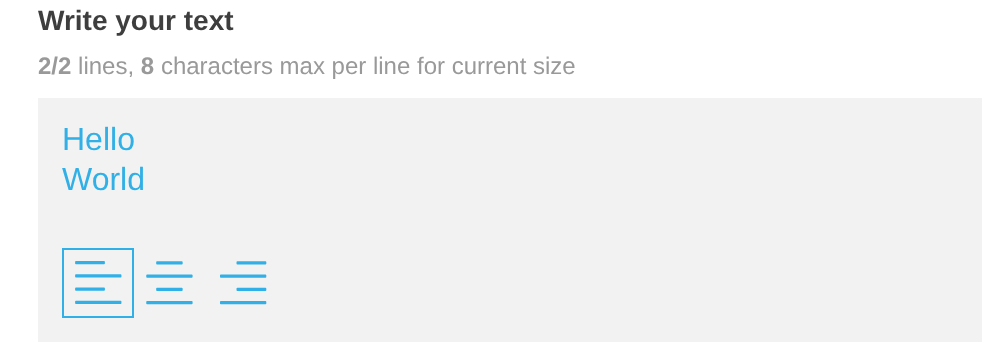
Shoppers see the alignment buttons under the text box when their text has two or more lines. Blank lines do not count. When the text has one line, the buttons stay hidden.
Vertical text does not show the alignment buttons. For more information, read Vertical text orientation.
How to hide the text alignment options and set one default alignment
-
Do steps 1 to 5 in the section above.
-
Open the Text Alignment list. The list has four options:
-
Display Alignment Options
-
Hide Options, default left align
-
Hide Options, default center align
-
Hide Options, default right align
-
-
Select one of the three Hide Options options.
-
Click Save at the bottom of the form.
Shoppers do not see the alignment buttons. Horizontal text in the main text box uses the alignment that you selected.