Sizing - Frame Fit Model
Last updated:
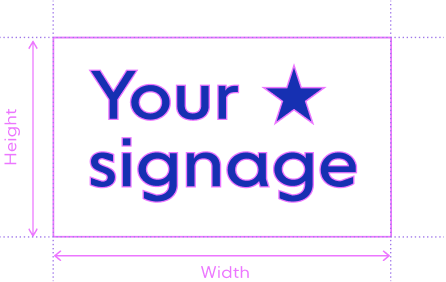
Frame Fit prices a sign by its width and height. On a lightbox sign with volumetric (parcel) shipping, the depth also sets the price, unless you select Add weight to product instead of calculating price. Then the width, the height and the depth set the product weight. If your store uses weight-based shipping rates in Shopify, those rates use that weight. This option shows on Shopify stores.
The image below shows the width and the height of a sign.
Metal cut-out signs also use Frame Fit sizing. You can design a metal cut-out sign with the AI sign designer. Then the bounding box of the design sets the proportions of the sign. The sign scales to fit inside the size that the customer chooses or types.
How sizing works in Frame Fit
These sign types use Frame Fit sizing:
-
Metal Cut-Out Signs, Lightbox Signs, Braille Signs, Aluminium Plate Signs and Wood Frame Signs use Frame Fit only.
-
Neon Letter Signs, Channel Letter Signs and Wood Letter Signs also offer other pricing models.
You can offer these size setups to your customers:
-
Preset sizes
-
Custom sizing
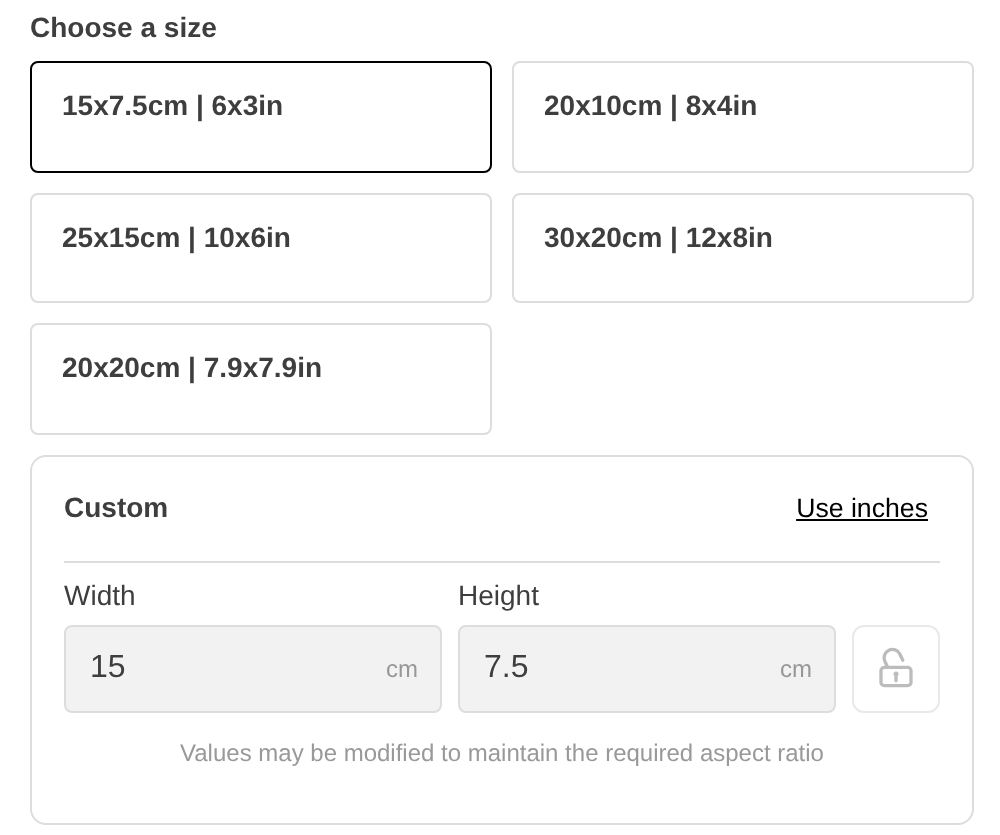
You can offer both setups together or only one of them. The image below shows both setups. It shows the preset sizes and the Custom size card.
How to add a preset size
A preset size is a fixed size that the customer can select. For example, a preset size can be 50cm wide by 80cm high.
-
Open the admin of Sign Customiser for your store.
-
Click Customisers in the sidebar.
-
Click a Frame Fit customiser in the list.
-
In the left-hand menu, go to Core Setup → Sizes.
-
In the Sizes card, click Add Size.
-
Enter a Label for the size. For example, enter “Small”.
-
Under Size Dimensions, enter the width and the height. A lightbox sign also has a depth.
-
Click Save.
How to enable custom sizing in Frame Fit
-
Open the admin of Sign Customiser for your store.
-
Click Customisers in the sidebar.
-
Click a Frame Fit customiser in the list.
-
In the left-hand menu, go to Core Setup → Sizes.
-
Scroll down until you see the Custom Sizing card.
-
Select Enable Custom Sizing.
-
Click Save at the bottom of the page.
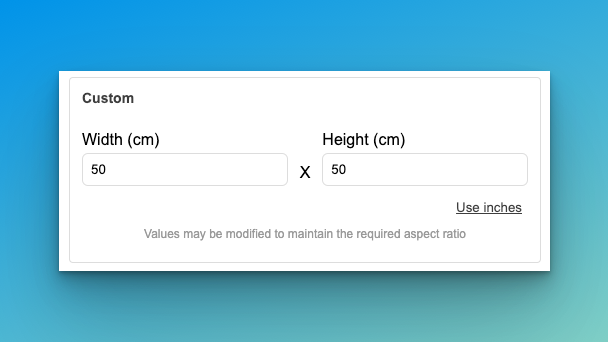
The customer sees the Custom size card in the customiser. The image below shows a different layout of this card.
Choose how custom sizing appears
When you select Enable Custom Sizing, the Custom Sizing card shows more options:
-
Custom size label: This is the heading of the custom size panel. The field shows “Custom” as its placeholder.
-
When should the custom size input be shown?: Select Only when the Custom option is selected or Always show the custom size input.
-
Hide the other sizes: Select Show all sizes or Only show custom size. If you select Only show custom size, customers do not see the preset sizes. The Sizes card shows a warning about this.
Units
On a Shopify store, the custom size input starts in the unit system of the country that the customer selected. Imperial countries start in inches. Metric countries start in centimetres.
This applies when Measurement Unit in General Settings is Both Centimeters and Inches. The customer can then change the unit with the Use inches or Use cm link. With one unit, the customiser uses that unit.
Custom shapes
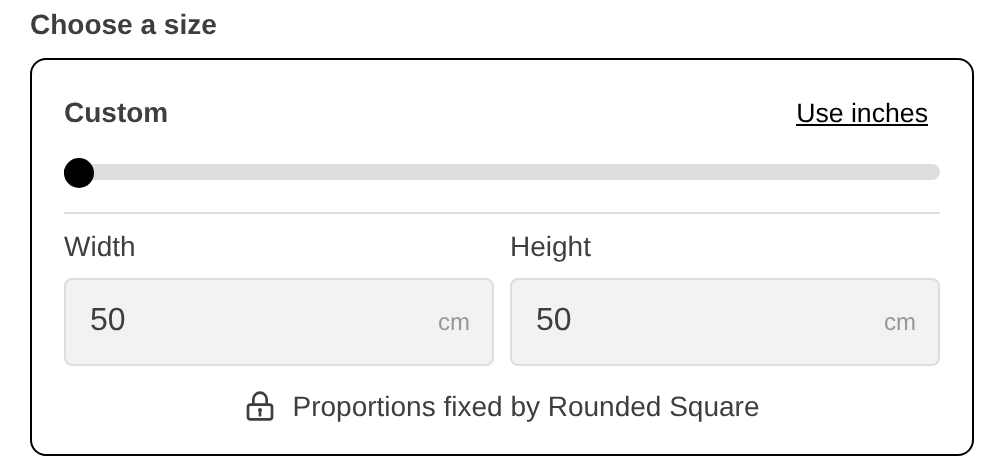
On a Frame Fit sign other than a Lightbox, Braille or Metal Cut-Out sign, a customer can select a custom shape if you offer one. For example, the shape can be a circle or a rounded square. For a custom shape, the customer does not see the preset sizes.
The customer sets the width or the height with the slider or the fields. The other dimension follows the proportions of the shape. A padlock note tells the customer that the shape fixes the proportions.
How to control minimum, maximum and default values for custom sizing
-
Open the admin of Sign Customiser for your store.
-
Click Customisers in the sidebar.
-
Click a Frame Fit customiser in the list.
-
In the left-hand menu, go to Core Setup → Sizes.
-
In the Custom Sizing card, make sure that Enable Custom Sizing is selected.
-
Scroll down until you see the Custom Size Settings card.
-
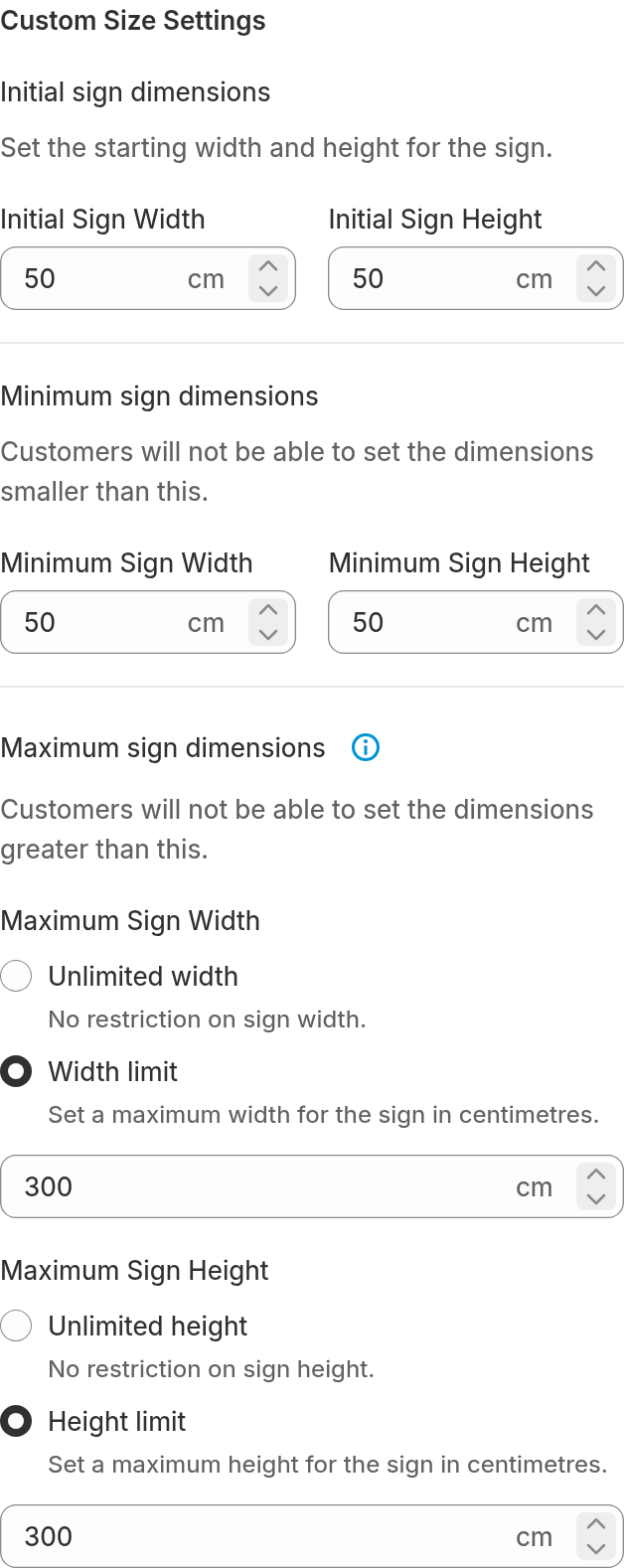
Set the initial, minimum and maximum values for the width and the height. A lightbox sign also has a depth for each value.
-
For each maximum, select Unlimited width or Width limit. Also select Unlimited height or Height limit.
-
If you select a limit, enter the value in the field that appears.
-
For a lightbox sign, select Unlimited depth or Depth limit in the same way.
-
Click Save at the bottom of the page.
The image below shows the Custom Size Settings card.