

Automatically deleting generated products
Delete unpurchased Custom Neon products automatically with the Mechanic app. Use Test mode first, then switch to Live mode.
Last updated:
Sign Customiser creates a Shopify product each time a shopper adds a design to the cart. Shoppers need a product for each sign they buy. Unpurchased products can fill your product list. This article shows how to delete them automatically with an app named Mechanic.
Read these notes first:
-
Mechanic is a separate app. It starts at $16 a month and has a 15-day free trial. See the Mechanic listing in the Shopify app store for current plans.
-
Mechanic deletes products. You use it at your own risk. We are not responsible if the app deletes products that you want to keep.
-
The task in this article matches products whose Shopify product type is Custom Neon. Sign Customiser gives new products of other sign types their own product type. But products that Sign Customiser created before it made this change (August 2026) have the Custom Neon type for every sign type. The task can delete unpurchased products of other sign types if they were created before this change. Check the list in Test mode for such products before you go live.
-
To find unpurchased products of other sign types that were created on or after 4 August 2026, read Retrieve generated sign products not purchased. Older products do not have the tags that this method searches for.
See which products are not purchased
Open Products in the Sign Customiser admin. Each generated product has a Purchased status. The status is Purchased or Not purchased. Use this list to see which products are not purchased. The list does not show the Shopify product type, such as Custom Neon, or the tags that the task checks. Its Product type column shows the sign family, such as Neon. So use the Test mode list in Mechanic to see what the task will delete.
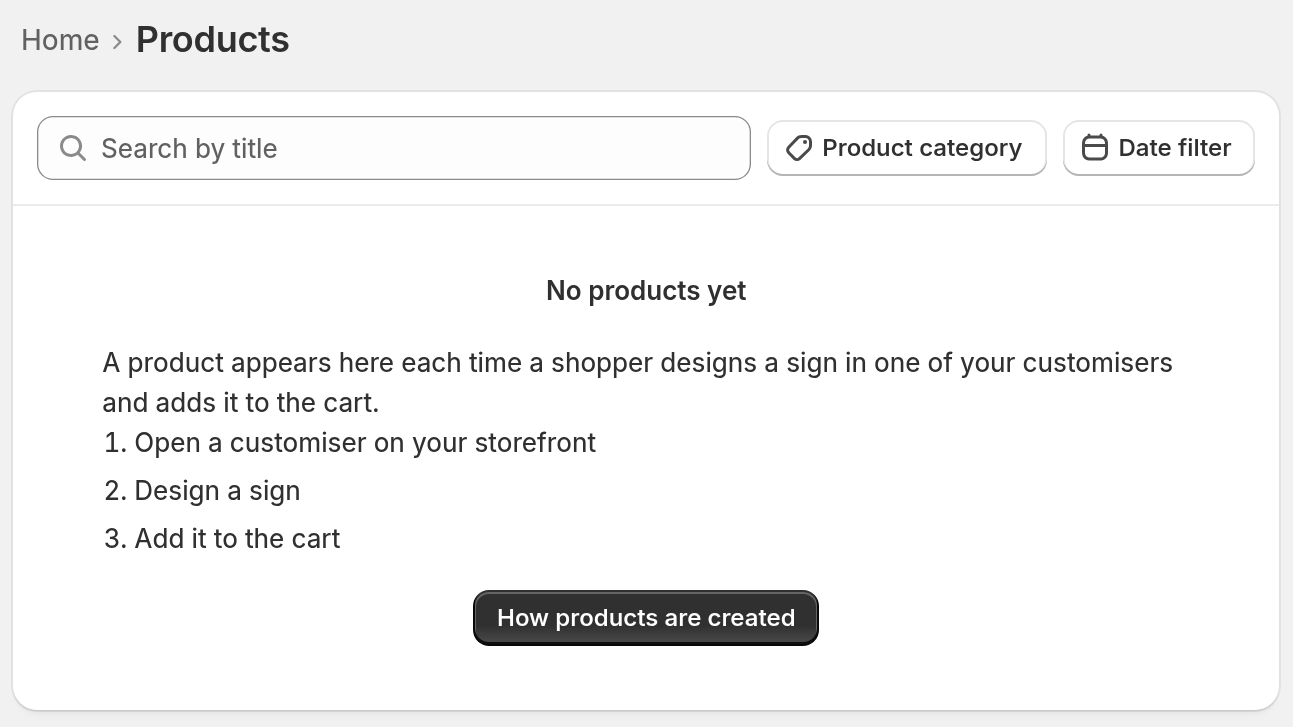
The screenshot shows a Store that has no generated products yet, so the list is empty.
Install Mechanic
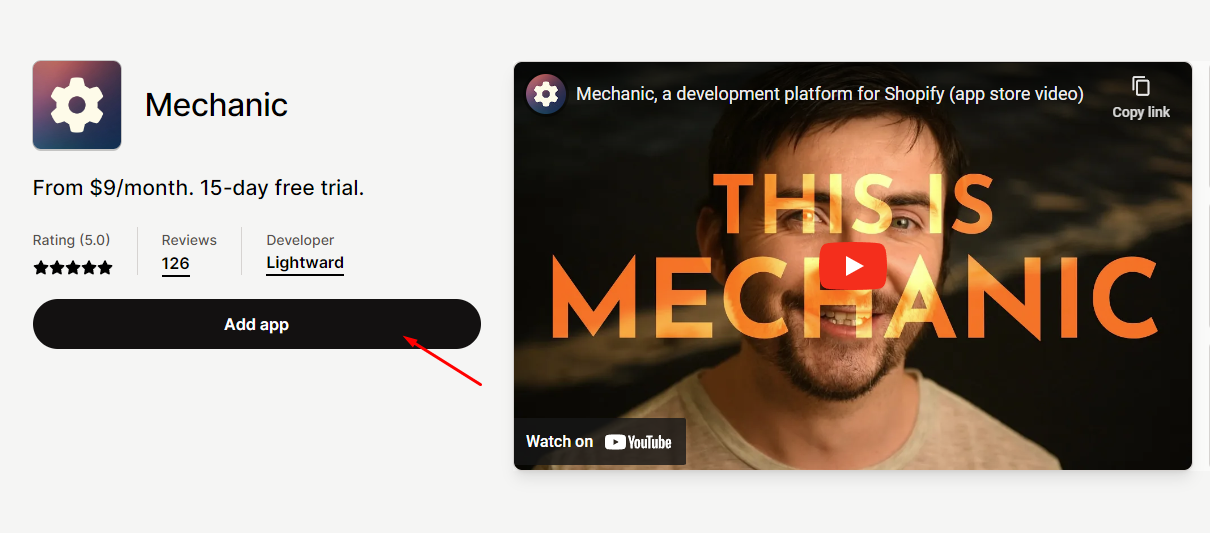
Go to the Mechanic app in the Shopify app store. Choose Install.
Set up the task
-
Open the Mechanic task.
-
Choose Try this task.
-
In the products must be x number of days old field, enter 30. The task matches only products that are older than this number of days.
-
Leave Test mode ticked for the first run. In this mode, the task deletes nothing. It only lists the products that it would delete.
-
To run the task every day, tick Run daily.
-
Save the task.
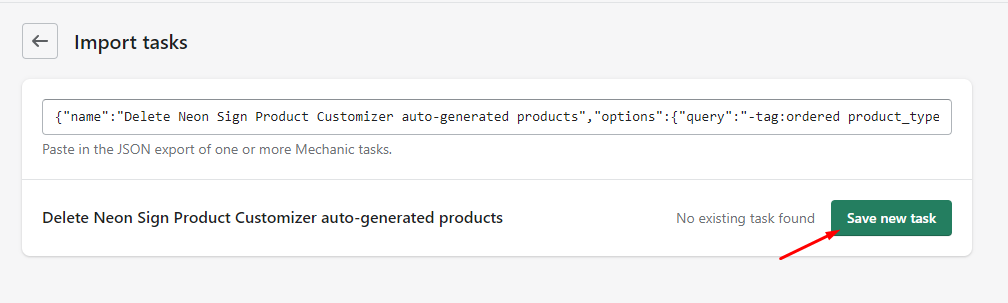
-
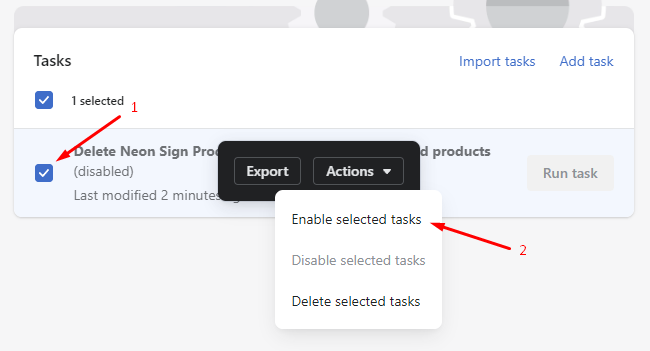
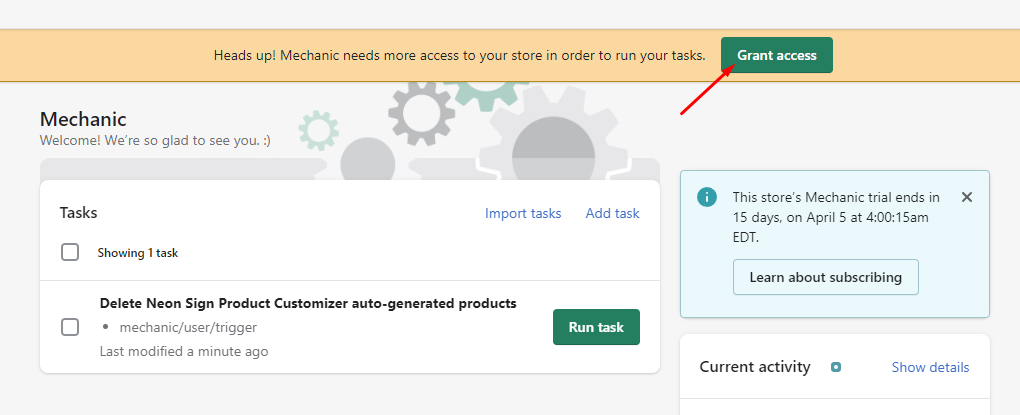
Choose Run task, then read the list. Make sure that the list has no product that you want to keep.
Go live
The task searches for products that meet all of these statements:
-
The product type is Custom Neon.
-
The product does not have the npc_ordered tag. Sign Customiser adds this tag when a shopper buys the product.
-
The product is older than the number of days that you set.
The task does not check for the sign-customiser-generated tag. A Custom Neon product that you made yourself can also match. Look for such products in the test list.
When the list is correct, do these steps:
-
Change the options of the task. Clear Test mode, then tick Live mode. Tick only one mode. If you tick both modes or neither mode, the task stops with an error.
-
Save the task.
In Live mode, the task deletes the matching products permanently. To delete them now, choose Run task. If you ticked Run daily, the task also runs every day. It then deletes the products with the product type Custom Neon that do not have the npc_ordered tag and are older than 30 days.