
Hide Custom Sign Products from Your Storefront
Last updated:
Every time a user adds a custom sign to the cart, our app creates the sign as a “product” in your Shopify backend. This is necessary for handling and purchasing the sign. However, since these are customised products, you may wish to hide them from being displayed on your storefront.
There are two ways to do this — you only need to pick one:
-
Option 1 (recommended): Unlist your custom sign products. A single setting in Sign Customiser hides every new custom sign from your storefront automatically. No further work required.
-
Option 2: Keep products as “Active” and hide them through your Shopify storefront settings. This involves a few configuration steps in Shopify.
Option 1: Unlist Custom Sign Products (Recommended)
This is the simplest approach. Switch your default product status to “Unlisted” once in Sign Customiser, and every new custom sign product is automatically hidden from your storefront — no collections or theme changes needed.
Shopify products can have either an “Active” or “Unlisted” status:
-
Active - Products appear in your store catalog and in search results.
-
Unlisted - Products are still active and purchasable, but no longer appear in your public store catalog or search results.
Steps:
-
Log into your Sign Customiser account.
-
From the home page, click Tools & Settings, then Integrations and Webhooks.
-
Click View Details on your Shopify integration.
-
Click Edit Integration.
-
Change Default Product Status to Unlisted.
-
Click Save.
That’s it — from now on, every new custom sign product will be created as Unlisted and won’t appear in your storefront. You don’t need to do anything in Option 2.
Option 2: Keep Products Active and Hide Them via Shopify Settings
Active products can appear briefly
The rules below use the durable sign-customiser-generated tag. Shopify still evaluates merchant-built smart collection rules asynchronously. New products took 32–39 seconds to match in our checks, so use the recommended Unlisted status when a generated product must never appear in catalogue pages.
Choose this option if you’d rather keep your custom sign products as “Active” — for example, if your Shopify store doesn’t yet support the Unlisted status, or you rely on apps that only see Active products.
Because the products stay Active in your catalog, you’ll need to hide them in a few different places. Depending on how your store is set up, you may need to apply one or more of the following:
Create a Custom “All” Collection
By default, Shopify has a built-in “All” collection, which features all your products in your store, including custom sign products. You can override this collection by creating a new collection with the same URL handle, but with filters to exclude custom signs.
Steps:
-
In your Shopify admin, go to Products > Collections.
-
Click Create collection.
-
Enter a Title, e.g. “All Products”.
-
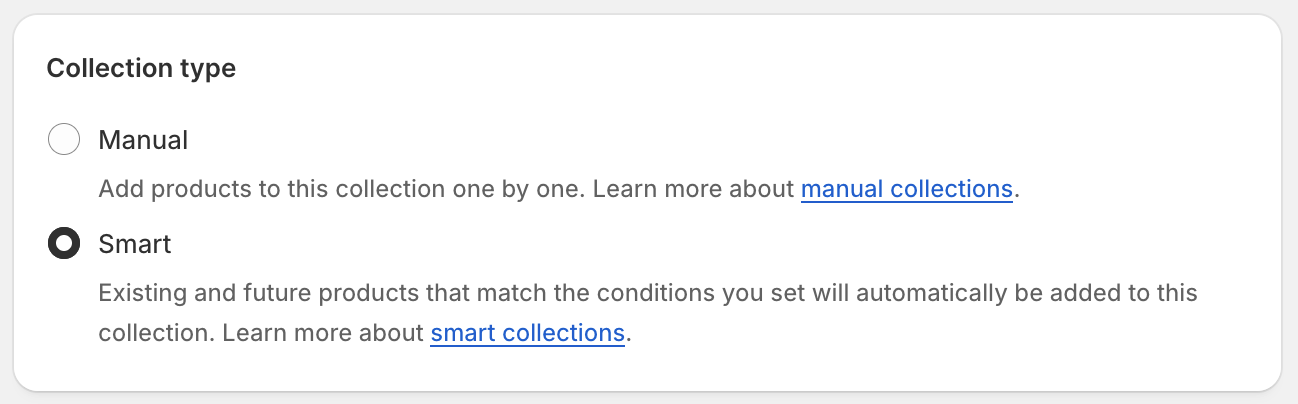
In the Conditions Type section, choose the Smart option.
-
In the Conditions section, set the following:
-
Products must match is set to all conditions.
-
First dropdown: select Product tag.
-
Second dropdown: select is not equal to.
-
Third field: enter
sign-customiser-generated.
-
-
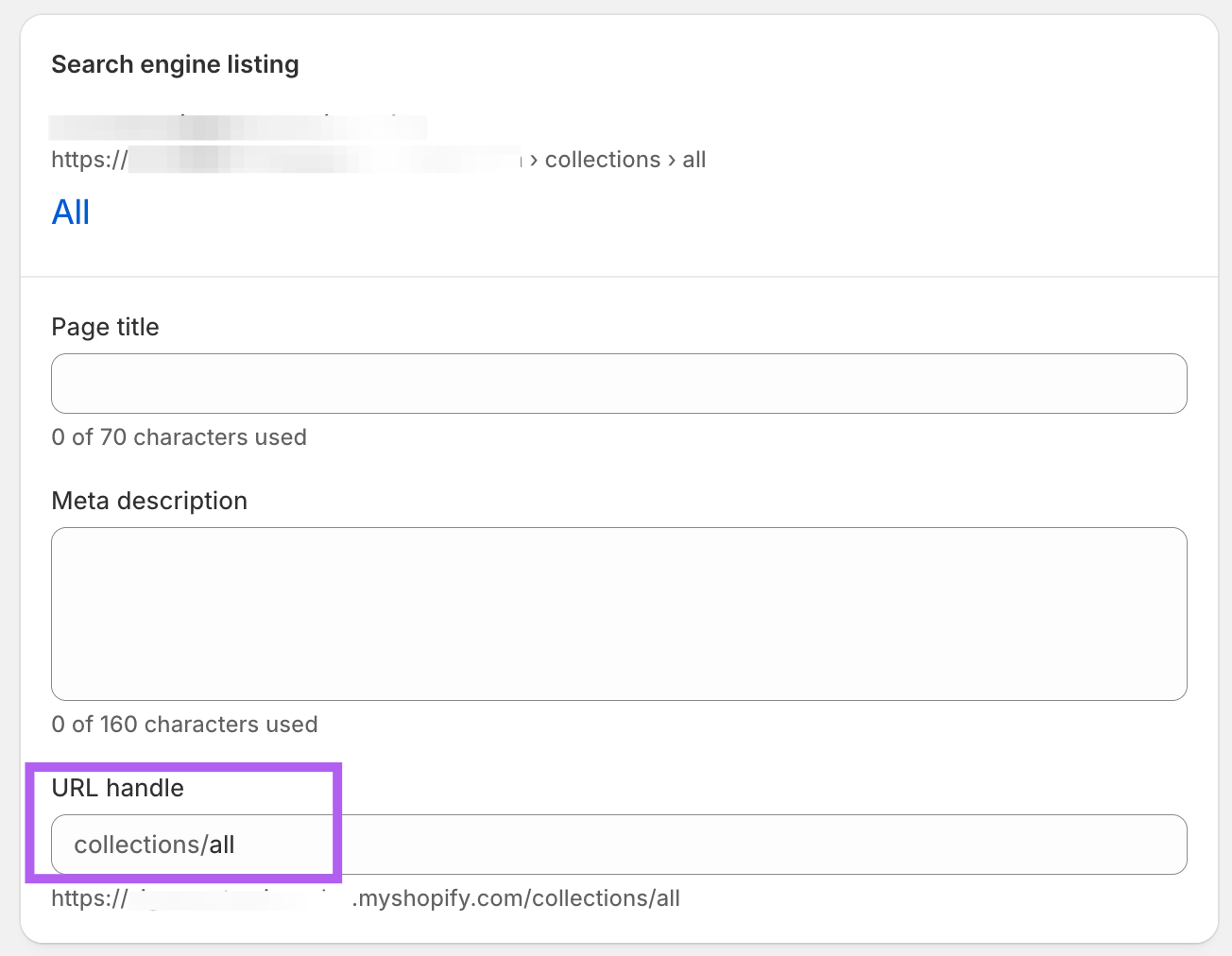
In the Search engine listing section:
-
Click on the pencil icon to edit.
-
Change the URL handle to: all
-
-
Click Save.
This overrides Shopify’s default “All” collection and excludes generated sign products after Shopify evaluates the smart collection rule.
Exclude Custom Signs from Your Other Collections
Custom sign products can also appear in any other collections whose conditions they happen to match. For example, if you have a collection for products priced under $200, any custom sign products in that price range will be included and displayed on your storefront. You can apply an extra condition to filter them out.
Steps:
-
In your Shopify admin, go to Products > Collections.
-
Select the Collection you want to edit.
-
In the Conditions section, ensure Products must match is set to all conditions.
-
Click Add another condition, then set the following:
-
First dropdown: select Product tag.
-
Second dropdown: select is not equal to.
-
Third field: enter
sign-customiser-generated.
-
Repeat this for each collection that currently includes custom signs. The tag matches every generated category. A type rule for Custom Neon would now exclude neon only.
Exclude from Product Recommendations
Some Shopify themes automatically show recommended or related products on product pages. Unfortunately, it’s not possible to exclude custom sign products from these sections directly.
However, you can use third-party apps like Shopify Search & Discovery to set recommended and related products manually, so only the products you choose are shown.
Steps:
-
Install the Shopify Search & Discovery app from the Shopify App Store.
-
Go to the Search & Discovery app settings.
-
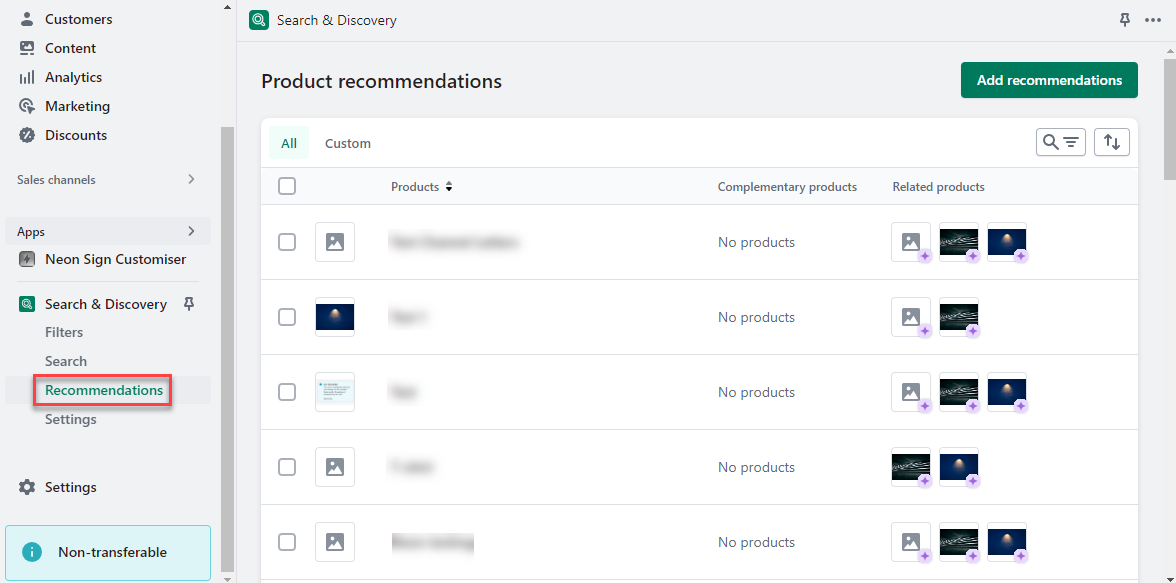
In the menu, click on Recommendations. On this page, you will see a list of all your products with their complementary and related products.
-
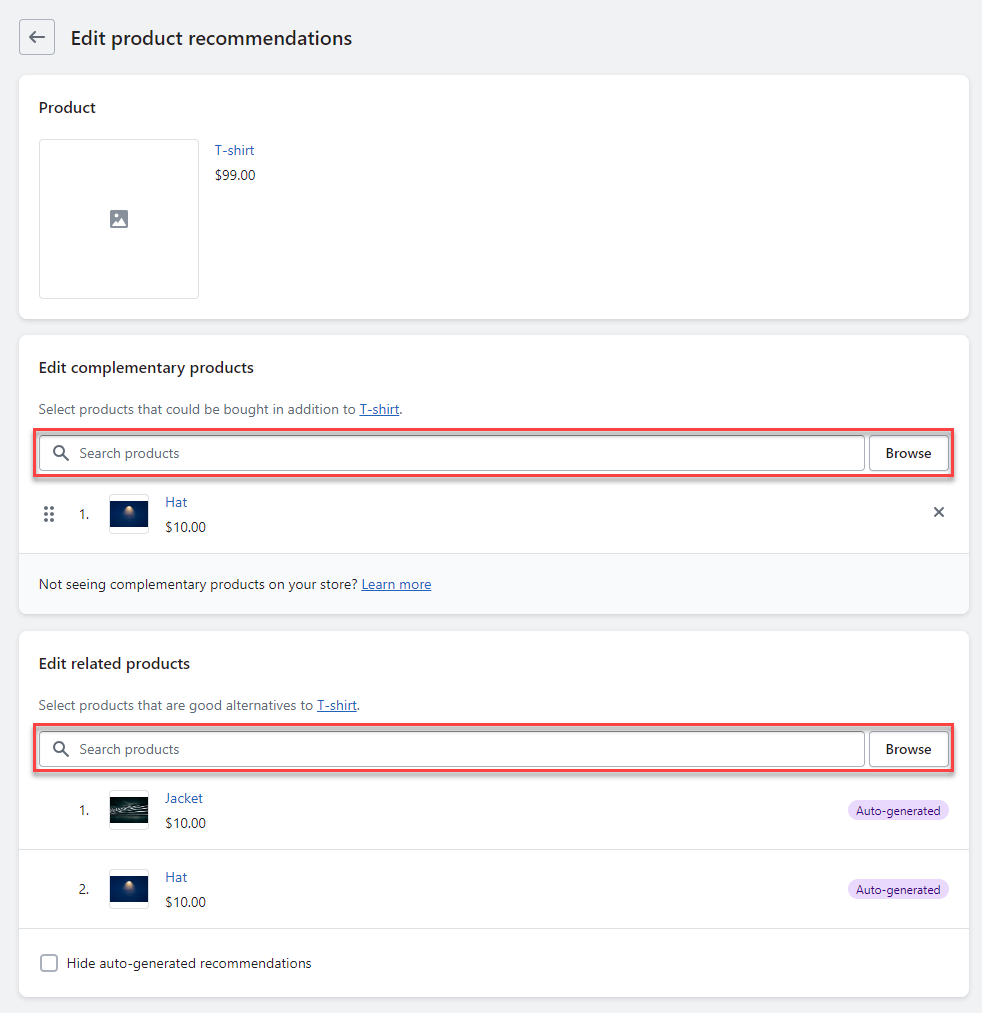
Click the product that is currently showing custom signs as recommendations or related products.
-
Search and manually assign non-custom sign products as complementary products.
-
Repeat this process for any other products that show custom signs as recommendations.
Only the products you have manually added will now be shown in the recommendations section.