

Modal display
Show your customiser in a modal on your storefront theme.
Last updated:
Shopify, Wix and Universal integrations can show your customiser in a modal (also known as a pop-up). A customer clicks a button on your page. The customiser opens in front of the page. The customer closes it to go back to the page.
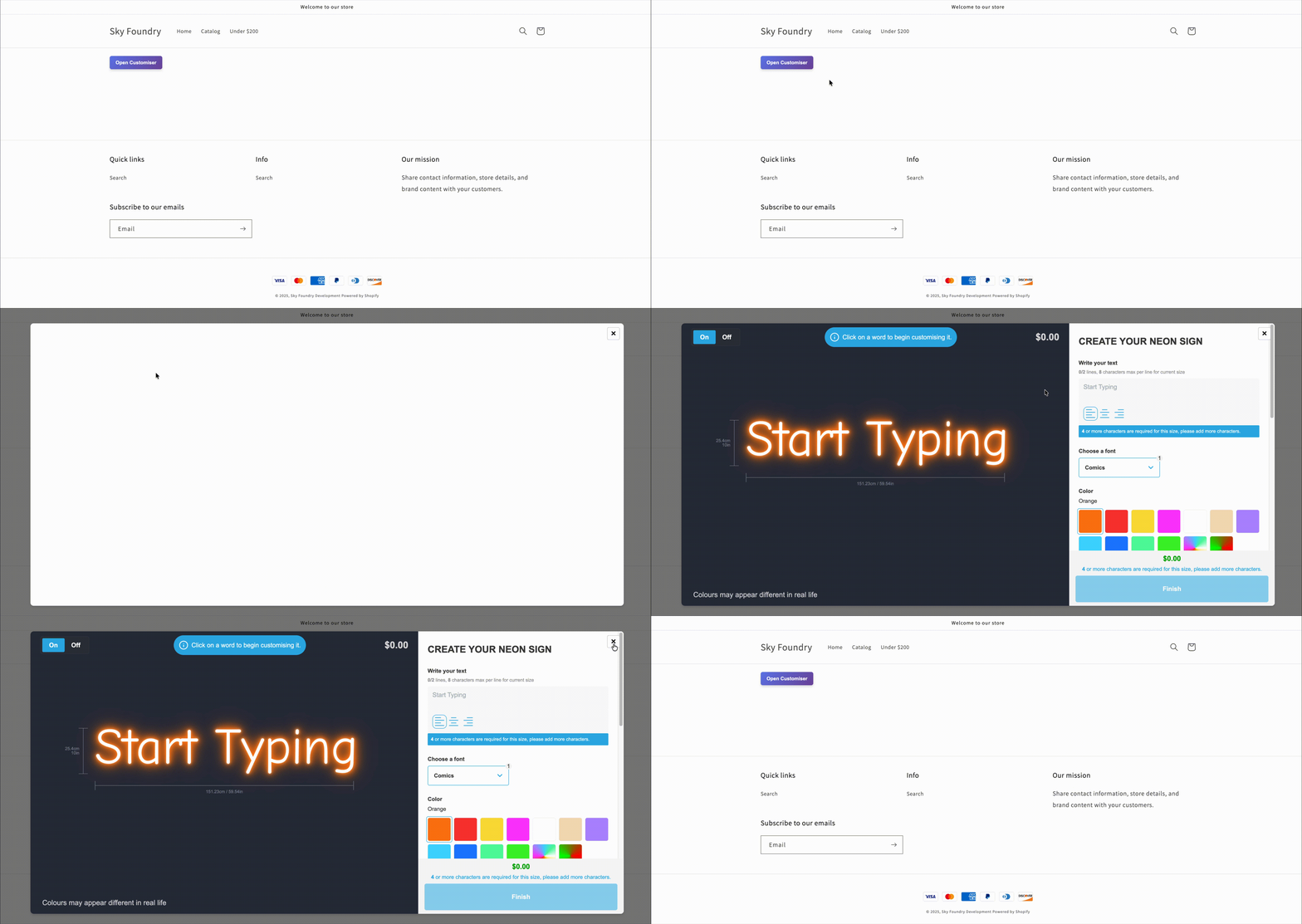
Shopify
Only the Sign Customiser Modal app block opens the customiser in a modal. The Sign Customiser block and the Sign Customiser - Embed app embed have no modal setting.
You can add the Sign Customiser Modal block to product, page, home and collection templates. Your theme must support app blocks.
-
In Shopify admin, go to Online Store.
-
Find your theme, then open the theme editor.
-
Open the template where you want the button.
-
In the sidebar, select Add section.
-
Under Apps, select Sign Customiser Modal. This adds an unstyled button to your page.
-
Enter the Sign Customiser ID of the customiser to show in the modal. See Find your Sign Customiser ID.
-
Optional: Change the button text. Add CSS class names to make the button match your theme.
-
Select Save.
The Sign Customiser Modal block has these settings:
-
Sign Customiser ID: The customiser to show.
-
Preset Code: A preset code. The customiser loads this saved sign when it opens.
-
Language code override: A language code, such as
frorfr-CA. If you leave this setting blank, the customiser uses the language of your Shopify storefront when the customiser has published that language, or a single language with the same base code (for example,frforfr-CA). If not, it uses a published language that matches the browser of the customer. If none match, it uses its default language. -
Button Text: The text on the button. The default text is “Open Customiser”.
-
Additional Button Classes: CSS class names for the button. Put a space between the names.
-
Initial Screen: The first screen that opens. Choose Visualiser (default) or Custom Design.
-
Use Right-to-Left (RTL) format: Turn this on if your theme does not apply a right-to-left layout.
Universal
Add the mode="modal" and modal-trigger="#your-trigger" attributes to your Sign Customiser element. The modal-trigger attribute holds the CSS selector of the button that opens the modal. The first element on the page that matches the selector opens the modal.
<script src="https://integrations.signcustomiser.com/sign-customiser-embed.js"></script>
<!-- This button can be anywhere on the page --><button id="customiser-trigger">Open Customiser</button>
<sign-customiser-embed  customiser-id="YOUR_CUSTOMISER_ID"  integration-id="YOUR_INTEGRATION_ID"  driver="woocommerce"  mode="modal"  modal-trigger="#customiser-trigger"></sign-customiser-embed>
Sign Customiser gives you the embed code for your customiser. Connect your integration first. Then go to Customisers, open your customiser, and find Sales channel setup on the Overview page. Copy the code and add the two modal attributes.
These attributes come from the embed code:
-
customiser-id: See Find your Sign Customiser ID. -
integration-id: See How to get your Integration ID. -
driver: Usewoocommercefor WooCommerce. The customiser then adds the sign to the WooCommerce cart. Usecustomfor a Custom API integration. Forcustom, your own page code adds the sign to the cart. See Connecting WooCommerce with Sign Customiser or Custom API Integration.
Wix
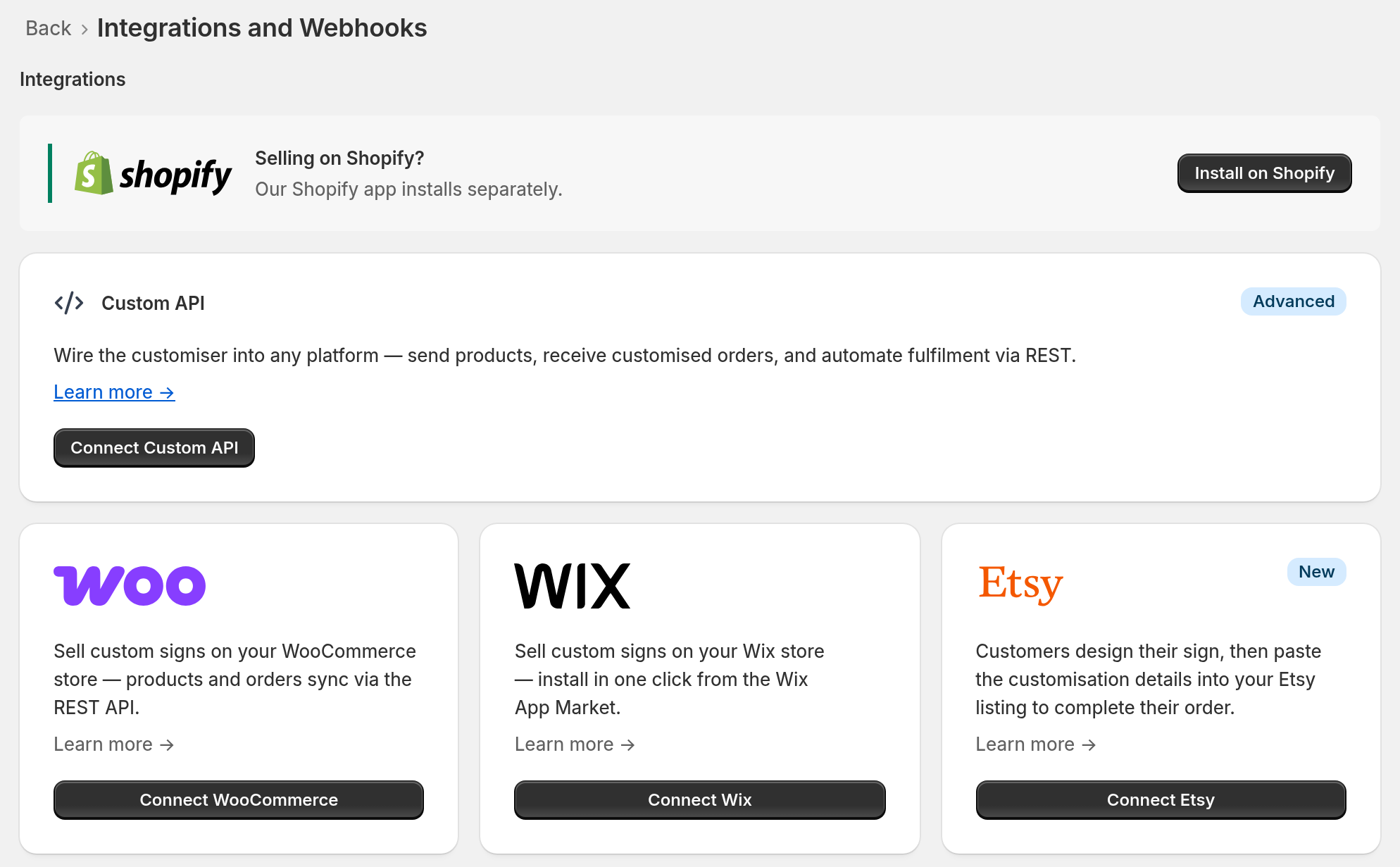
To take a Wix customiser live, your Store needs an active Sign Customiser subscription, or a trial with a payment method added. First, connect Wix. See Wix Integration. After you connect, Sign Customiser shows the integration page. Write down the Integration ID shown there. See How to get your Integration ID. You also need your Customiser ID. See Find your Sign Customiser ID.
-
Go to your Wix dashboard. Select Edit Site to open the Wix Editor.
-
Add a button to your site. You use this button to open the customiser.
-
Select the button. The Wix Editor can show the ID of a selected element above it, with a # in front. In the image below, the ID is
button3. 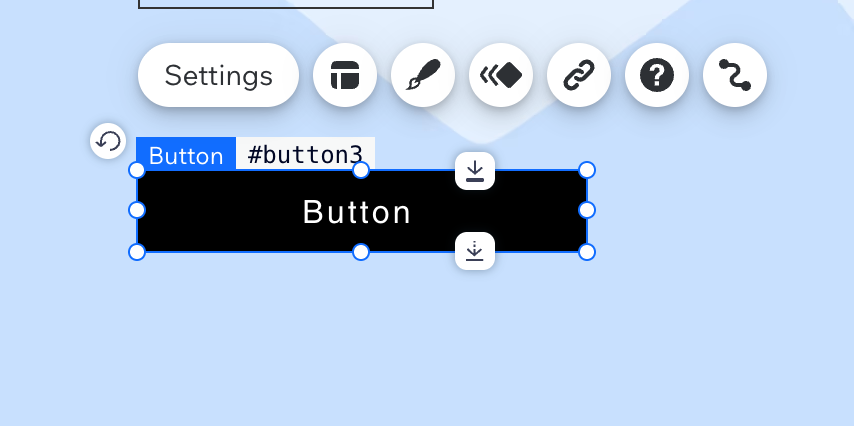
-
Make sure that the widget is on your page. See the Wix Integration guide.
-
Open the settings of the widget in the Wix Editor.
-
Enter the Customiser ID and the Integration ID.
-
Set Display Mode to Modal.
-
In Modal Trigger, enter the CSS selector that matches your button on the published page. The customiser opens when a customer clicks the first element that matches the selector. A selector that starts with a hash symbol (#) matches an element ID. Test the selector on your published page.
-
Select Publish.