

Free Shipping for Custom Products in Shopify
Last updated:
You can give free shipping to the sign products that our app generates. Shopify’s default settings make this difficult.
Our app creates a new product when a shopper adds a design to the cart. You therefore cannot add that product to a Shopify shipping profile in advance, because the app creates it only when a shopper adds a design to the cart. Shopify adds every new product to your general shipping profile.
How to identify generated sign products
Use the Sign Customiser Products collection or the sign-customiser-generated tag. To select one customiser, use its collection or the tag sc-customiser- followed by the Customiser ID. For example, a customiser with Customiser ID 9025 has the tag sc-customiser-9025. You can find the Customiser ID in the customisers list in the merchant admin. Use the product type only if you have no other choice. Neon signs have the type Custom Neon. Other categories use these types: Custom Acrylic Sign, Custom Metal Sign, Custom Cut-out Metal Sign, Custom Stencil, Custom Wooden Sign, Custom Aluminium Sign, Custom Braille Sign, Custom Wood Frame Sign and Custom Lightbox.
Shopify Starter and Retail plans: Sign Customiser does not create collections on these plans. Generated products still receive both tags. Use a tag condition.
Solutions
You have three options:
1. Default Free Shipping with Separate Shipping Profile
These steps apply to stores that use shipping profiles. Shopify is gradually moving stores to shipping options by market. Your store keeps its current setup until Shopify upgrades it.
This method gives the general shipping profile a free shipping rate. You move your non-custom products to a custom shipping profile that has your normal rates.
Do not use this method with Volumetric parcel when Add weight to product instead of calculating price is checked.
For these customisers, the Advanced Letter guide tells you to add a rate for each weight range to the shipping profile of the generated products. Do not add a free rate to that profile. For the weight-range steps, see Pricing - Advanced letter model.
Steps:
-
In Shopify, go to Settings > Shipping and delivery.
-
In the Shipping profiles section, click General profile. For each shipping zone that you ship to, add a free shipping rate. Follow Shopify’s guide for free shipping rates.
-
In the Shipping profiles section, click Add custom profile. Enter a Profile name.
-
In the Products section, select all your non-custom products.
-
Add shipping zones and your normal shipping rates to the new profile. Then save the profile.
Shopify uses the general shipping rates for a product that is not in a custom profile. Generated signs therefore use the free shipping rate. Non-custom products in the new profile use the rates of that profile.
2. Use a Shipping App
Use a shipping app. The app must support conditions that are based on product tags or collections. On Shopify Starter and Retail plans, the app must support product tags. Sign Customiser does not create collections on these plans.
Recommended App: Shipping calculator: ShipMagic
Link to Shipping calculator: ShipMagic app
Link to ShipMagic’s YouTube playlist
The Shipping calculator: ShipMagic app lets you create shipping rate rules. The app can create rates that are based on tags or product type. In both features, a tag condition is named Product Tag. If you use a tag, use the sign-customiser-generated tag. If you use the product type, create one rule for each category-specific type from the list above.
The app has two features that manage shipping for custom signs: Shipping Rates and Shipping Customisations. This guide describes both. The steps use the product type. Sign Customiser sets the product type on every generated product.
Installing and Setting Up Shipping calculator: ShipMagic
-
Install the Shipping calculator: ShipMagic app.
-
Open Settings in the app.
-
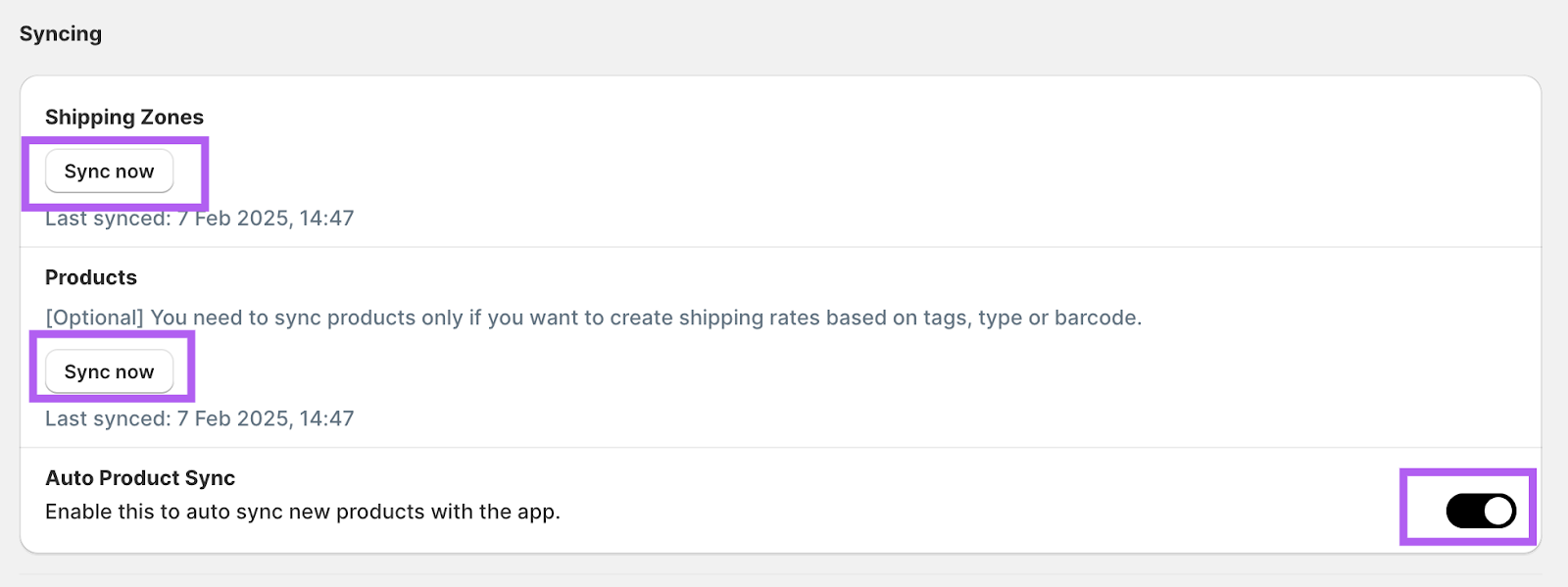
In the syncing options:
-
Click Sync now for Products. The app says that you need the product sync to create shipping rates that are based on tags, type or barcode. Customisation rules do not need the product sync.
-
Enable the Auto Product Sync option.
The screenshot also shows a Sync now button for Shipping Zones. ShipMagic has retired that button. Add and edit your zones on the Shipping Zones page in the app.
-
-
Create a Shipping Customisation or a Shipping Rate. Choose the one that fits your shipping needs. Shipping Rates need Carrier Calculated Shipping (CCS) to be enabled on your Shopify store. Shipping Customisations do not. Shopify does not support third-party carrier-calculated shipping on the Starter plan. On the Starter plan, use Shipping Customisations.
Shipping Customisations option: How to Create a Shipping Customisation
Open Shipping Customisations in the left navigation panel of the app.
This setup uses two customisation rules and one free shipping rate in Shopify.
-
A rule to allow free shipping for custom signs
-
A rule to hide free shipping for non-custom signs
-
A free shipping rate in Shopify
A) Allow Free Shipping for Custom Signs
-
Click Create Customisation.
-
In the General section:
-
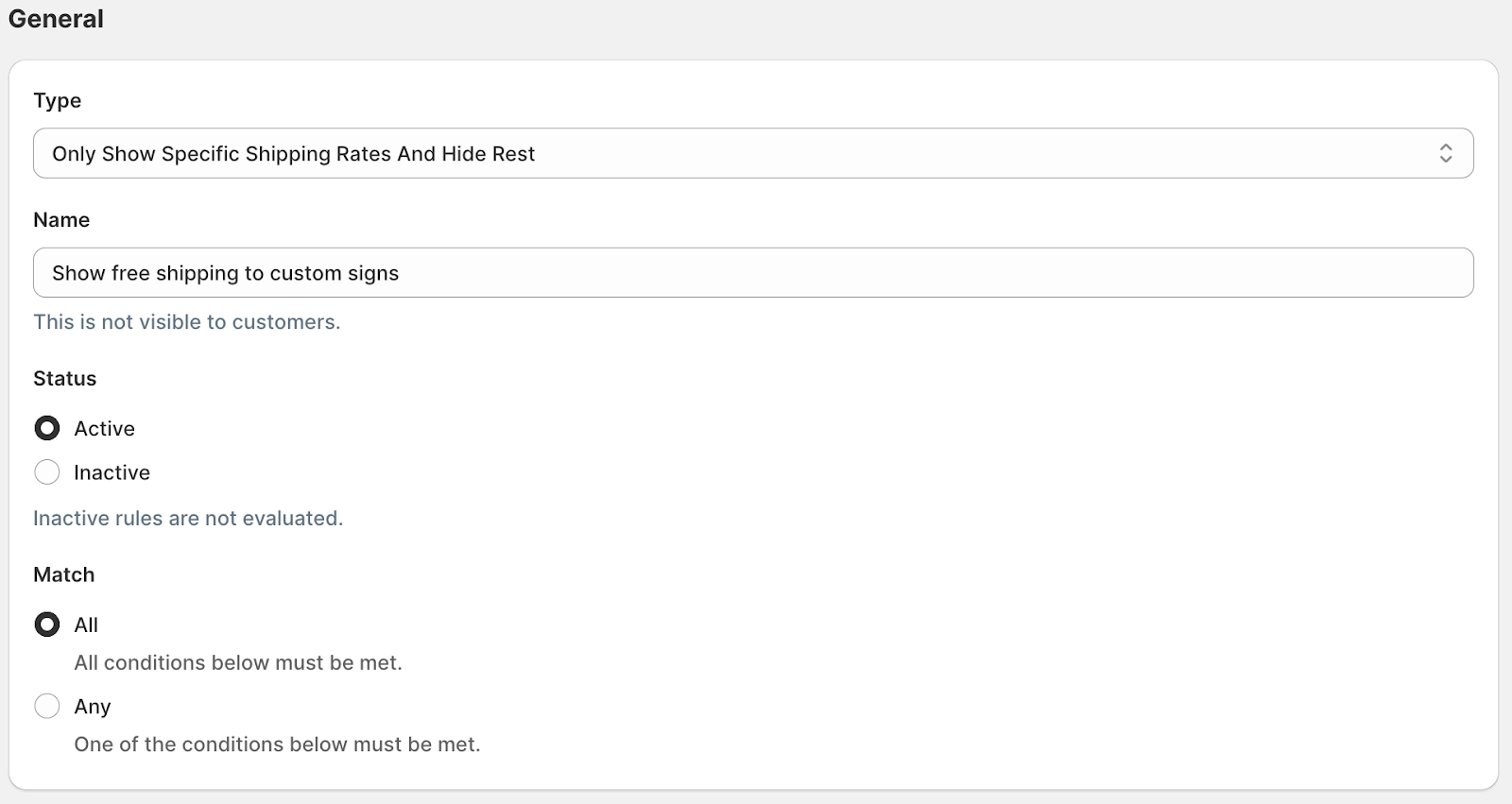
Under Type, select the option that shows only specific shipping rates and hides the rest. The screenshot shows the wording Only Show Specific Shipping Rates And Hide Rest. The ShipMagic documentation uses Only show specified shipping rates and hide rest.
-
Set the Name.
-
Set the Status to Active.
-
Under Match, select Any if you sell more than one sign category. The app describes Any as “One of the conditions below must be met.” The screenshot shows All, which is correct for one category.
-
-
In the Conditions section:
-
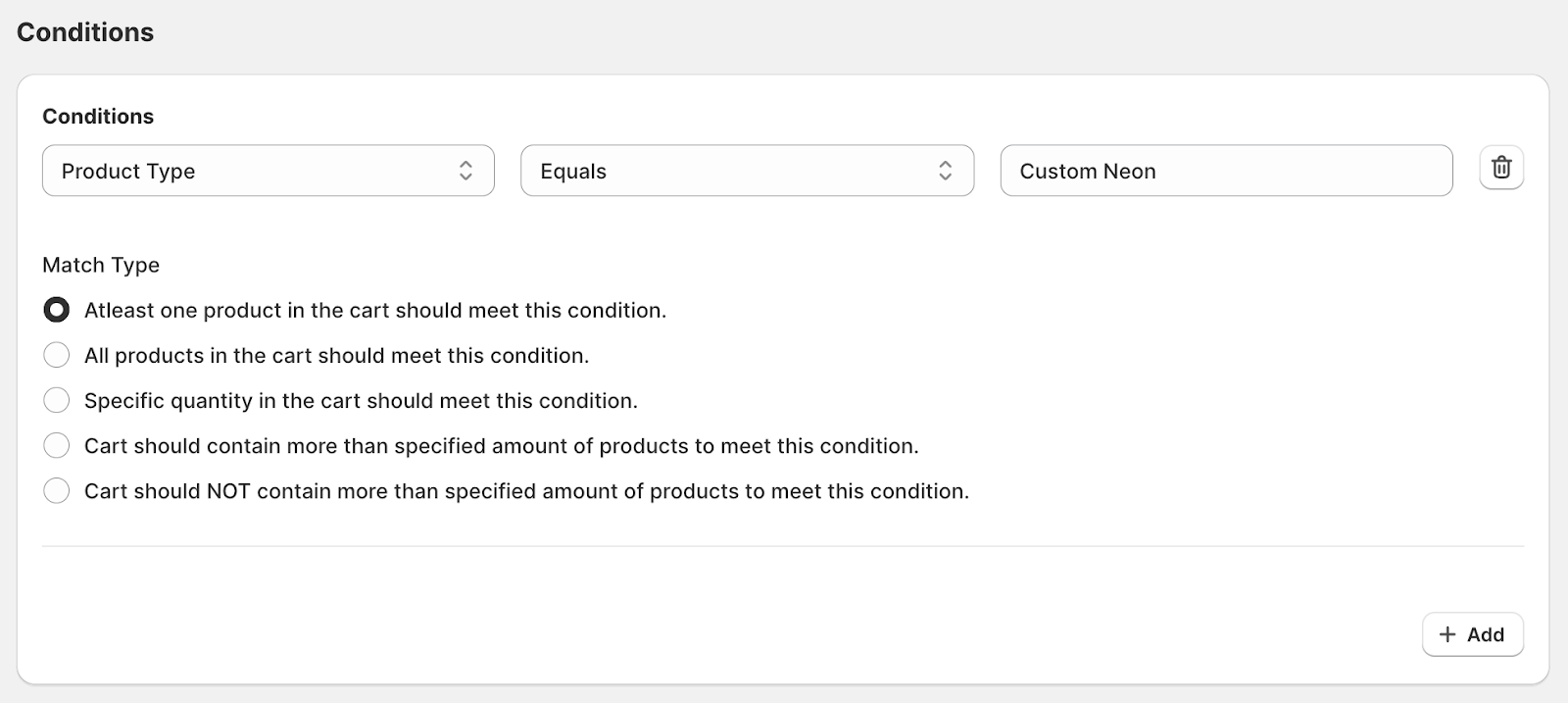
Choose Product Type as the first condition.
-
Select Equals.
-
Enter one category-specific product type. The screenshot shows the neon example, Custom Neon.
-
Click Add. Add one Product Type Equals condition for each other sign category that you sell.
-
If you use a tag, choose Product Tag and Equals, and enter sign-customiser-generated as the value. To select one customiser, use the tag sc-customiser- followed by the Customiser ID, for example sc-customiser-9025.
-
The Match Type setting has several options. The screenshot selects Atleast one product in the cart should meet this condition.
-
-
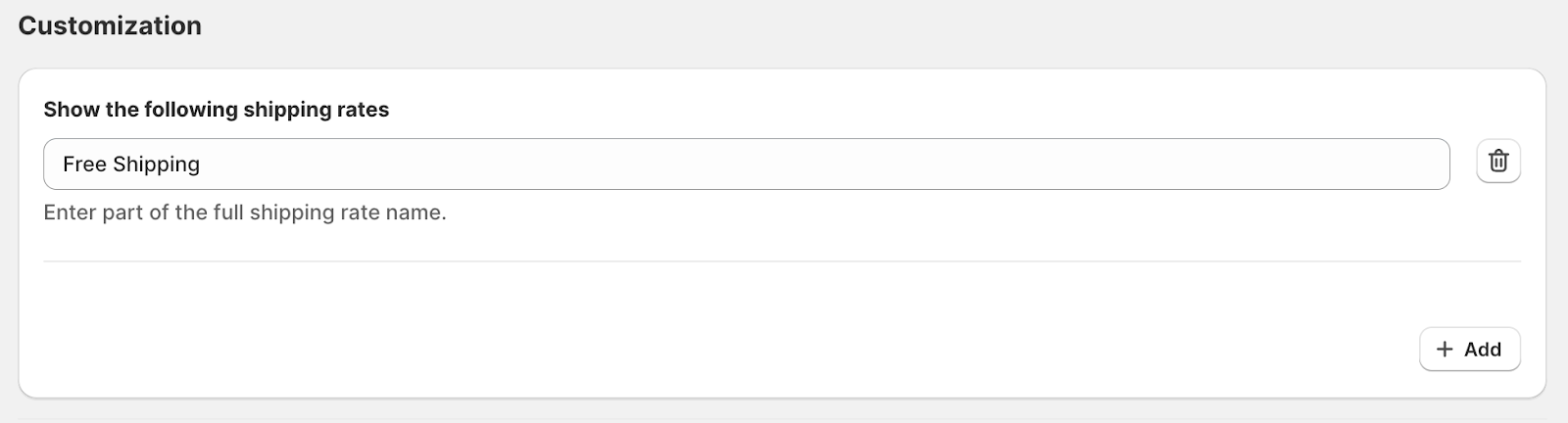
Enter the name of your custom shipping rate in the field for the rates to show. The screenshot shows this field as Show the following shipping rates in a section with the heading Customisation. The ShipMagic documentation calls this section Action. The labels in the app can differ from the screenshot.
-
Remember this name. You need it when you create the shipping rate in the shipping profile in Shopify.
-
Save the customisation.
B) Hide Free Shipping for Non-Custom Signs
-
Click Create Customisation.
-
In the General section:
-
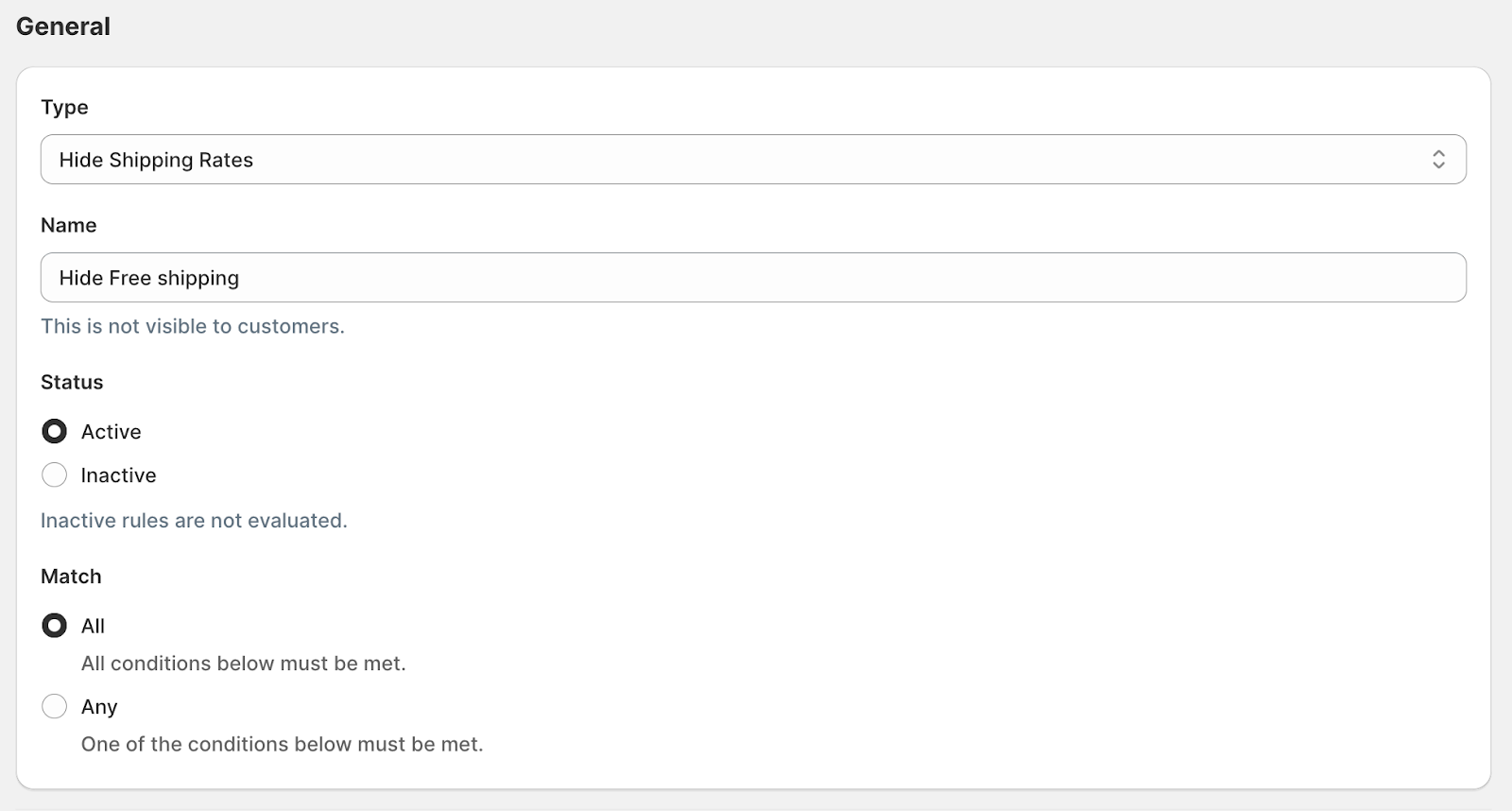
Under Type, select Hide Shipping Rates.
-
Set the Name.
-
Set the Status to Active.
-
Under Match, select All. The app describes All as “All conditions below must be met.”
-
-
In the Conditions section:
-
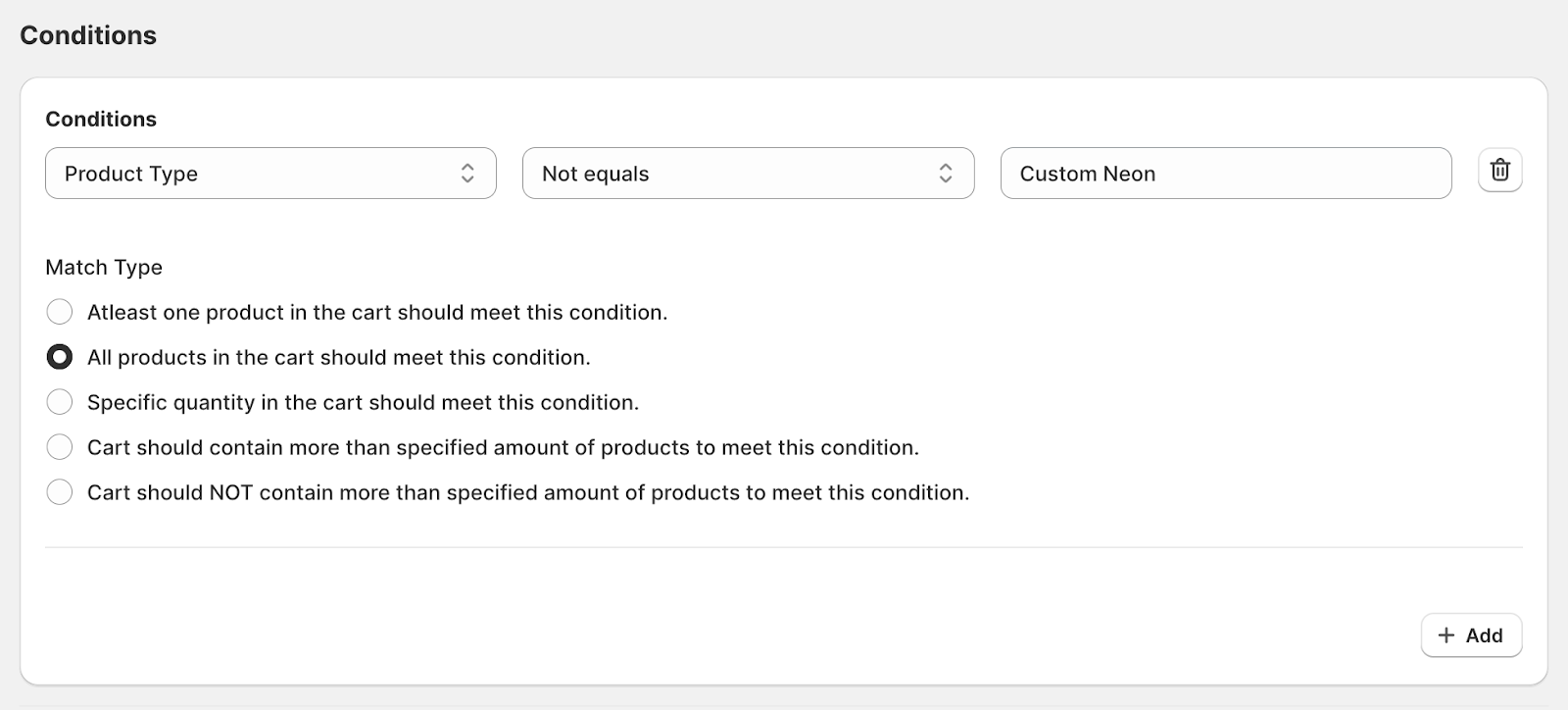
Choose Product Type as the first condition.
-
Add a Product Type condition with Not equals for each category-specific type from the list above.
-
Under Match Type, the screenshot selects All products in the cart should meet this condition.
-
-
In the field for the rates, enter the same rate name as in the allow rule. The ShipMagic documentation says to enter the name of each rate under Action. The screenshot repeats the section of the allow rule, not the hide rule.
-
Save the customisation.
The screenshot shows the finished rules for the neon example.

Carts that contain signs and other products
The Match Type setting has several options, and the two rules in the screenshots use different options. Before you go live, test a cart that has a sign and another product. Check which shipping rates the shopper sees.
C) Set Up a Free Shipping Rate in Shopify
After you set up the shipping customisations, create a free shipping rate in Shopify. Follow Shopify’s guide.
Note: For the rate name, use the name that you entered in the two rules.
Shipping Rate Option: How to Create a Shipping Rate
-
Open Shipping Rates in the left navigation panel of the app.
-
Click Add Rule.
-
In the General section:
-
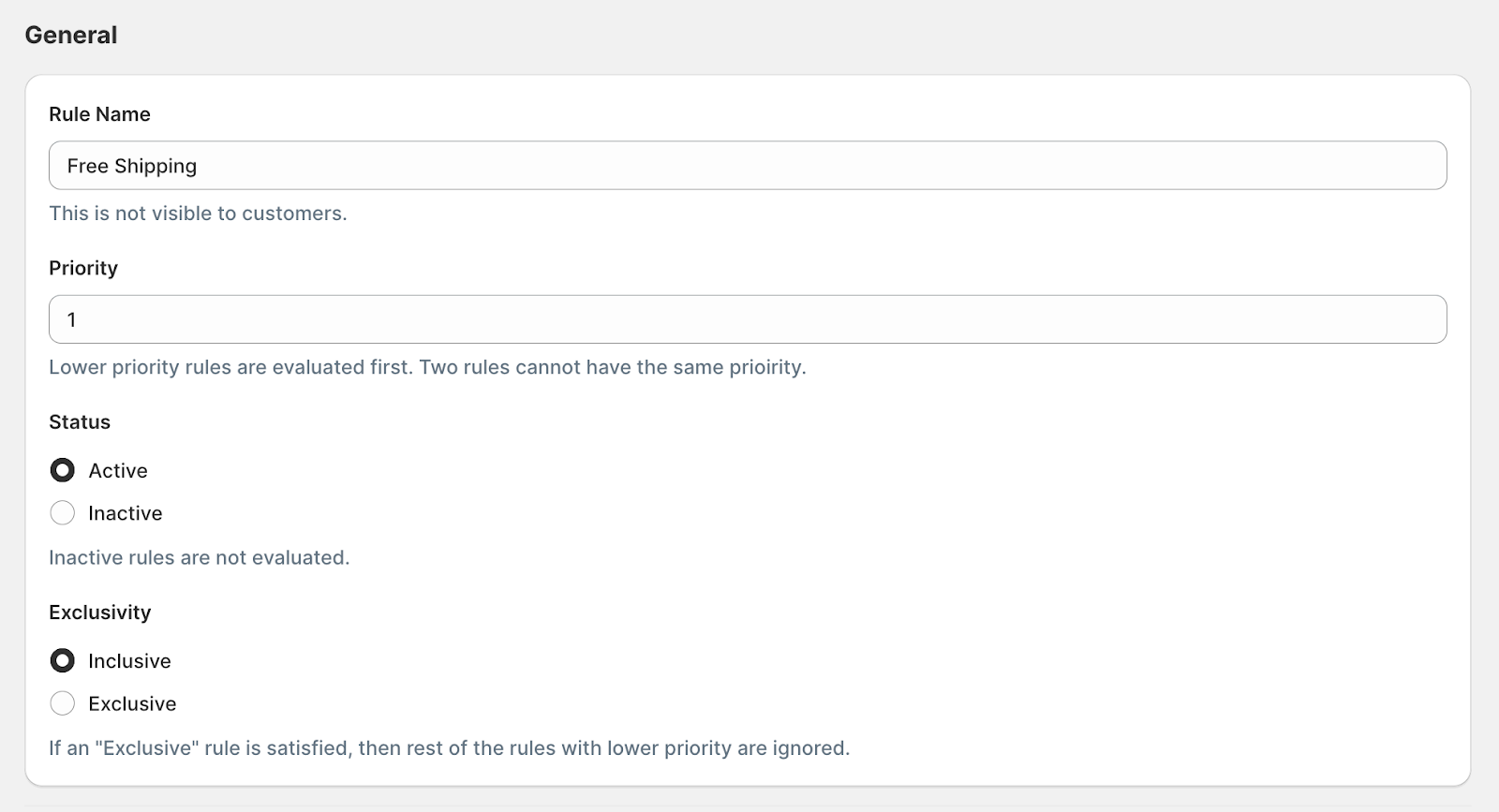
In the Rule Name field, enter a name for the rule.
-
Set the Priority to 1 for your first rule. The app says that two rules cannot have the same priority. If you create more rules, give each rule a different number. The app evaluates rules with a lower number first.
-
Set the Status to Active.
-
Set Exclusivity to Inclusive.
-
-
In the Conditions section:
-
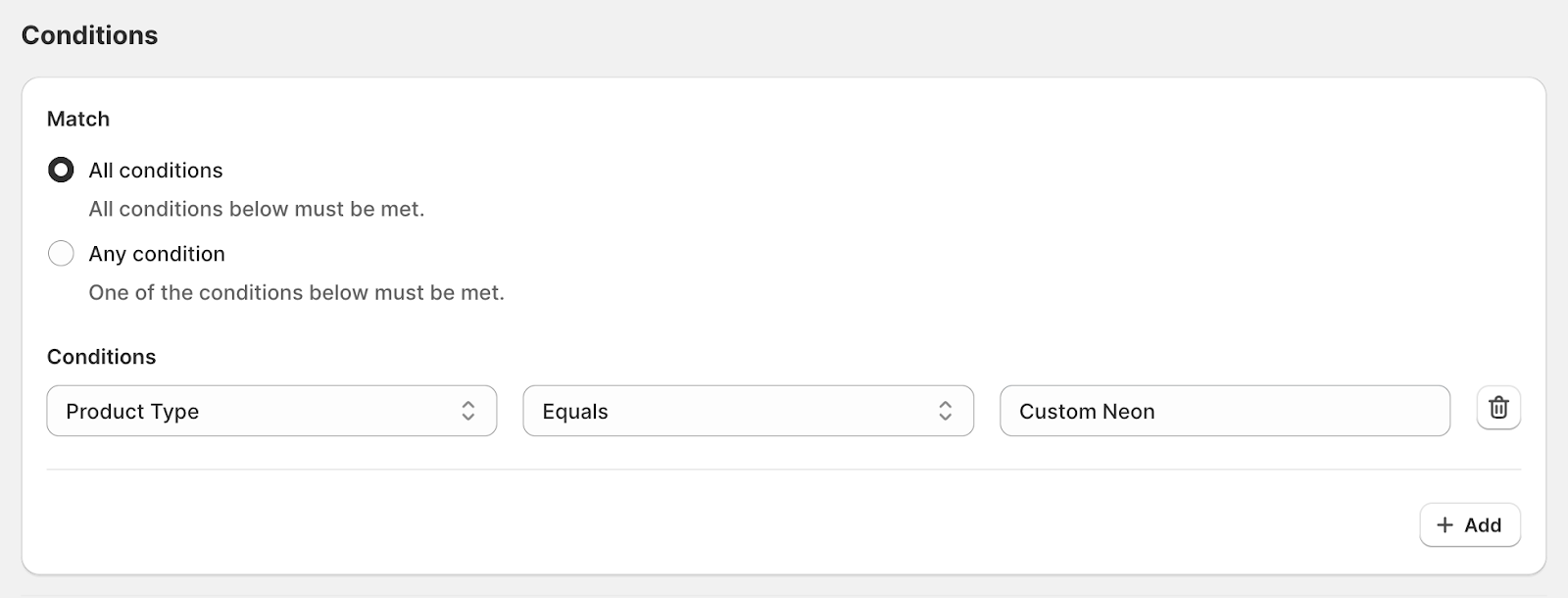
If you sell more than one sign category, select Any condition under Match. The app describes Any condition as “One of the conditions below must be met.”
-
Select Product Type in the first dropdown.
-
Choose Equals in the second dropdown.
-
Enter one category-specific product type. The screenshot shows Custom Neon.
-
Click Add. Add one Product Type Equals condition for each other sign category that you sell.
-
If you use a tag, choose Product Tag and Equals, and enter sign-customiser-generated as the value.
-
-
Set up the shipping rate
-
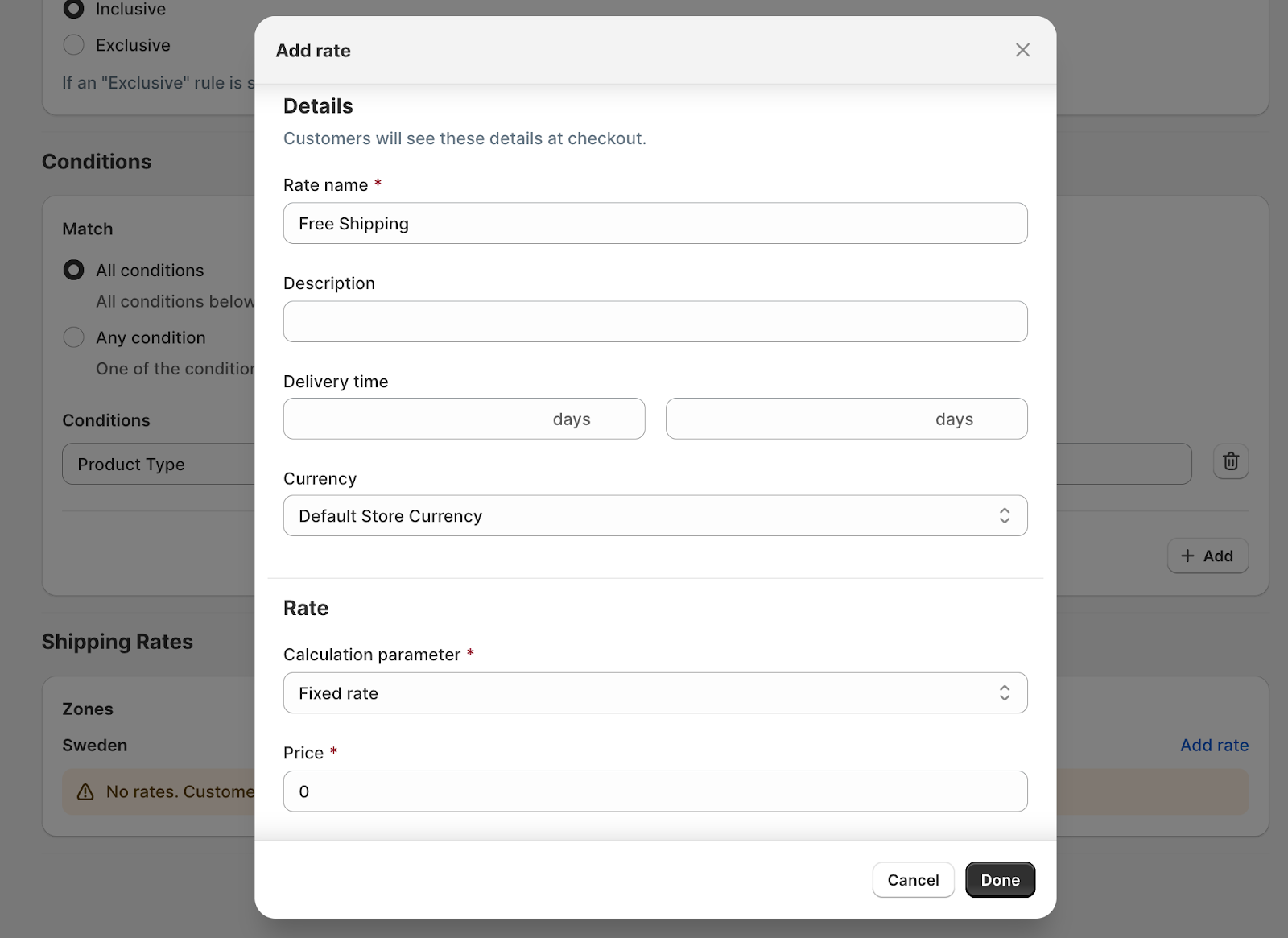
Scroll to the shipping zones. Click Add rate next to each zone that you ship to.
-
In the popup window, enter a Rate name, for example “Free Shipping”.
-
Set the Price to 0 for free shipping.
-
Click Done.
-
-
Save the rule.
Test a cart with a sign and another product before you go live.
3. Free Shipping Discount App
Use a Free Shipping Discount app that lets you set conditions on a discount.
The app must support conditions that are based on Product tags or Collections.
Recommended App: Free Shipping Discounts by RM
Link to App: Free Shipping Discounts by RM
The Free Shipping Discounts by RM app can limit free shipping to specific collections. Its documentation calls the app Advanced Free Shipping.
Shopify Starter and Retail plans: The steps below use a collection. Sign Customiser does not create collections on these plans. Use Solution 1, or use an app that supports product tag conditions.
How to Use:
-
Install the Free Shipping Discounts by RM app.
-
Open the app and click Create shipping discount.
-
Watch this video demo of the app.
-
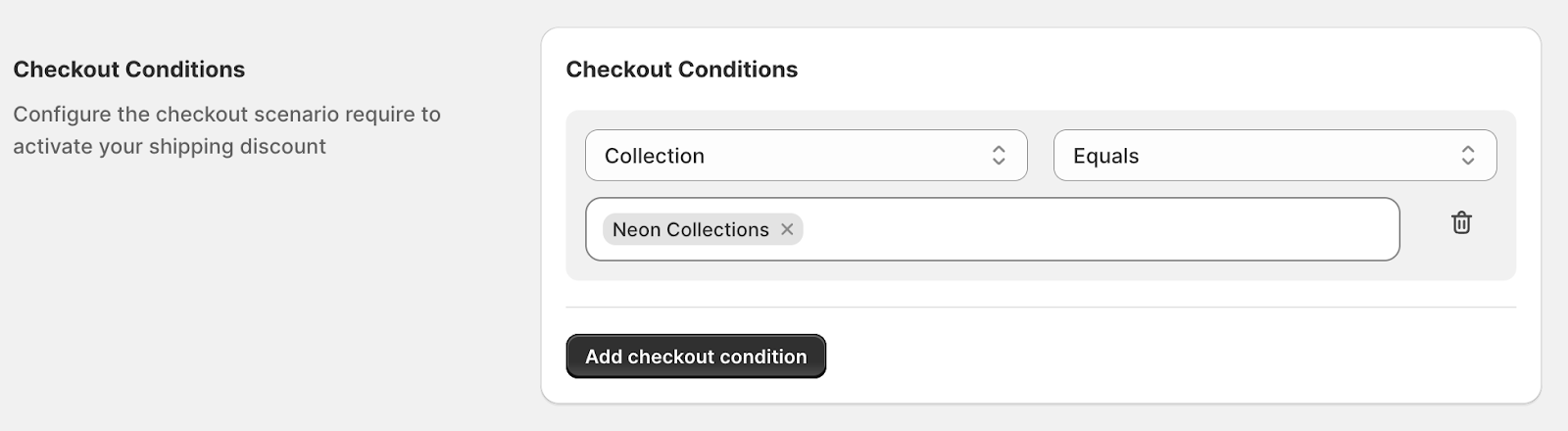
Click Add checkout condition and choose the collection condition. The screenshot shows the button as Add checkout condition. The RM documentation names the button Add condition and the condition Collection in Cart.
-
In the value field, select the Sign Customiser Products collection. To select one customiser, use the collection with the name of that customiser.
The screenshot shows an example collection, Neon Collections. Select a Sign Customiser collection instead. The labels in the screenshot are different from the labels in the RM documentation. Use the labels that you see in the app.
-
Save the discount.
Test a cart with a sign and another product before you go live.