How to include SVG, EPS, and Illustrator-compatible PDF files in manufacturer emails
Last updated:
To include SVG, EPS, or Illustrator-compatible PDF files in your supplier/manufacturer email please follow these instructions.
-
Navigate to Sign Customiser admin on your store.
-
Click on “Customisers” in the home menu
-
Click on the customiser you wish to edit
-
From the left-hand menu, go to Email Workflows → Manufacturer Email.
-
In the template editor, use the variable picker to insert a download link for each file type you’ve enabled. The three variables are:
-
svgPreviewLink — the SVG file URL
-
epsPreviewLink — the EPS file URL
-
aiPreviewLink — the Illustrator-compatible PDF (AI) file URL
-
-
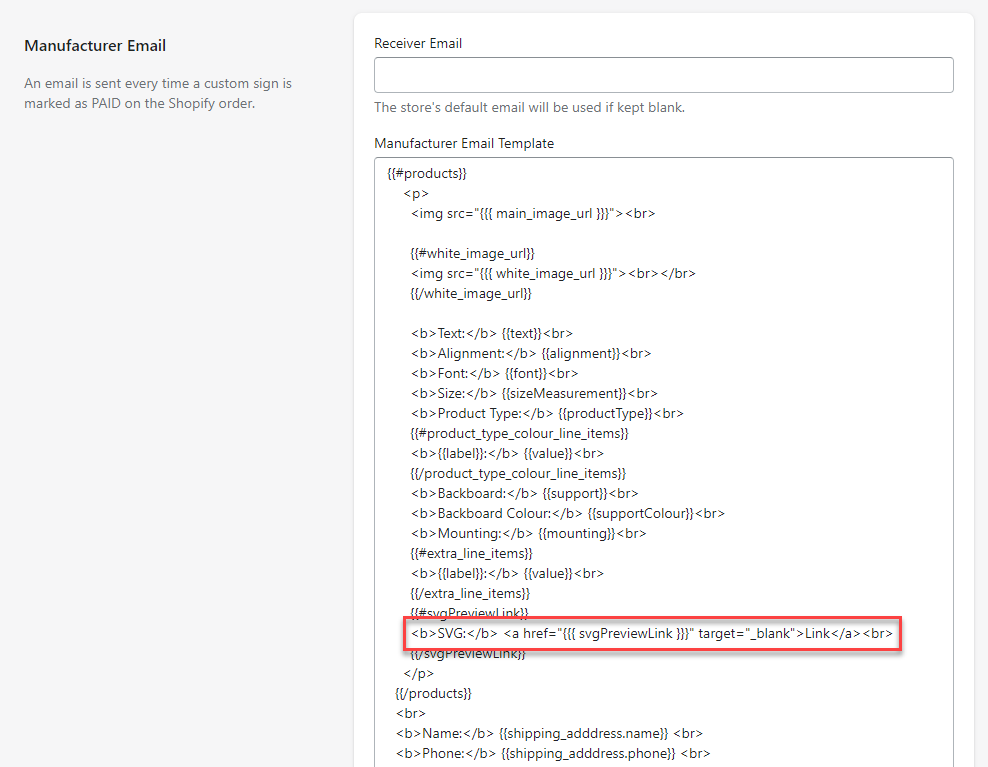
Wrap each variable in a link tag so it appears as a clickable download. The simplest pattern is an anchor (
<a>) tag whosehrefpoints at the preview link variable, with visible text such as “Link” or “Download”. -
Hit save at the bottom of the form.
Only include the lines for the file types you’ve enabled in General Settings — variables for file types that aren’t enabled will render as empty.
Cut-out metal signs: the same svgPreviewLink, epsPreviewLink, and aiPreviewLink variables carry the cut-path file for cut-out customisers — no new template variables are needed.
This is what the email template looks like once download links have been added.
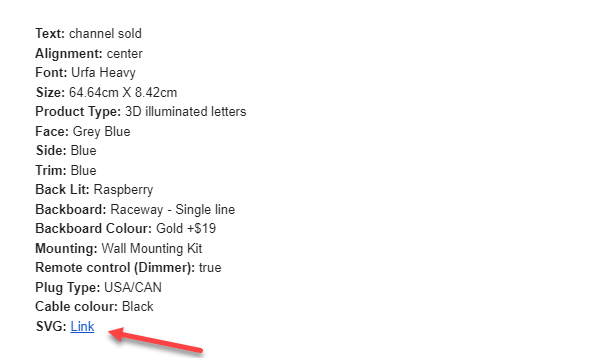
Here is an example of the Manufacturer email with a SVG download link. EPS and AI links appear in the same way when those formats are enabled.