

Troubleshooting Zero-Amount Products Purchased on Shopify
Last updated:
If you see zero-amount orders on your Shopify store, this guide shows how to stop them.
Recommended: Block Zero-Dollar Products in Sign Customiser
Sign Customiser can refuse to create a $0 product. This is the quickest fix. It is on by default.
To check that the setting is on:
-
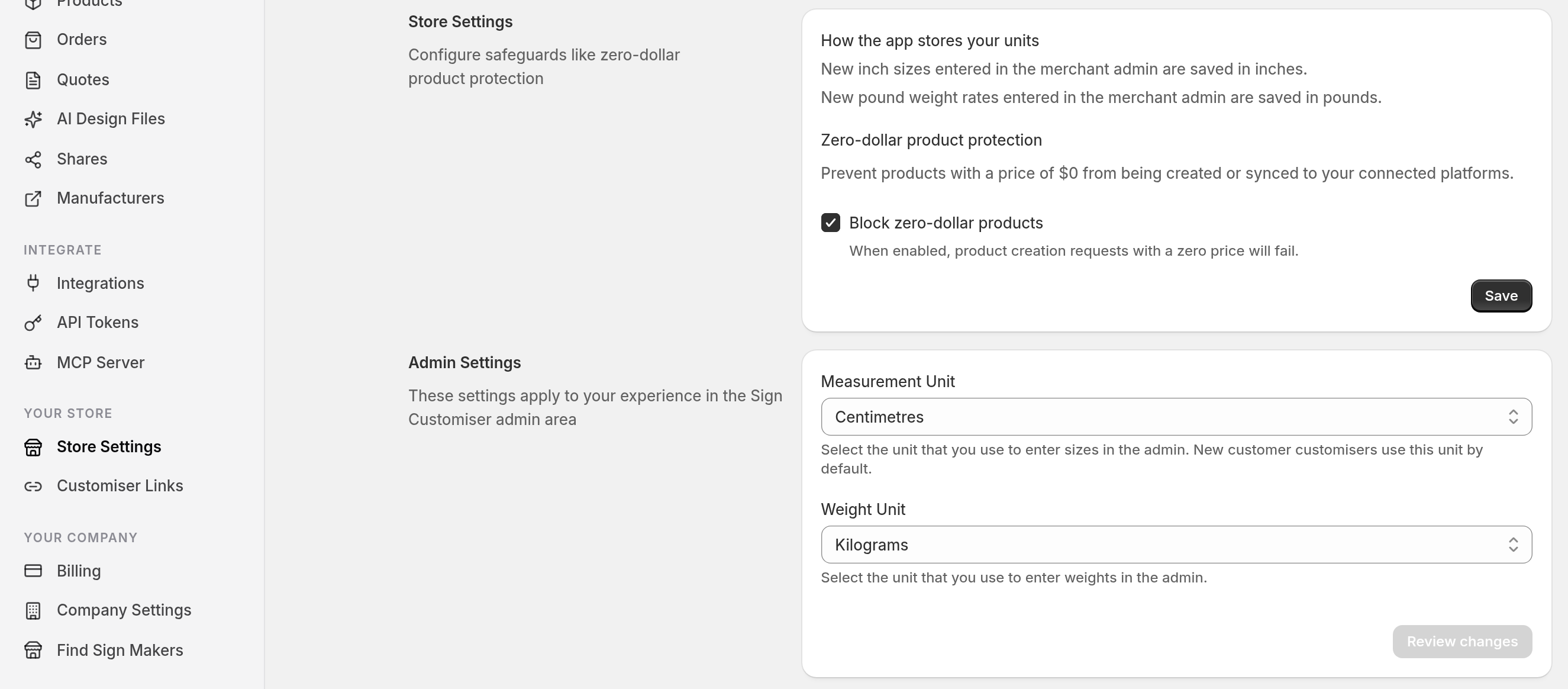
In the Universal admin, go to Your Store > Store Settings. In the Shopify app, go to the Home page. Select Tools & Settings, then select Store Settings.
-
Find the Store Settings section. It has a subsection named Zero-dollar product protection.
-
Tick Block zero-dollar products. Then select Save.
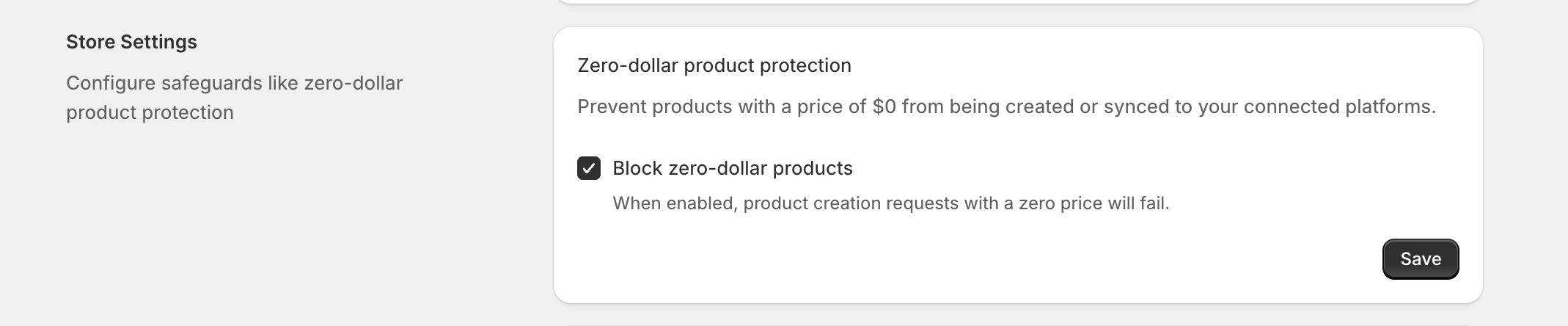
When this setting is on, Sign Customiser does not create a product with a $0 price when a customer adds a sign to the cart. The setting does not cover products that you write through the public API.
If you still get zero-amount orders after you turn on this setting, try the steps below.
Other Fixes to Try
Using Shopify Flow to Auto-Cancel Zero-Amount Orders
If zero-amount orders continue, you can cancel them automatically with an app such as Shopify Flow.
Solution:
-
Install the Shopify Flow app.
-
Set up a workflow with these parts:
-
Trigger: Order created.
-
Condition: Check that the order total is 0. Use the Equal to operator.
-
Action: Cancel order.
For more detail, read the Shopify Flow guide.
-
Product Prices and Page Templates
Product Pricing in Shopify Admin
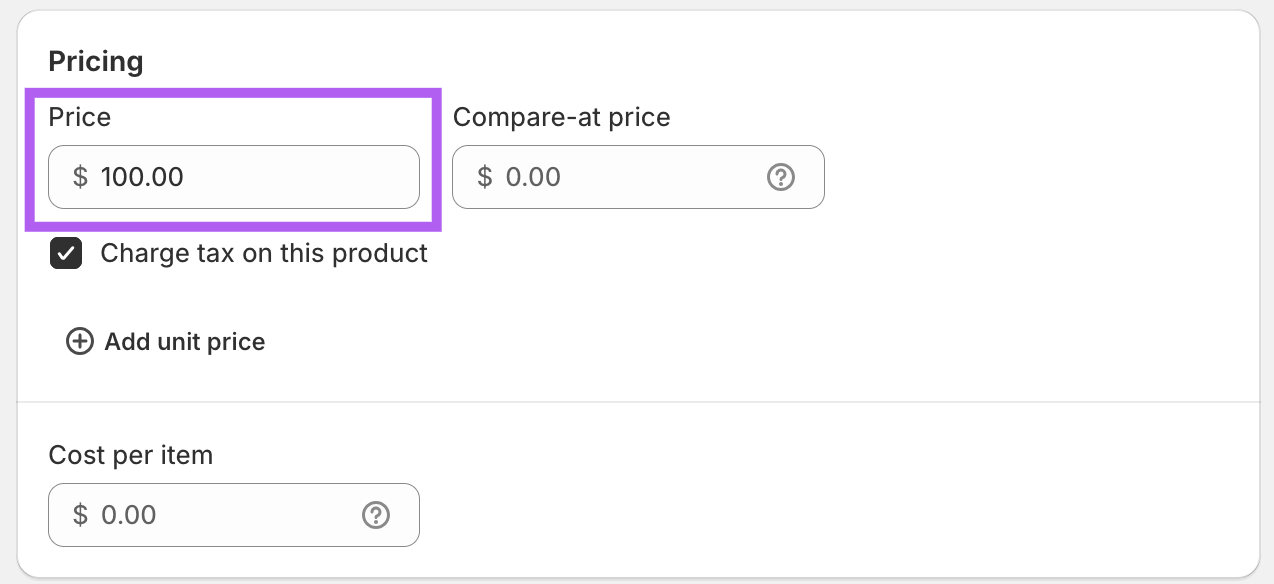
Sign Customiser sets the price of the product that it creates for each sign. A change to the price of the base product in your Shopify admin does not change the price of signs that customers make in the customiser.
Using a Page Template Instead of a Product Template
You can use a page template instead of a product template. Sign Customiser still creates a Shopify product for each sign that a customer adds to the cart. A page template does not change how a sign is priced or checked.
To set up a page template, read Install Sign Customiser in a Shopify theme with an app block.