

Add and Edit Custom Form Field Options
Last updated:
This guide shows how to add and edit the fields in a custom form.
Every form must have a required Email field. New forms include this field.
Open the form
-
Go to the Sign Customiser admin:
-
Universal subscribers: Go to Home in your account.
-
Shopify users: Go to Shopify admin → Apps → Sign Customiser.
-
-
Click Customisers in the menu.
-
Select the customiser you want to edit.
-
In the left-hand menu, go to Features → Forms.
-
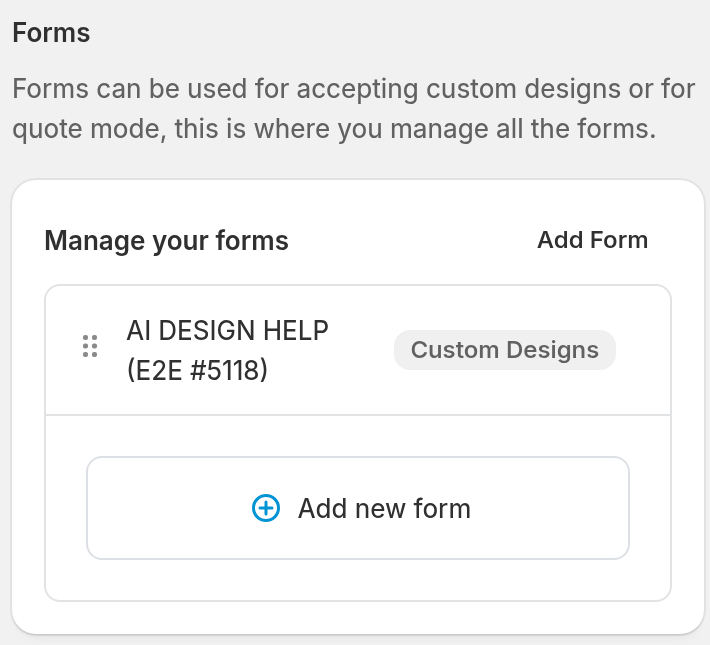
To make a new form, click Add Form at the top right of Manage your forms. If the list is empty, click Add New Form. To change a form, click its name in the list.
-
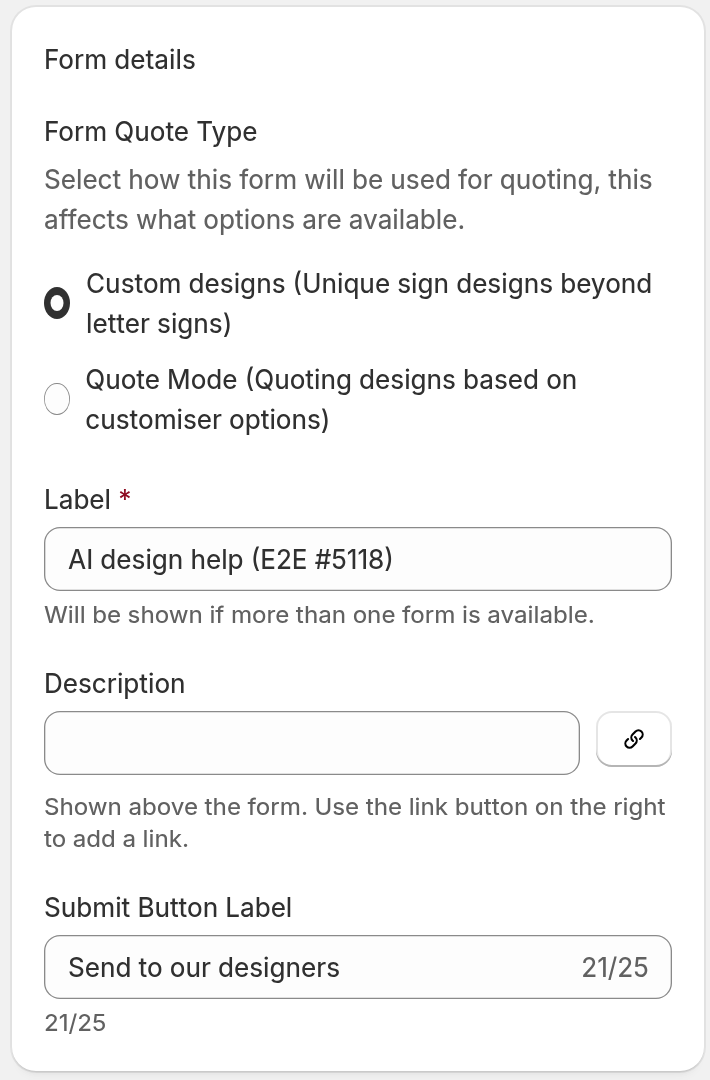
For a new form, select a Form Quote Type in Form details:
-
Custom designs: Use this type for unique sign designs beyond letter signs.
-
Quote Mode: Use this type to quote designs from your customiser options.
-
To learn more about how to make a form, read Custom Design Forms.
Add a field
-
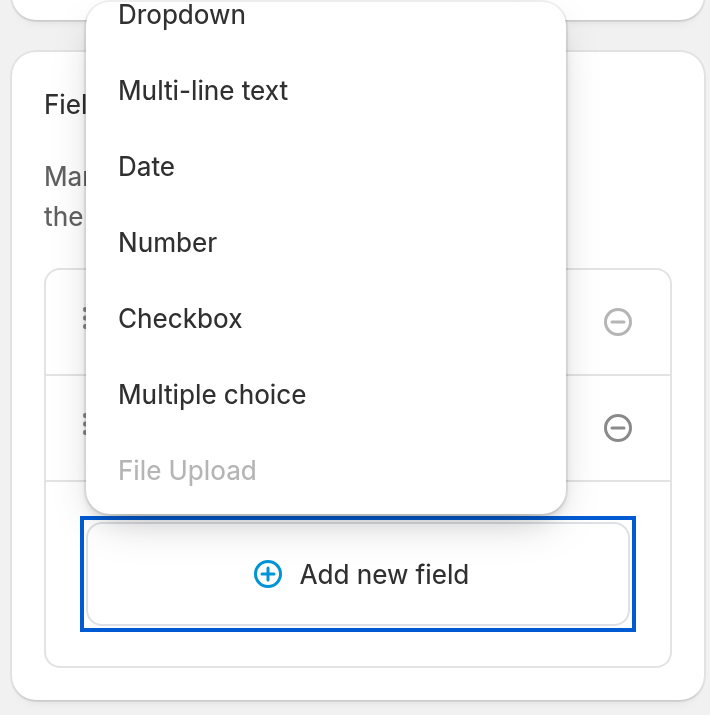
In the Fields section, click Add new field.
-
Select a field type: Single-line text, Email, Phone, Dropdown, Multi-line text, Date, Number, Checkbox, Multiple choice or File Upload.
-
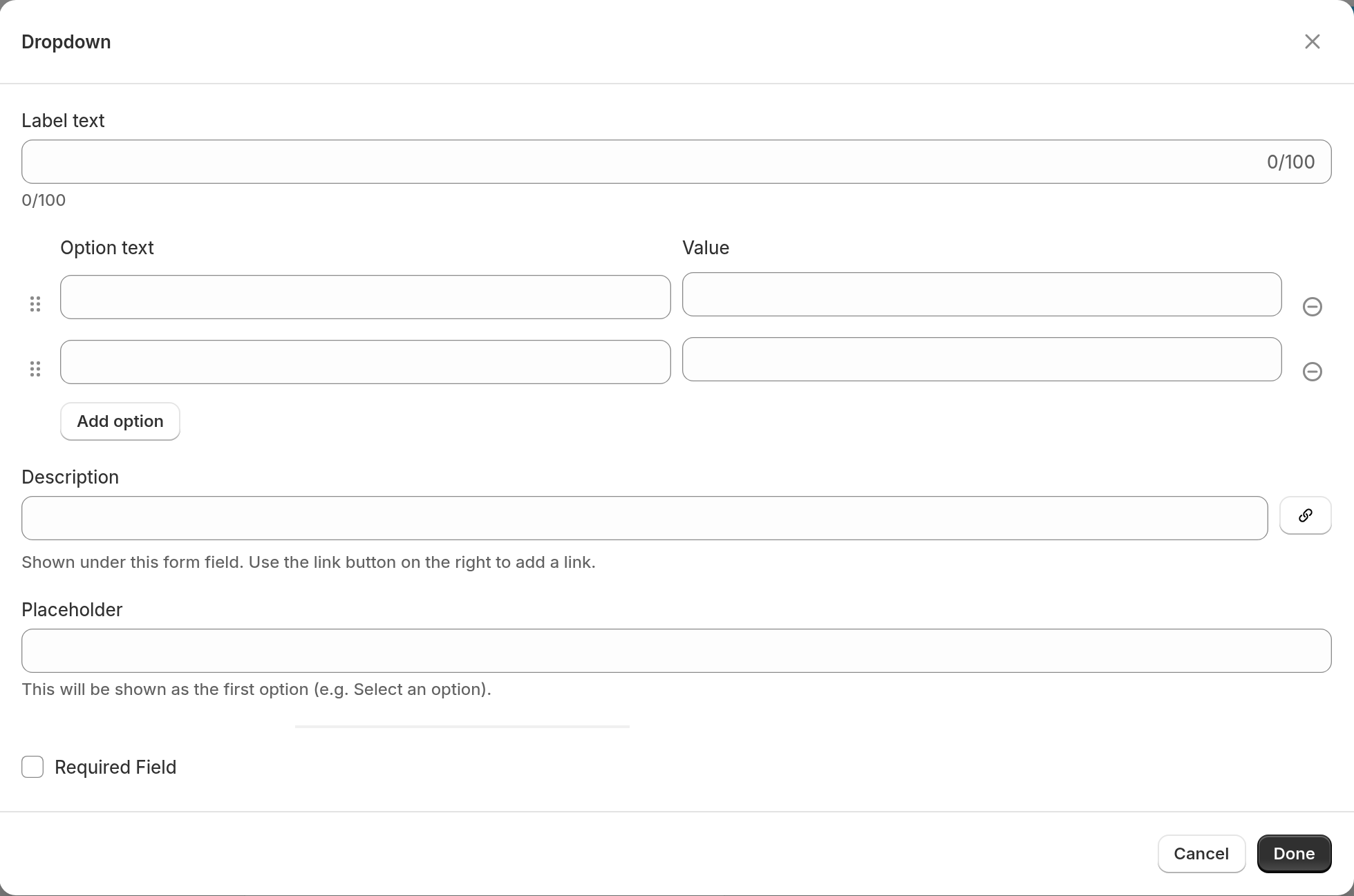
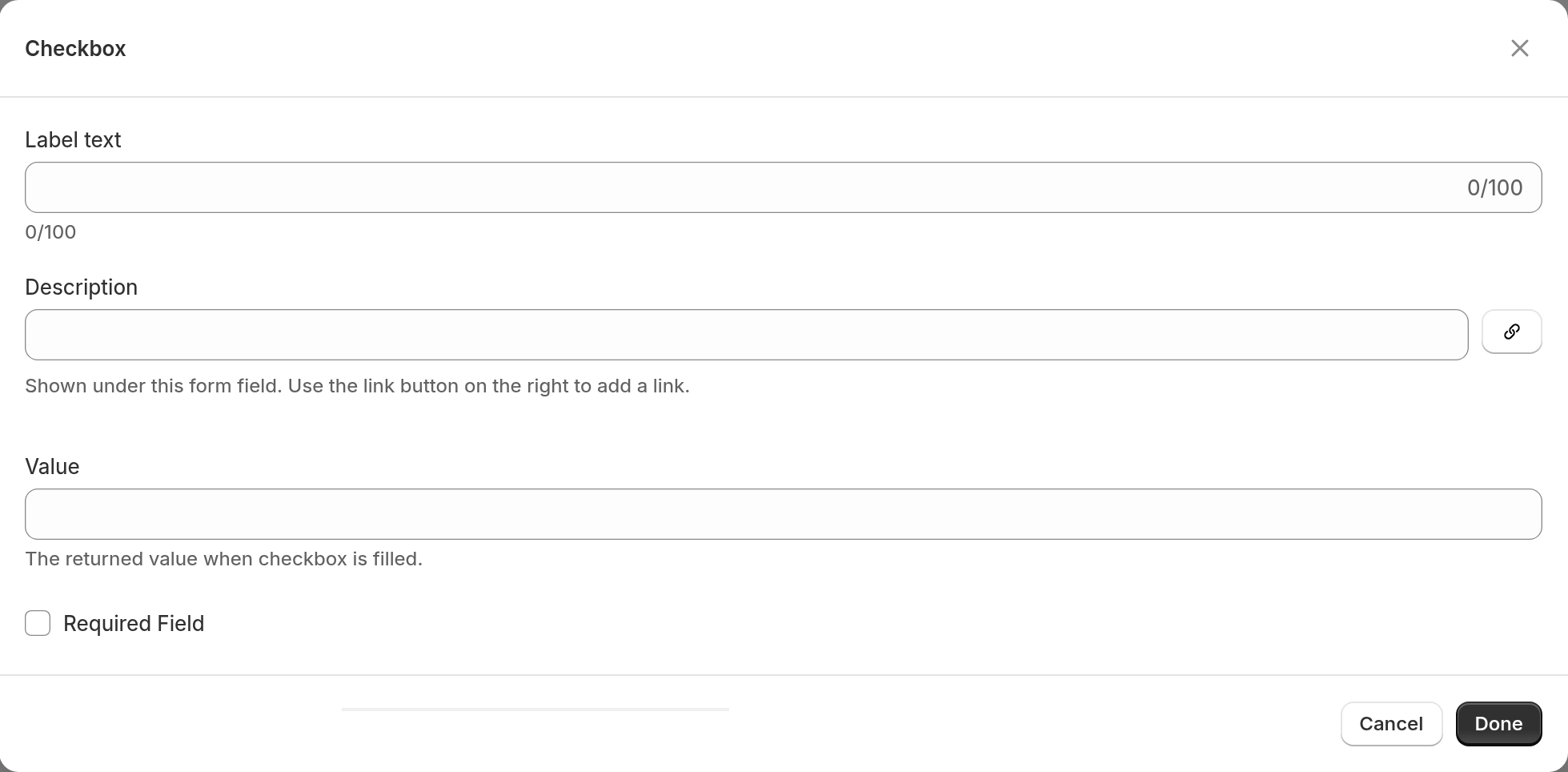
In the field window, set these options:
-
Label text (required): The title of the field. It can have up to 100 characters.
-
Description (optional): More information for the customer.
-
Placeholder (optional): Example text in the field. Checkbox and Multiple choice fields do not have this option. In a Dropdown, the placeholder is the first item in the list, for example “Select an option”. It has no value.
-
Required Field (optional): Select this option when the customer must complete the field. The Email field is always required.
-
-
Set the options that only some field types have:
-
Dropdown and Multiple choice: A new field starts with two empty options. Click Add option to add more options. Each option needs an Option text and a Value. The customer sees the Option text. The submitted form contains the Value. To change the order of the options, drag the handle on an option.
-
Checkbox: Enter a Value (required). The submitted form contains this text when the customer selects the box.
-
Number: Set a Minimum and a Maximum (both optional).
-
Date: Set a Minimum Date and a Maximum Date (both optional). The minimum date cannot be later than the maximum date.
-
File Upload: Select Accept Multiple Files to let the customer upload more than one file.
-
Email: Select Use this email as a recipient for your replies. The field then shows a Reply To badge. Only one Email field can have this option.
-
-
Click Done to close the field window. To close it without your changes, click Cancel.
Done does not save the field. Read the section Save the form.
Edit, remove or reorder fields
-
To edit a field, click its row in the Fields section. Change the options, then click Done.
-
To remove a field, click the remove icon on its row. You cannot remove the Email field.
-
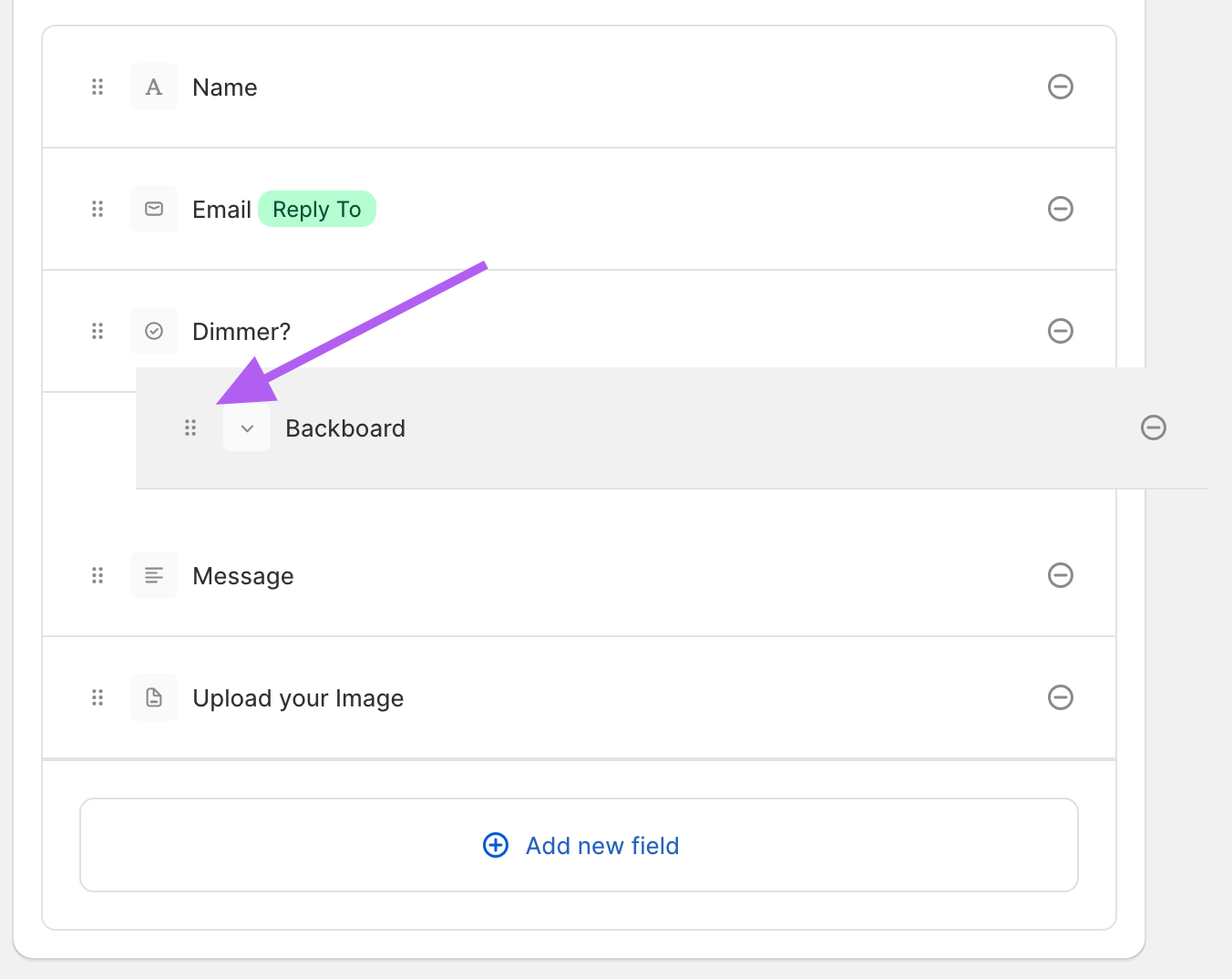
To reorder the fields, click and hold the drag icon (⋮⋮) on a row. Then drag the row to a new position.
Save the form
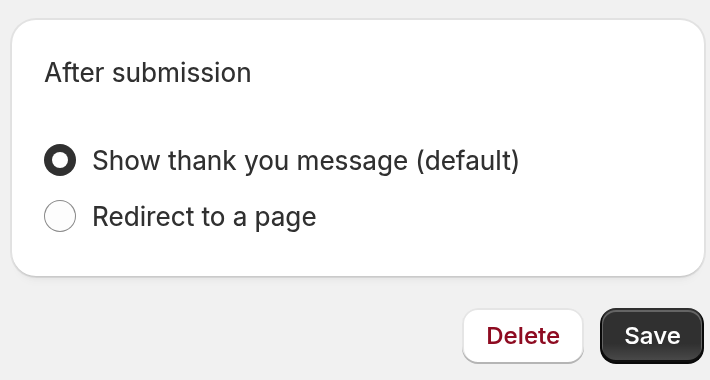
Done changes the form on your screen only. To store your changes, click Save at the bottom of the form editor. The changes stay unsaved until you click Save.
File Upload fields
-
A form can have only one File Upload field. When the form has one, you cannot select File Upload again in the list of field types.
-
Each file can be up to 10 MB. All the files in one submission can be up to 20 MB in total.
-
Customers can upload these file types: PNG, JPEG, WebP, AVIF, GIF, BMP, SVG, PDF, AI and EPS.
Forms for the AI sign designer
In the left-hand menu of the customiser, go to Custom Designs. Select AI Sign Designer (recommended) under Custom designs. In the Set up AI Sign Designer box, select a Fallback form. The AI sign designer sends customers to this form when it cannot make their design.
This form must keep a File Upload field. If you remove the field, Sign Customiser does not save the form. To remove the field, first select a different Fallback form in Set up AI Sign Designer.
Shopify Sync (Shopify users only)
Shopify users see two buttons in the Fields section: Default and +Shopify Sync.
-
Default: Sign Customiser stores the answers only with the form.
-
+Shopify Sync: Each submission asks Shopify to create a customer. The Add new field menu then shows the customer fields First name, Last name and Email. Fields already in the form are grey, and Email is always grey. Click a field that is not grey, then click Done in the field window to add it. To add a different field type, click New field. A customer field shows a Customer badge. Sign Customiser sends its answer to the Shopify customer.