
Add, translate, preview and publish a language
Add a shopper language, translate it manually or with an AI-assisted first draft, preview it privately, and publish it when it is ready.
Last updated:
Add each shopper language to the same customiser. You can translate it manually or review an AI-assisted first draft, preview it privately, and publish only when it is ready.
Before you start
The default language is the safe fallback for unmatched shoppers. When you add another language, its source language defaults to that version, but you can choose another existing language as the source.
Check the default language on older customisers. Do not assume an existing customiser changed to match the Shopify Store’s primary language. A published language is customer-visible when the integration sends a match. A draft is private.
Open Languages
-
Open Customisers and select the customiser.
-
Go to Settings -> Languages.
The old singular Language page has been replaced by this multi-language workflow.
Add a language
-
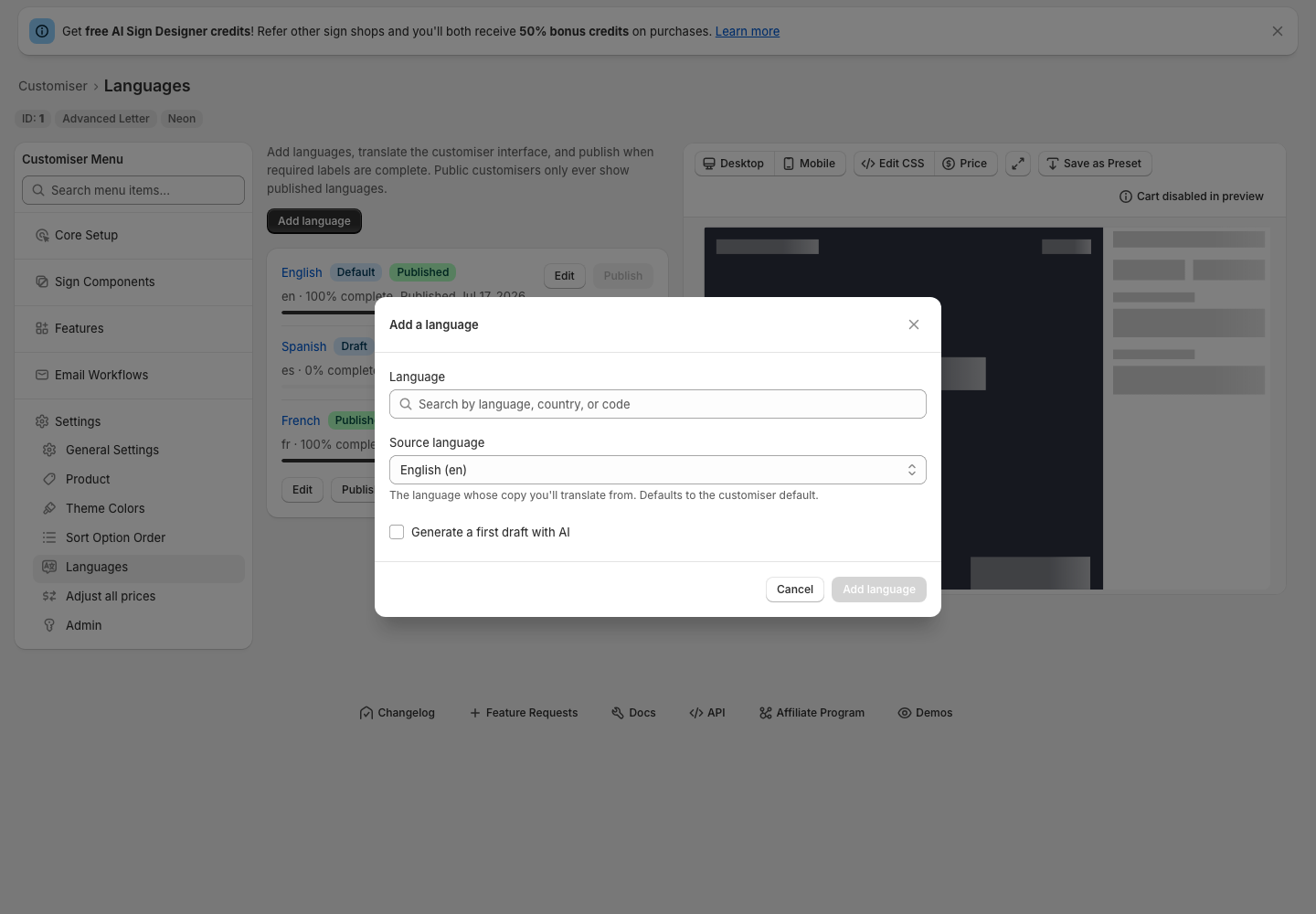
Select Add language.
-
Search by language, country or code, then choose the target language or regional variant.
-
Choose the source language. It defaults to the customiser default.
-
Leave Generate a first draft with AI off to start blank. Enable it when available to prepare an AI-assisted draft.
-
Select Add language.
You cannot add the same language code twice.
Translate manually or review an AI draft
The editor shows the source wording beside the target translation. Use search or the Missing, Stale, AI and Manual filters to narrow the list. Jump to next gap moves to the next field that needs work.
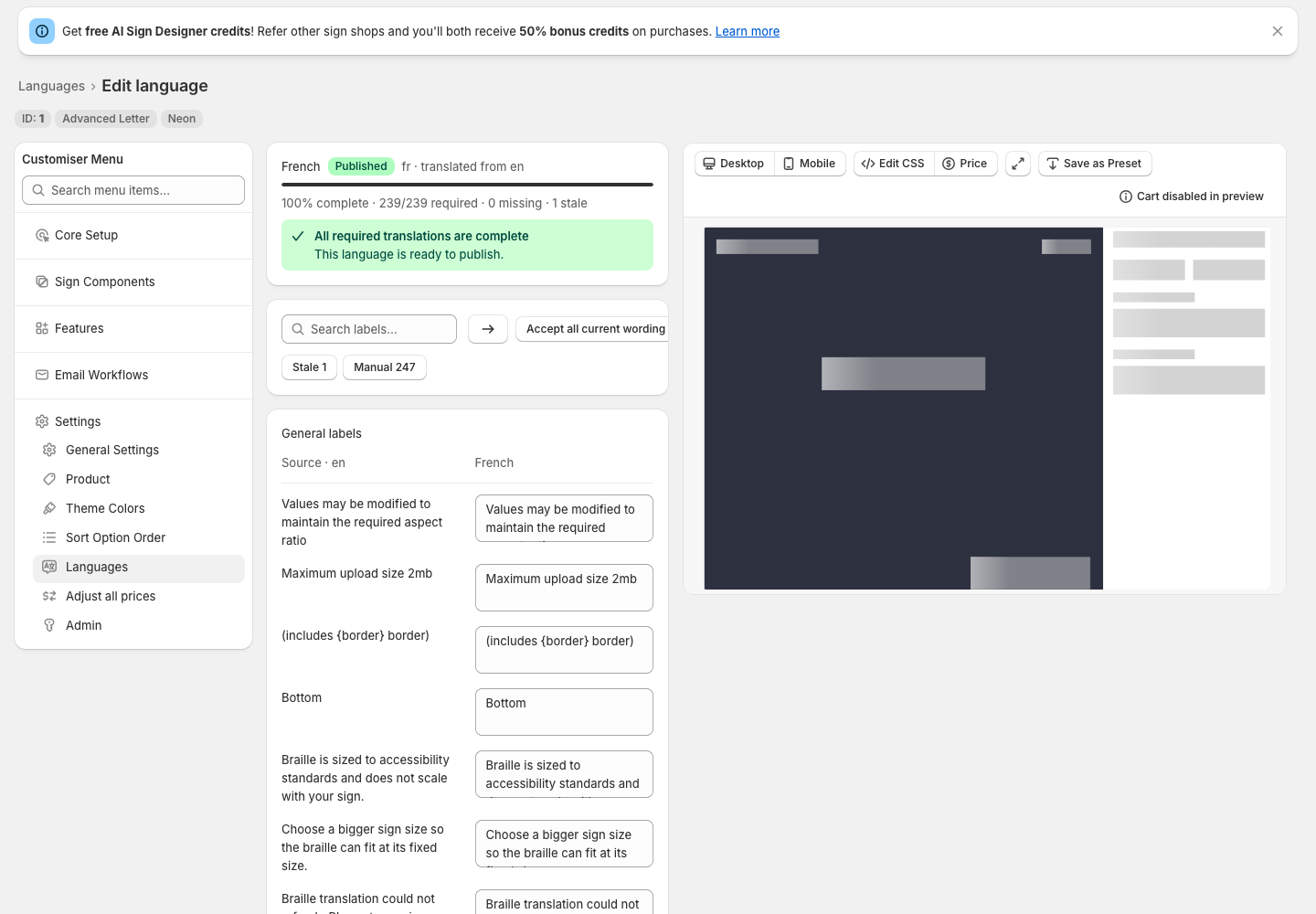
AI works through the language in sections and may take a few minutes. You can cancel or retry a failed run. It creates a first draft only and never publishes. Manual edits are protected from later AI runs unless you explicitly choose to retranslate them.
Review before publishing
Check brand names, font families, placeholders and formatting tokens yourself. Also review optional fields even though they do not block publishing.
Save, preview and publish
-
Select Save draft.
-
Select Preview. This opens the real customer customiser with the draft wording. The public customiser stays unchanged.
-
Finish any required fields marked Missing. Required missing translations block publishing.
-
Select Publish to make the saved version available to matching shoppers.
Update a published language
Edits to a published language show as Unpublished changes. The last published version stays live until you publish again. Per-field fallback prevents missing required target wording from showing as blank, but complete and review the target instead of relying on fallback.
Make another language the default
A language must be complete and published before you can make it the default. The new default becomes the fallback for unmatched shoppers and missing keys. Changing it does not translate old orders or change Shopify’s primary Store language.
Remove a language
-
Open the language row’s More actions menu.
-
Select Remove and confirm.
Removal permanently deletes that language’s translations and unpublished changes. You cannot simply remove the protected default or the only published language. Make another complete published language the default first.
Keep translations current
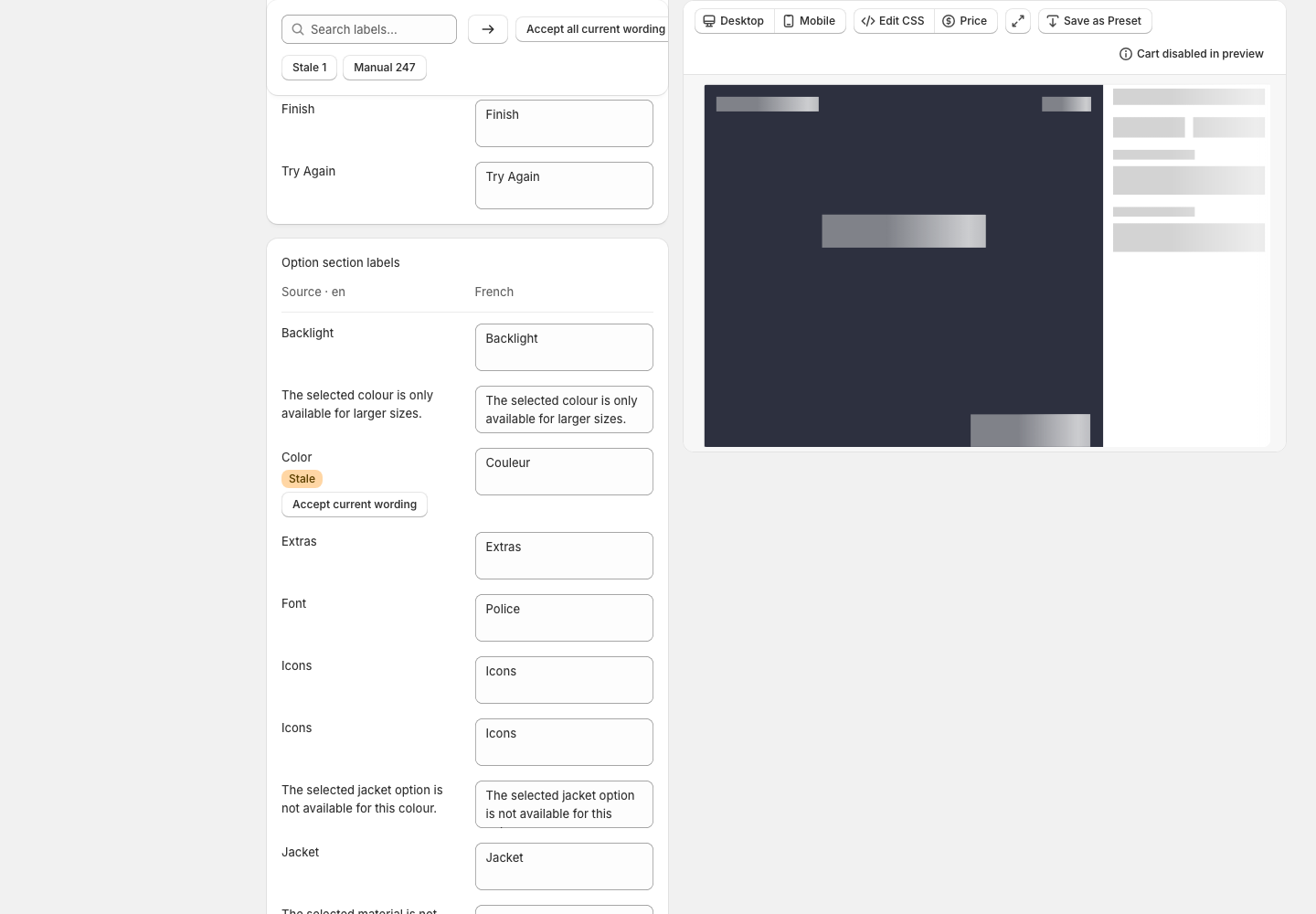
When source wording changes, dependent translations may become Stale. Follow the notice to the affected fields, then edit the translation, retranslate it, or select Accept current wording when the existing target text is still correct.
Accept all current wording confirms the existing translations in bulk. It does not create missing translations.
Duplicate a customiser
The duplicate keeps the language list, draft and published values, and your manual translations. An AI job that is still running does not continue against the duplicate.
Troubleshooting
-
Publish is disabled. Save your changes, complete required fields, and wait for any AI run to finish.
-
The language is not visible. Confirm it is published and that Shopify or Universal is sending a matching language. See Choose the customiser language on Shopify and Universal.
-
Old wording is still visible. Publish the unpublished changes, then reload the customiser.
-
Two people are editing. Coordinate the work. The last saved version wins.